VALT 6 - Update SSL Certificate on a VALT 6 System
Contents
- 1 Updating SSL Certificate in VALT 6
- 1.1 Copy the Certificate & Key Files to the VALT Server
- 1.2 SSH into the VALT Server
- 1.3 Open the VALTMenu
- 1.4 Reconfigure VALT
- 1.5 Confirm the Shutdown Warning
- 1.6 Step Through to the SSL Prompt
- 1.7 Select SSL Key Pair
- 1.8 Select the Certificate File
- 1.9 Select the Key File
- 1.10 Files Are Copied to the SSL Directory
- 1.11 Finish the Reconfiguration
Updating SSL Certificate in VALT 6
Copy the Certificate & Key Files to the VALT Server
✎
Recommendation is to place them in the /home/ivsadmin/ directory
SSH into the VALT Server
Command
ssh ivsadmin@<valt-server-ip>
Open the VALTMenu
Command
sudo VALTMenu
Reconfigure VALT
Confirm the Shutdown Warning
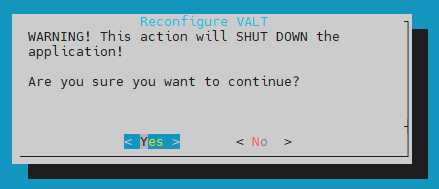
⚠
If recordings are in progress, an error will be thrown letting you know to stop them before proceeding
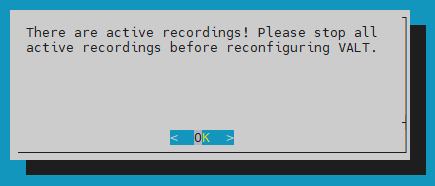
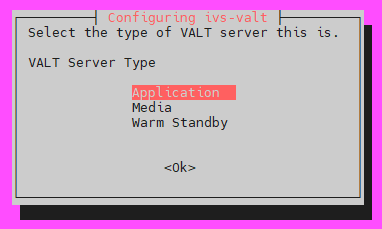
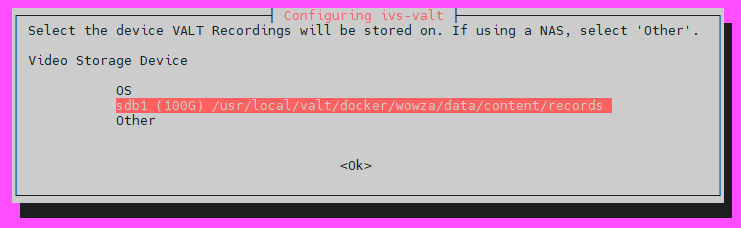
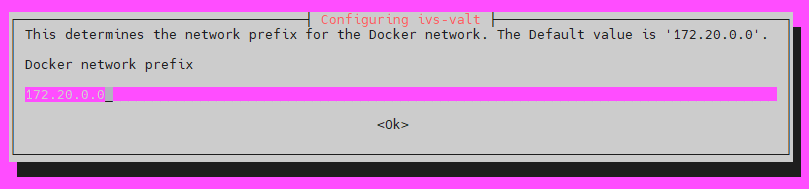
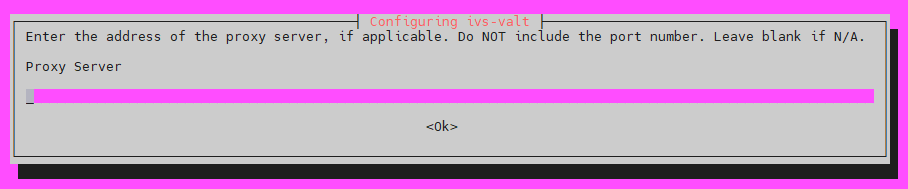
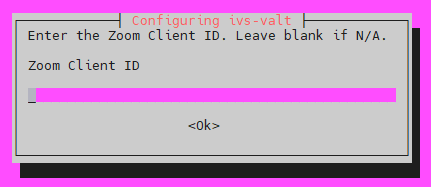
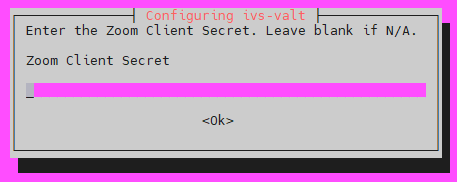
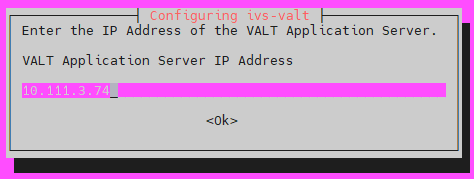
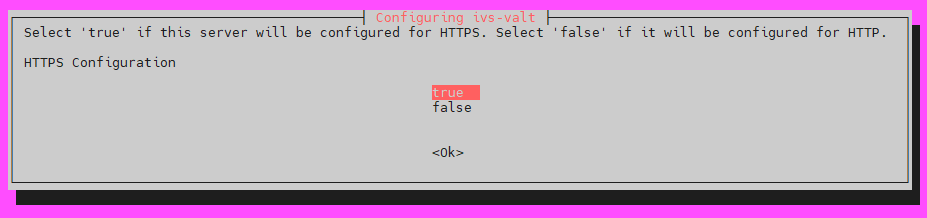
Step Through to the SSL Prompt
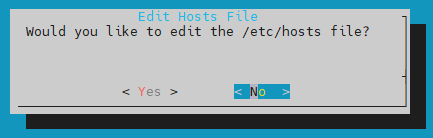
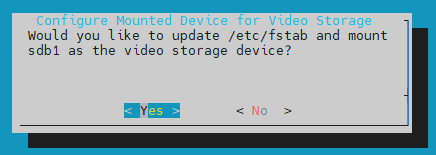
Prompt Sequence (keep existing values)


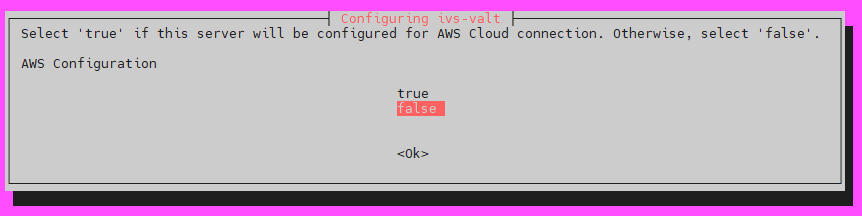
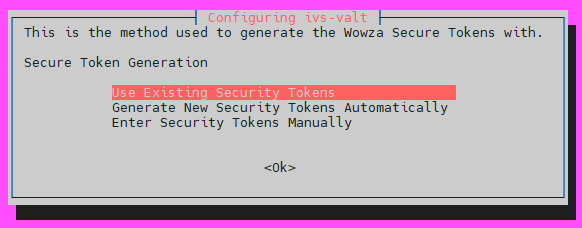
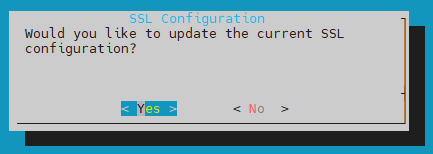
Select SSL Key Pair
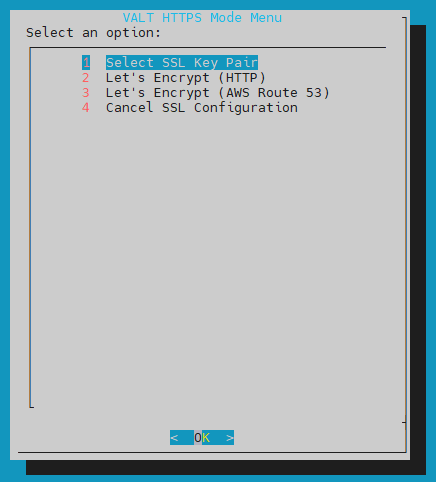
Select the Certificate File
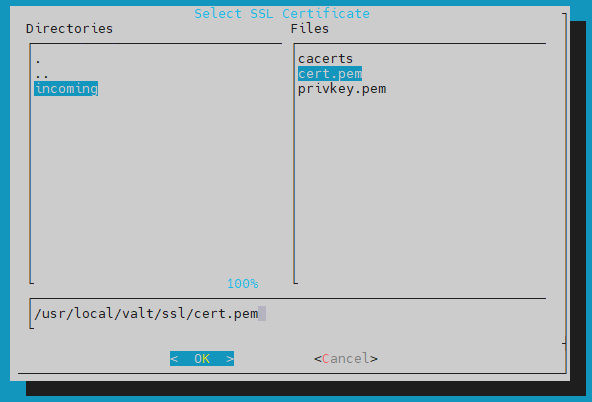
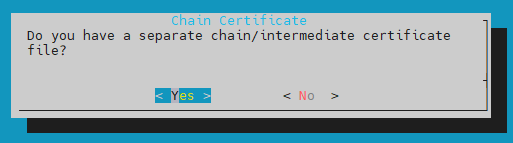
- If you have uploaded separate leaf & intermediate certificates, choose Yes and select your separate intermediate certificate file
- If you uploaded a full chain certificate, choose No
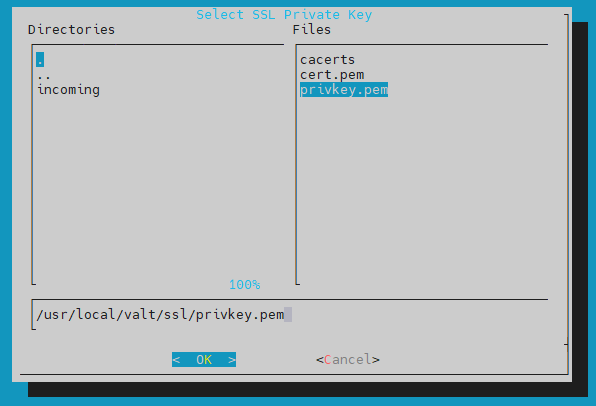
Select the Key File
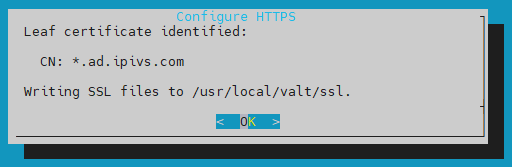
Files Are Copied to the SSL Directory
- The server will properly identify and isolate the certificates into their proper files
Finish the Reconfiguration