ROAM Camera Cart Quick Start
ROAM Camera Cart Quick Start
This guide covers unpacking, charging, first-time setup and your first recording. For complete instructions, see the ROAM Camera Cart User Manual.
⚠
CAUTION: Do not open the cart. The ROAM Camera Cart ships fully assembled. Do not open or disassemble any part of the cart. All repairs must be performed by an IVS-certified technician.
In the box
- ROAM Camera Cart
- Charger
- Ethernet cable
Before you start
- Network: for a wireless connection, the name and password of your Wi-Fi network. For a wired connection, a network jack near where the cart will be used.
🕮
NOTE: If you do not have this information, contact your IT team for assistance.
- IP address: your VMS must always be able to reach the cart, so the cart's IP address must not change.
🕮
NOTE: Ask your IT team to set up a DHCP reservation for the cart, or to give you a static IP address and its details.
- VALT (optional): your VALT server address, username and password, and the name of the VALT room to use for this cart.
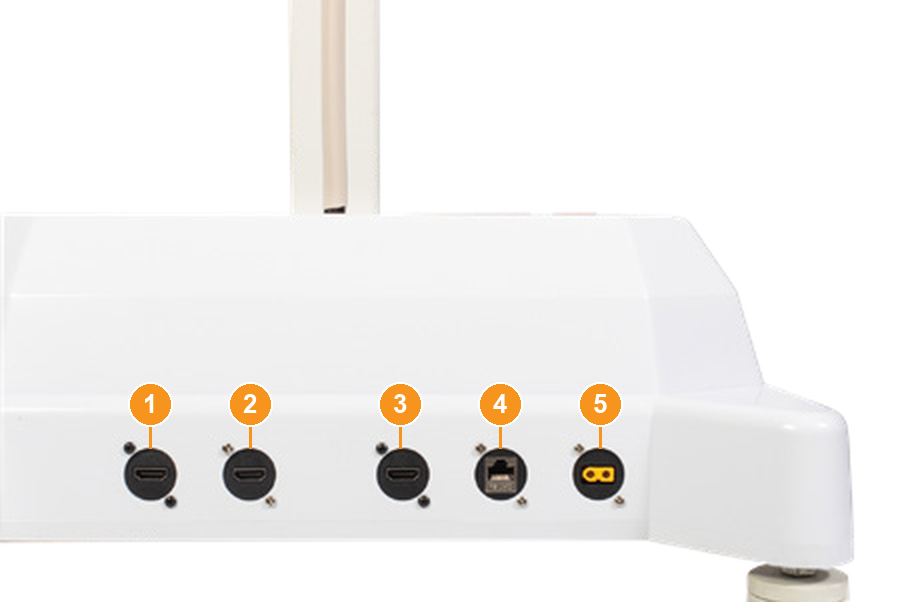
Rear ports
- Encoder 1 HDMI in
- Encoder 1 HDMI out
- Encoder 2 HDMI in
- Network
- Charging port
1. Charge the cart
- Connect the charger to the charging port on the back of the cart.
- Plug the charger into a wall outlet.
- The light on the charger is red while charging and turns green when the battery is full.
- Charge the cart fully before first use.
2. Turn on the cart
- Press the power button on top of the cart base.
- The button lights green.
- Wait for the setup screen to appear on the control display.
3. Run the setup wizard
The setup wizard starts automatically the first time the cart is turned on.
Step 1: Welcome
- Touch Get Started.
- The cart prepares its internal network. Wait for the message that setup completed successfully.

Step 2: Time zone
- Touch Select Timezone and choose your time zone.
- Touch Continue.
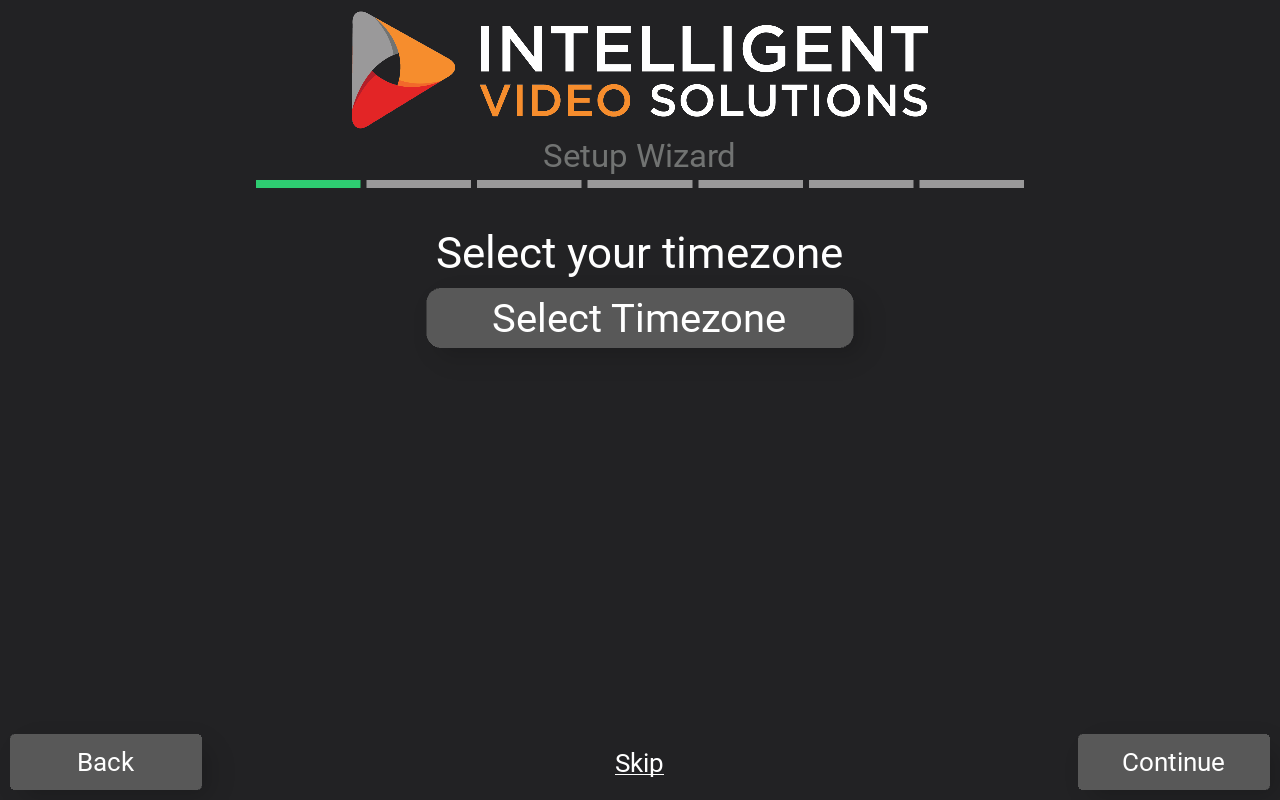
Step 3: Connection type
The screen shows How will the ROAM cart connect?
- Wired: connect the Ethernet cable from the Network port on the back of the cart to a network jack, then touch Wired. Go to step 4.
- Wireless: touch Wireless. Continue with step 3a.
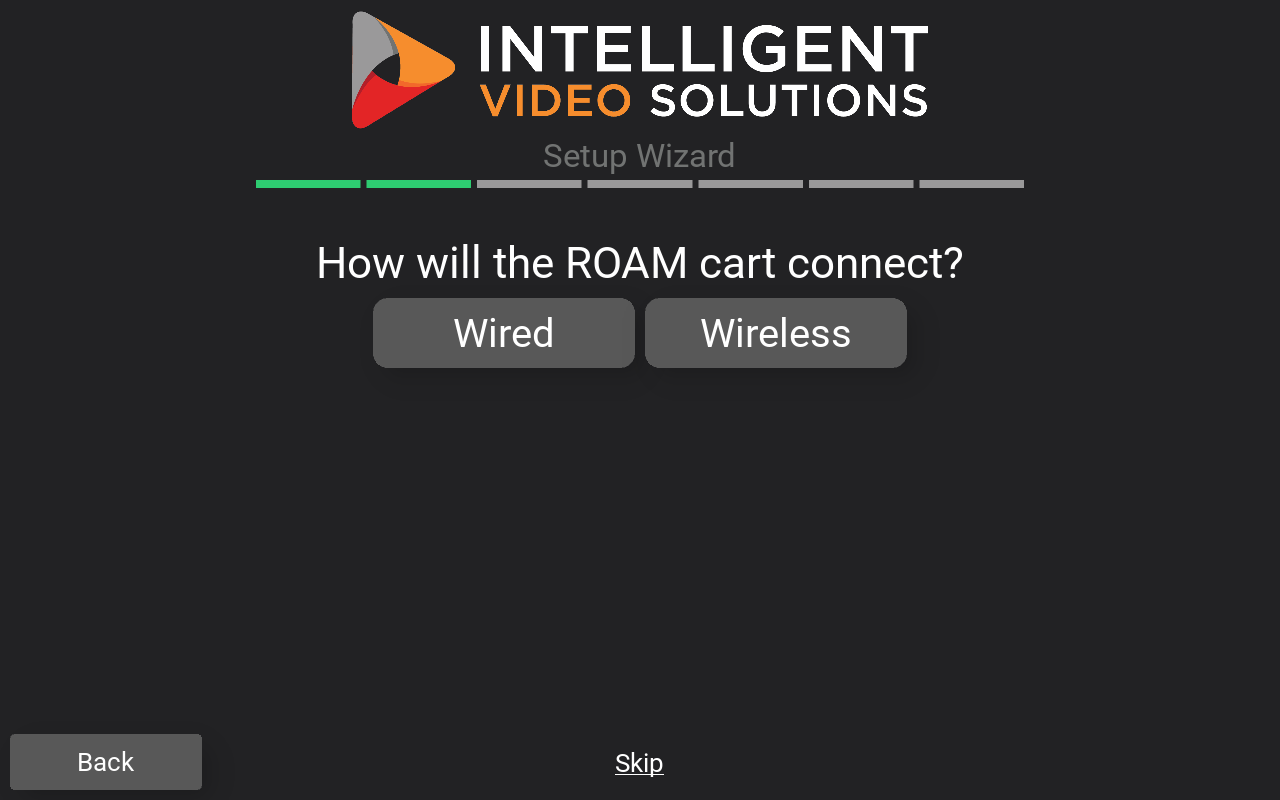
Step 3a: Wireless setup method
The screen shows How would you like to configure the WIFI?
- Touch Scan for Wireless Networks to choose from the networks the cart can see. Continue with step 3b.
- Touch Manually Configure WIFI to type the network name yourself. Go to step 3c.
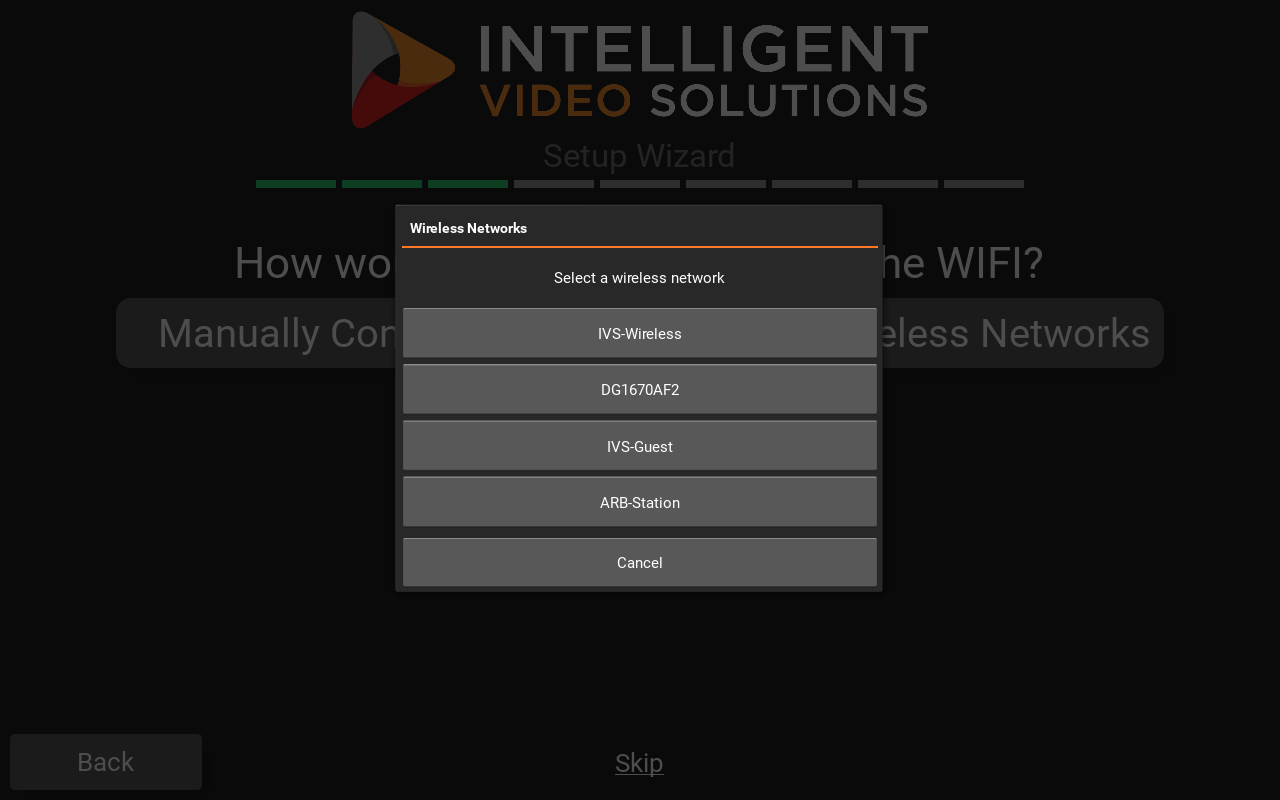
Step 3b: Choose your network
- Wait for the list of wireless networks to appear.
- Touch the name of your network.
Step 3c: Wireless settings
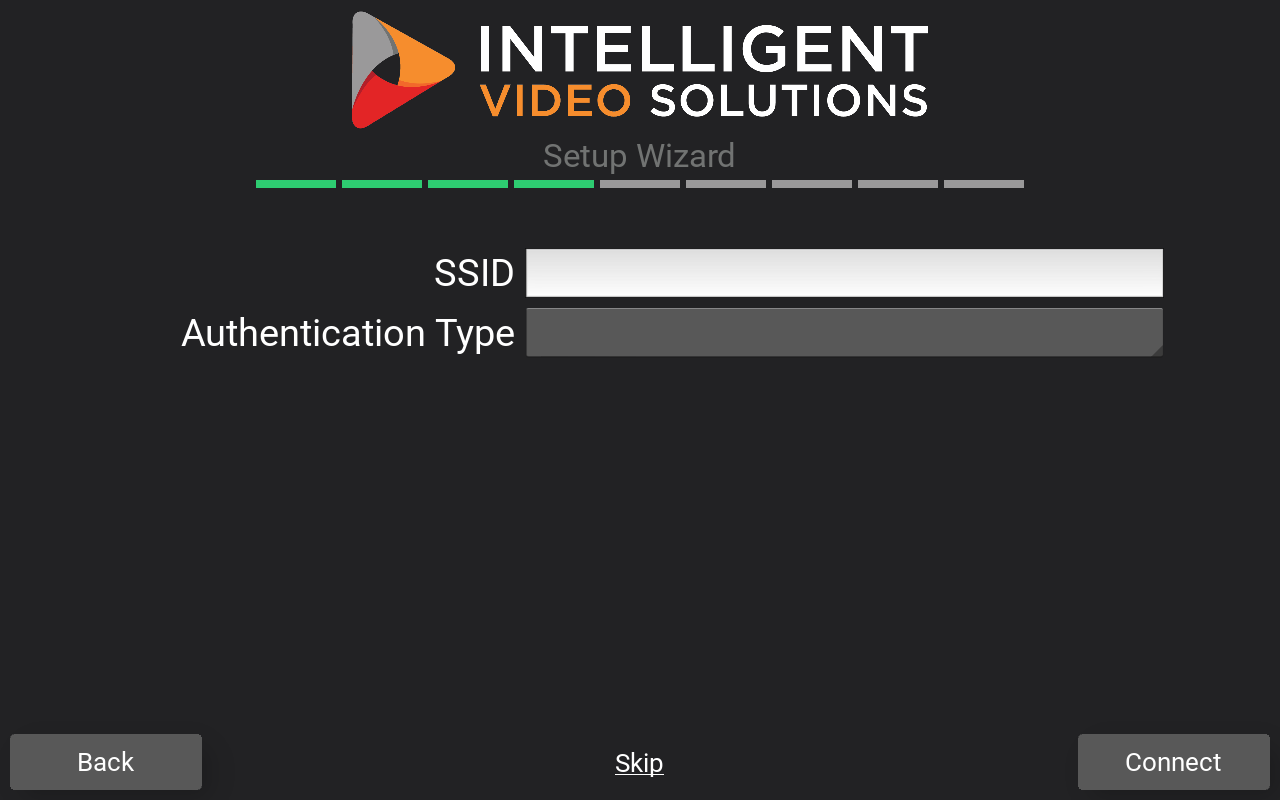
- Check that SSID shows your network name. If you chose Manually Configure WIFI, enter it.
- Touch Authentication Type and choose the type your IT team gave you.
- Enter the password:
- For a network with one shared password, enter it in Preshared Key.
- For a network where each person signs in, choose the EAP Method and enter the EAP Username and EAP Password from your IT team.
- Touch Connect.
Step 3d: Connection test
The cart tests the wireless connection.
- If Wireless Connection Succeeded appears, touch OK. Go to step 4.
- If Wireless Connection Failed appears, touch OK, check the network name and password, and try again.
Step 4: IP address
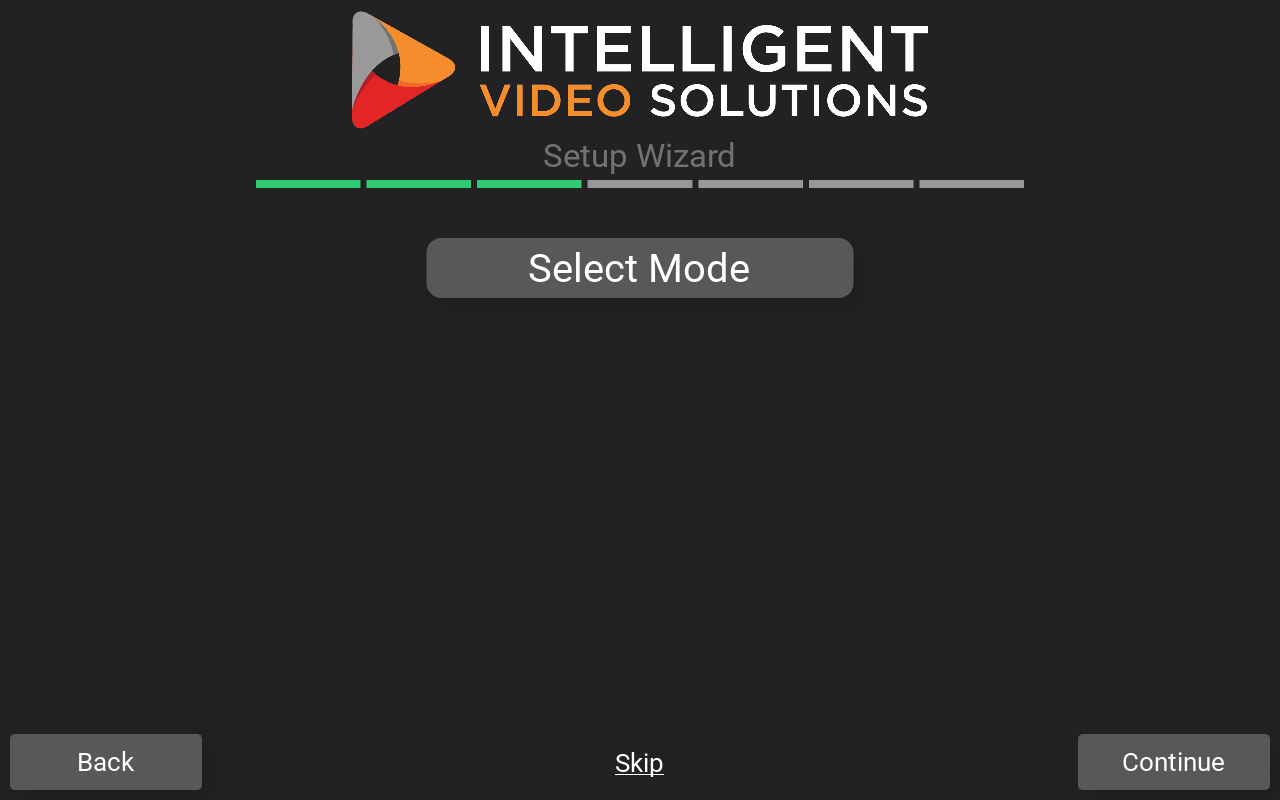
- Touch Select Mode and choose DHCP.
- If your IT team gave you a static IP address, choose STATIC instead and enter the address details.
- Touch Continue.
🕮
NOTE: If you are selecting DHCP, ask your IT team to set up a DHCP reservation for the cart so its address does not change.
Step 5: VMS
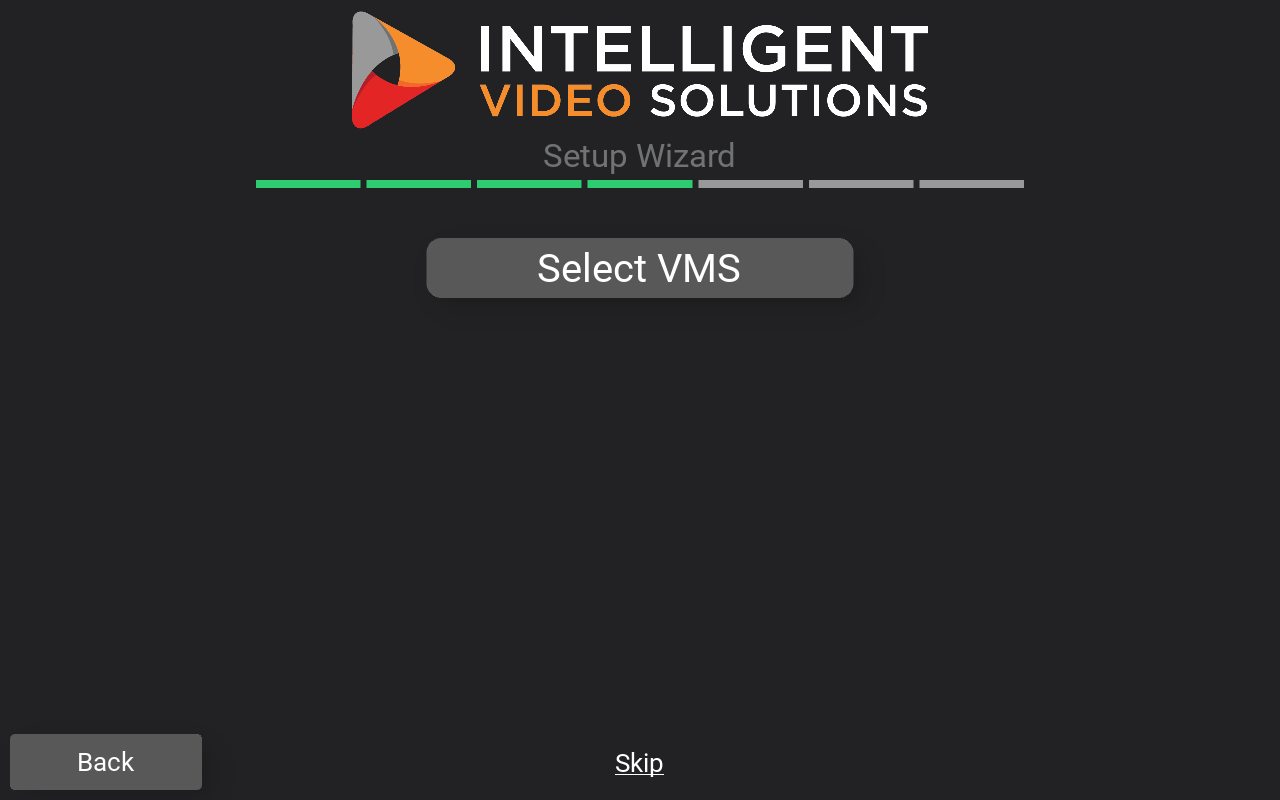
- Touch Select VMS and choose:
- VALT to record to your VALT server. Go to step 6.
- None to record locally only. Go to step 8.
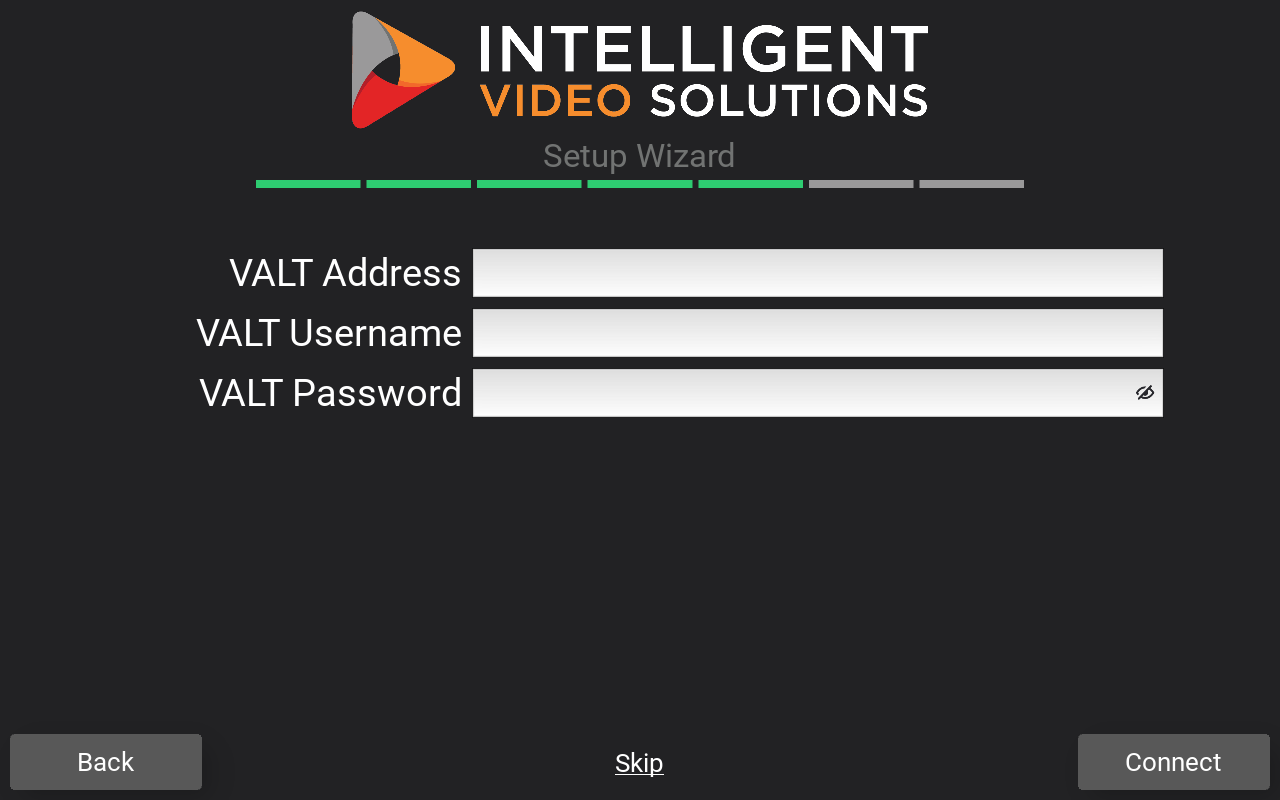
Step 6: VALT login
- Enter the VALT Address, VALT Username and VALT Password.
- Touch Connect.
- A message confirms the cart connected to VALT.
Step 7: VALT room
Choose whether to use a room that already exists in VALT or create a new one.
- Touch Select an Existing Room. Continue with step 7a.
- Touch Create a New Room. Go to step 7b.
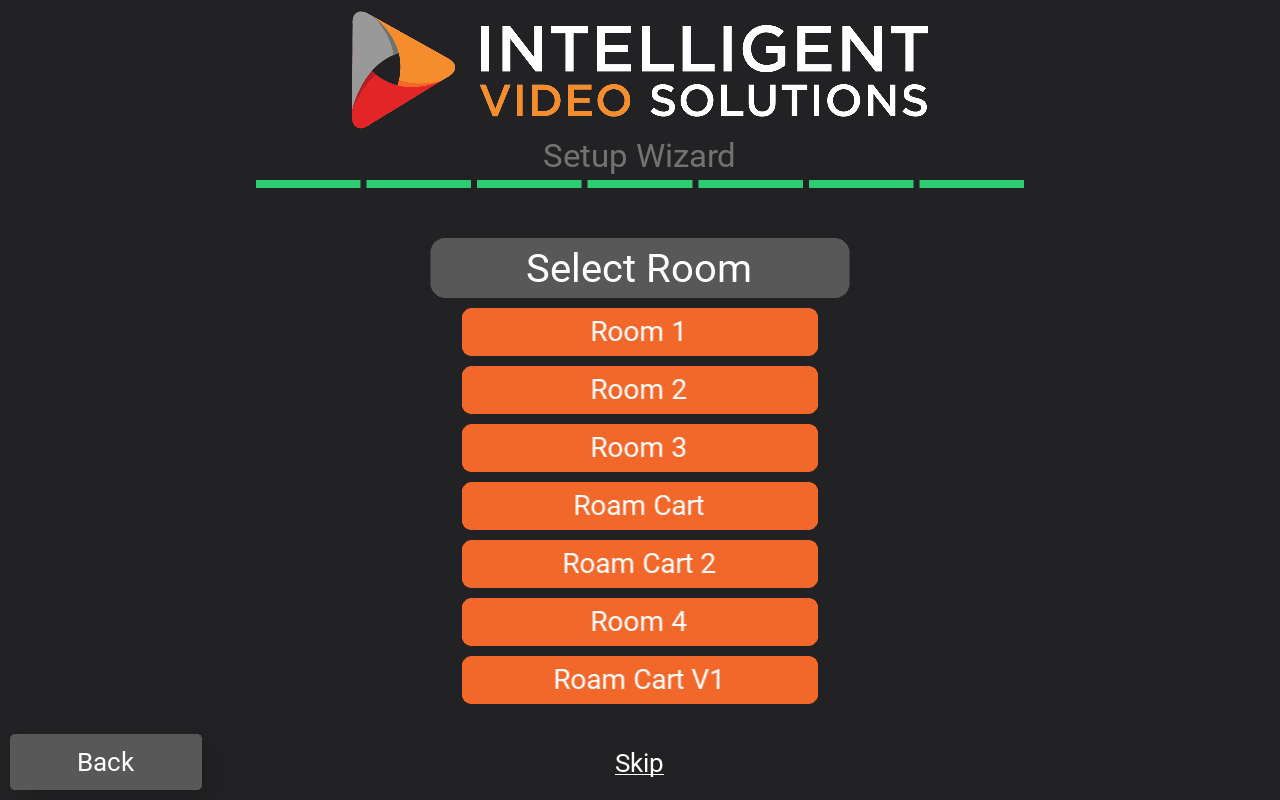
Step 7a: Select an existing room
- Touch Select Room.
- Touch the room to use for this cart.
- The wizard moves to the final screen.
If No Rooms Found appears, touch Go Back and check the VALT login, or create the room in VALT first.
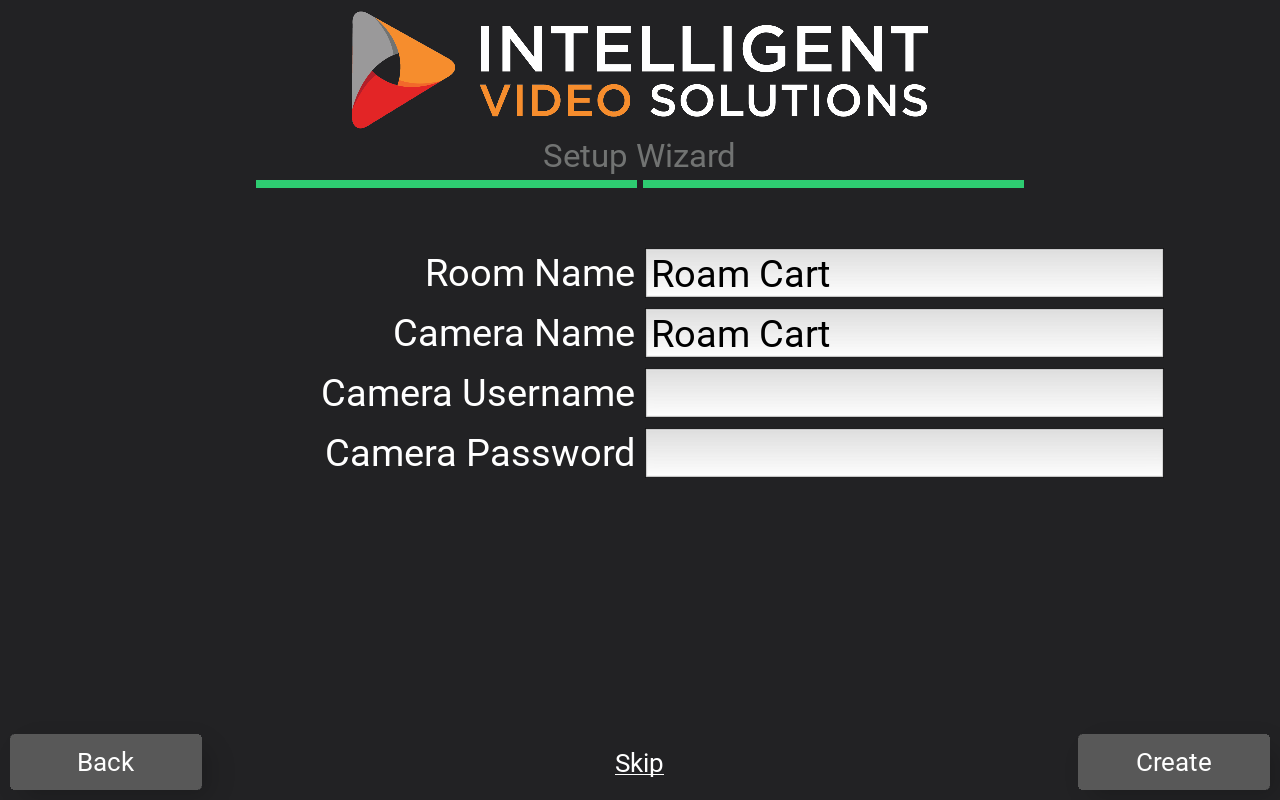
Step 7b: Create a new room
- Enter a Room Name.
- Enter a Camera Name.
- Enter the Camera Username and Camera Password. The defaults are
rootandadmin51. - Touch Create.
- The wizard moves to the final screen.
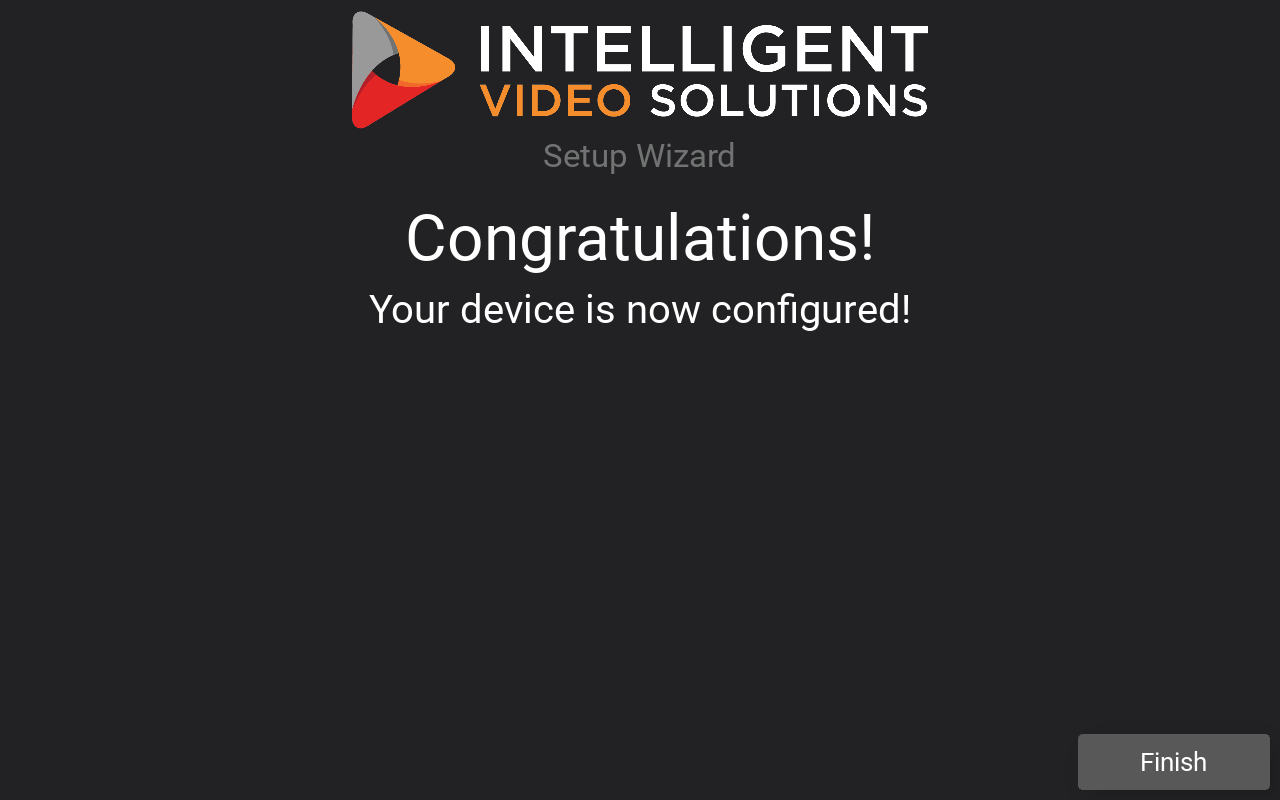
Step 8: Finish
- Touch Finish.
- The live camera view appears.
4. Make a recording
- Touch the record icon on the right side of the screen.
- Touch the stop icon to end the recording.
- When the cart is connected to VALT: the recording is made on your VALT server. Find it in the Review section of VALT.
- When the cart is not connected to VALT: the cart records locally to its internal storage. Touch the folder icon in the bottom-left corner to view it.
5. Upload recordings to VALT
Local recordings stay on the cart until you upload them.
- When the cart is connected to VALT, touch the VALT icon in the bottom-left corner.
- Touch Upload Videos.
🕮
NOTE: Each recording is removed from the cart after it uploads to VALT.
Support
- Full manual and PDF downloads: ROAM Camera Cart
- Web: www.ivs.help
- Phone: 262-746-9290, option 2
- Email: support@ipivs.com