Template:VALT Server Migration
Note: Change IP's in the below commands to match the IP's of the new and old server
On the Old Server
Note: It is beneficial to stop the apache service on the old server to prevent further recording of videos on it
- Disable the restart Wowza cronjob:
- Type in the following command:
crontab -e
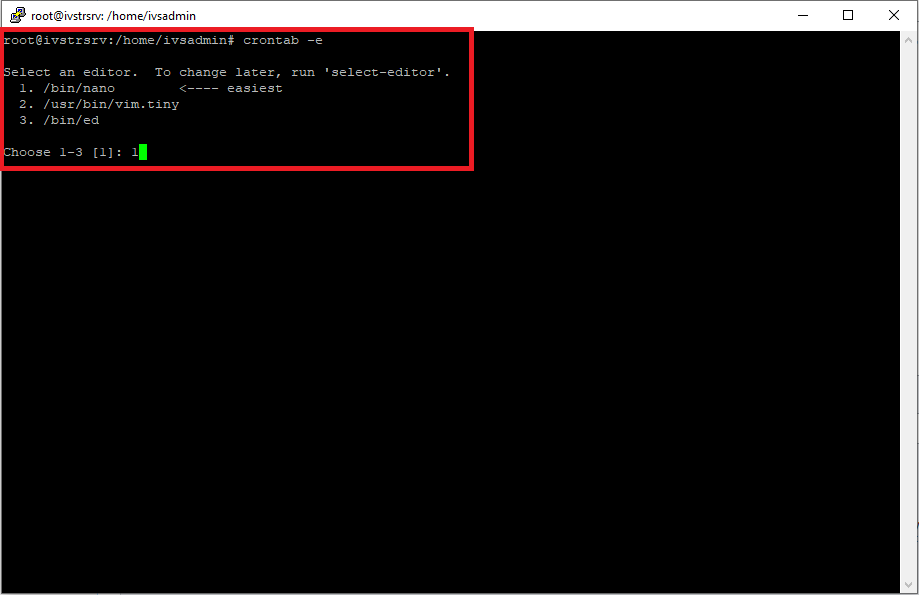
- Press 1
- Comment out the following job:
0 3 * * * /usr/local/valt/bin/restartwowza
- Type in the following, then press Enter:
sudo chmod 777 -R /usr/local/WowzaStreamingEngine/content/
- Type in the following, then press Enter:
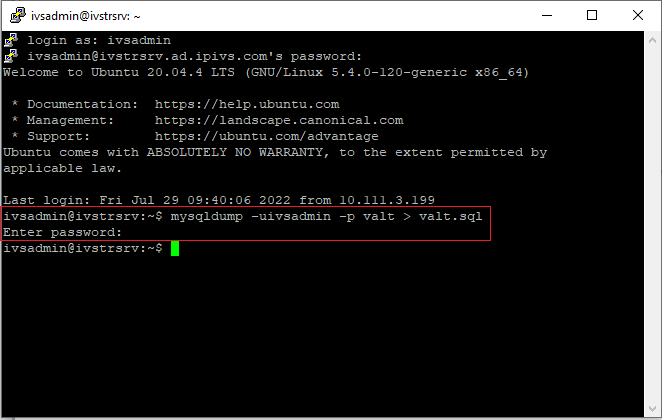
mysqldump -uivsadmin -p valt > valt.sql
- Enter mysql password
- Type in the following, then press Enter:
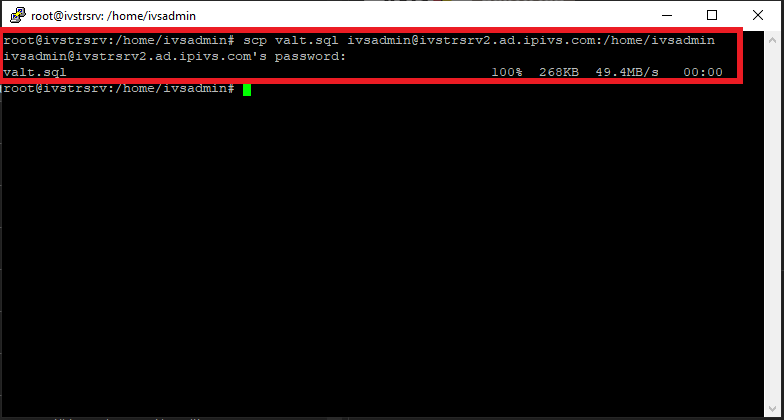
scp valt.sql ivsadmin@NewServerIP:/home/ivsadmin/
- Enter password for ivsadmin.

On the New Server
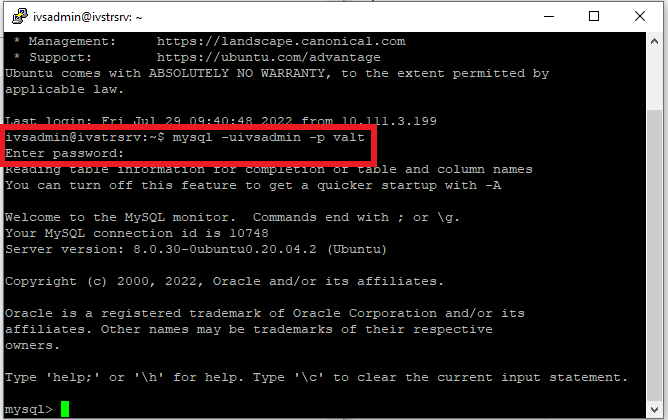
- Type in the following, then press Enter:
mysql -uivsadmin -p valt
- Type in the password to MySQL.
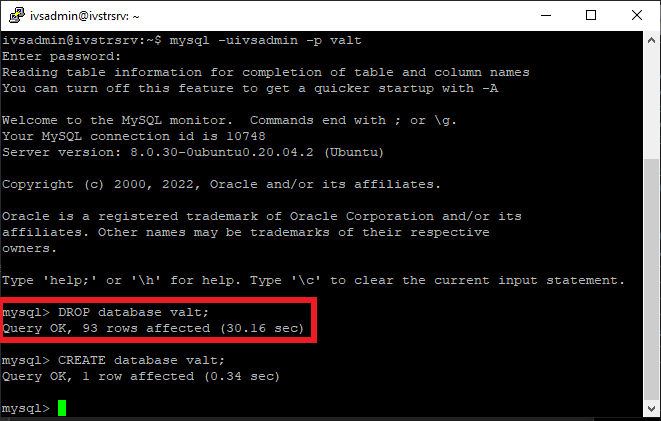
- Type:
DROP database valt;
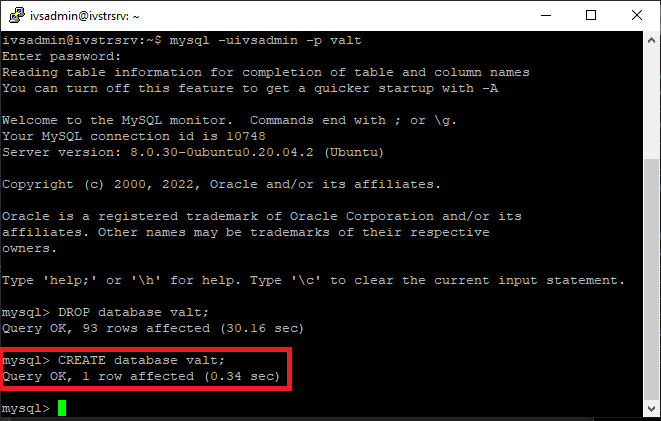
- Type:
CREATE database valt;
- Type in the following, then press Enter:
exit
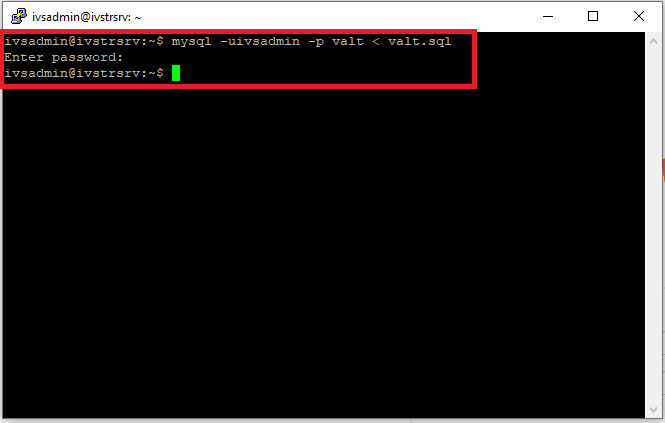
- Type in the following, then press Enter:
mysql -uivsadmin -p valt < valt.sql
- Enter the password for MySQL.
- Type in the following, then press Enter:
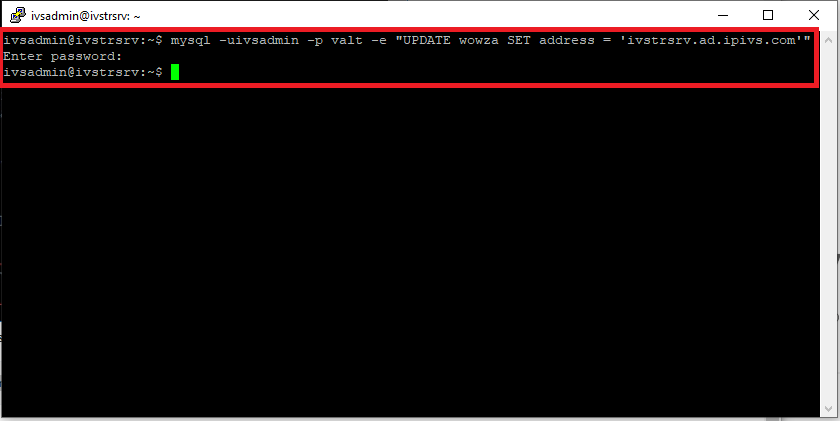
mysql -uivsadmin -p valt -e "UPDATE wowza SET address = 'NewServerIP'"
- Enter the password for MySQL.