ROAM Camera Cart User Manual
ROAM Camera Cart User Manual
Document date: October 2026 · Software version: 1.0.15
About this manual
This manual covers everyday use of the ROAM Camera Cart: power and charging, the control display, camera control, recording, playback, uploading to VALT, downloading recordings, settings and troubleshooting. For first-time setup, see the ROAM Camera Cart Quick Start. For network configuration and connecting the cart to a VMS, see the ROAM Camera Cart Setup and Commissioning Guide.
1. Product overview
The ROAM Camera Cart is a mobile recording cart with a PTZ (pan, tilt, zoom) camera, a built-in microphone and speaker, and a touch control display.
The cart can be used:
- With VALT: recordings are made on your VALT server. When VALT is not reachable, the cart records locally to its internal storage, and these local recordings can be uploaded to VALT later.
- With another VMS: your VMS records the cart's camera and encoder video streams.
- On its own, with no VMS: the cart records locally, plays recordings back on the control display, and makes them available for download from its built-in web page.
Features
- PTZ camera
- Built-in microphone and speaker
- 10" touch control display with live view and playback
- Two HDMI encoders for capturing external video sources
- One HDMI passthrough output
- Local recording and playback
- VALT integration, with upload of local recordings
- Built-in web page for downloading recordings
- Wired or wireless network connection
- Built-in rechargeable battery
For dimensions and other details, see section 13, Specifications.
2. Get started
Charge the battery
- Connect the charger to the charging port on the back of the cart.
- Plug the charger into a wall outlet.
- The light on the charger is red while charging and turns green when the battery is full.
Turn the cart on
- Press the power button on top of the cart base.
- The button lights green.
- Wait for the live camera view to appear on the control display.
Turn the cart off
- Press the power button on top of the cart base.
- The button light goes out.
First-time setup
The first time the cart is turned on, a setup wizard connects it to your network and, optionally, to VALT. Follow the ROAM Camera Cart Quick Start. To run the wizard again later, see section 7.
3. Use the control display
Home screen
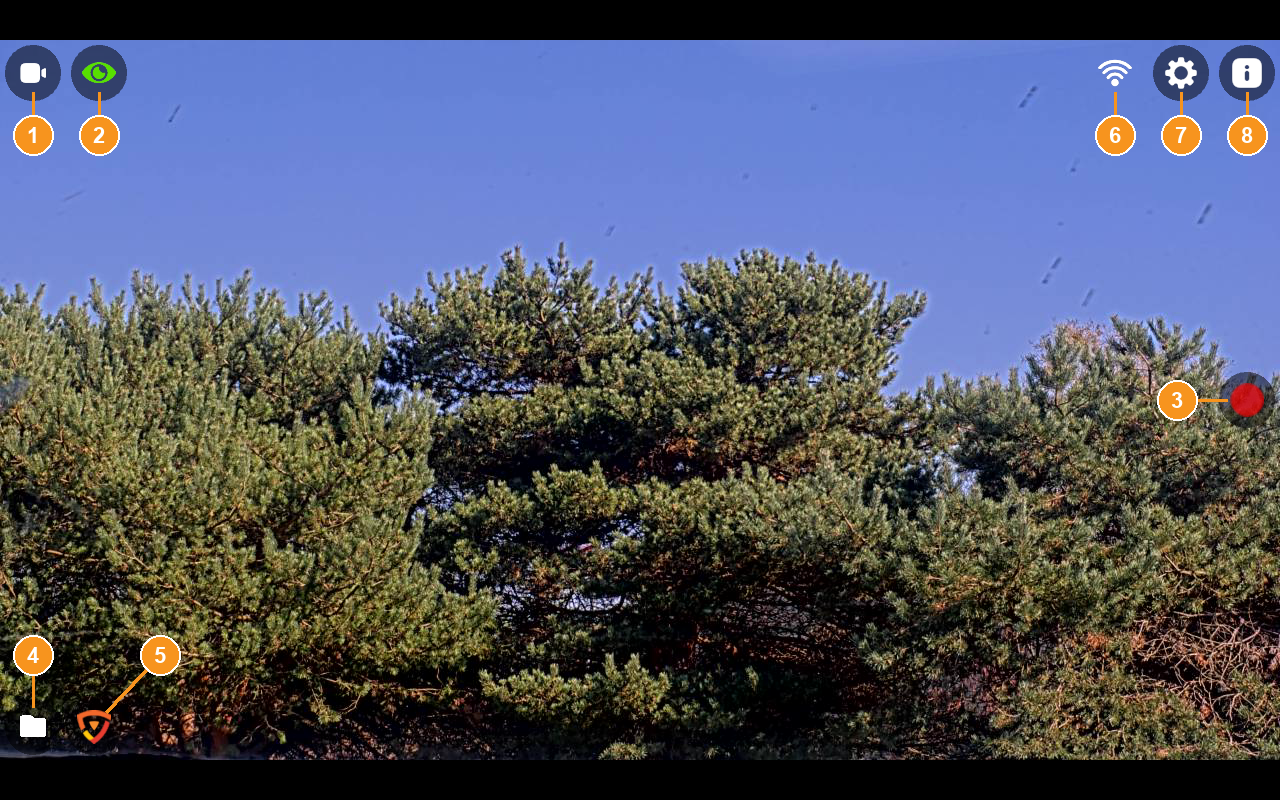
| # | Item | Use |
|---|---|---|
| 1 | Camera icon | Switch the view between the camera and each encoder installed in the cart |
| 2 | Privacy icon | Turn camera privacy on or off. While privacy is on, the video feed is blacked out |
| 3 | Record icon | Start a recording. Changes to the stop icon while recording |
| 4 | Folder icon | Open the Recordings screen |
| 5 | VALT icon | Appears only while the cart is connected to VALT. Touch it to upload recordings |
| 6 | Wi-Fi icon | Shows whether the cart is connected to a wireless network |
| 7 | Gear icon | Open Settings (requires the device password) |
| 8 | Info icon | Open the Information screen |
Point and zoom the camera
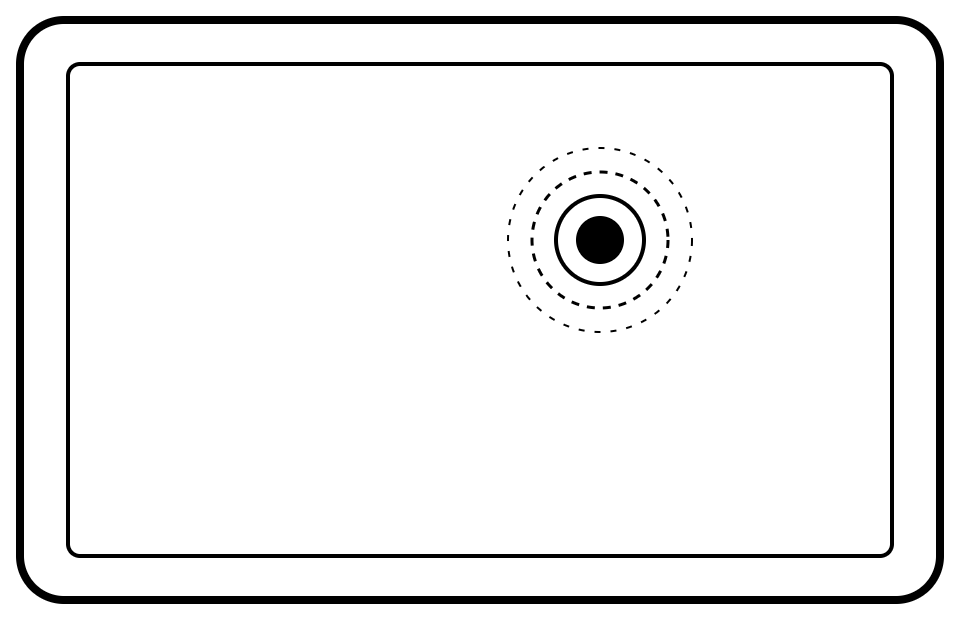
Point the camera: touch a spot on the live view. The camera centers on that spot.
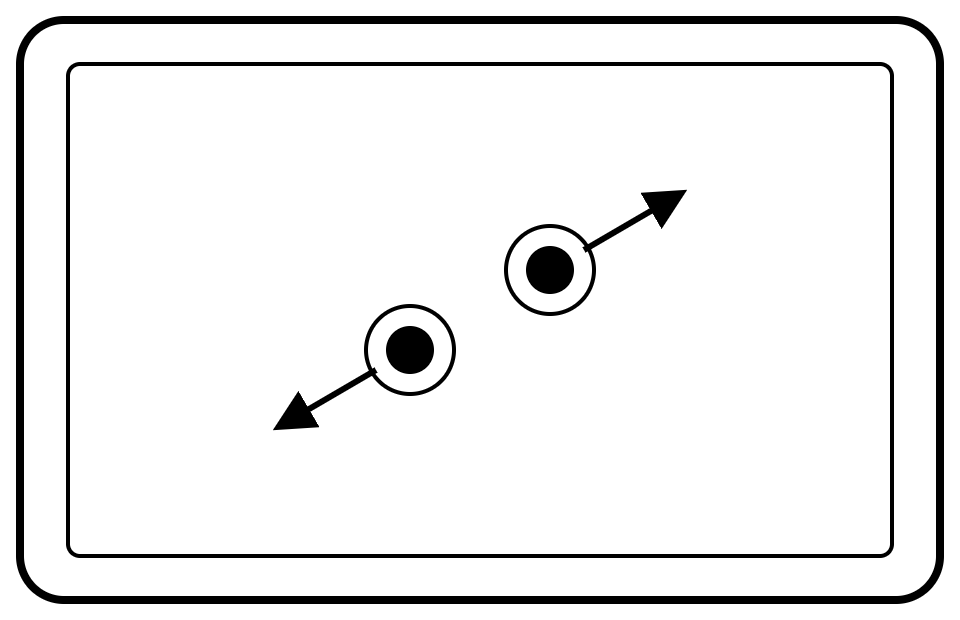
Zoom in: place two fingers on the live view and spread them apart.
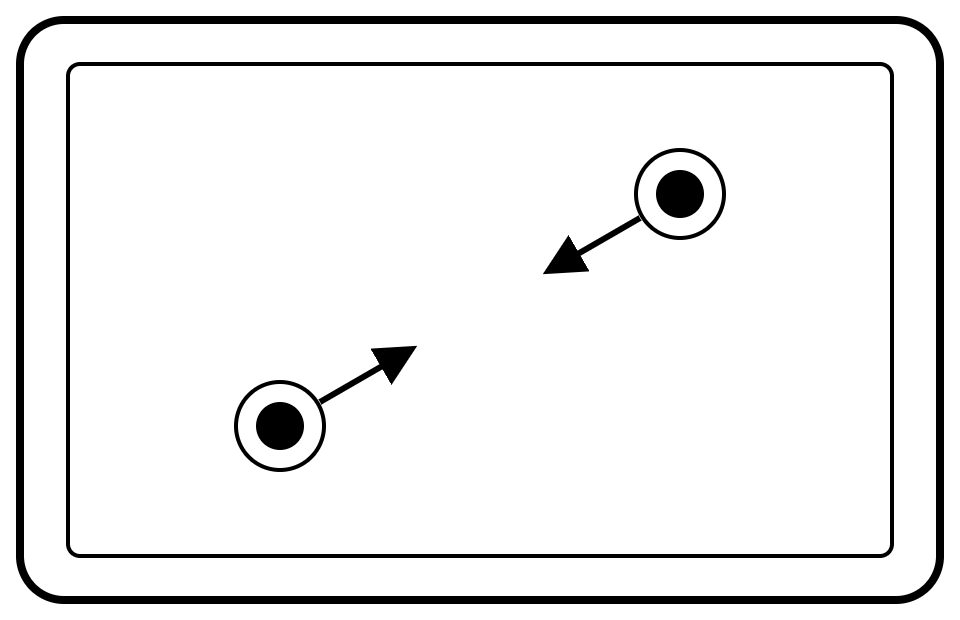
Zoom out: pinch two fingers together on the live view.
Camera control is available for the PTZ camera only. When the view is switched to an encoder, camera control and privacy are not available.
View cart information
Touch the info icon to open the Information screen. It shows:
- The cart's network connections and addresses
- The addresses of the camera and encoder video streams, in the form
rtsp://username:password@<cart IP>/... - The address and status of the video download page
- Storage used and free
- The software version, at the bottom of the screen
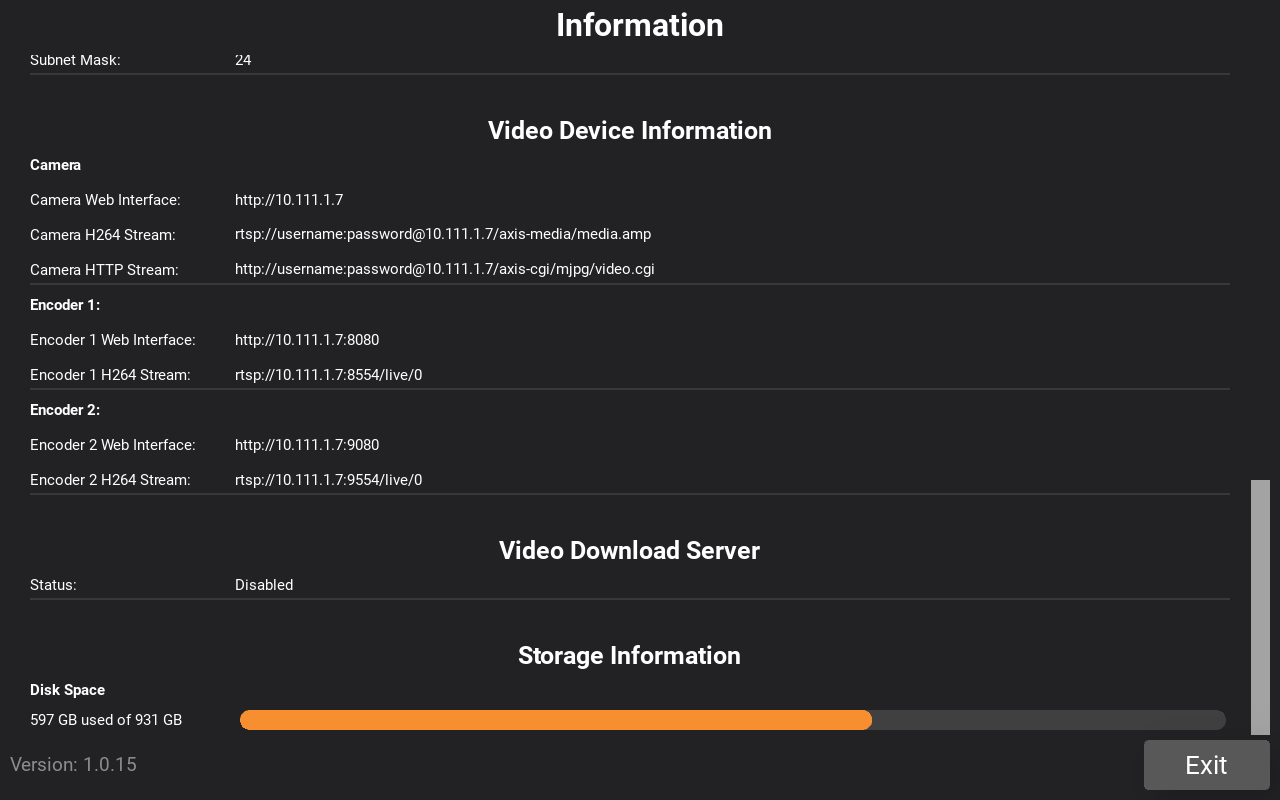
Touch Exit to return to the live view.
4. Record video
Make a recording
- Touch the record icon on the right side of the screen.
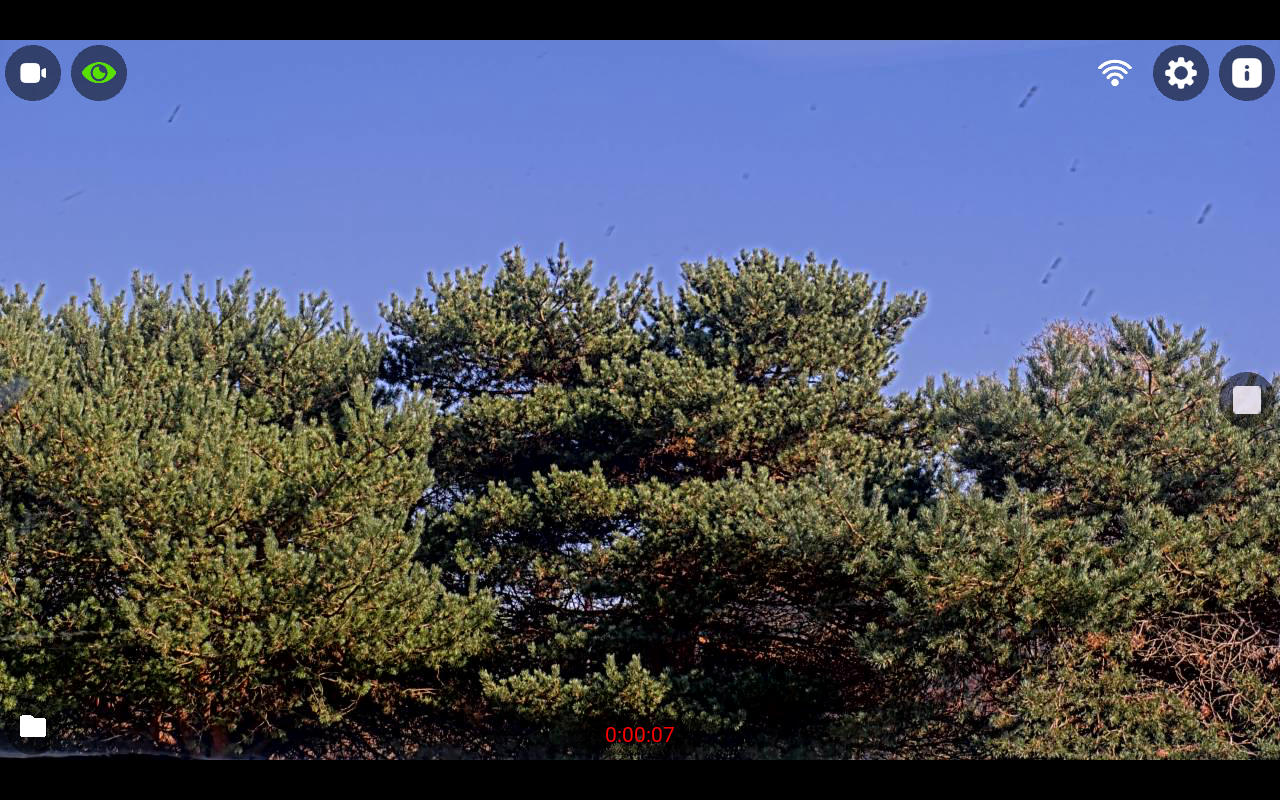
- Touch the stop icon to end the recording.
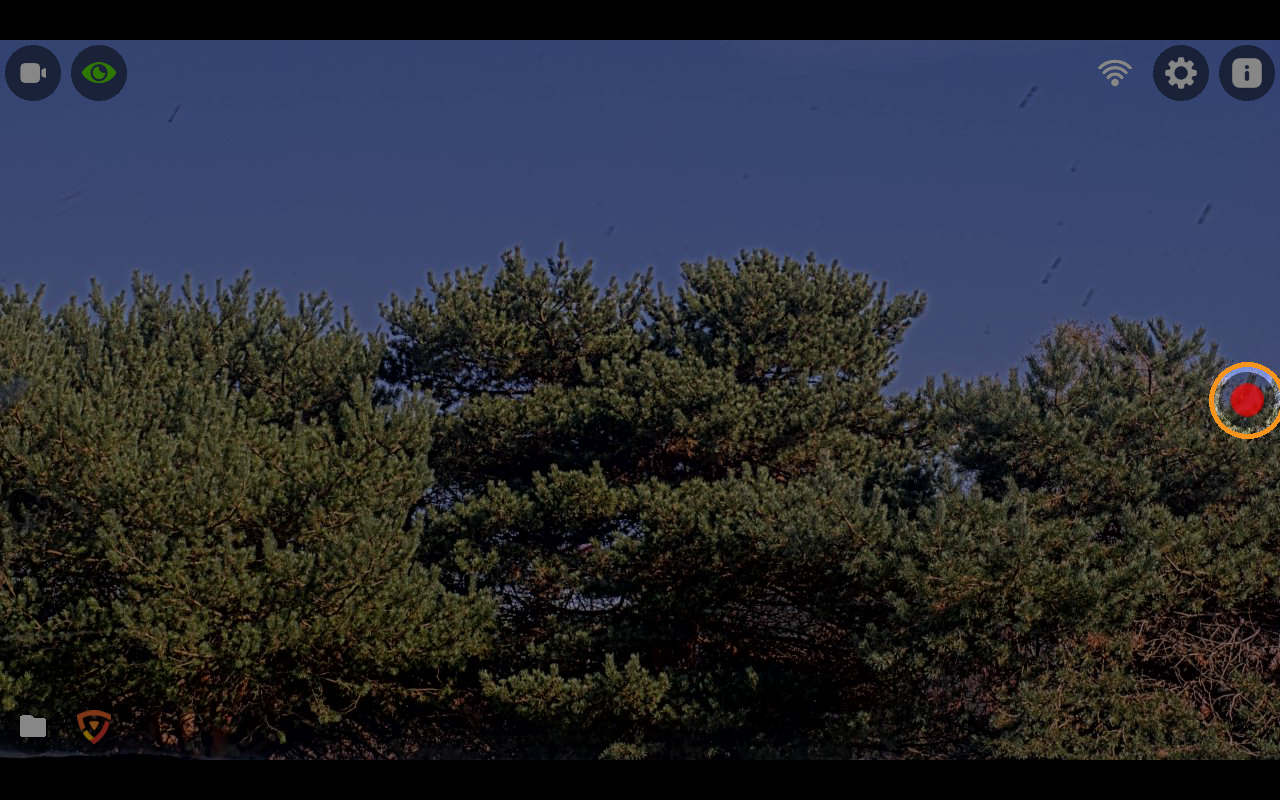
- When the cart is connected to VALT: the recording is made on your VALT server. Find it in the Review section of VALT.
- When the cart is not connected to VALT: the cart records locally to its internal storage. A timer shows the length of the recording. Find it on the Recordings screen (section 5).
Record the encoder inputs
- Open Settings > ROAM Video Devices.
- Turn on Record Encoder Streams.
Local recordings then include a separate file for each encoder, in addition to the camera.
Storage
Local recordings stay on the cart until you upload or delete them. See section 11 for storage messages.
5. Watch and manage local recordings
Touch the folder icon in the bottom-left corner to open the Recordings screen.
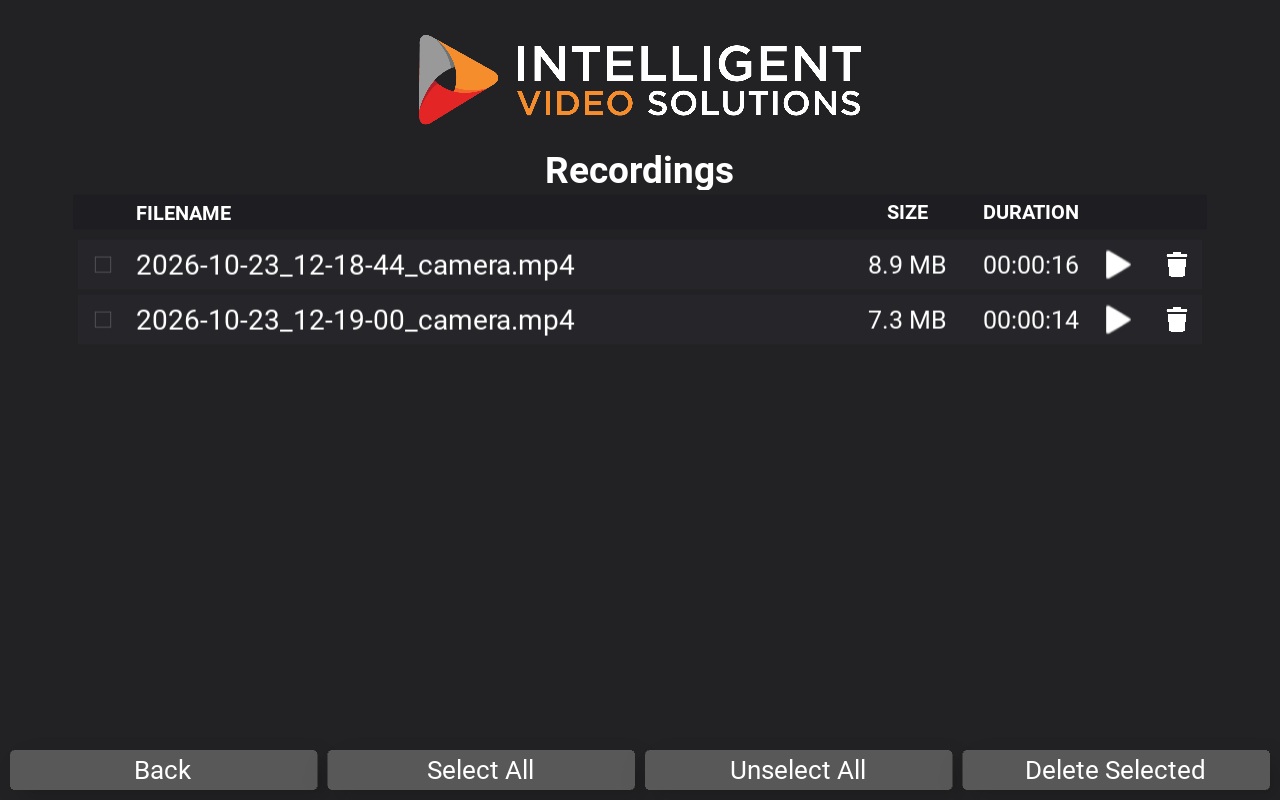
The screen lists each recording with its FILENAME, SIZE and DURATION.
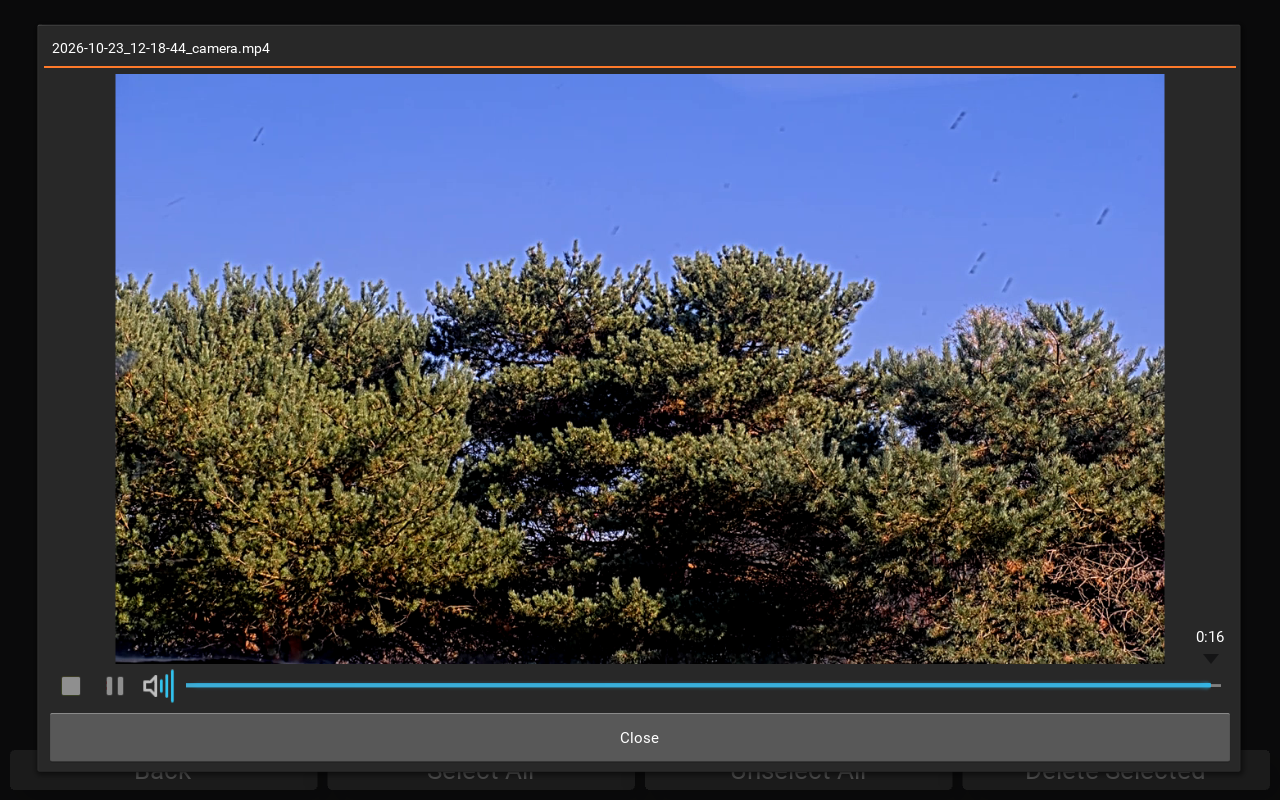
Play a recording
- Touch Play next to the recording.
- Touch Close to return to the list.
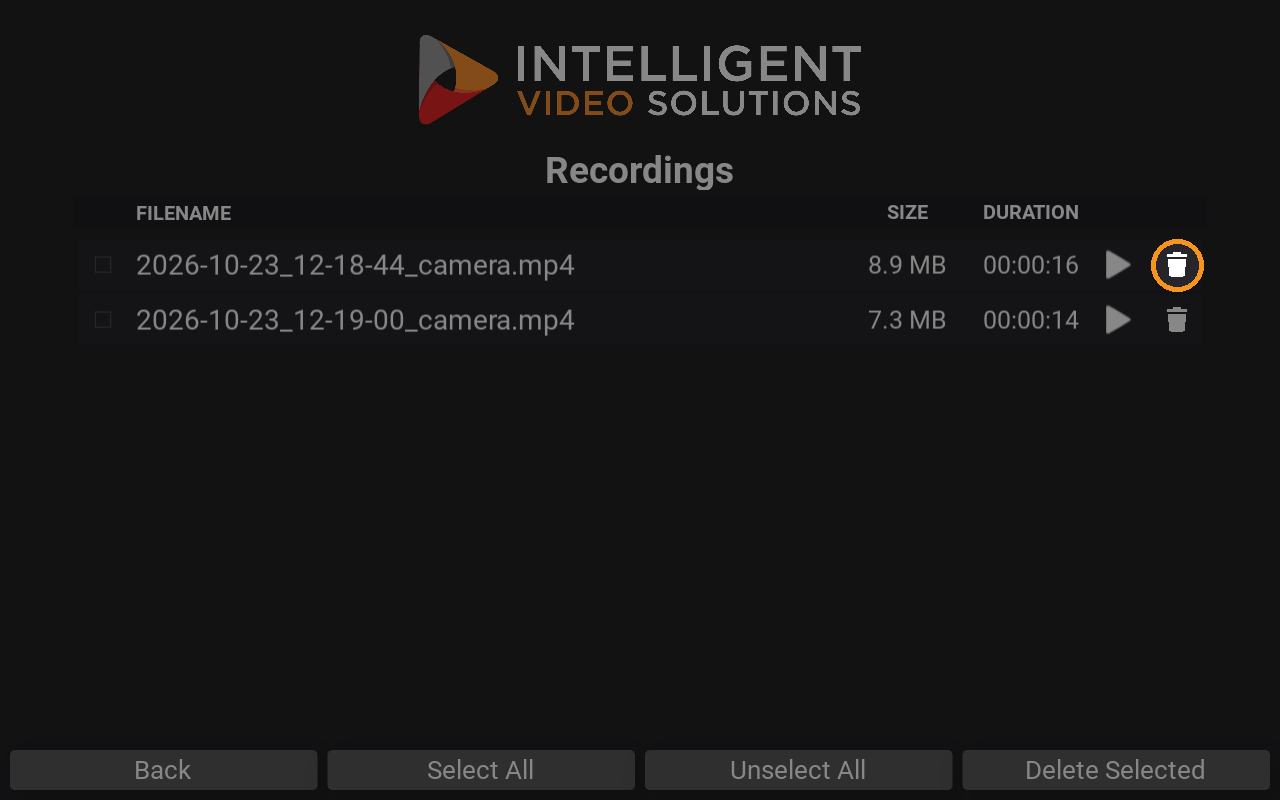
Delete recordings
- To delete one recording, touch the trash icon next to it.
- To delete several, check the box next to each one, or touch Select All, then touch Delete Selected.
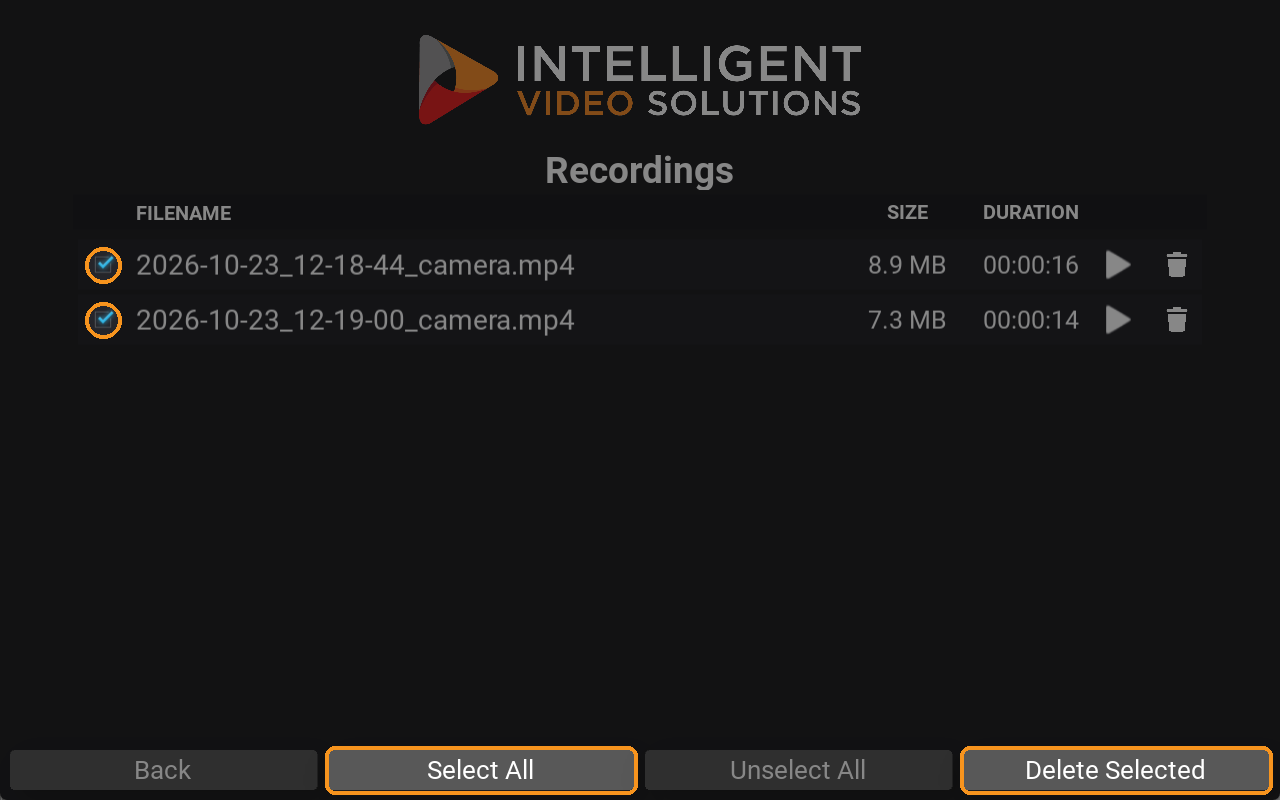
Touch Back to return to the live view.
6. Move recordings off the cart
Upload recordings to VALT
- Make sure the cart is connected to VALT. The VALT icon appears in the bottom-left corner.
- Touch the VALT icon.
- Touch Upload Videos.
- A progress window shows each recording as it uploads.
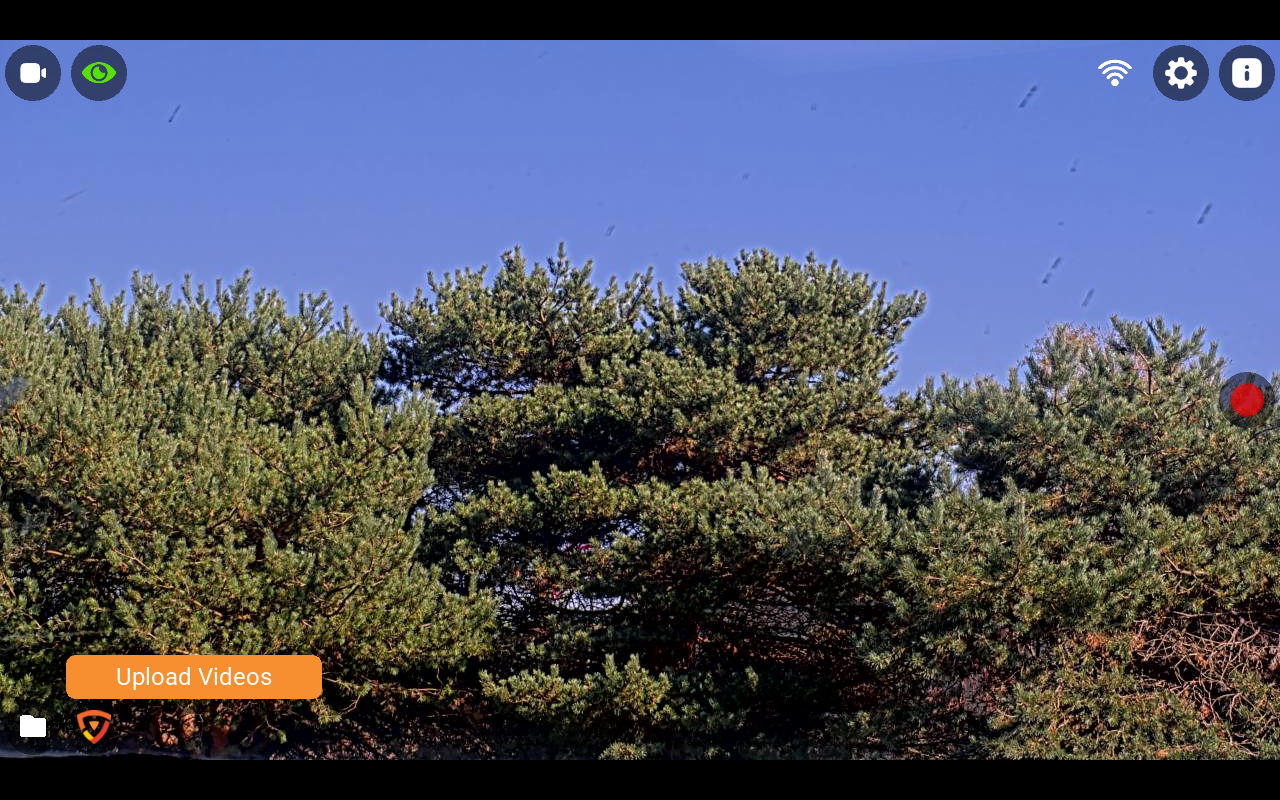
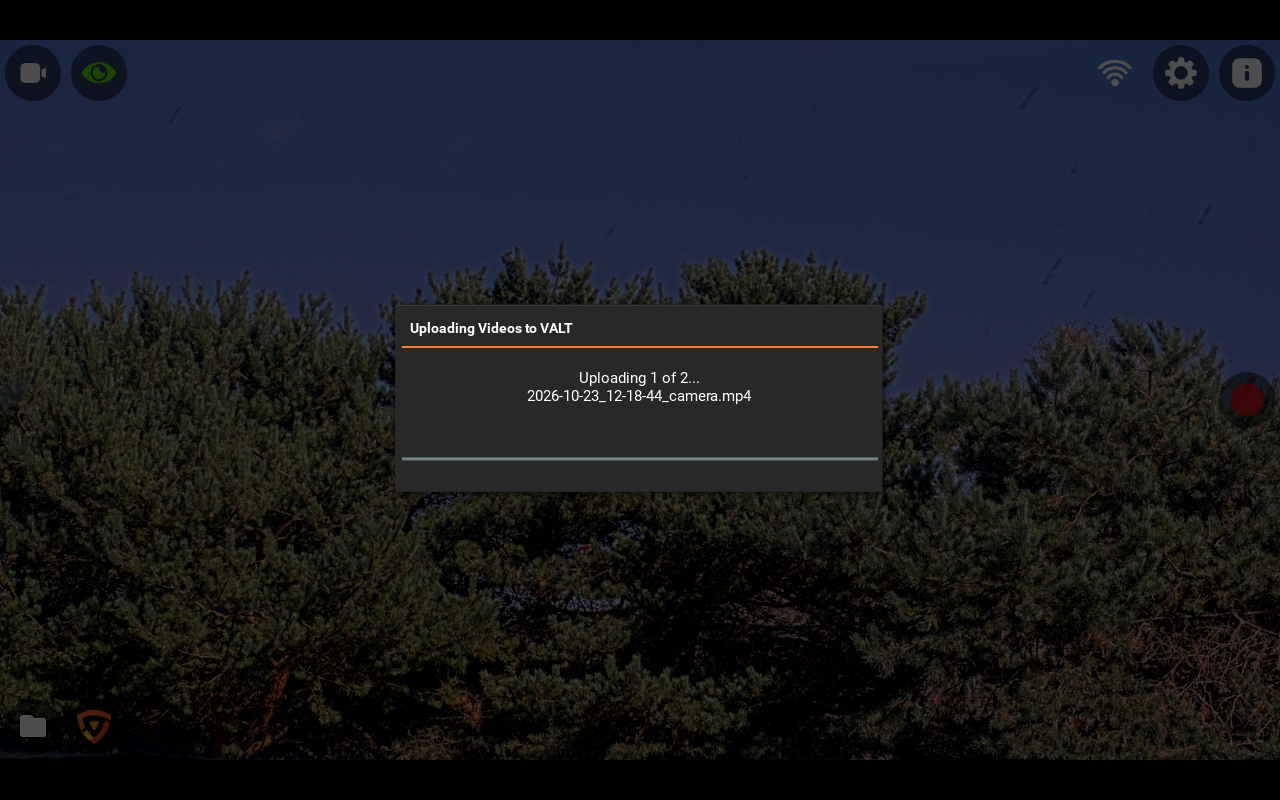
Uploaded recordings appear in the Review section of VALT, belonging to the VALT user the cart is signed in with.
Download recordings in a web browser
Turn on the download page
- Open Settings > Video Download.
- Turn on Enable Download Server.
- Change the Username and Password for the download page. The defaults are listed in section 8.
Open the download page
- Touch the info icon. The Video Download Server section shows the address of the download page.
- On a computer on the same network, open a web browser and go to that address. It looks like
https://<cart IP>:10443/. - If the browser shows a security warning, continue to the page. See section 12 for why.
- Sign in with the download page username and password.
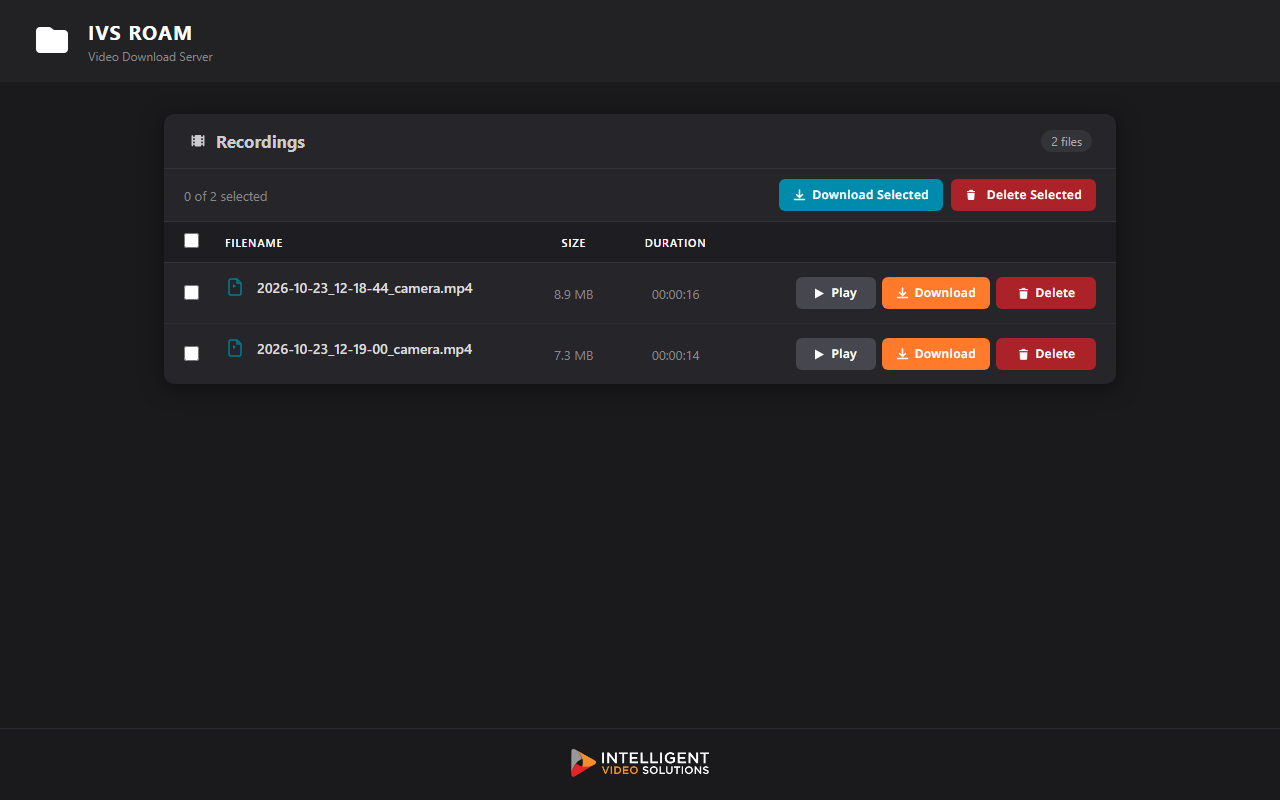
On the download page you can play, download and delete recordings, or select several and download them together as a ZIP file.
7. Common settings tasks
Open Settings
- Touch the gear icon.
- Enter the device password. The default is
admin51.
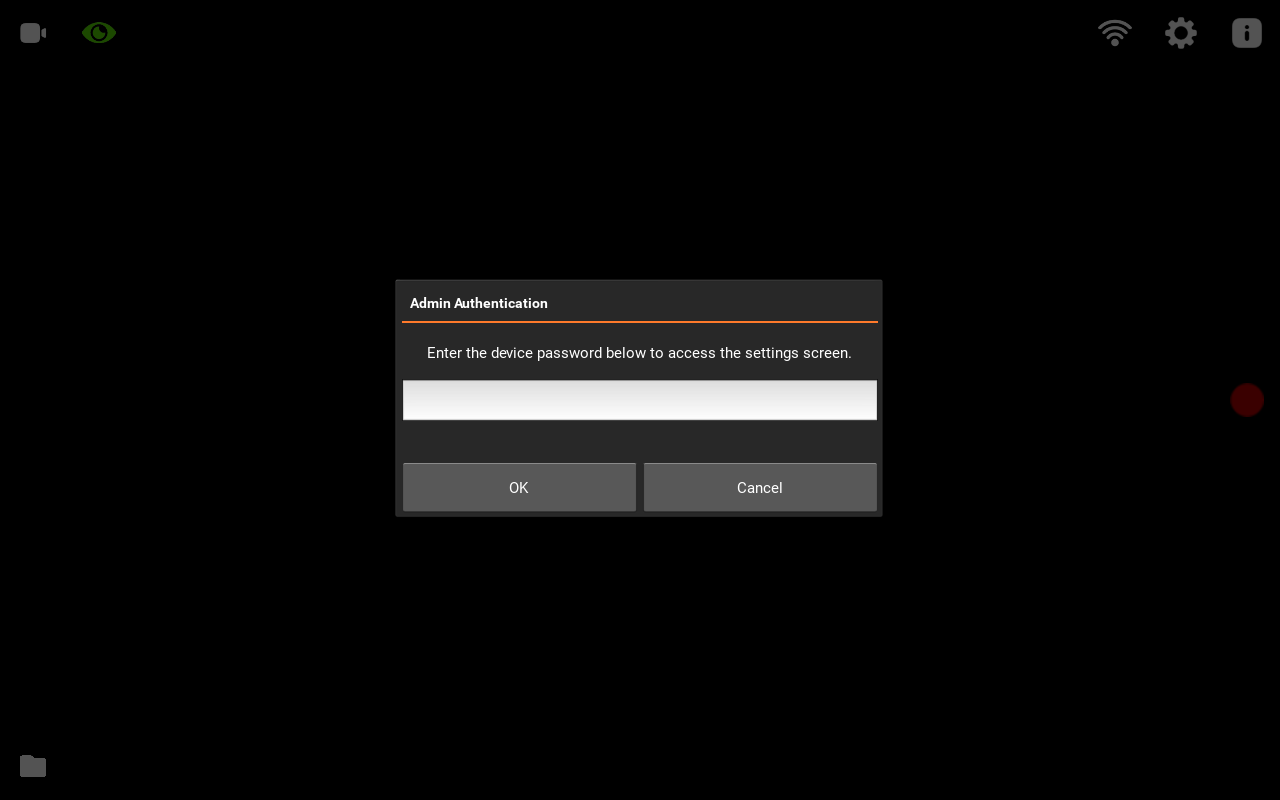
To leave Settings, touch Close in the top-right corner.
Change the device password
- Open Settings > Application.
- Touch Password and enter a new password.
Change the wireless network
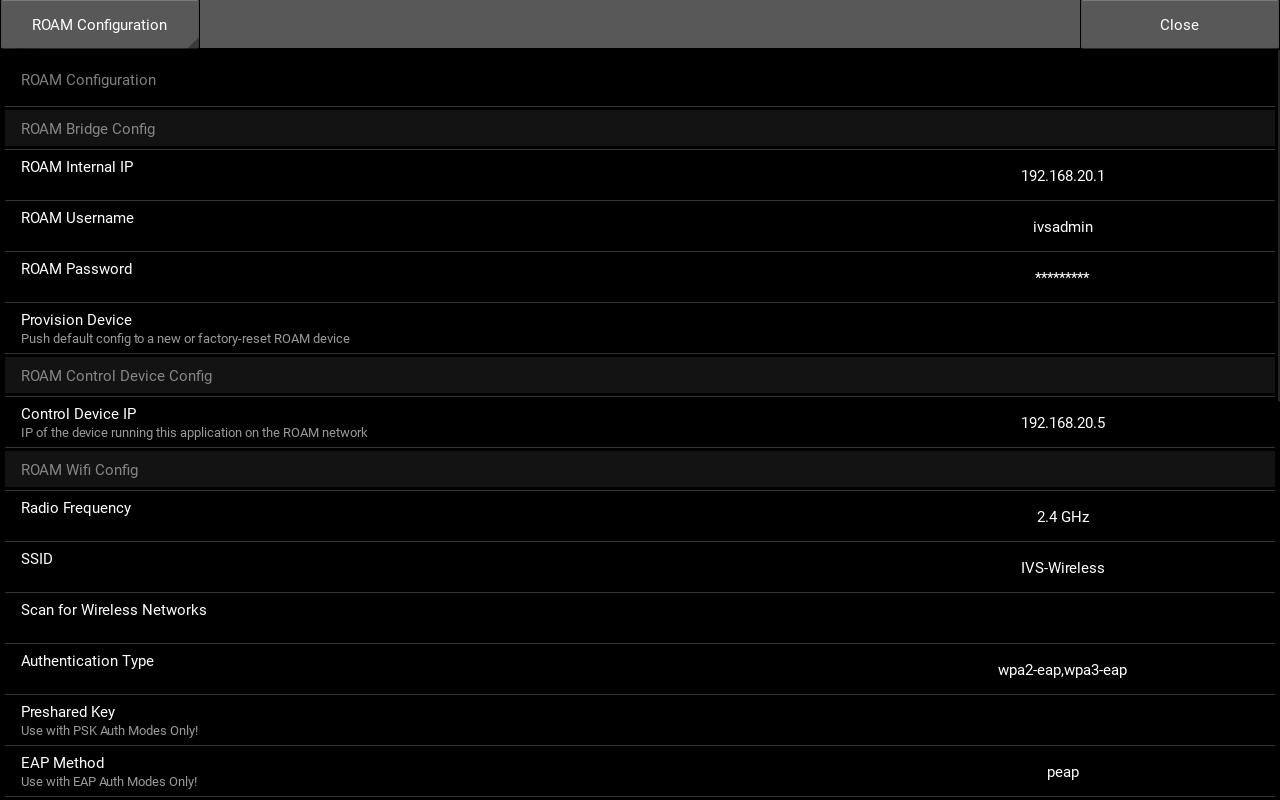
- Open Settings > ROAM Configuration.
- Under ROAM Wifi Config, touch Scan for Wireless Networks and choose the network, or enter the SSID.
- Set Authentication Type, then enter the Preshared Key, or the EAP Method, EAP Username and EAP Password.
- Touch Apply Wireless Settings.
- The cart applies the settings and checks the connection.
Change the VALT server or login
- Open Settings > VALT.
- Change the Server, Username, Password or Room as needed.
The VALT panel appears only when Settings > Application > VMS is set to VALT.
Set the inactivity timeout
The control display can switch to a splash screen or a blank screen when it has not been touched for a set time.
- Open Settings > System.
- Turn on Enable Timeout.
- Set Timeout to the number of seconds before the screen changes.
- Set Timeout Screen to Splash or Blank.
Touch the screen to return to the live view.
Run the setup wizard again
- Open Settings > System.
- Touch Start Configuration Wizard.
- Follow the steps in the Quick Start.
8. Settings reference
Settings are grouped into panels. This section lists every panel in the order it appears on the control display.
Application
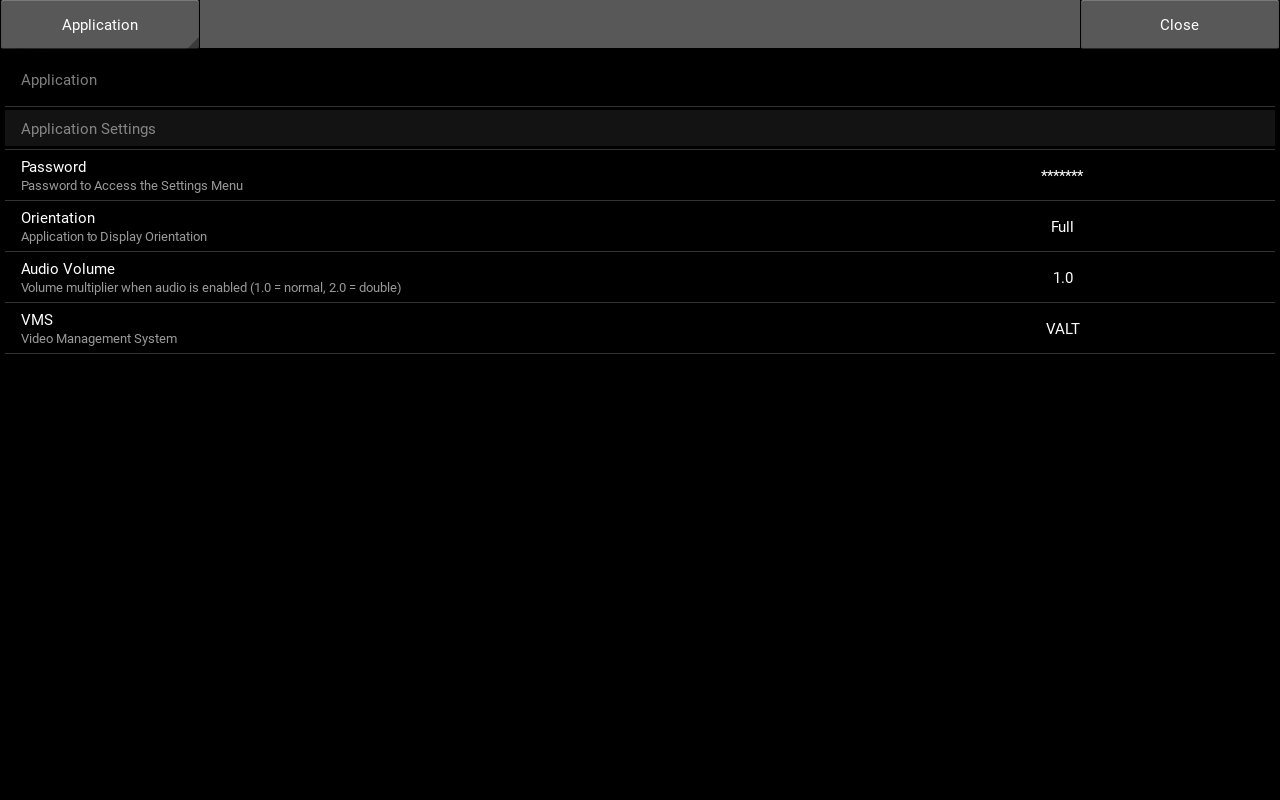
| Setting | Default | What it does | Notes |
|---|---|---|---|
| Password | admin51 | Device password used to open Settings | IVS recommends that the default password be changed |
| Orientation | Full | Screen layout | Leave at default. The cart is designed for the full screen layout |
| Audio Volume | 1.0 | Volume of camera audio on the control display | Leave at default. Only applies when Camera Control > Audio is on |
| VMS | None | VALT or None. Shows or hides the VALT panel | Set by the setup wizard |
Camera Control
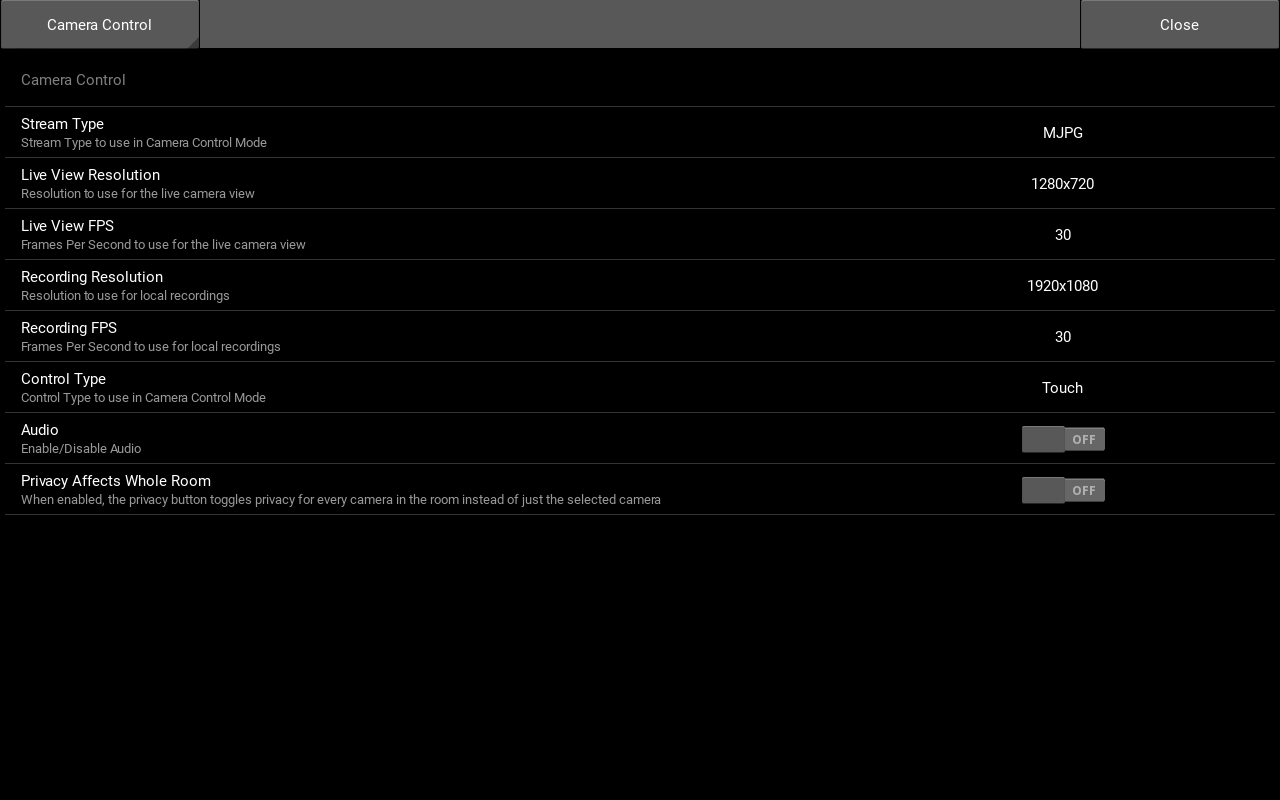
| Setting | Default | What it does | Notes |
|---|---|---|---|
| Stream Type | MJPG | Video stream used for the live view | Leave at default. Other types add delay to the live view |
| Live View Resolution | 1280x720 | Picture quality on the control display | Leave at default |
| Live View FPS | 30 | Frame rate on the control display | Leave at default |
| Recording Resolution | 1920x1080 | Picture quality of local recordings | Leave at default |
| Recording FPS | 30 | Frame rate of local recordings | Leave at default |
| Control Type | Touch | Touch: tap to point, spread and pinch to zoom. Button: on-screen pan, tilt and zoom buttons | |
| Audio | Off | Plays camera audio on the control display | Leave at default. See the caution below |
| Privacy Affects Whole Room | Off | Applies privacy to the whole VALT room, not just this camera | Applies only when the cart is connected to VALT |
System
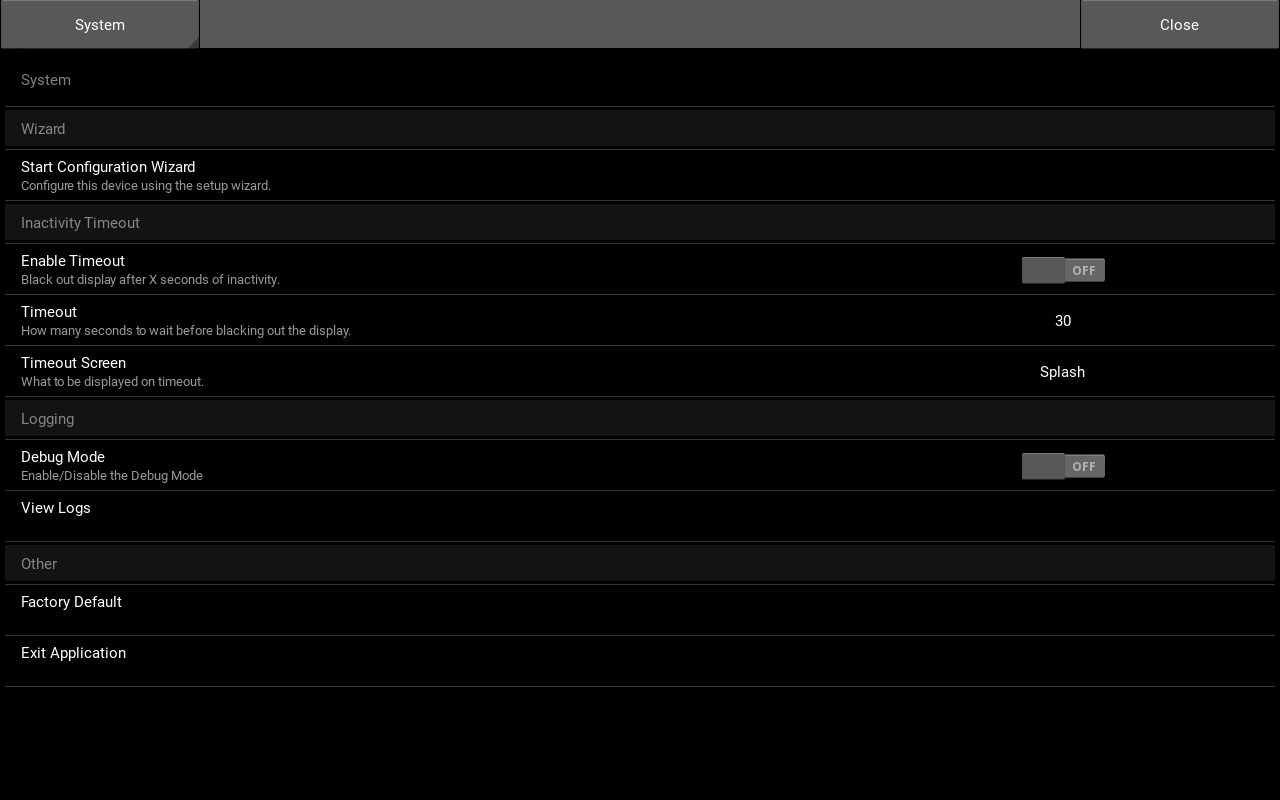
| Setting | Default | What it does | Notes |
|---|---|---|---|
| Start Configuration Wizard | Runs the setup wizard | ||
| Enable Timeout | Off | Turns on the inactivity timeout | See section 7 |
| Timeout | 30 | Seconds without a touch before the screen changes | |
| Timeout Screen | Splash | What the screen shows after the timeout: Splash or Blank | |
| Debug Mode | Off | Adds detail to the logs | Leave at default unless IVS support instructs otherwise |
| View Logs | Shows the cart's logs | Used by IVS support for troubleshooting | |
| Factory Default | Resets all settings to how the cart shipped | See section 9 before using | |
| Exit Application | Closes the cart's application | The application restarts automatically |
Time
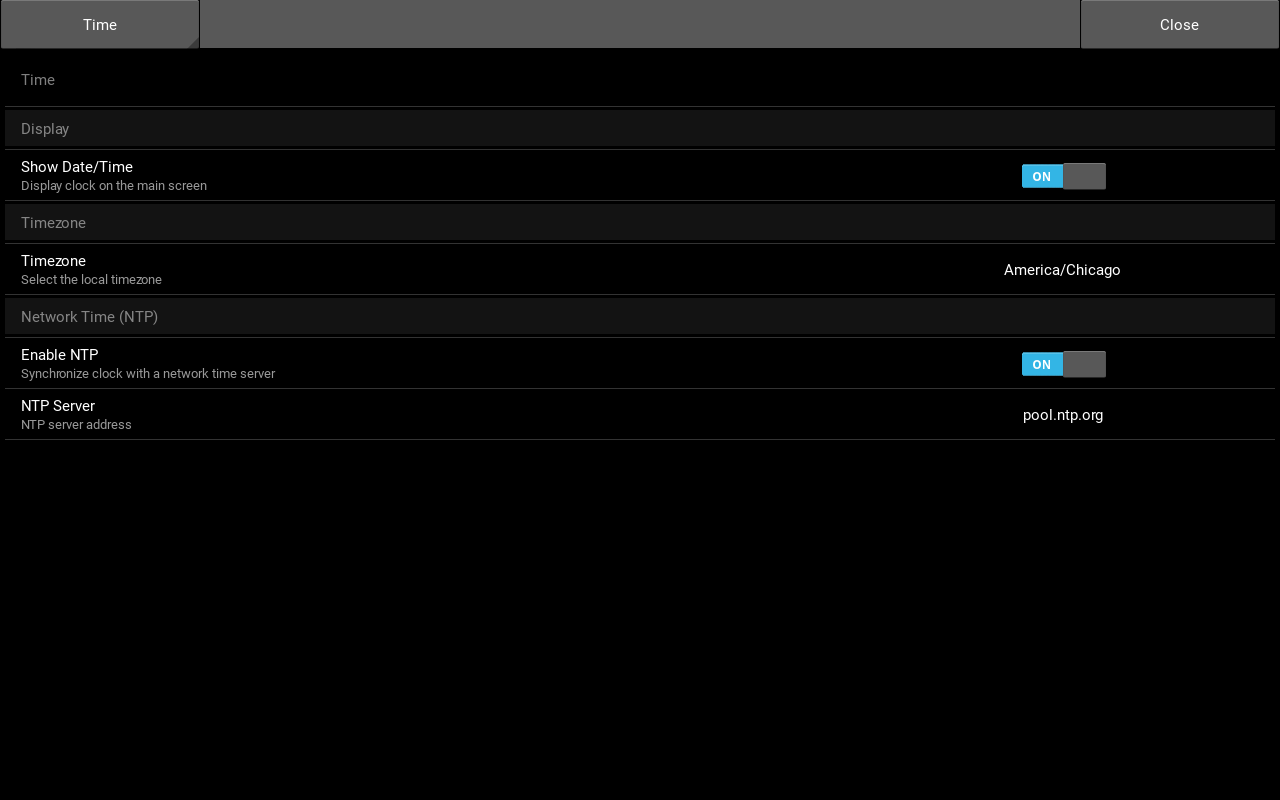
| Setting | Default | What it does | Notes |
|---|---|---|---|
| Show Date/Time | On | Shows the date and time on the screen | |
| Timezone | America/Chicago | Time zone | Set by the setup wizard |
| Enable NTP | On | Sets the clock from a time server | |
| NTP Server | pool.ntp.org | Time server address |
Network
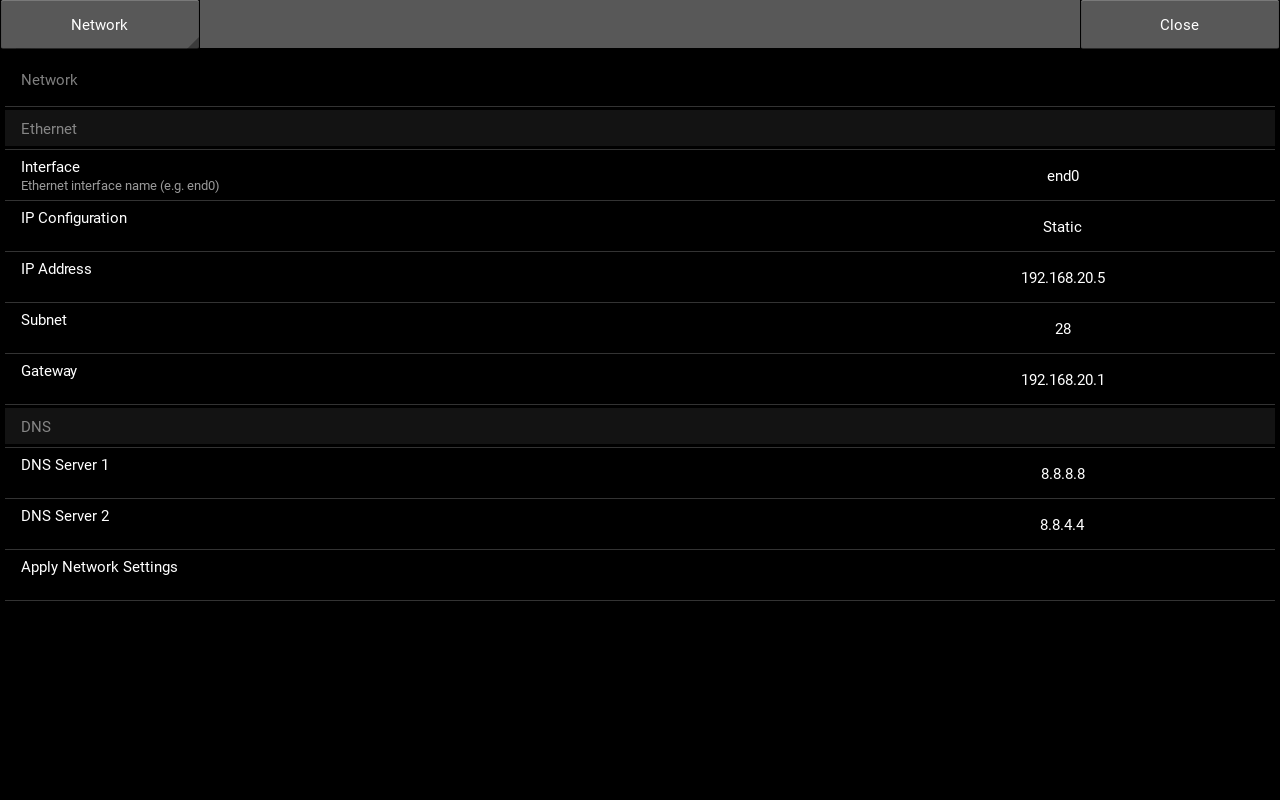
This panel sets the control display's own address on the cart's internal network.
| Setting | Default | What it does | Notes |
|---|---|---|---|
| Interface | end0 | Network interface | Leave at default |
| IP Configuration | Static | Address mode | Leave at default |
| IP Address | 192.168.20.5 | Control display address | Leave at default |
| Subnet | 28 | Subnet | Leave at default |
| Gateway | 192.168.20.1 | Router address | Leave at default |
| DNS Server 1 / 2 | 8.8.8.8 / 8.8.4.4 | Name servers | Leave at default |
| Apply Network Settings | Applies changes |
VALT
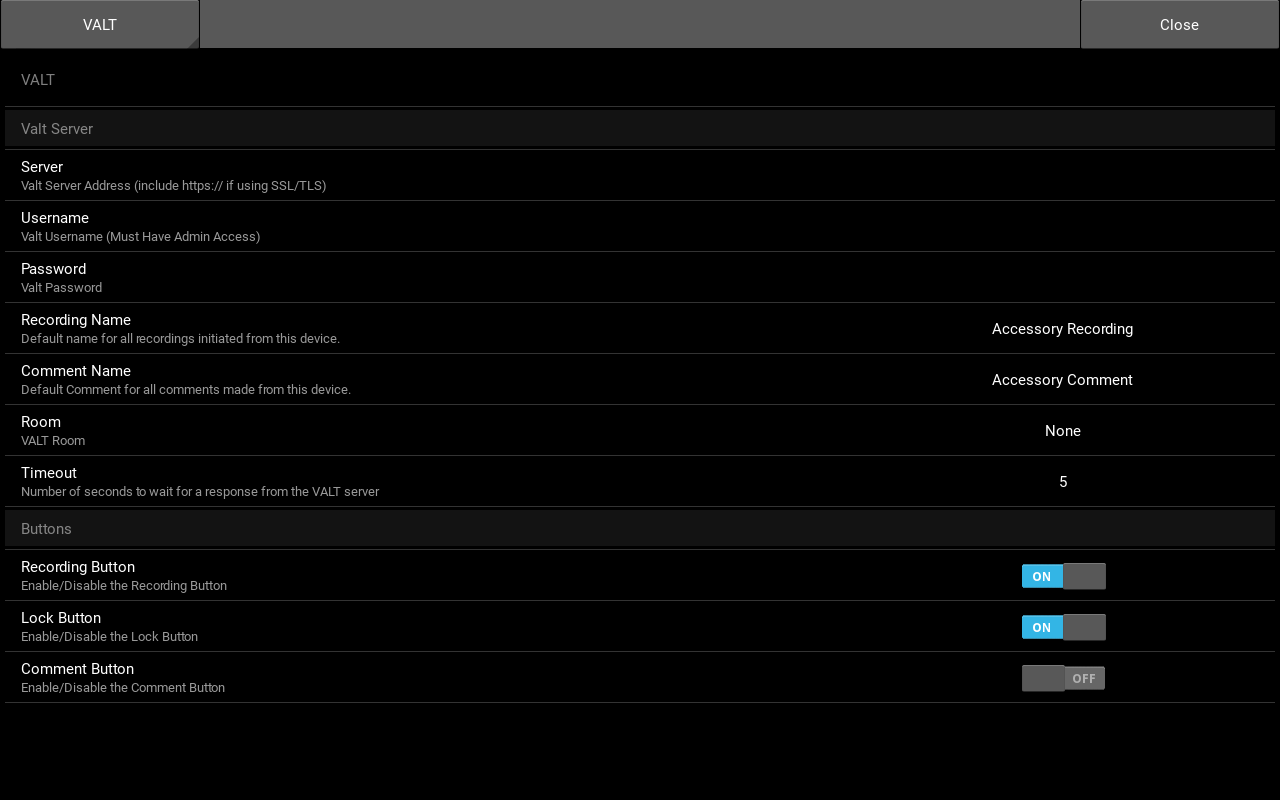
Appears only when Settings > Application > VMS is set to VALT. See the Setup and Commissioning Guide for details.
| Setting | Default | What it does | Notes |
|---|---|---|---|
| Server | VALT server address | Set by the setup wizard. Update here if the server address changes | |
| Username / Password | VALT login the cart uses | Set by the setup wizard. Update here if the login changes | |
| Recording Name | Accessory Recording | Name given to recordings started from the cart | |
| Comment Name | Accessory Comment | Name given to comments added from the cart | |
| Room | VALT room for this cart | Set by the setup wizard | |
| Timeout | 5 | Seconds to wait for the VALT server to respond | Leave at default |
| Recording Button / Lock Button / Comment Button | Not used in the cart's full screen layout | Leave at default |
ROAM Configuration
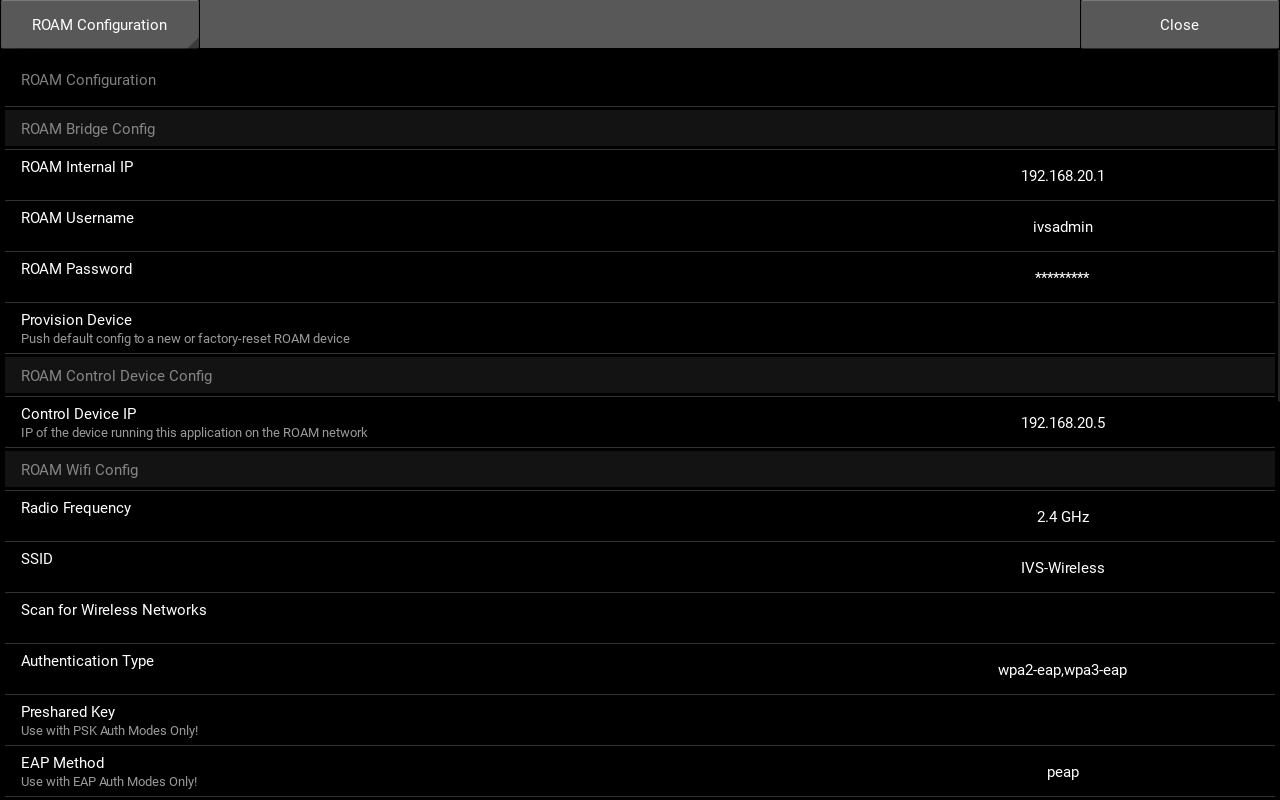
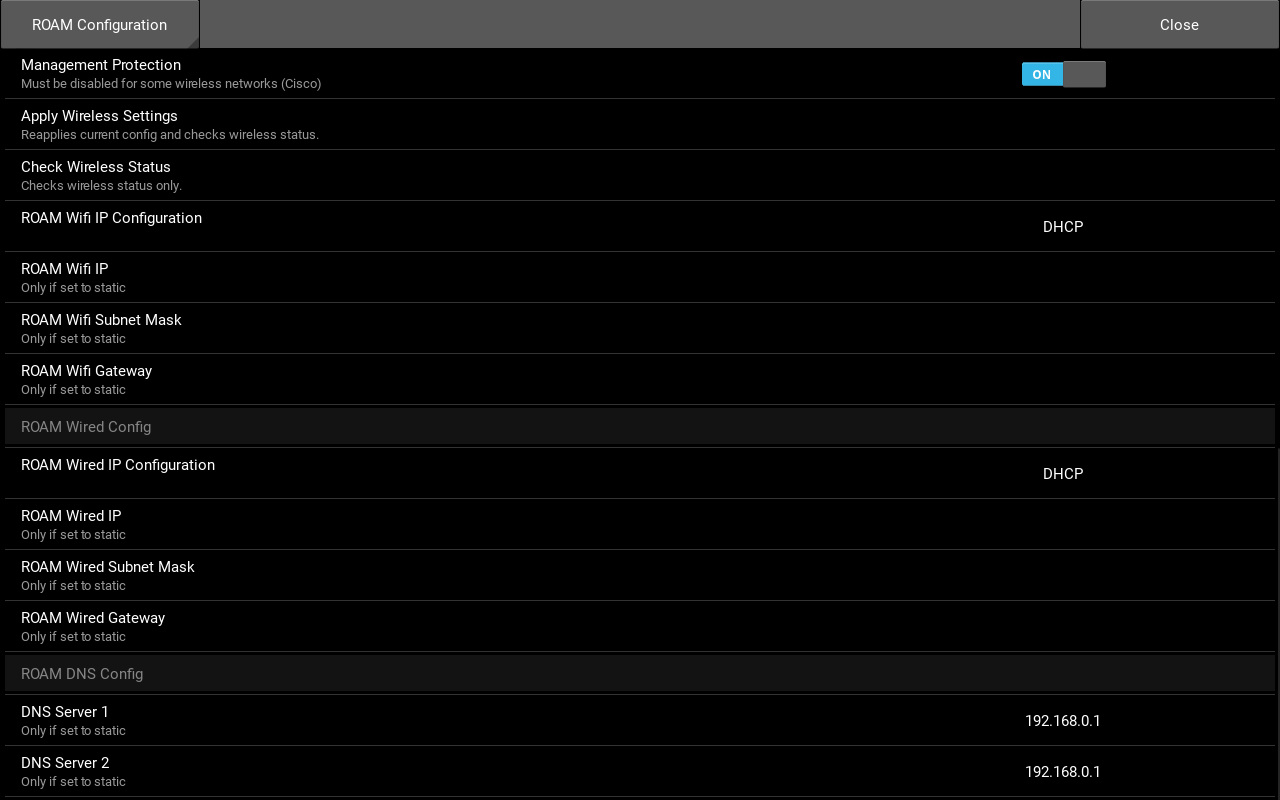
Settings for the cart's internal router and its connection to your network. See the Setup and Commissioning Guide for details.
| Setting | Default | What it does | Notes |
|---|---|---|---|
| ROAM Internal IP | 192.168.20.1 | Router address inside the cart | Leave at default |
| ROAM Username | ivsadmin | Router username the app uses | Leave at default |
| ROAM Password | @dmin51!! | Router password the app uses | IVS recommends that the default password be changed |
| Provision Device | Applies the cart's standard router configuration | Use only when instructed by IVS support | |
| Control Device IP | 192.168.20.5 | Control display address | Leave at default |
| Radio Frequency | 2.4 GHz | Wi-Fi band: 2.4 GHz or 5 GHz | Must match your wireless network |
| SSID | Wi-Fi network name | Set by the setup wizard. To change it, see section 7 | |
| Scan for Wireless Networks | Lists available networks | ||
| Authentication Type | Wi-Fi security type | Must match your wireless network | |
| Preshared Key | Wi-Fi password, for password (PSK) networks | Used only with PSK authentication types | |
| EAP Method / EAP Username / EAP Password | Sign-in for enterprise (EAP) networks | Used only with EAP authentication types | |
| Management Protection | On | Wi-Fi management frame protection | Turn off if your IT team requires it. Some Cisco networks do |
| Apply Wireless Settings | Applies the Wi-Fi settings and checks the connection | Use after changing any Wi-Fi setting | |
| Check Wireless Status | Checks the Wi-Fi connection only | ||
| ROAM Wifi IP Configuration | DHCP | Address mode on Wi-Fi: DHCP or Static | Use Static only if your IT team assigns a static IP address |
| ROAM Wifi IP / Subnet Mask / Gateway | Static address on Wi-Fi | Used only when ROAM Wifi IP Configuration is Static | |
| ROAM Wired IP Configuration | DHCP | Address mode on a wired connection: DHCP or Static | Use Static only if your IT team assigns a static IP address |
| ROAM Wired IP / Subnet Mask / Gateway | Static address on a wired connection | Used only when ROAM Wired IP Configuration is Static | |
| DNS Server 1 / 2 | Name servers | Used only with a static IP address |
ROAM Video Devices
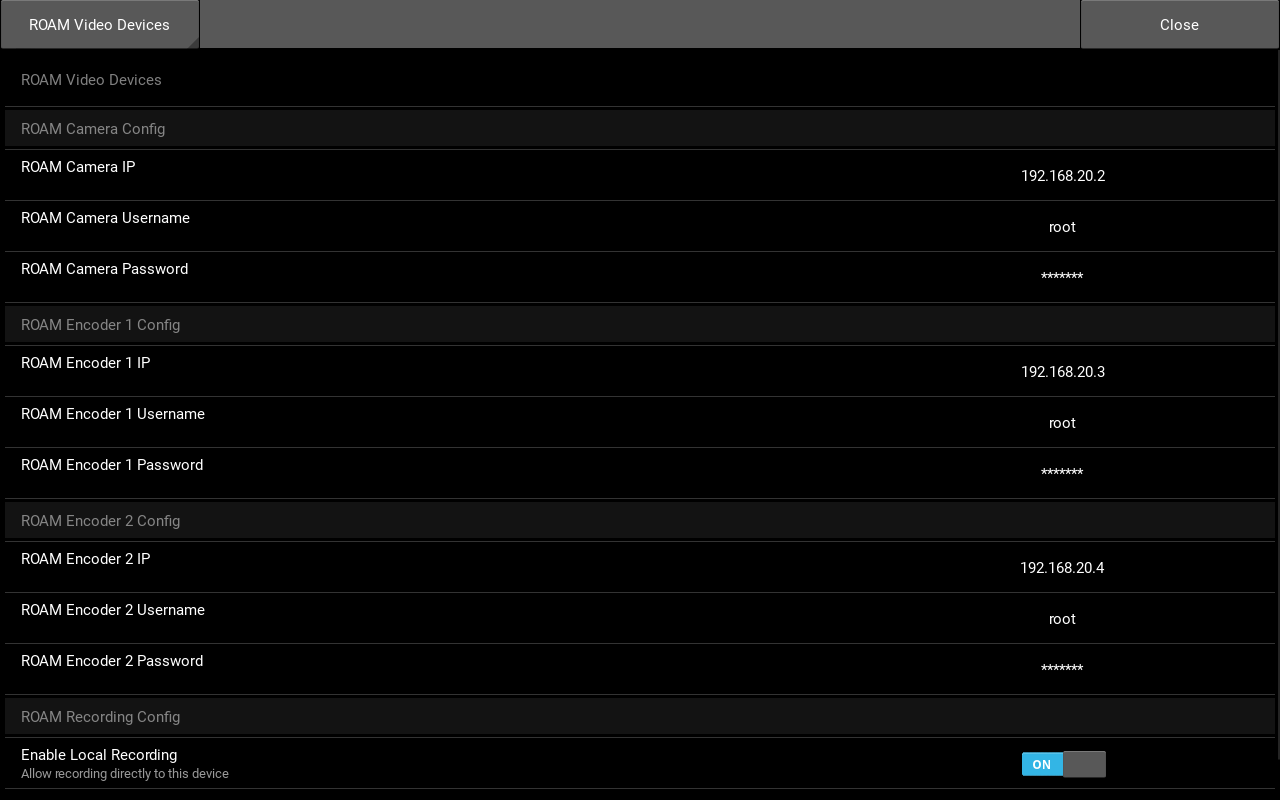
| Setting | Default | What it does | Notes |
|---|---|---|---|
| ROAM Camera IP | 192.168.20.2 | Camera address inside the cart | Leave at default |
| ROAM Camera Username | root | Camera username the app uses | Leave at default |
| ROAM Camera Password | admin51 | Camera password the app uses | IVS recommends that the default password be changed |
| ROAM Encoder 1 IP | 192.168.20.3 | Encoder 1 address inside the cart | Leave at default |
| ROAM Encoder 1 Username | root | Encoder 1 username the app uses | Leave at default |
| ROAM Encoder 1 Password | admin51 | Encoder 1 password the app uses | IVS recommends that the default password be changed |
| ROAM Encoder 2 IP | 192.168.20.4 | Encoder 2 address inside the cart | Leave at default |
| ROAM Encoder 2 Username | root | Encoder 2 username the app uses | Leave at default |
| ROAM Encoder 2 Password | admin51 | Encoder 2 password the app uses | IVS recommends that the default password be changed |
| Enable Local Recording | On | Records locally when VALT is not connected | When off, the cart can record only while connected to VALT |
| Record Encoder Streams | Off | Adds a file for each encoder to local recordings | See the caution in section 4 |
Video Download
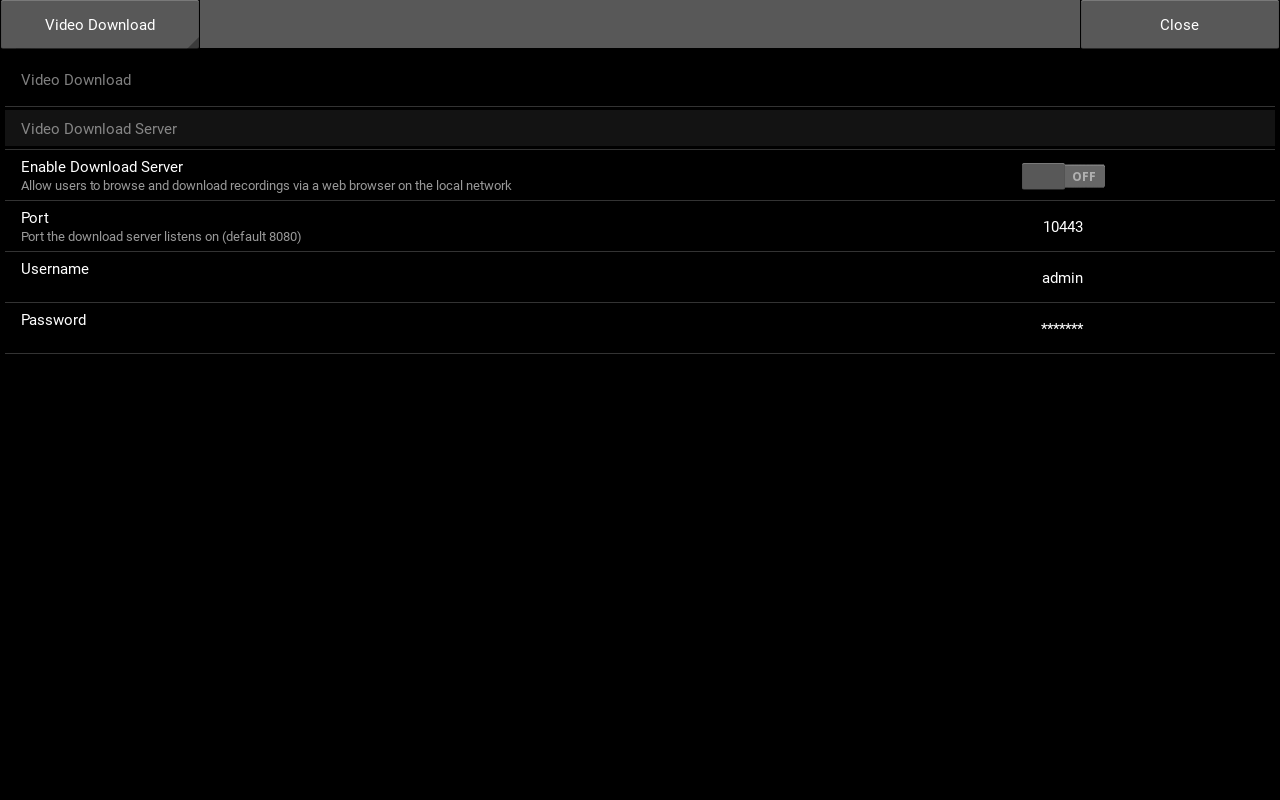
| Setting | Default | What it does | Notes |
|---|---|---|---|
| Enable Download Server | Off | Turns on the download page | See section 6 |
| Port | 10443 | Port of the download page | Leave at default. The download page only works on 10443 |
| Username | admin | Download page username | Leave at default |
| Password | admin51 | Download page password | IVS recommends that the default password be changed |
9. Reset to factory default settings
Factory default returns all settings to how the cart shipped, including its internal network.
- Open Settings > System.
- Touch Factory Default.
- Touch Yes to confirm.
- The cart resets. This takes a few minutes.
- Run the setup wizard: open Settings > System and touch Start Configuration Wizard. See the Quick Start.
10. Software updates
The cart's software updates automatically when the cart can reach the internet. Recordings and settings are kept when the software updates.
To check the software version, open the Information screen. The version is shown at the bottom.

11. Troubleshooting
Check the software version on the Information screen before contacting support.
Power and battery
| Problem | Solution |
|---|---|
| The cart does not turn on | Charge the cart. Check that the charger is plugged in and its light is on. If the cart still does not turn on, contact IVS support. |
| The charger light does not come on | Check that the charger is plugged into a working outlet and connected to the charging port. |
| The battery meter shows 100% while charging | This is expected. Use the charger light to tell when charging is complete. |
| The battery runs down sooner than expected | Charge the cart fully before use. The battery meter shows the approximate charge only. |
Network
| Problem | Solution |
|---|---|
| The Wi-Fi icon shows disconnected | Check that the wireless network is available. In Settings > ROAM Configuration, touch Check Wireless Status. If the network name or password changed, update them in Settings > ROAM Configuration (section 7). |
| ROAM Wireless Bridge Not Found | Turn the cart off and on again. If the message returns, contact IVS support. |
| Wireless Connection Failed | Check the network name, authentication type and password with your IT team, then try again. Some Cisco networks require Management Protection to be off. |
| Your VMS cannot reach the cart | The cart's IP address may have changed. Ask your IT team to set up a DHCP reservation for the cart, or a static IP address. |
Camera and picture
| Problem | Solution |
|---|---|
| Connecting to Camera. Please Wait... does not clear | Wait one minute. If the message remains, turn the cart off and on again. |
| Error Loading Camera Feed or No Cameras Available | Turn the cart off and on again. If the message returns, contact IVS support. |
| Could not connect to the camera... | Turn the cart off and on again. If the message returns, contact IVS support. |
| The camera rejected the username or password... | The camera login in Settings > ROAM Video Devices does not match the camera. If the camera password was changed, enter the new password there. Otherwise, contact IVS support. |
| An encoder is missing from the camera icon list | The encoder is not responding on the cart's internal network. Turn the cart off and on again. If it is still missing, contact IVS support. |
| An encoder shows no picture | Check that the HDMI source is connected and turned on. |
| The camera does not move | Check that the view is set to the camera, not an encoder. |
Recording
| Problem | Solution |
|---|---|
| Select a camera, then press Record again. | Touch the camera icon, choose the camera, then touch the record icon. |
| Disk space is currently low! or Disk space is low | Upload recordings to VALT or delete recordings you no longer need. |
| This device is out of storage space... | Upload or delete recordings, then try again. |
| The recording software is missing on this device... | Contact IVS support. |
VALT
| Problem | Solution |
|---|---|
| The VALT icon does not appear | The cart is not connected to VALT. Check that the cart is connected to the network. If the VALT server address or login changed, update them in Settings > VALT (section 7). |
| Lost Connection to VALT | The cart reconnects on its own when VALT is reachable. Recordings made in the meantime are stored locally; upload them when the VALT icon returns. |
| Failed to connect to VALT during setup | Check the VALT address, username and password, then try again. |
| A recording is not in VALT | If the recording was made while the cart was not connected to VALT, it is a local recording. Upload it (section 6). |
| A recording is still on the cart after uploading | The upload did not finish. Upload again. |
Download page
| Problem | Solution |
|---|---|
| The download page does not open | Check that Enable Download Server is on, that the computer is on the same network as the cart, and that the address starts with https:// and ends with :10443/. |
| The browser shows a security warning | This is expected. Continue to the page. See section 12. |
Settings
| Problem | Solution |
|---|---|
| Invalid Password when opening Settings | Enter the device password again. If it has been lost, contact IVS support. |
If a problem is not listed, contact IVS support. Support may ask you to open Settings > System > View Logs.
12. Learn more
Local recording and VALT
When the cart is connected to VALT, the record icon starts a recording on the VALT server, and the video does not need to be stored on the cart. When the cart is not connected, it records locally so nothing is missed. Local recordings can be uploaded to VALT later, or downloaded from the download page.
Talkback
The cart's speaker plays audio sent from VALT, so a person using VALT can talk to people at the cart. Use the volume knob on the speaker to set the level.
The download page security warning
The download page uses an encrypted (HTTPS) connection with its own security certificate. Browsers warn about certificates they do not already know, so the warning is expected. The connection is still encrypted.
Network ports
The ROAM Camera Cart uses the following network ports.
| Port | Use |
|---|---|
| 80, 443 | Camera web interface |
| 554 | Camera video stream |
| 8080 / 8554 | Encoder 1 web interface / video stream |
| 9080 / 9554 | Encoder 2 web interface / video stream |
| 10443 | Video download page |
| 22 | Control display access for troubleshooting. Not required for normal operation |
When the cart is used with VALT, it also needs to reach the VALT server on port 80 and/or 443.
13. Specifications
Product overview
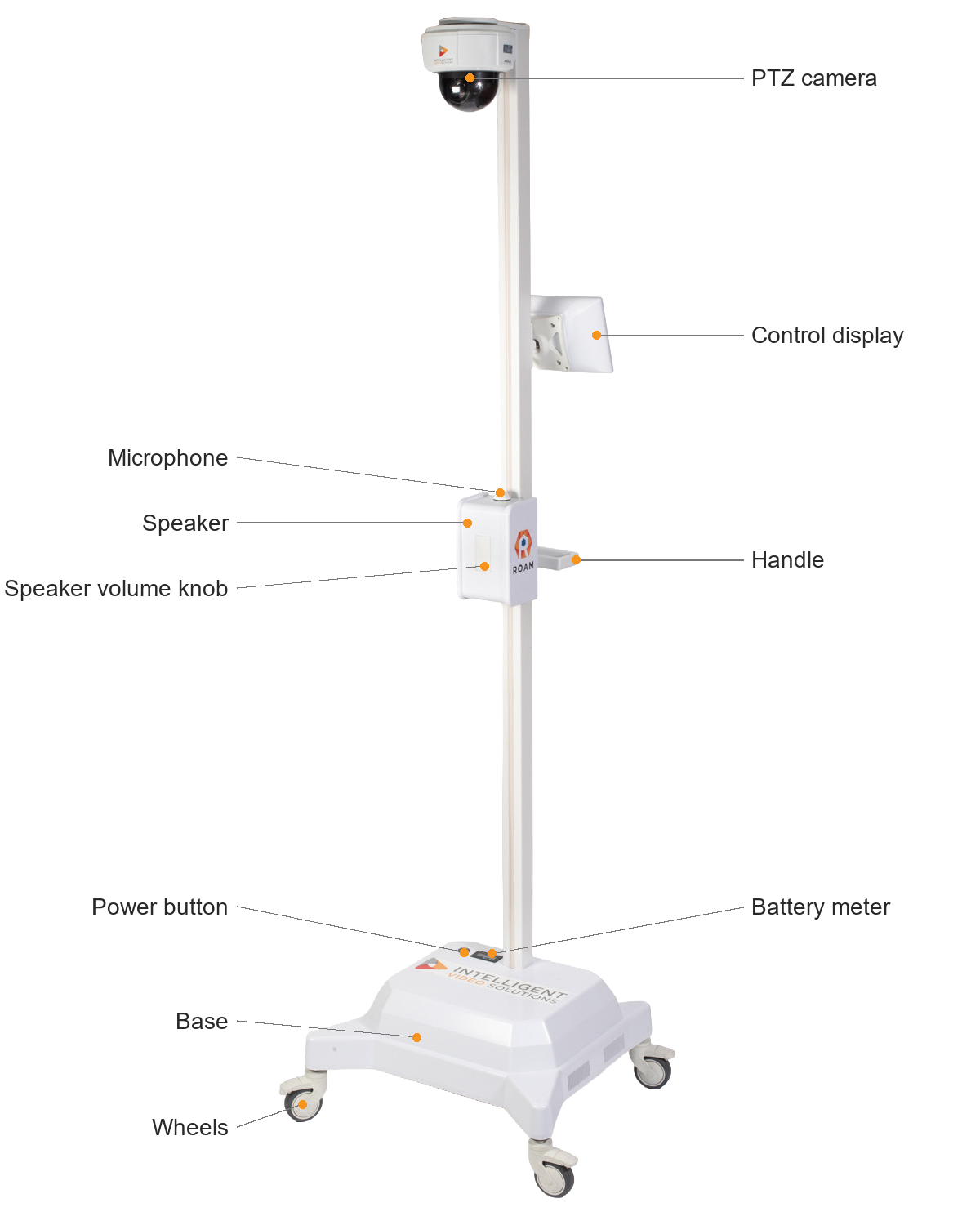
Dimensions and capacity
| Item | Value |
|---|---|
| Overall height | 80 in |
| Base to handle | 31.75 in |
| Base | 21.5 in W x 19.5 in D |
| Battery | Built-in rechargeable battery |
| Runtime | Approximately 15 hours |
| Storage | 256 GB |
| Encoders | Two HDMI encoders (standard) |
| Network | Wired (Ethernet) or wireless (2.4 GHz or 5 GHz) |
Indicators
| Indicator | State | Meaning |
|---|---|---|
| Power button | Green | The cart is on |
| Power button | Off | The cart is off |
| Charger light | Red | Charging |
| Charger light | Green | Fully charged |
| Battery meter | Reading | Approximate charge remaining. Shows 100% while charging |
Controls
- Power button: on top of the cart base. Turns the cart on and off.
- Speaker volume knob: on the side of the speaker box. Sets the speaker volume.
Rear ports
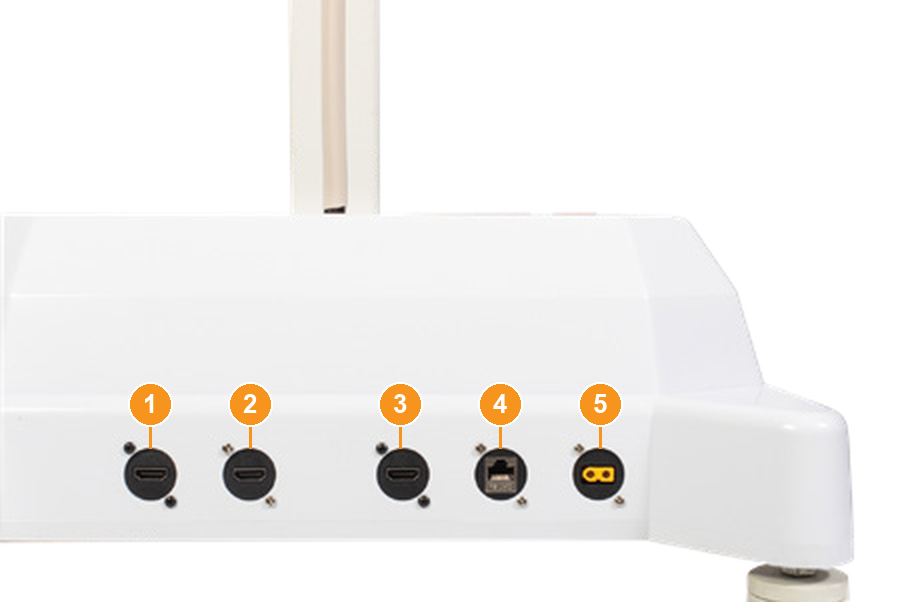
- Encoder 1 HDMI in
- Encoder 1 HDMI out
- Encoder 2 HDMI in
- Network
- Charging port
Encoder 1 HDMI out passes through the signal connected to Encoder 1 HDMI in.
14. Clean the cart
The cart's frame and base are powder-coated aluminum, stainless steel and ABS plastic.
Before cleaning
- Turn the cart off and unplug the charger.
- Apply any liquid to a cloth first. Never spray liquid directly on the cart.
Routine cleaning
Weekly, or as needed:
- Frame and base: wipe with a soft microfiber cloth dampened with water and a little mild soap, then dry.
- Control display: wipe with a dry microfiber cloth. For smudges, use a cloth lightly dampened with water.
- Camera dome: remove dust with compressed air, then wipe gently with a microfiber cloth dampened with lukewarm water. Dry with a clean, non-abrasive cloth.
Disinfecting
Between uses, where required:
- Frame, base, handle and control display: wipe with 70% isopropyl alcohol on a cloth, or a pre-moistened 70% alcohol wipe, and let it air dry.
- Camera dome: use water only, unless IVS support approves a disinfectant. See also the camera manufacturer's cleaning guidance: Axis, "Clean your device" in the camera's user manual at help.axis.com, and the Axis white paper *Chemical resistance to common cleaning agents*.
Do not use
- Window cleaner, ammonia, bleach, acetone or other solvents
- Abrasive pads or powders
- Cleaning the camera in direct sunlight or high heat, which can leave stains
15. Security
- The cart ships with default passwords. IVS recommends that they be changed. See section 8.
- Before a cart is retired or transferred, delete its recordings (section 5), then reset it to factory default settings (section 9) to remove your network and VALT settings.
16. Warranty
The ROAM Camera Cart includes a 5-year depot repair warranty. An on-site warranty is available for purchase. For full warranty terms, contact your IVS Account Manager.
17. Support
- Web: www.ivs.help
- Phone: 262-746-9290, option 2
- Email: support@ipivs.com