IVS Wiki:BEAM Manual
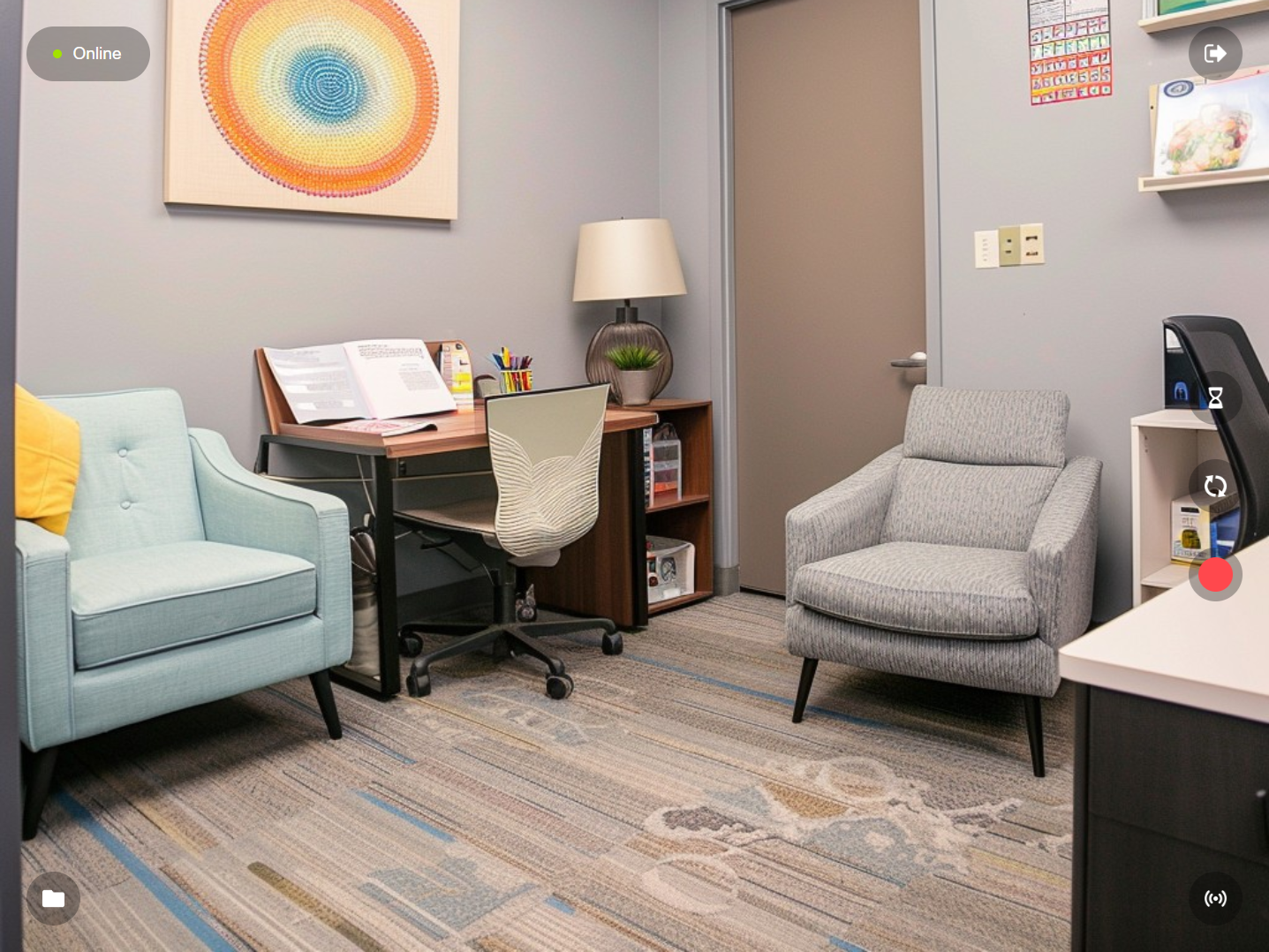
Connection Status
Displays the current status of communication with the VALT server.
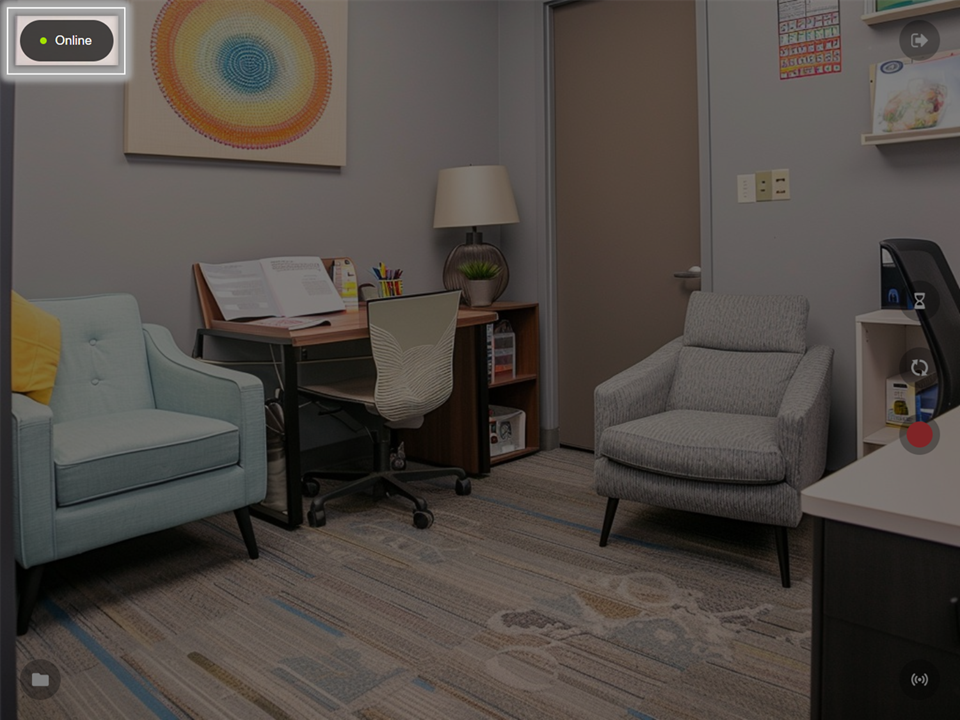
Switch Server
The  Logout button will allow you to logout or disconnect BEAM from your VALT server or to change the server settings.
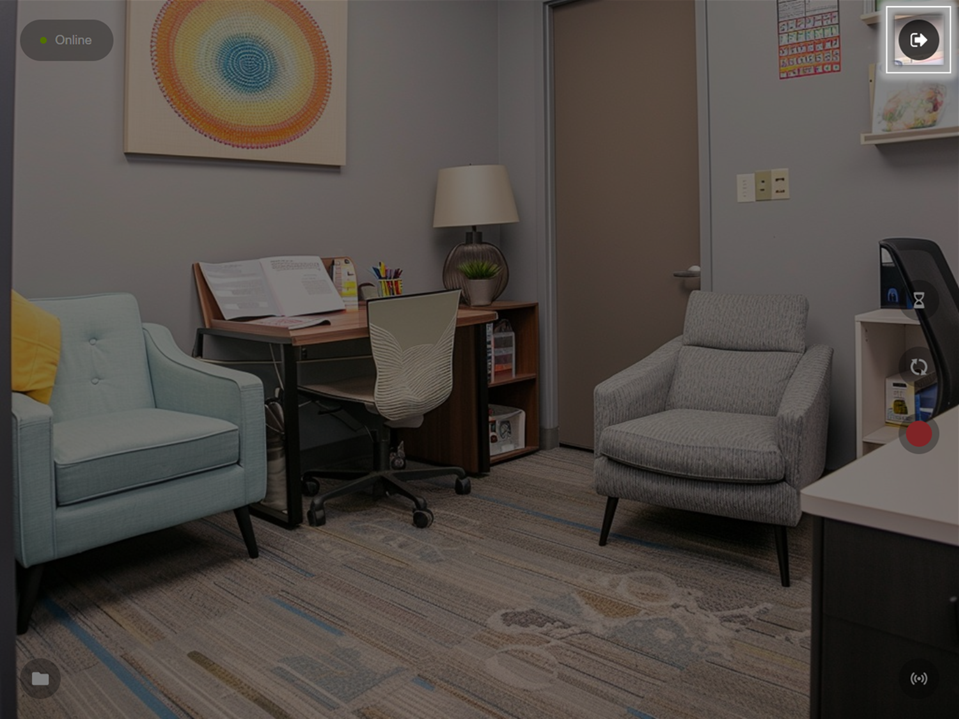
Prepare Recording
The  Prepare button is used to arm a room for an active recording. This option allows you to fill in all the information fields ahead of the recording.
Flip Camera
The  Flip Camera buttons allows users to toggle between the front and rear cameras of your device.
Record
The  Recording button will prompt the user to fill out an Information Template before beginning the reocrding.
Stream
The  Stream button will allow the user to Stream or Stream and Record. Both options will allow the BEAM video stream to be viewable in VALT. The video will show up as a Stream in the VALT application.
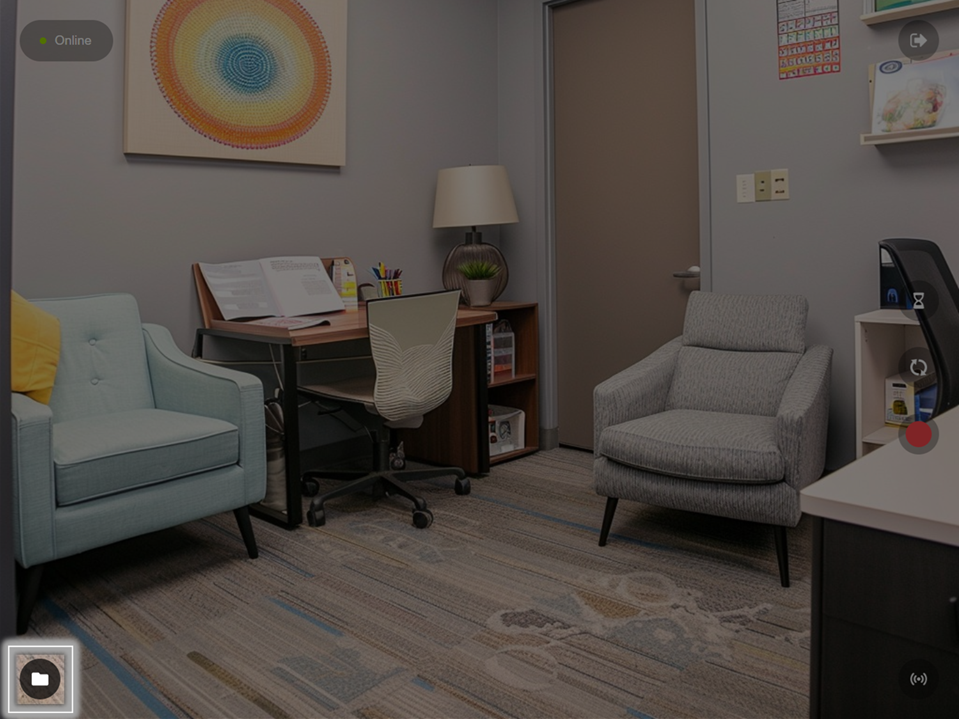
Files
The  Folder button will show you recordings stored on this device and allow users to change their individual sync settings.
Manual Upload
By default, Autosync is turned off. If disabled, users will need to manually sync their recorded videos.
-
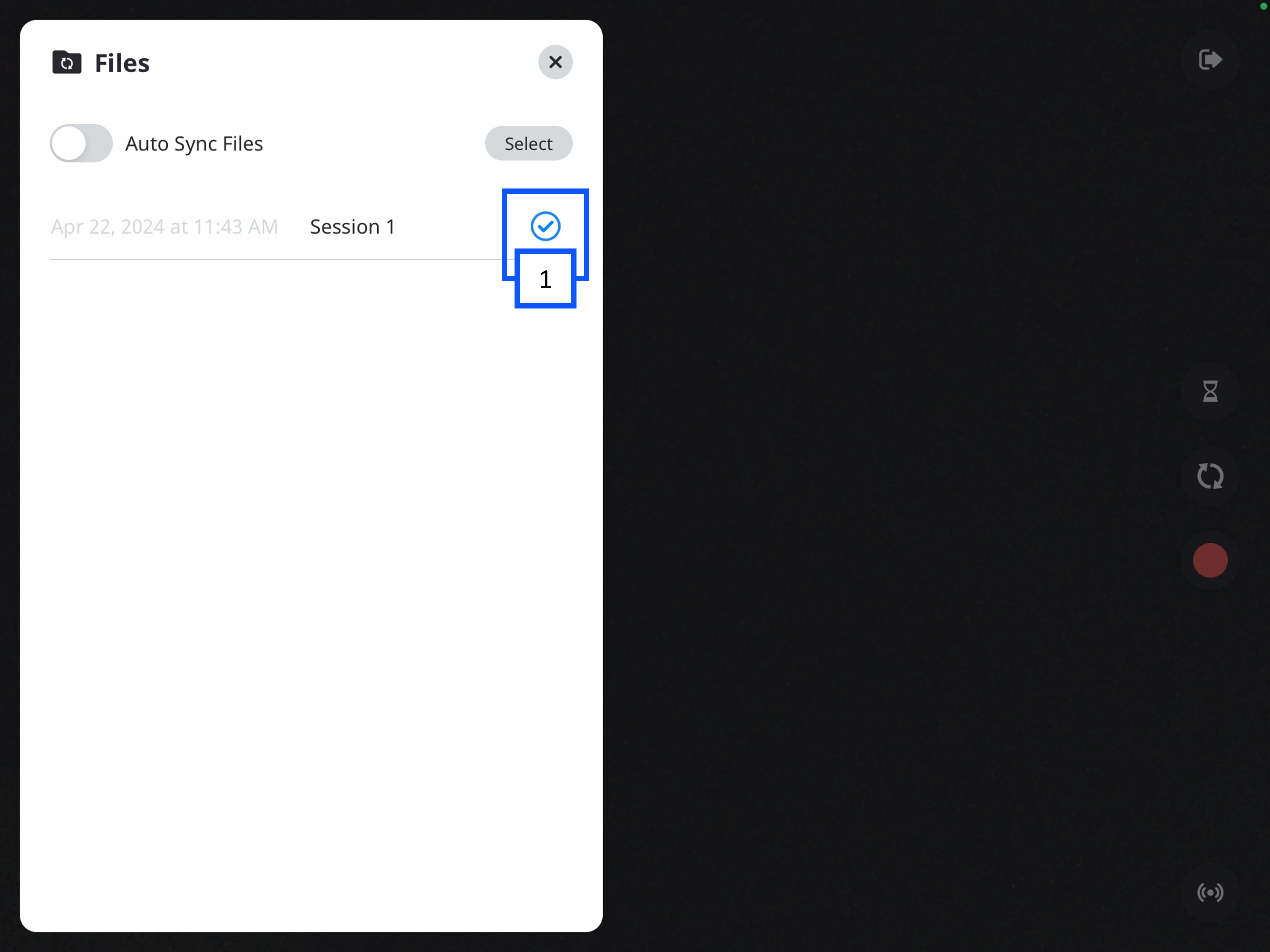
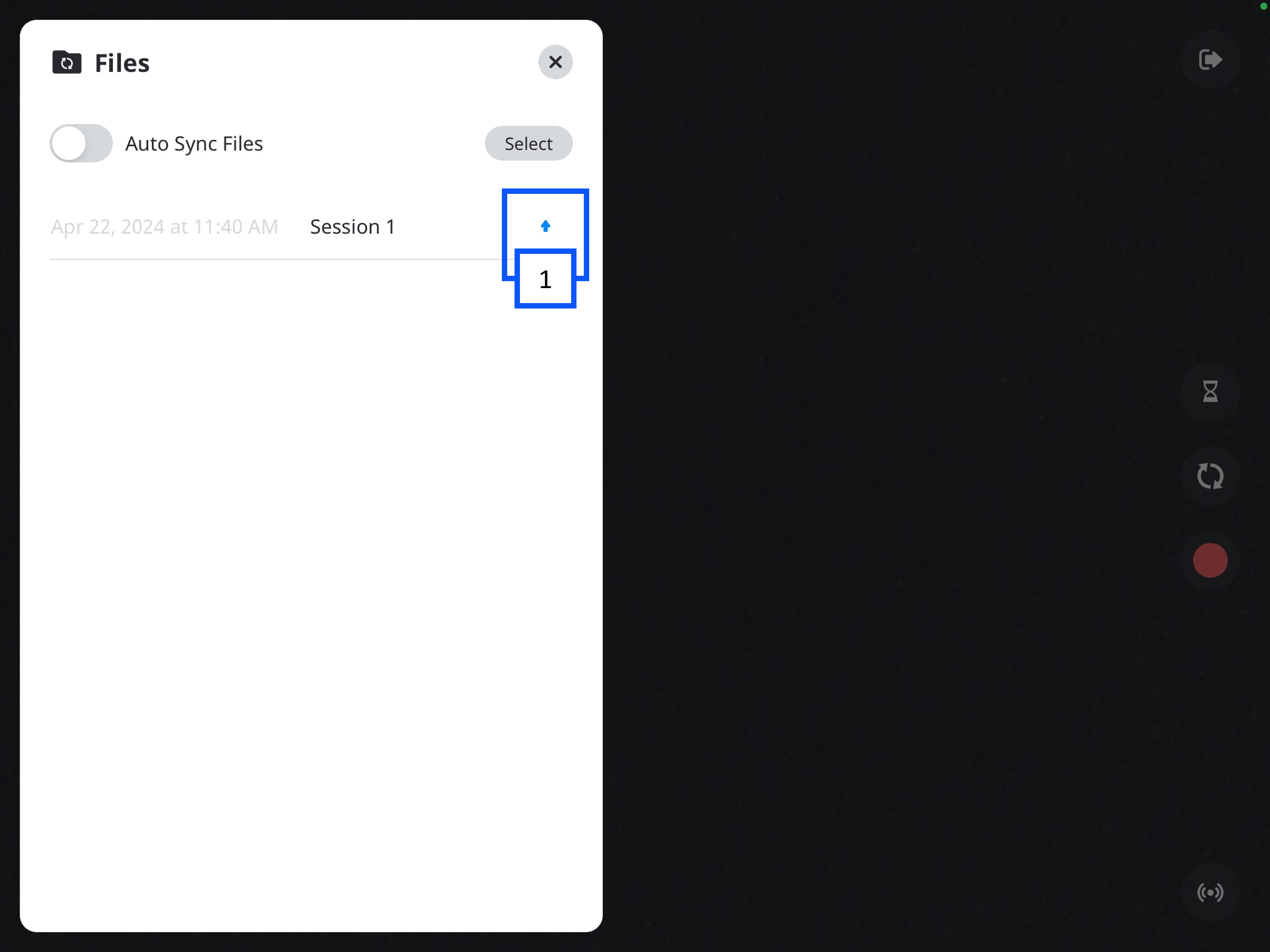
In the Files folder, you will see a list of your videos.
- The up arrow indicates the video has not been synced to the VALT server.
-
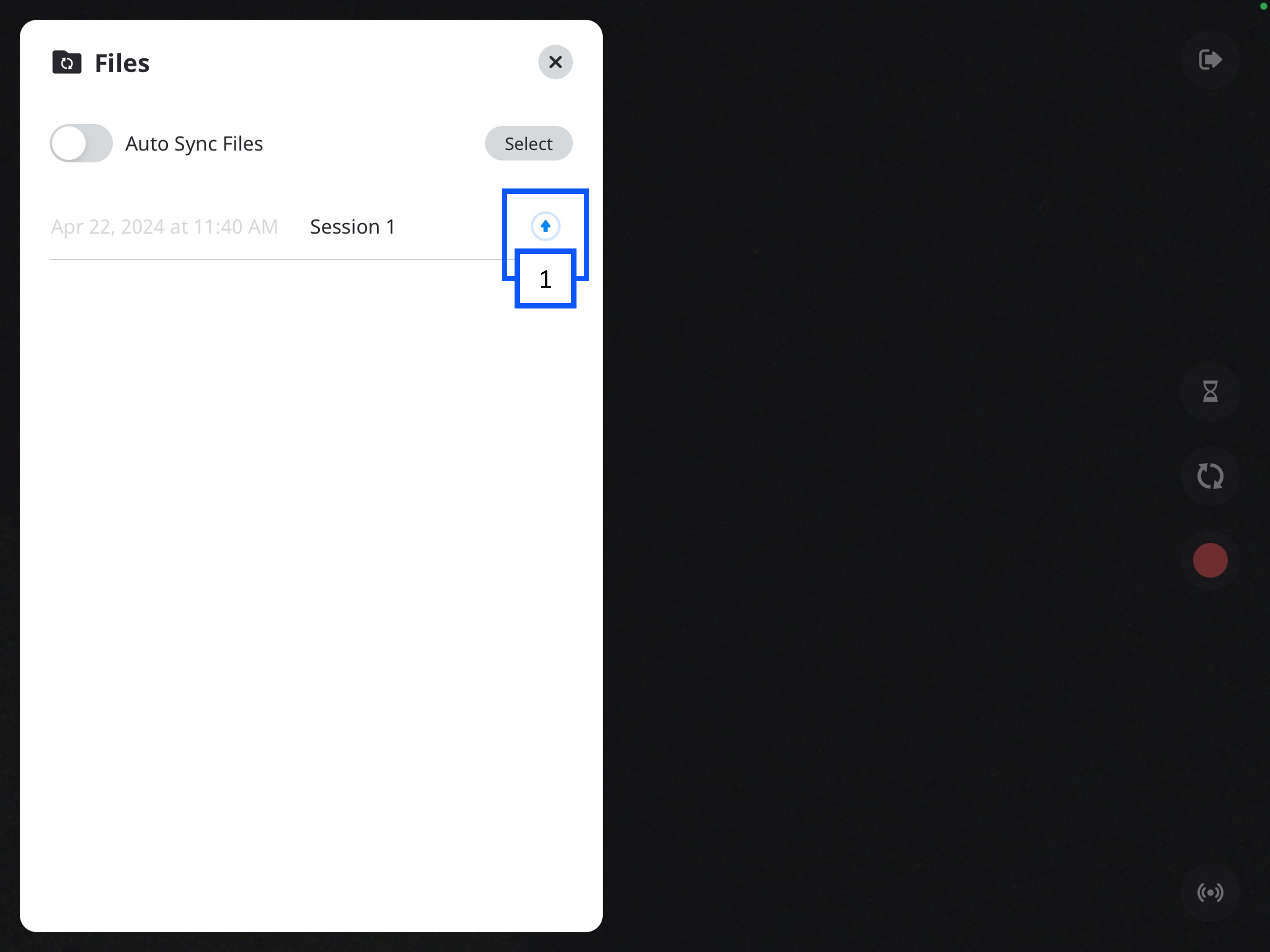
You can click the up arrow to initiate uploading the video.
- A progress circle will appear after the arrow is pressed.
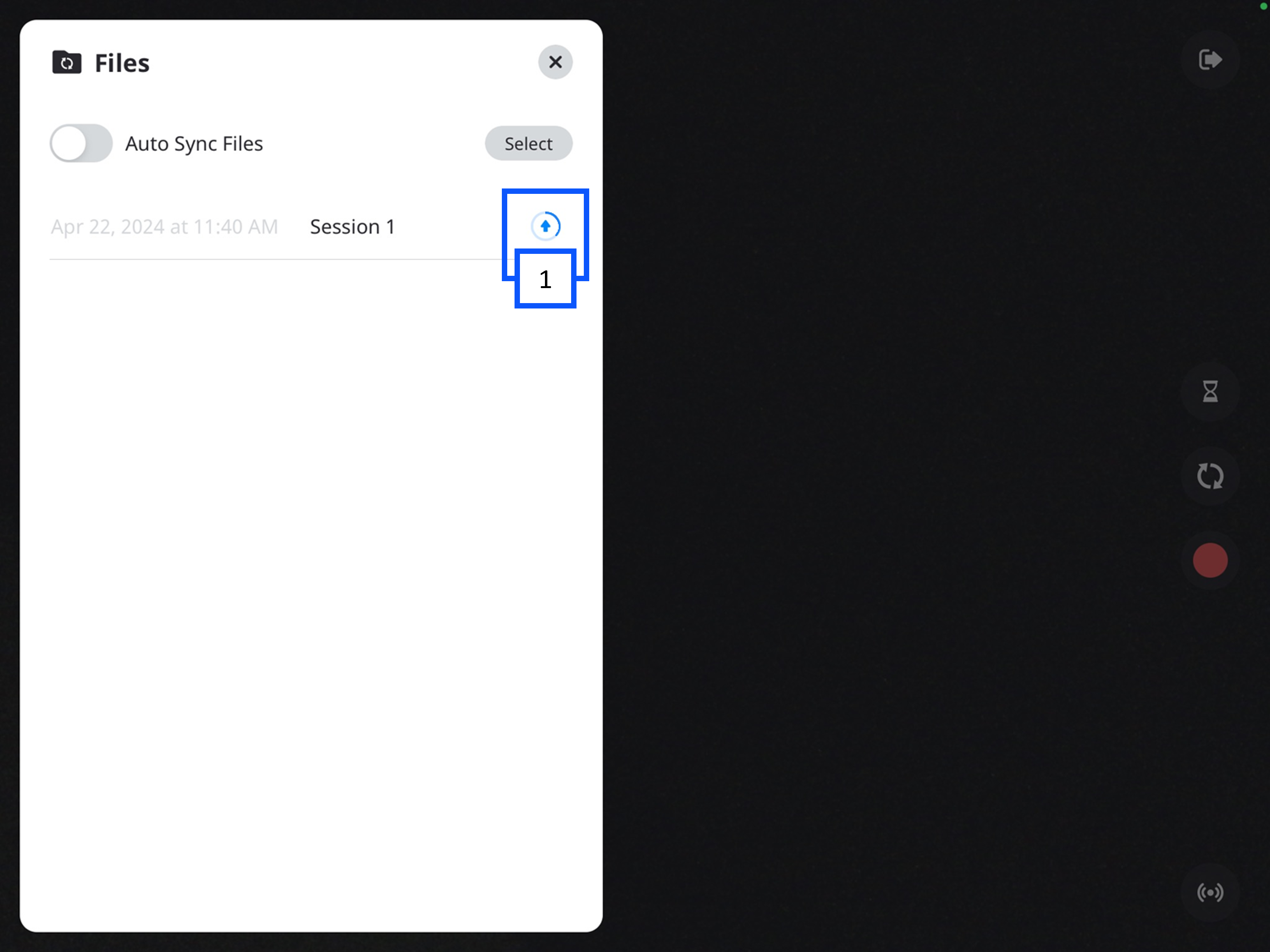
- A checkmark will appear when the recording is done uploading to the server.