ROAM Bridge: Difference between revisions
Jump to navigation
Jump to search
IVSWikiBlue (talk | contribs) No edit summary |
IVSWikiBlue (talk | contribs) No edit summary |
||
| Line 23: | Line 23: | ||
{{img | width = 750px | file = ROAM Bridge Login Screen.png}} | {{img | width = 750px | file = ROAM Bridge Login Screen.png}} | ||
{{Top of Page}} | |||
<hr> | <hr> | ||
| Line 31: | Line 32: | ||
{{img | width = 750px | file = ROAM Bridge Wireless 01.png}} | {{img | width = 750px | file = ROAM Bridge Wireless 01.png}} | ||
{{Top of Page}} | |||
<hr> | <hr> | ||
| Line 37: | Line 39: | ||
{{img | width = 750px | file = ROAM Bridge Wireless 02.png}} | {{img | width = 750px | file = ROAM Bridge Wireless 02.png}} | ||
{{Top of Page}} | |||
<hr> | <hr> | ||
| Line 43: | Line 46: | ||
{{img | width = 750px | file = ROAM Bridge Wireless 03.png}} | {{img | width = 750px | file = ROAM Bridge Wireless 03.png}} | ||
{{Top of Page}} | |||
<hr> | <hr> | ||
| Line 49: | Line 53: | ||
#Click on <b>DHCP Client</b>. | #Click on <b>DHCP Client</b>. | ||
#:From there, you will see the <b>IP Address</b> for wifi1. | #:From there, you will see the <b>IP Address</b> for wifi1. | ||
{{Top of Page}} | |||
}} | }} | ||
Revision as of 17:13, 27 February 2024
ROAM Bridge
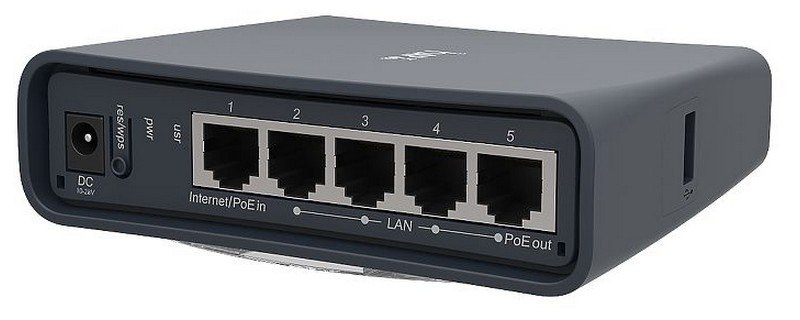
Physical Device
Accessing the ROAM Bridge
To access the ROAM Bridge, it must be powered and connected to the network.
✎
You can also access the device by connecting a laptop or computer directly to the deivce.
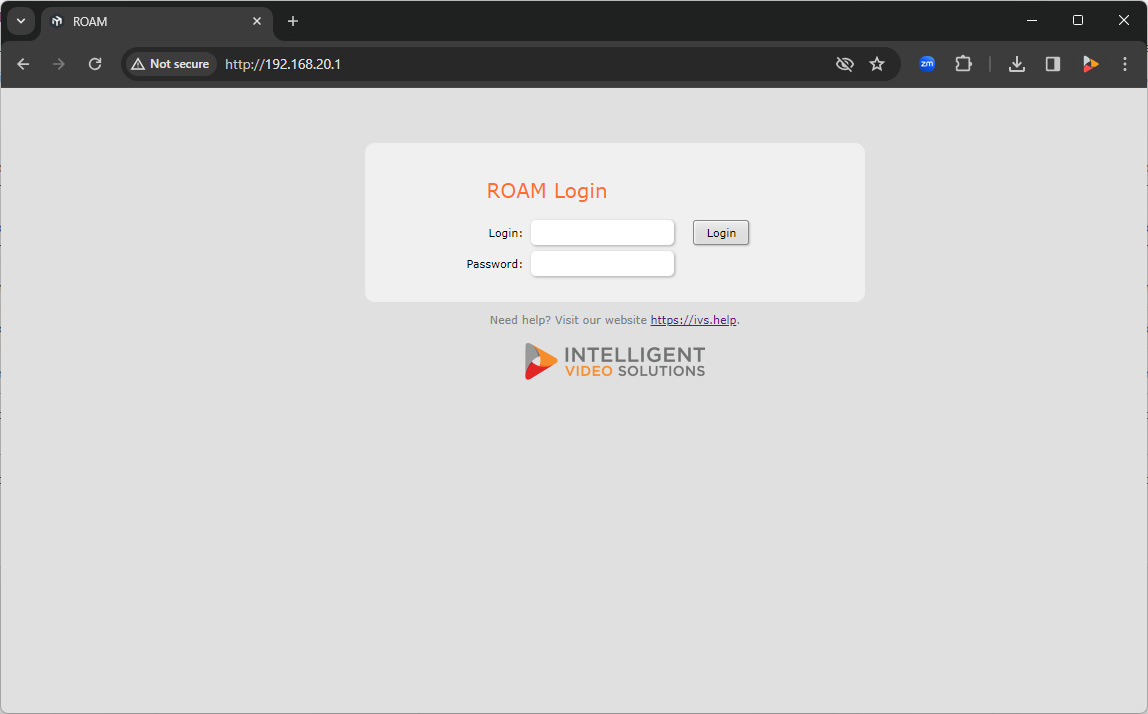
Once on the network, please navigate to the IP of the bridge, and enter the credentials.
-
The default administrative credentials are:
- User:
- admin
- Password:
- admin51
Configure Wireless
🕮
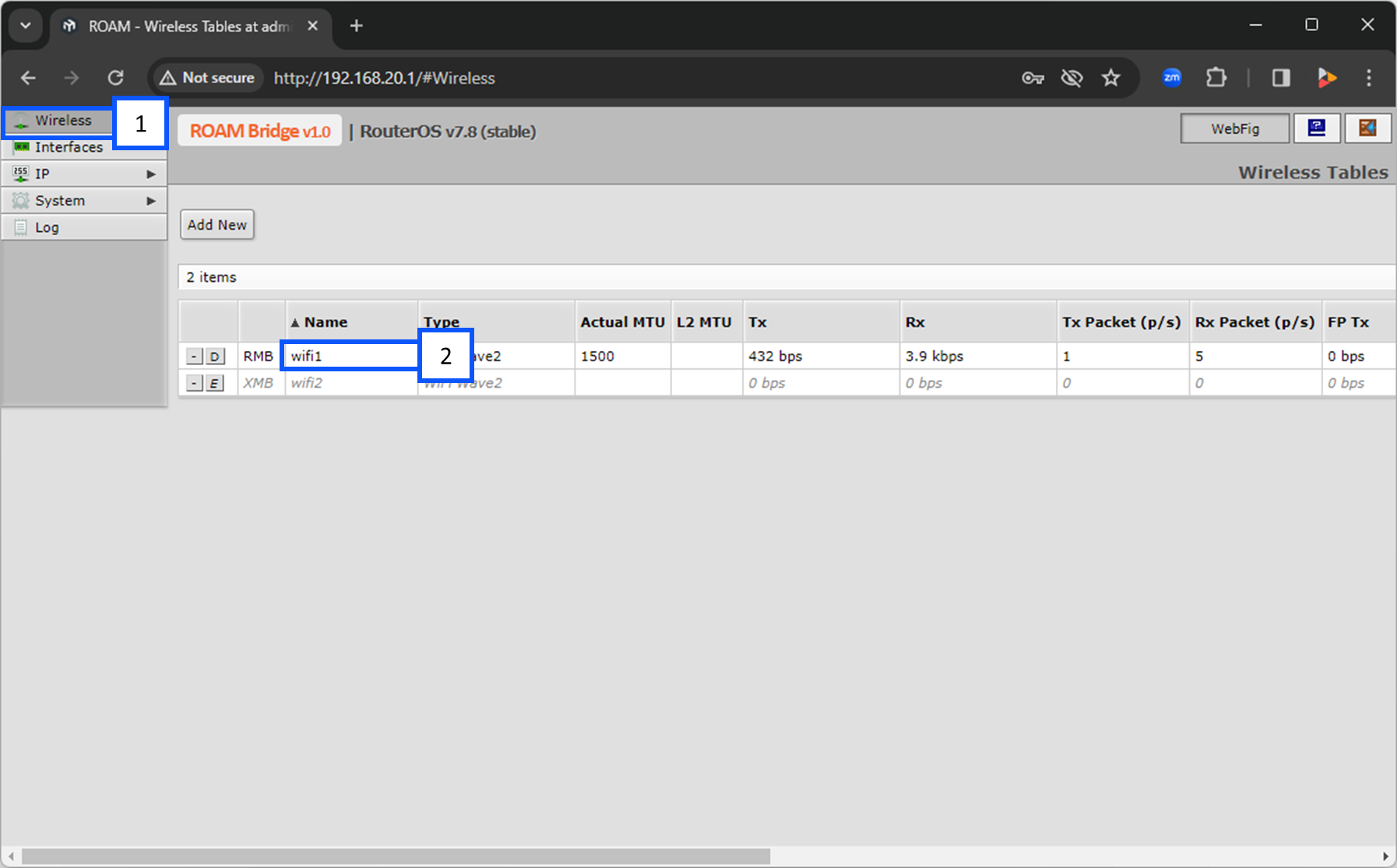
To the left of wifi1, you will see a button with [E] or [D]. Make sure this is showing a [D]. This means that is is enabled. The letter D is prompting you to disable wifi1.
- Select Wireless.
- Click on wifi1.
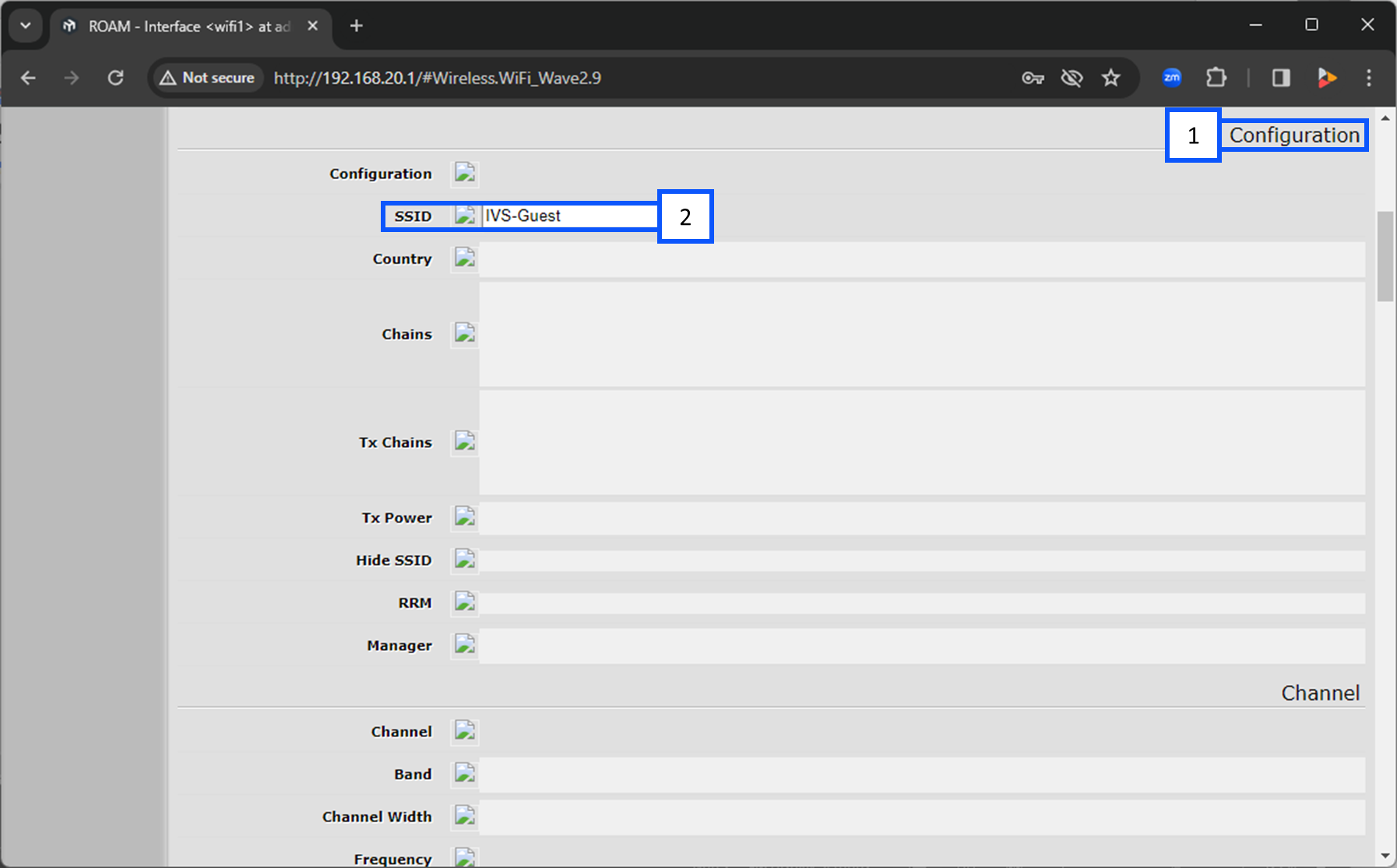
- Scroll down to Configuration.
- Under SSID select the wireless network you are going to connect to.
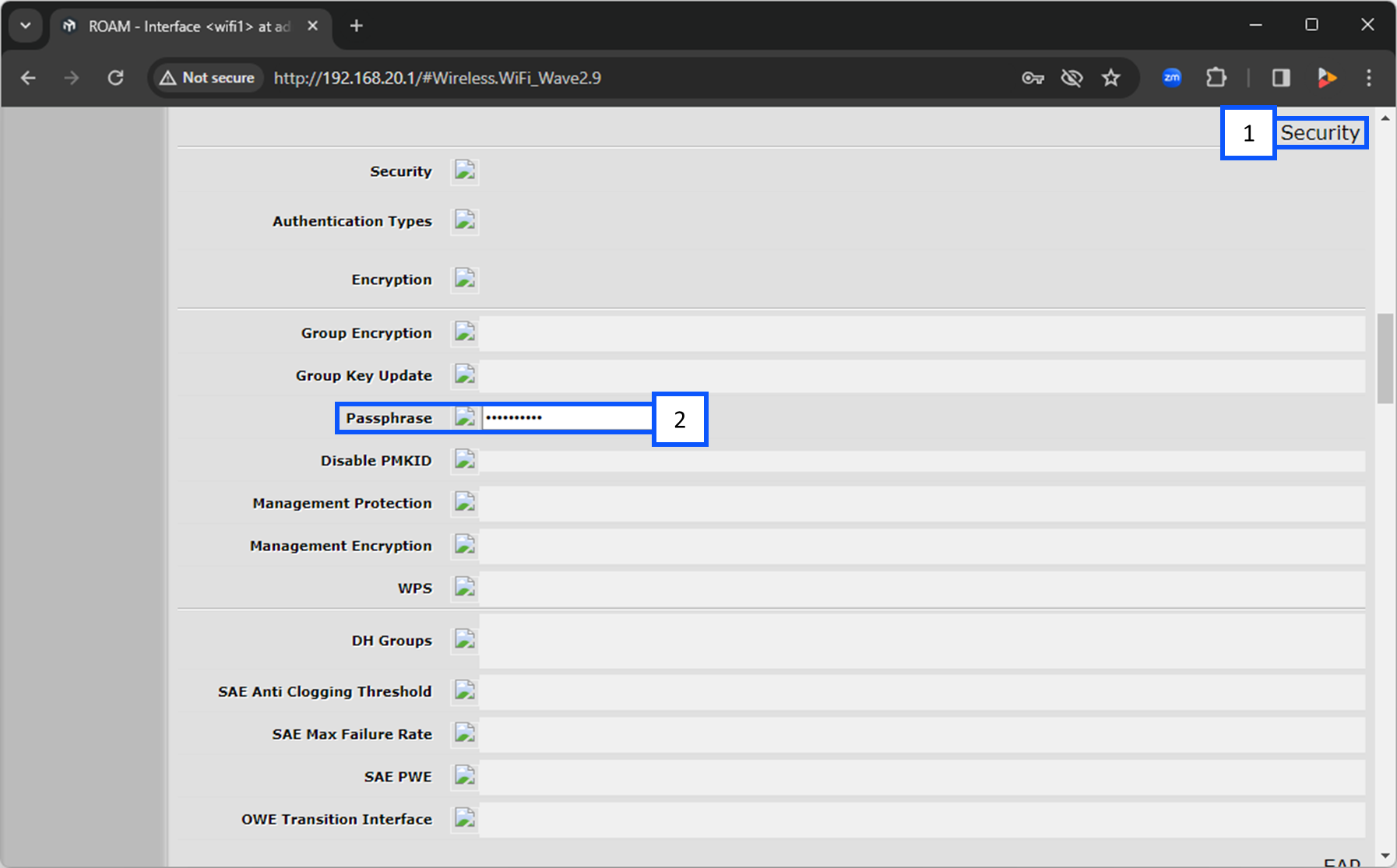
- Continue scrolling down to Security.
- Under Passphrase, enter in the password for the wireless network you selected above.
Locate DHCP Address of the Bridge
- Navigate to IP.
- Click on DHCP Client.
- From there, you will see the IP Address for wifi1.