ROAM Bridge: Difference between revisions
Jump to navigation
Jump to search
IVSWikiBlue (talk | contribs) No edit summary |
IVSWikiBlue (talk | contribs) No edit summary |
||
| Line 22: | Line 22: | ||
{{img | width = 750px | file = ROAM Bridge Login Screen.png}} | {{img | width = 750px | file = ROAM Bridge Login Screen.png}} | ||
<hr> | |||
==Configure Wireless== | |||
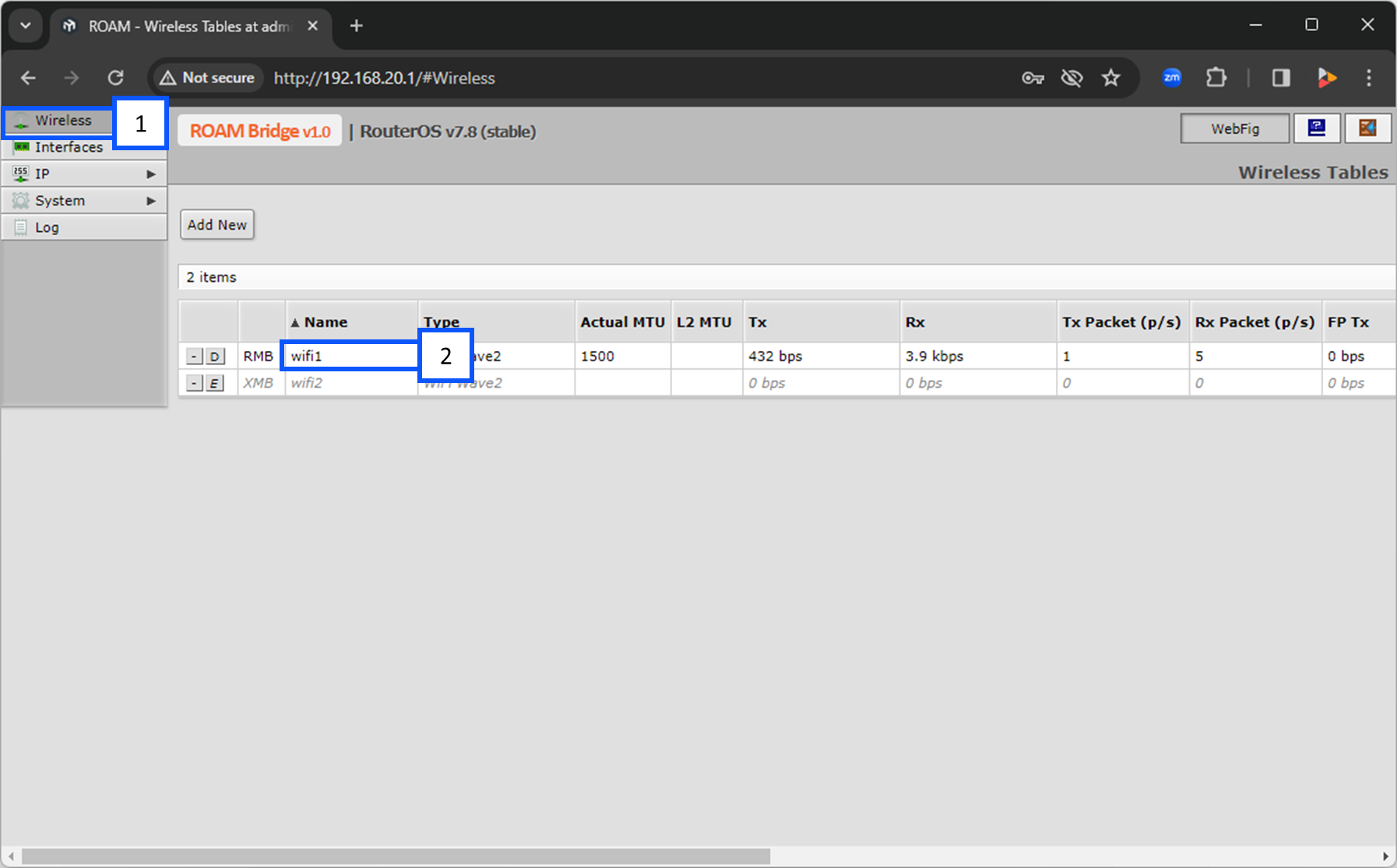
1. Select <b>Wireless</b> and click on <b>wifi1</b>. | |||
{{img | width = 750px | file = ROAM Bridge Wireless 01.png}} | |||
<hr> | |||
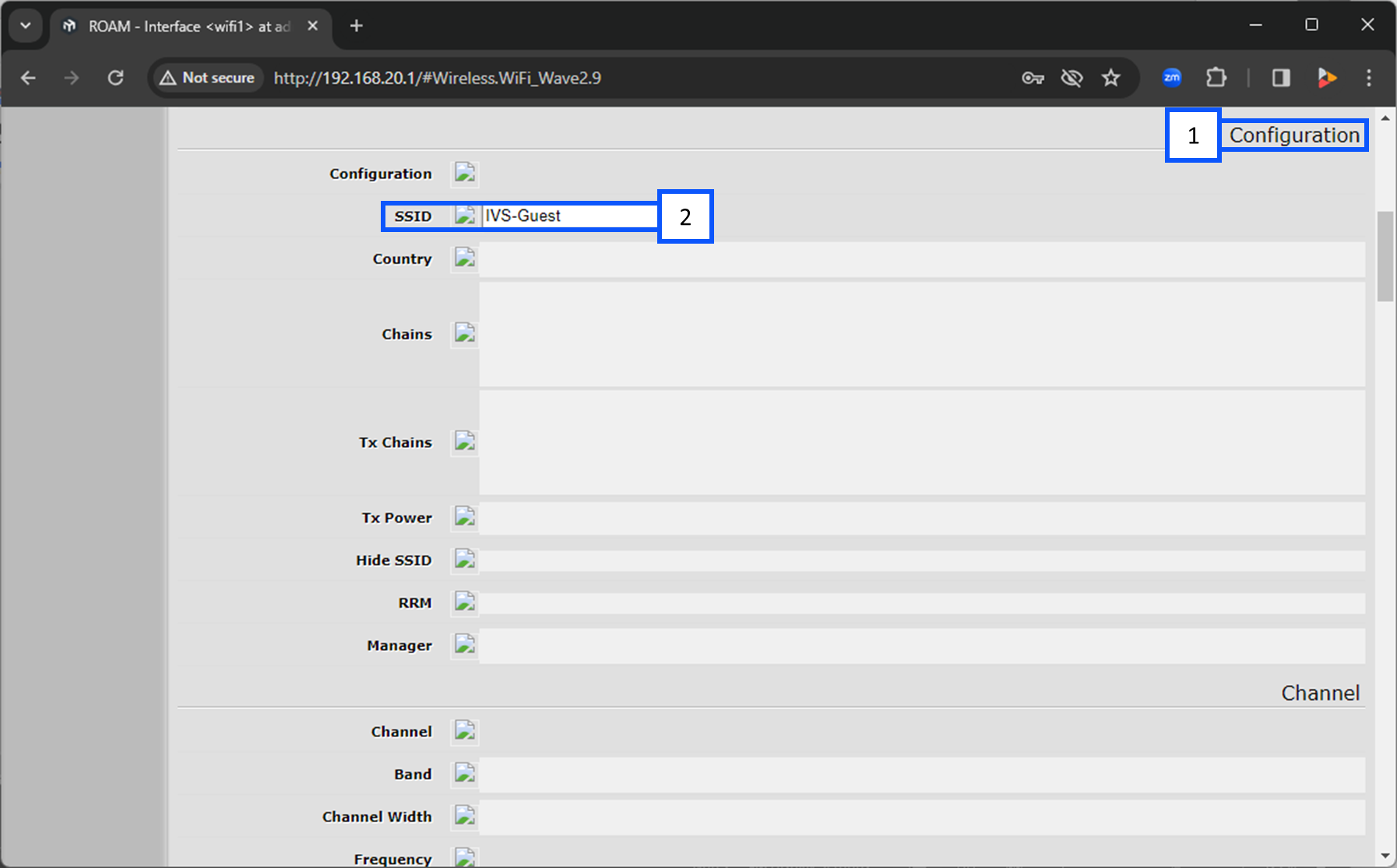
2. Scroll down to <b>Configuration</b> and select the wireless network you are going to connect to. | |||
{{img | width = 750px | file = ROAM Bridge Wireless 02.png}} | |||
<hr> | |||
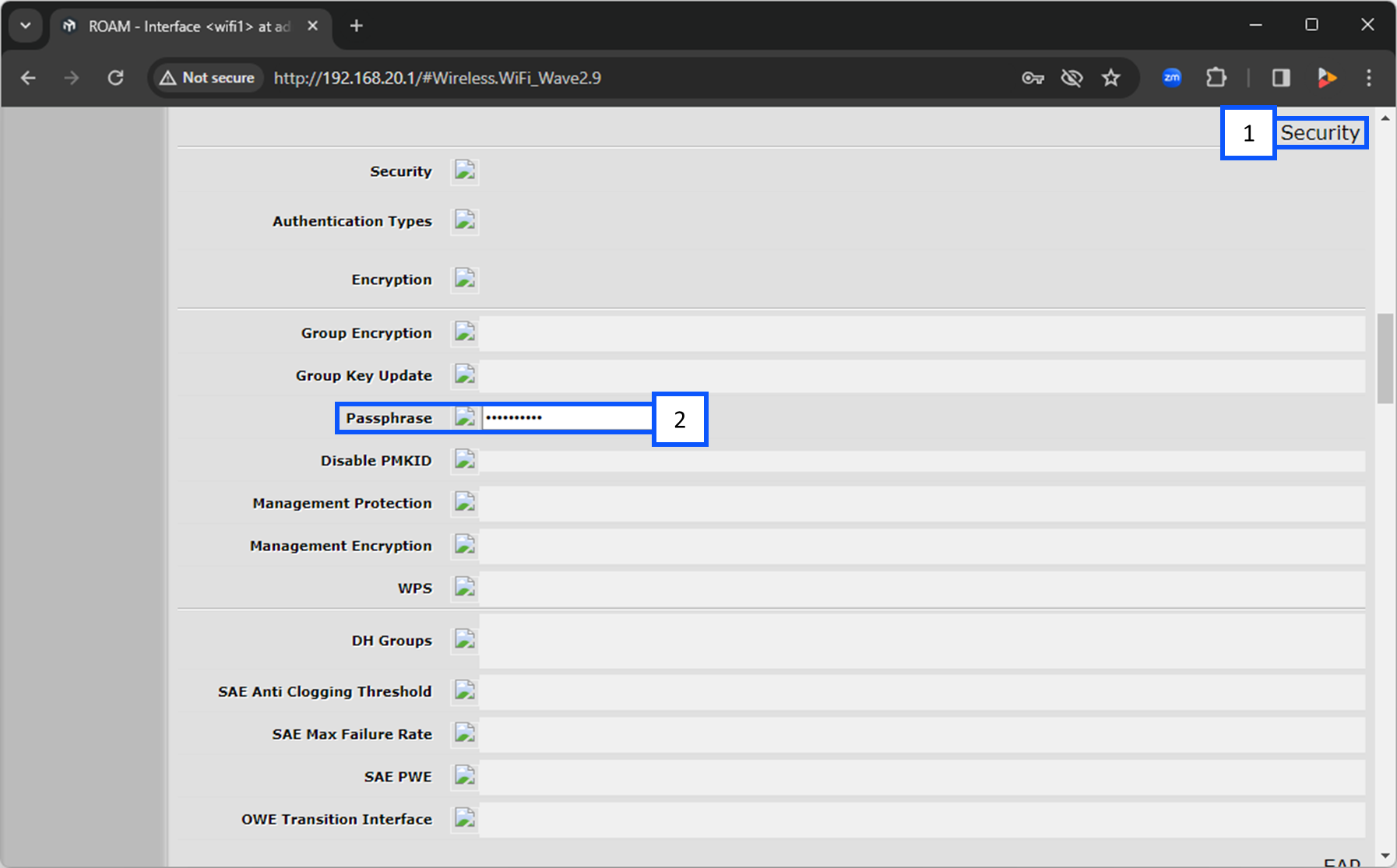
3. Continue scrolling to the <b>Security</b> section and enter in the passphrase for the wireless network you selected above. | |||
{{img | width = 750px | file = ROAM Bridge Wireless 03.png}} | |||
}} | }} | ||
Revision as of 14:11, 27 February 2024
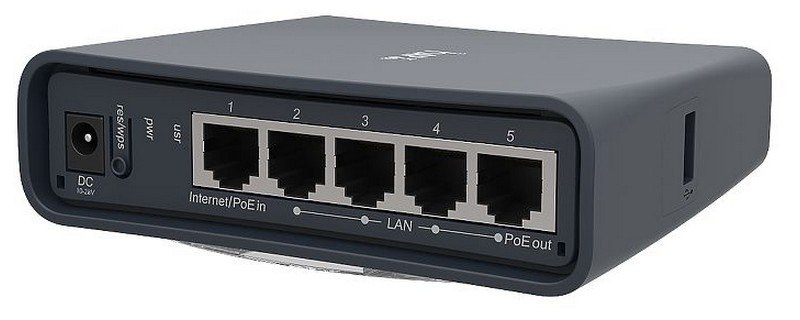
Physical Device
Accessing the ROAM Bridge
To access the ROAM Bridge, it must be powered and connected to the network.
✎
You can also access the device by connecting a laptop or computer directly to the deivce.
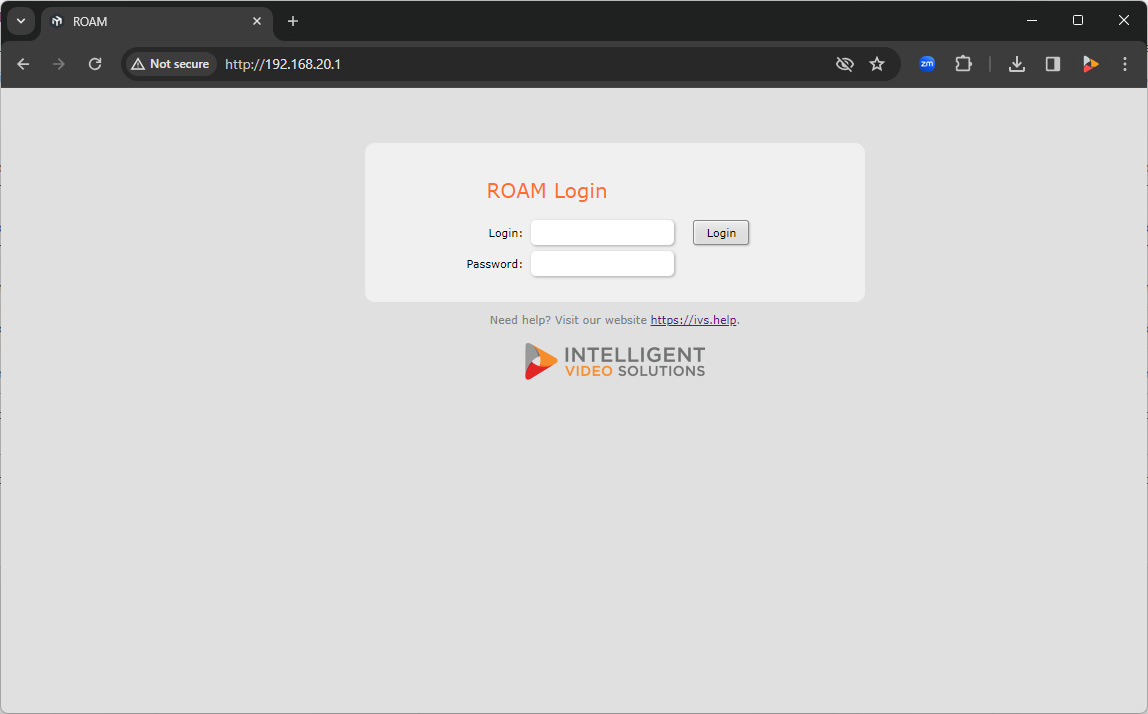
Once on the network, please navigate to the IP of the bridge, and enter the credentials.
-
The default administrative credentials are:
- User:
- admin
- Password:
- admin51
Configure Wireless
1. Select Wireless and click on wifi1.
2. Scroll down to Configuration and select the wireless network you are going to connect to.
3. Continue scrolling to the Security section and enter in the passphrase for the wireless network you selected above.