How To Find Your VALT Version: Difference between revisions
Jump to navigation
Jump to search
IVSWikiBlue (talk | contribs) No edit summary |
IVSWikiBlue (talk | contribs) No edit summary |
||
| Line 1: | Line 1: | ||
{{Section | content = | |||
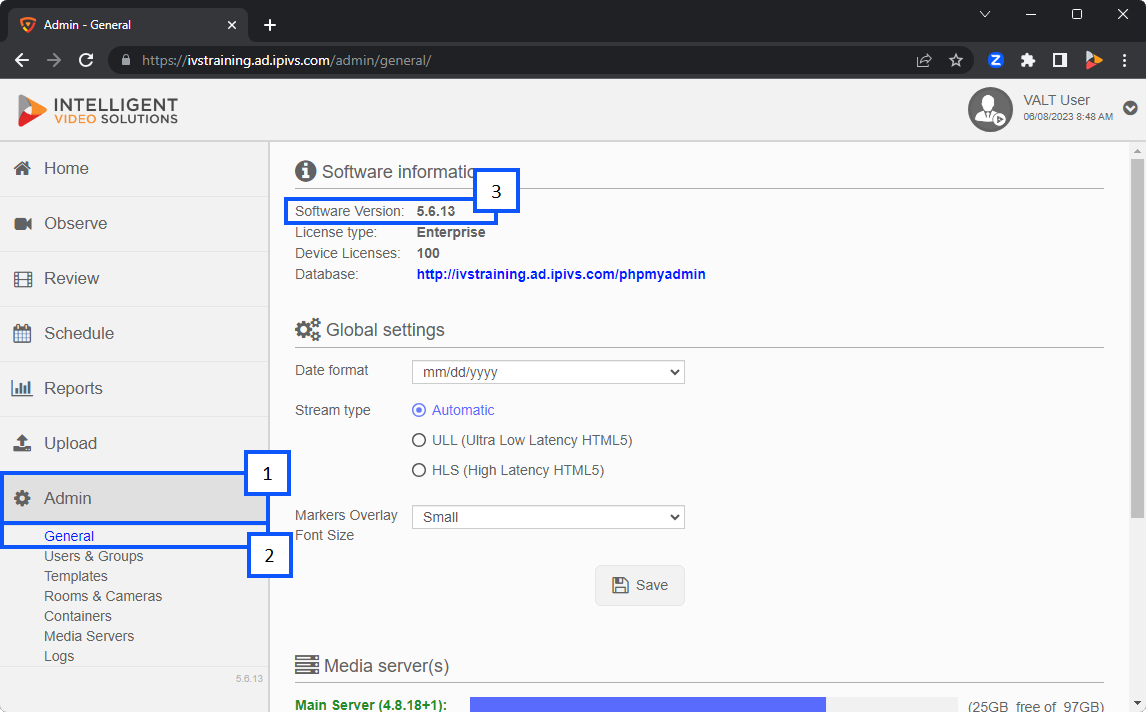
#Go to the | #Go to the <b>Admin</b> section on your VALT server. | ||
#You will automatically be sent to the | #You will automatically be sent to the <b>General</b> tab. | ||
#At the top of the screen you should see the version number your VALT server is running next to <b>Software Version</b>. | |||
#At the top of the screen you should see the version number your VALT server is running next to | |||
# | {{Aside | hue = 200 | icon = 🕮 | content = | ||
For more information about the VALT versions you can check out our [[Release Notes]].}} | |||
}} | |||
{{img | {{img | ||
Revision as of 21:46, 7 June 2023