Video controls do not load in Chrome: Difference between revisions
Jump to navigation
Jump to search
IVSWikiBlue (talk | contribs) No edit summary |
IVSWikiBlue (talk | contribs) No edit summary |
||
| Line 1: | Line 1: | ||
<div class="section"> | |||
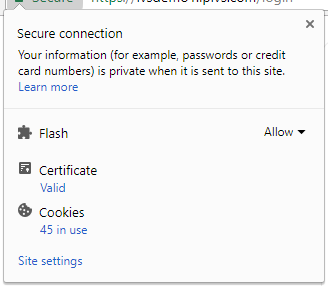
# Click on the information section of the browser. If SSL is used, click on the green lock icon. | # Click on the information section of the browser. If SSL is used, click on the green lock icon. | ||
#:{{img | file = ChromeFlash10.png}} | #:{{img | file = ChromeFlash10.png}} | ||
| Line 5: | Line 6: | ||
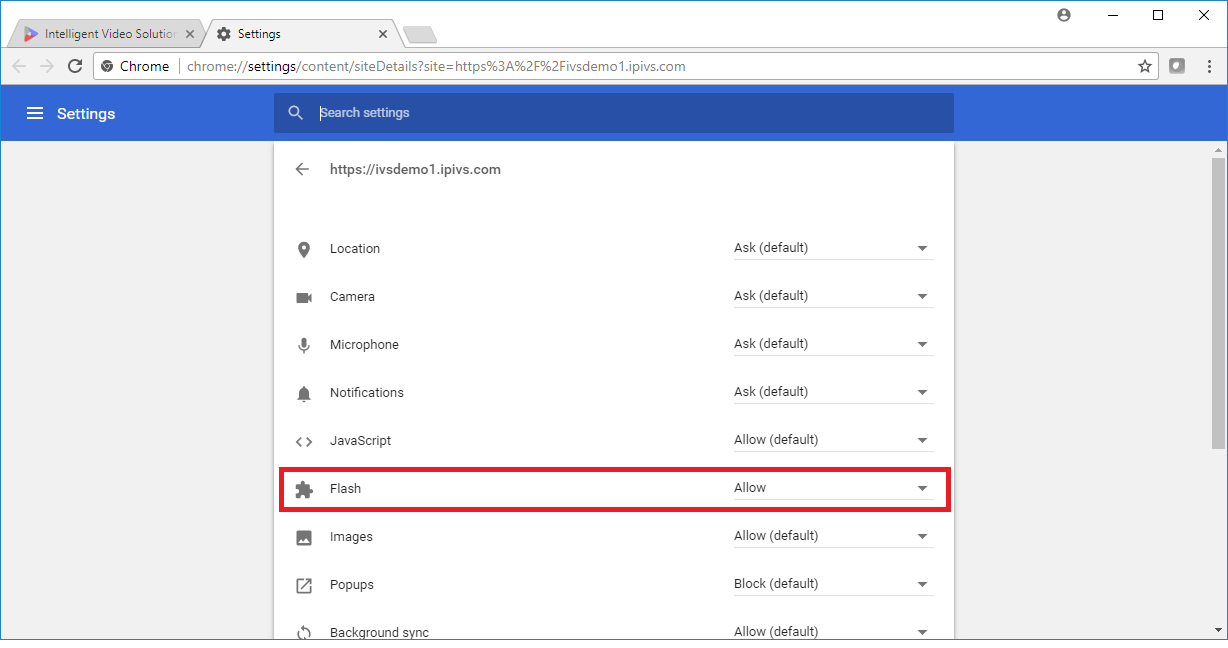
# Change '''Flash''' to '''Allow'''. | # Change '''Flash''' to '''Allow'''. | ||
# Reload the Page. | # Reload the Page. | ||
</div> | |||
Latest revision as of 15:35, 5 January 2023
- Click on the information section of the browser. If SSL is used, click on the green lock icon.
- Click on Site Settings.
- Change Flash to Allow.
- Reload the Page.