Install BEAM: Difference between revisions
Jump to navigation
Jump to search
IVSWikiBlue (talk | contribs) No edit summary |
IVSWikiBlue (talk | contribs) No edit summary |
||
| Line 2: | Line 2: | ||
#:{{img | file = IPad1.PNG | width = 500px }} | #:{{img | file = IPad1.PNG | width = 500px }} | ||
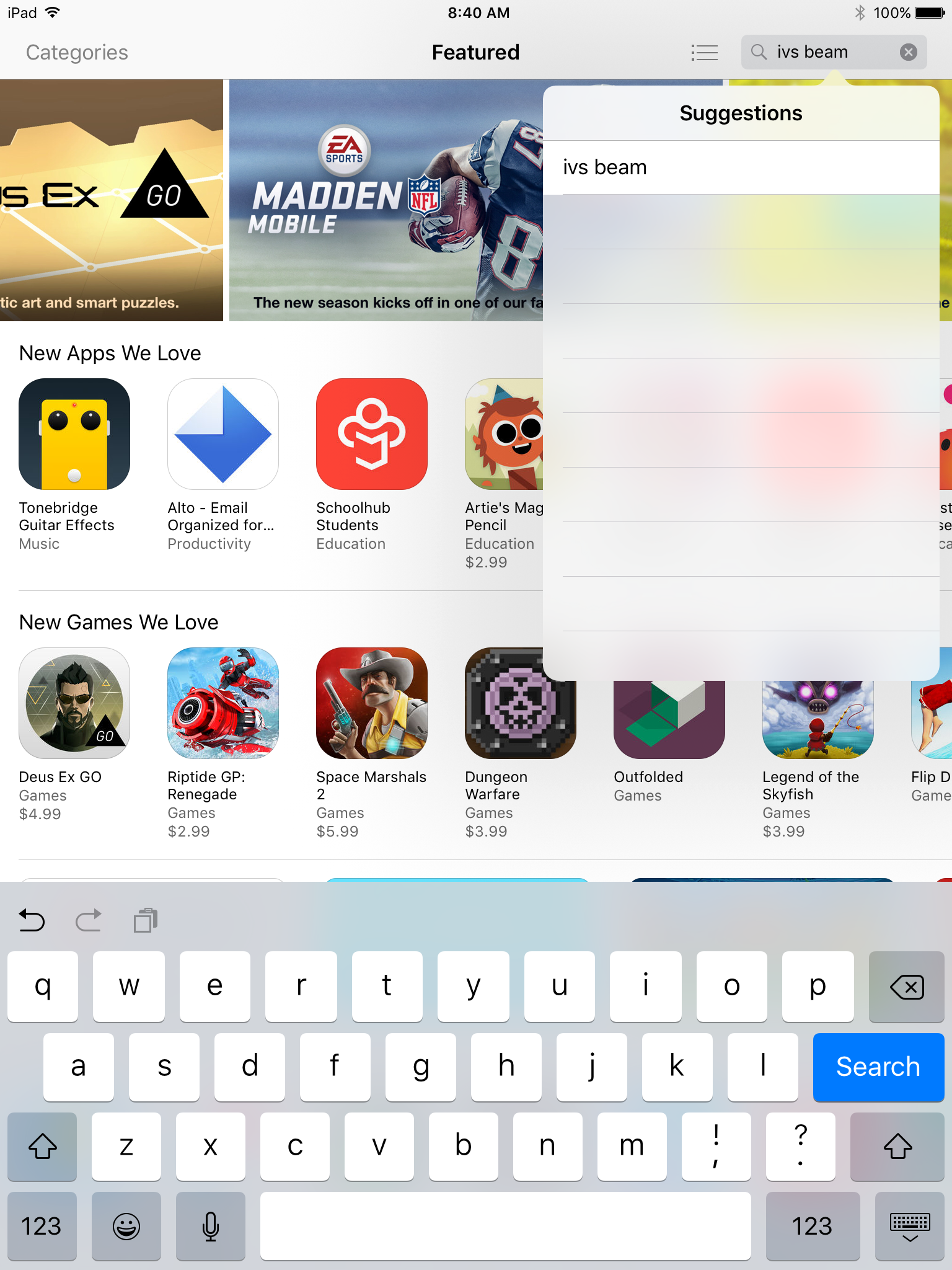
#Touch the search field in the upper right corner and type in IVS Beam | #Touch the search field in the upper right corner and type in IVS Beam | ||
#: | #:{{img | file = IPad2.PNG | width = 500px }} | ||
#Touch Search | #Touch Search | ||
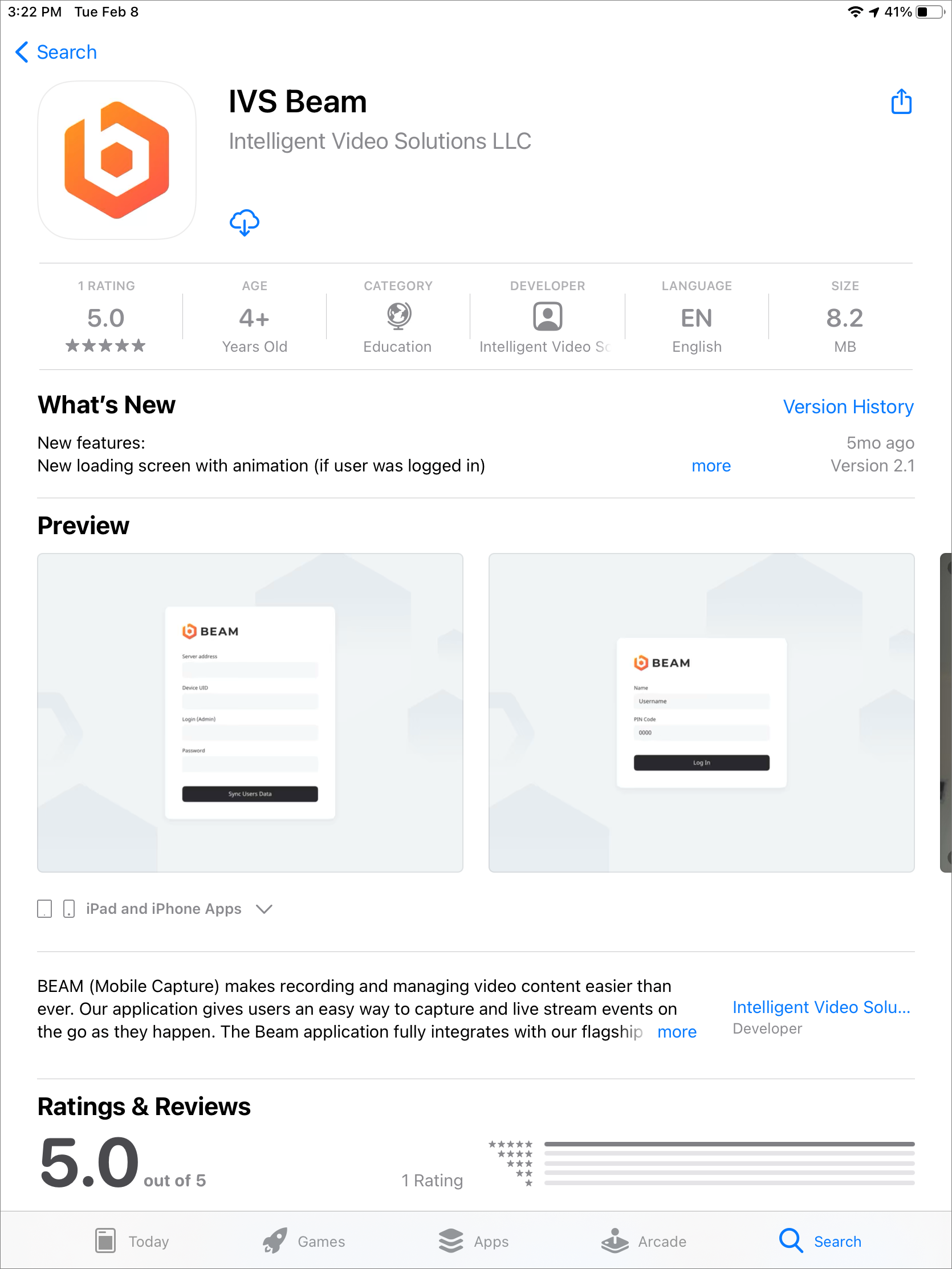
#Touch the cloud icon to download the app. | #Touch the cloud icon to download the app. | ||
#: | #:{{img | file = IPad3.PNG | width = 500px }} | ||
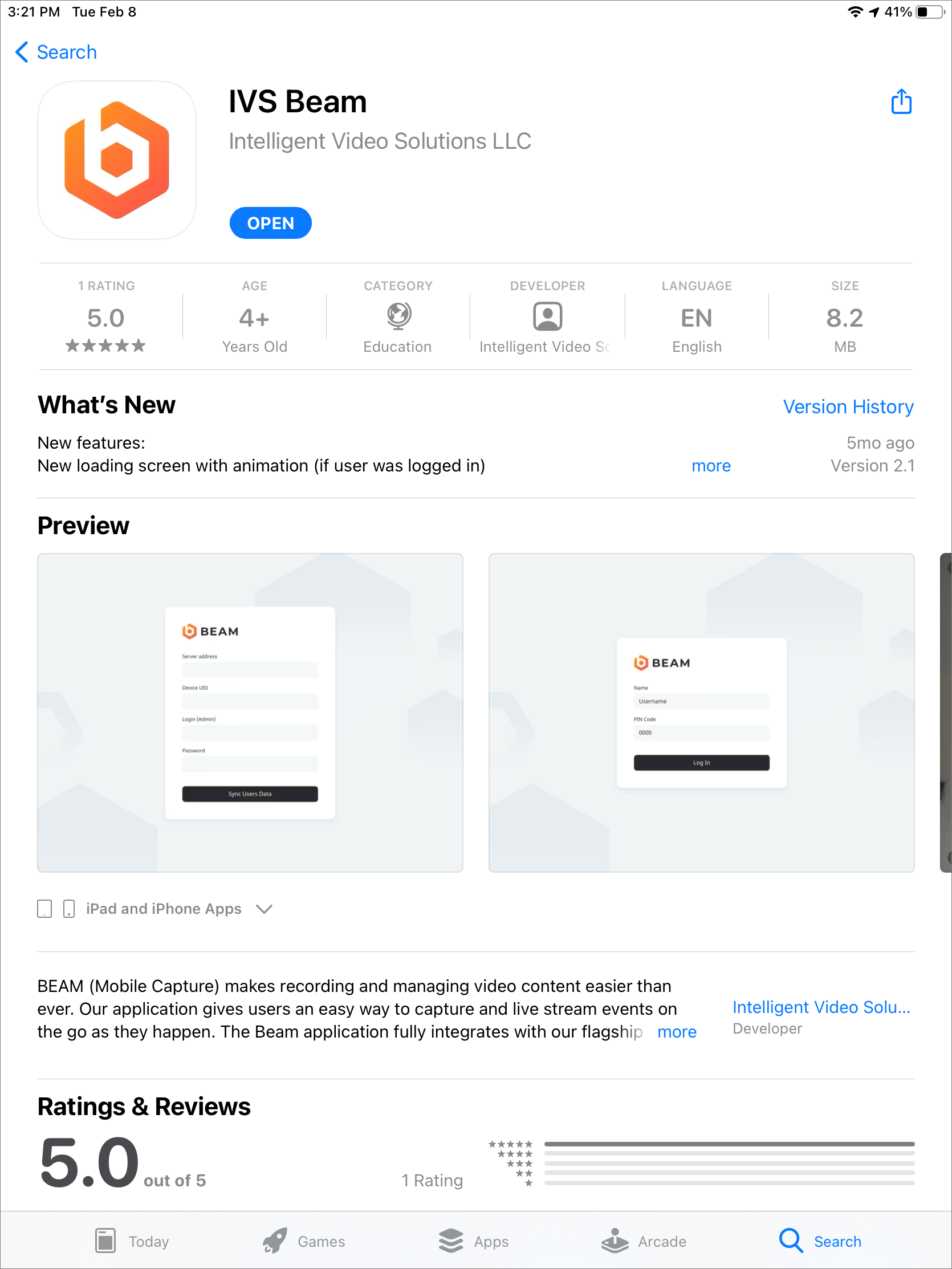
#After the installation is complete, touch OPEN to open the app. | #After the installation is complete, touch OPEN to open the app. | ||
#: | #:{{img | file = IPad4.PNG | width = 500px }} | ||
Revision as of 16:50, 26 July 2022
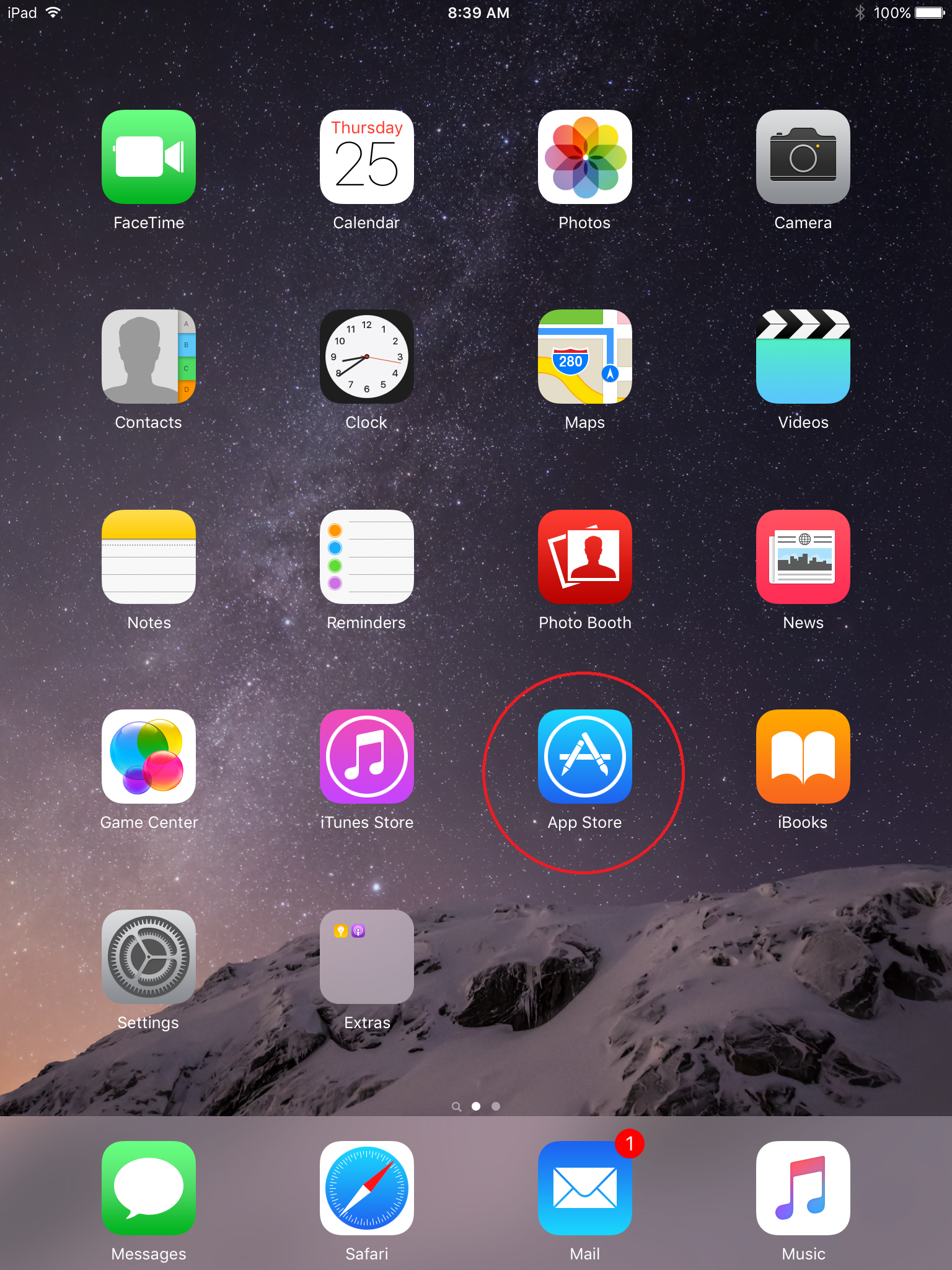
- Open the App Store by touching the icon on your iPad or iPhone
- Touch the search field in the upper right corner and type in IVS Beam
- Touch Search
- Touch the cloud icon to download the app.
- After the installation is complete, touch OPEN to open the app.