IVS BEAM Recording: Difference between revisions
Jump to navigation
Jump to search
IVSWikiBlue (talk | contribs) No edit summary |
IVSWikiBlue (talk | contribs) No edit summary |
||
| Line 1: | Line 1: | ||
1) Touch the '''Recording''' button. | |||
{{img | file = IPad10.PNG | width=600px}} | {{img | file = IPad10.PNG | width=600px}} | ||
2) You will be prompted to enter a name for the recording, as well as for any custom fields that have been defined for your user. | |||
{{img | file = IPad11.PNG | width=600px}} | {{img | file = IPad11.PNG | width=600px}} | ||
3) Touch '''Start Recording'''. | 3) Touch '''Start Recording'''. | ||
Revision as of 21:47, 13 July 2022
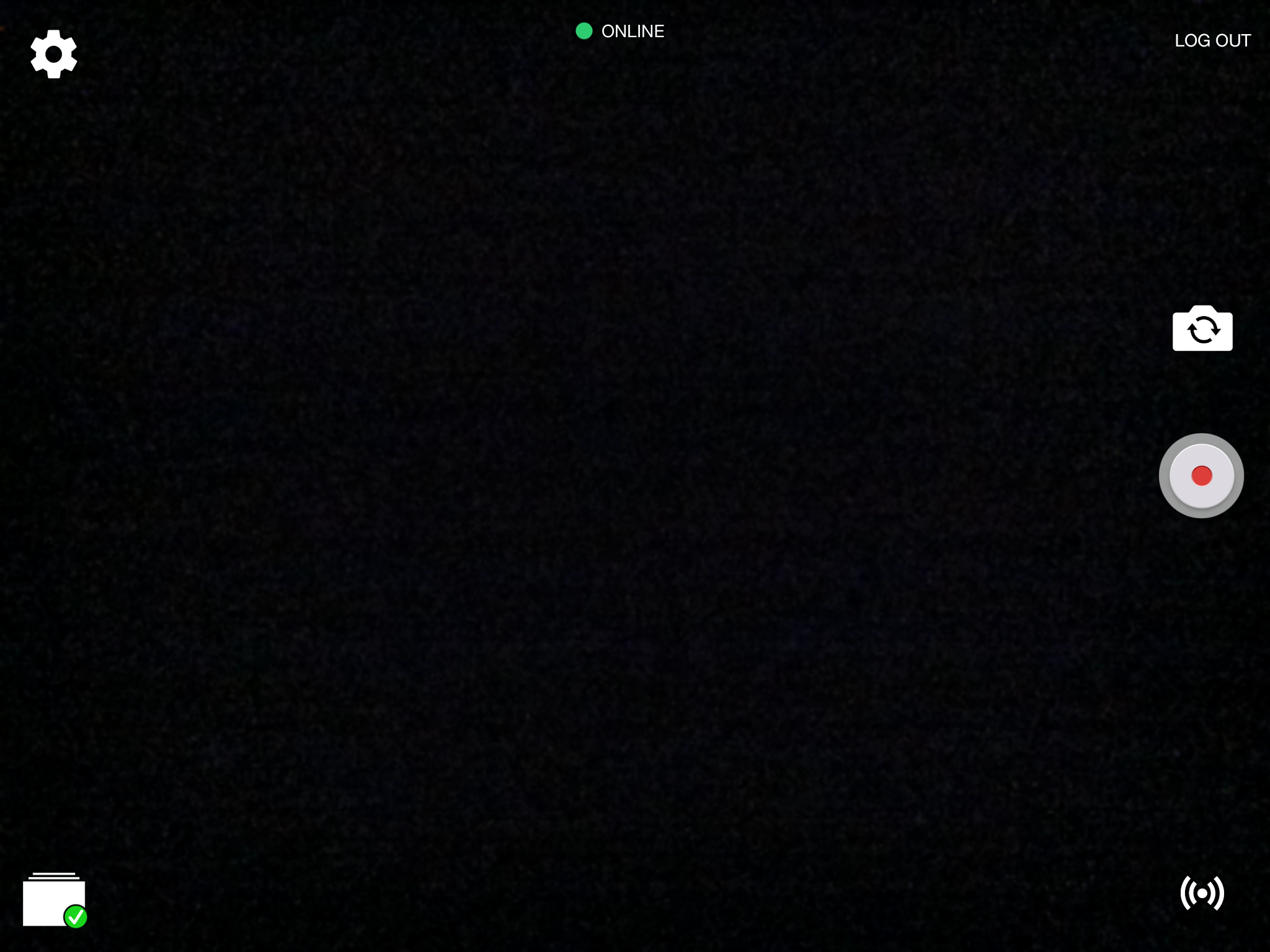
1) Touch the Recording button.
2) You will be prompted to enter a name for the recording, as well as for any custom fields that have been defined for your user.
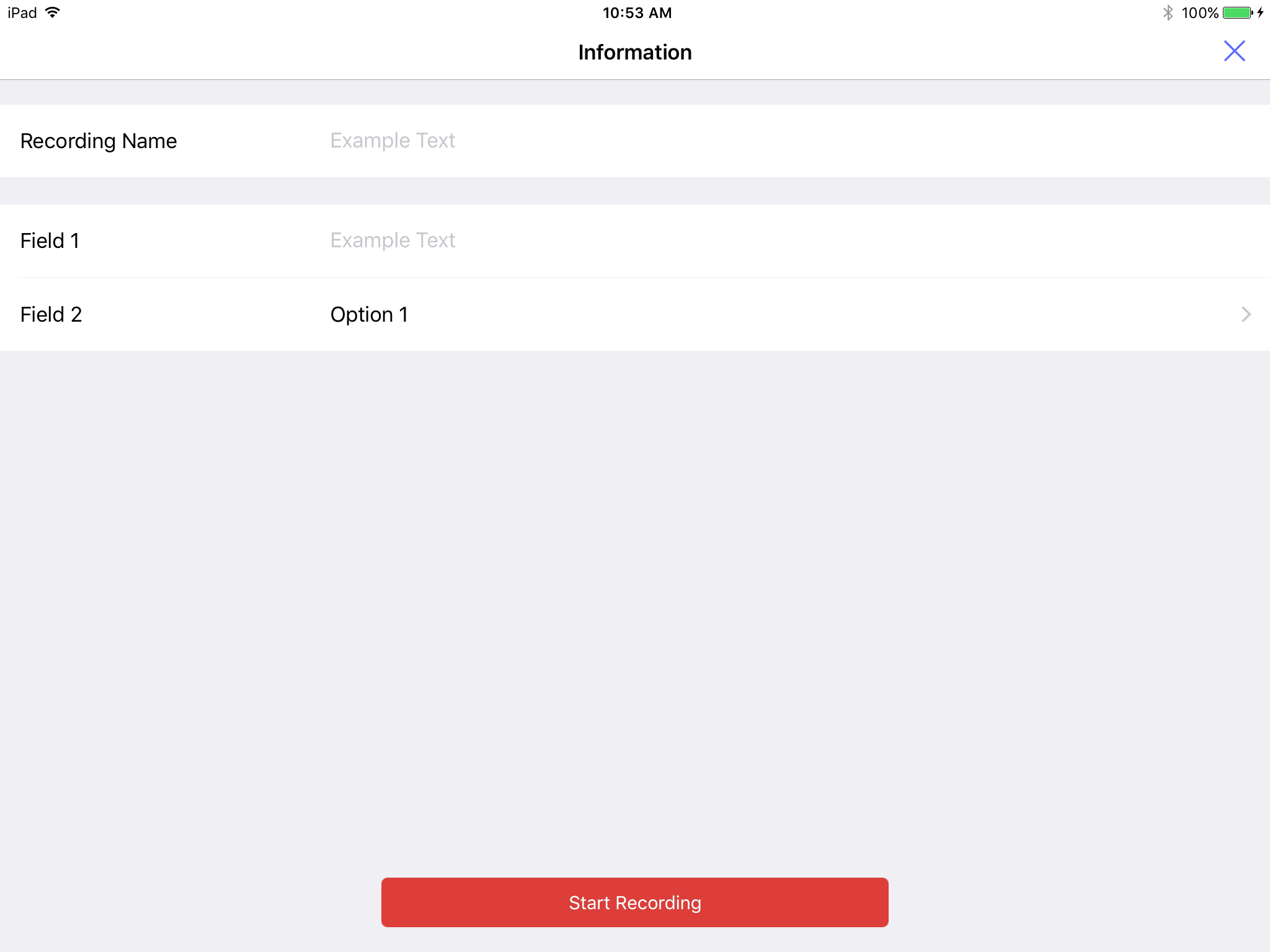
3) Touch Start Recording.
4) Your recording time will be displayed in the upper left corner of the screen.
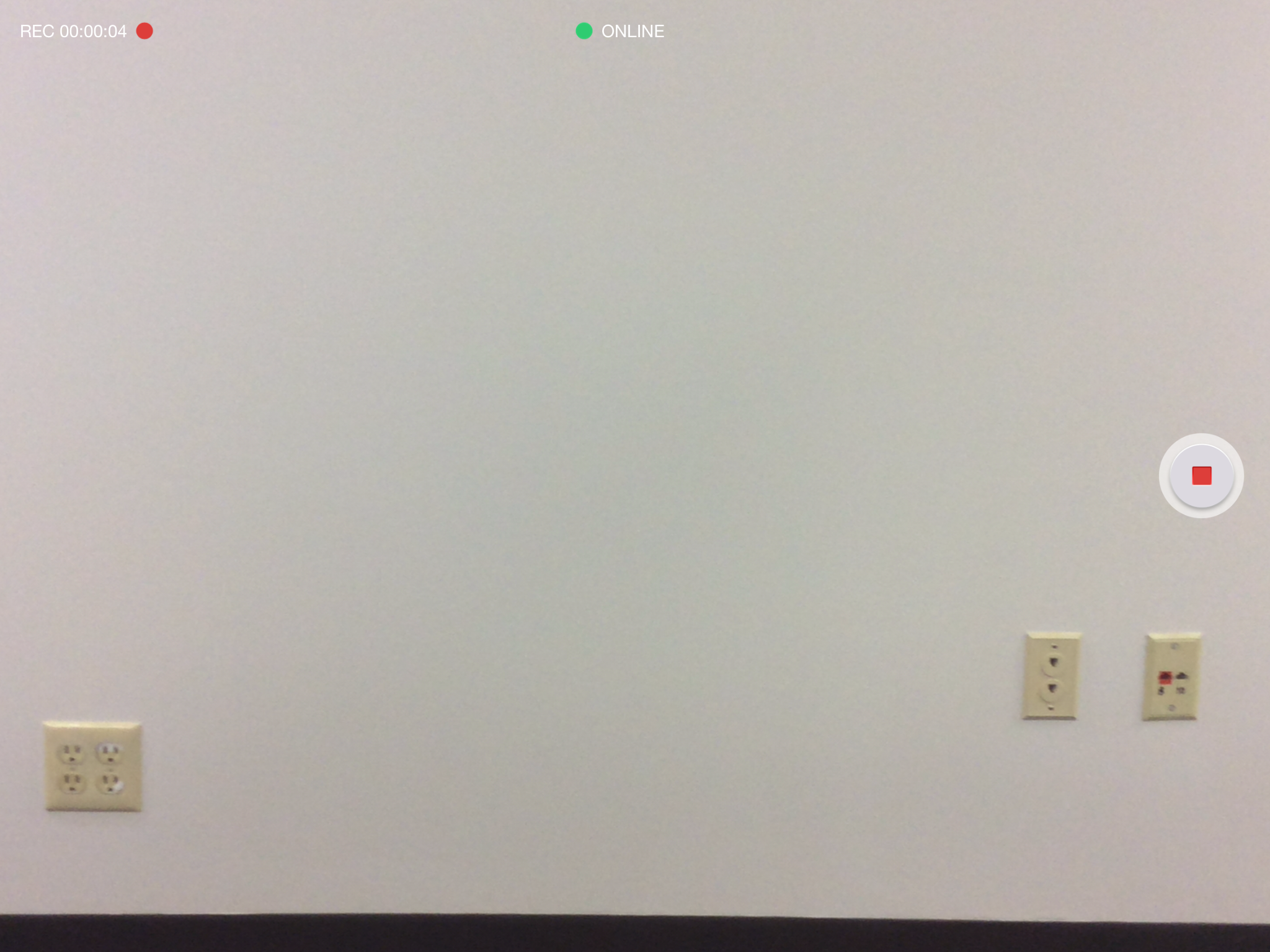
4) Touch the Stop button to stop recording.
5) Your recording will be stored locally on your device. If you have Auto Sync enabled, the recording will be automatically uploaded to the server.