Template:LDAP Server Config: Difference between revisions
Jump to navigation
Jump to search
IVSWikiBlue (talk | contribs) Created page with "left {| class="wikitable" |- ! Wow ! Cool ! ! ! |- | 1 | nice | yo | | |- | 2 | | | | |- | 3 | | | | |}" |
IVSWikiBlue (talk | contribs) No edit summary |
||
| Line 1: | Line 1: | ||
[[File: | {{Article | content = | ||
{| class=" | ==Connecting to the LDAP Server== | ||
#Navigate to the VALT software either through the IP Address or the FQDN using Chrome, Firefox, or other standard web browser | |||
#Log into VALT, web interface, with Admin access. | |||
#Click on '''Admin''' -> '''Users & Groups''' -> '''LDAP''' -> '''Show Advanced Settings''' | |||
#Scroll down to '''Servers''' | |||
<hr> | |||
|- | |||
#Enter in your LDAP Server information: | |||
#:[[File:Updated_LDAP_Server_Config.png]] | |||
A: Enter the IP Address or FQDN of your Active Directory or other LDAP compatible server in the Server field. | |||
{{Aside | content = Note: I: If you are using LDAPS, enter the IP or FQDN as ldaps://myldapsserver.com'''''<br> ''' II: ''If you are using a Global Catalog Server then it needs to be written as myldapserver.com:3268''''' <br> ''' III: ''If you are using a Global Catalog Server with LDAPS, then it needs to be formatted as ldaps://myldapserver.com:3269'''''}} | |||
B: Enter a Service Account user with read access in the LDAP Bind User field | |||
{{Aside | content = Note: The user must be entered as user@domain.com}} | |||
C: Enter the Service Account password<br><span class="indent"> <font color="red">'''Note: Our password requirements do not allow for the use of these reserved characters: ! * ' ( ) ; : @ & = + $ , / ? % # [ ]'''</font></span> | |||
D: Enter in the Base DN of the Service Account <br><span class="indent"><font color="red">'''Note: Base DN must be entered in the form of DC=ad,DC=ipivs,DC=com'''</font></span> | |||
| | E: Select either '''Active Directory''' or '''Open LDAP''' | ||
F: >Click '''Save''' | |||
| | |||
<hr> | |||
*If the credentials were accepted and a connection was established, you will receive a message stating connected and you will see your LDAP Server in '''Green:'''<br>[[File:LDAP2.png]] | |||
<br> | |||
*If the connection fails, you will receive an error message stating '''Wrong Credentials:'''<br>[[File:LDAP3.png]] | |||
==Syncing Security Groups== | |||
#To sync users accounts, navigate to '''Sync Schedules''' | |||
#:[[File:Finding_Sync_Schedules_Box.png|1050px]] | |||
#Once here, start entering in the following information: | |||
#:<table><tr><th rowspan="7">[[File:Adding_LDAP_Sync_Schedules.png]]</th></tr><tr><td style="padding: 0 10px;vertical-align: top">'''A:'''</td><td style="padding: 0 10px;vertical-align: top">Enter in a name for the Security Group <br><span class="indent"> <font color="red">'''Note: ''Try to keep these similar to the VALT groups you have created'''''</font></span></td></tr><tr><td style="padding: 0 10px;vertical-align: top">'''B:'''</td><td style="padding: 0 10px;vertical-align: top">Enter in the DN for the Security Group, omitting the DC components <br><span class="indent">'''Example:''' ''CN=Service Accounts,OU=Users,OU=Install''</span></td></tr><tr><td style="padding: 0 10px;vertical-align: top">'''C:'''</td><td style="padding: 0 10px;vertical-align: top">Select the '''VALT Group''' to have the users added to <br> | |||
<span class="indent"> <font color="red">'''Note: The VALT groups need to be created before you can link the Security Groups to them''' </font></span></td></tr><tr><td style="padding: 0 10px;vertical-align: top">'''D:'''</td><td style="padding: 0 10px;vertical-align: top">Choose either '''Manual''' or '''Automatic''' Sync Type <br><span class="indent"><font color="red">'''Note: Automatic syncs users every day at 7AM server time whereas Manual requires an Admin account to manually sync the users'''</font></span></td></tr><tr><td style="padding: 0 10px;vertical-align: top">'''E:'''</td><td style="padding: 0 10px;vertical-align: top">Select any '''Additional Groups''' you would like the users added to</td></tr><tr><td style="padding: 0 10px;vertical-align: top">'''F:'''</td><td style="padding: 0 10px">Click '''Save'''</td></tr></table> | |||
#Test that the user import worked: | |||
:<span class="indent">A. Click on the '''Group'''</span> | |||
:<span class="indent">B. Click '''Import'''</span> | |||
:::[[File:Testing_Sync_Schedule_Import.png]] | |||
<br> | |||
::*If the import was successful, ''and there are users assigned to Security Groups'', you will see this message:<br> | |||
:::[[File:Import_Results.png]] | |||
<br> | |||
::*If the import failed, ''and there are users assigned to Security Groups'', you will see this message:<br> | |||
:::[[File:Failed_Import_Results.png]] | |||
<br> | |||
<font color="red">Note: If the import failed, ''and you have users assigned to a group'', most likely either your '''Bind Script''' in the '''''Sync Schedule''''' block or the '''Base DN'''/'''LDAP Bind User''' in the '''''Server''''' block are entered incorrectly | |||
==Importing an Individual User== | |||
<font color="black"> | |||
#Navigate to the '''User Import''' section:[[File:LDAP5.png|1000px]] | |||
#Enter in the information: | |||
#:<table><tr><th rowspan="7">[[File:Full_User_Import_.png]]</th></tr><tr><td style="padding: 0 10px;vertical-align: top">'''A:'''</td><td style="padding: 0 10px;vertical-align: top">Enter in the name of a user and click '''Search'''</td></tr><tr><td style="padding: 0 10px;vertical-align: top">'''B:'''</td><td style="padding: 0 10px;vertical-align: top">A list of all users that populate with your search entry will appear</td></tr><tr><td style="padding: 0 10px;vertical-align: top">'''C:'''</td><td style="padding: 0 10px;vertical-align: top">The full DN of the user you select will appear here</td></tr><tr><td style="padding: 0 10px;vertical-align: top">'''D:'''</td><td style="padding: 0 10px;vertical-align: top">Select the '''Group''' you want to add the user to</td></tr><tr><td style="padding: 0 10px;vertical-align: top">'''E:'''</td><td style="padding: 0 10px;vertical-align: top">Select any '''Additional Groups''' you would like the user added to</td></tr><tr><td style="padding: 0 10px;vertical-align: top">'''F:'''</td><td style="padding: 0 10px;vertical-align: top">Click '''Import'''</td></tr></table> | |||
#You will see a confirmation message displayed that the user has been imported and you can verify the user got assigned to the group:[[File:User_Import_Finalization.png|1000px]] | |||
</font> | |||
}} | |||
Revision as of 21:52, 1 March 2024
Connecting to the LDAP Server
- Navigate to the VALT software either through the IP Address or the FQDN using Chrome, Firefox, or other standard web browser
- Log into VALT, web interface, with Admin access.
- Click on Admin -> Users & Groups -> LDAP -> Show Advanced Settings
- Scroll down to Servers
- Enter in your LDAP Server information:

A: Enter the IP Address or FQDN of your Active Directory or other LDAP compatible server in the Server field.
✎
Note: I: If you are using LDAPS, enter the IP or FQDN as ldaps://myldapsserver.com
' II: If you are using a Global Catalog Server then it needs to be written as myldapserver.com:3268
III: If you are using a Global Catalog Server with LDAPS, then it needs to be formatted as ldaps://myldapserver.com:3269
' II: If you are using a Global Catalog Server then it needs to be written as myldapserver.com:3268
III: If you are using a Global Catalog Server with LDAPS, then it needs to be formatted as ldaps://myldapserver.com:3269
B: Enter a Service Account user with read access in the LDAP Bind User field
✎
Note: The user must be entered as user@domain.com
C: Enter the Service Account password
Note: Our password requirements do not allow for the use of these reserved characters: ! * ' ( ) ; : @ & = + $ , / ? % # [ ]
D: Enter in the Base DN of the Service Account
Note: Base DN must be entered in the form of DC=ad,DC=ipivs,DC=com
E: Select either Active Directory or Open LDAP
F: >Click Save
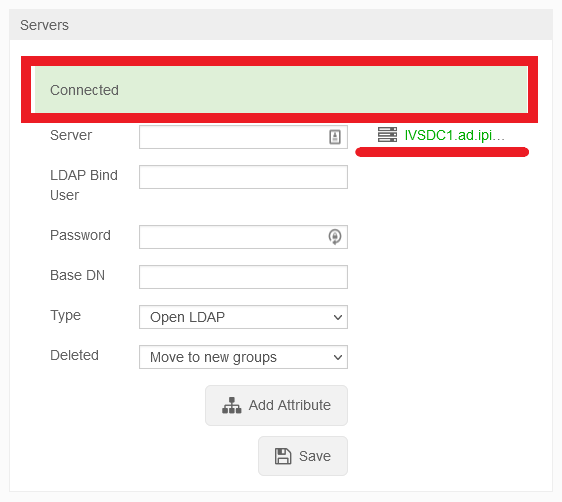
- If the credentials were accepted and a connection was established, you will receive a message stating connected and you will see your LDAP Server in Green:

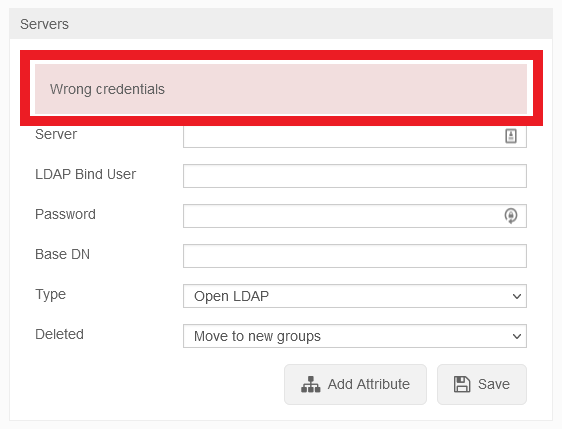
- If the connection fails, you will receive an error message stating Wrong Credentials:

Syncing Security Groups
- To sync users accounts, navigate to Sync Schedules
- Once here, start entering in the following information:
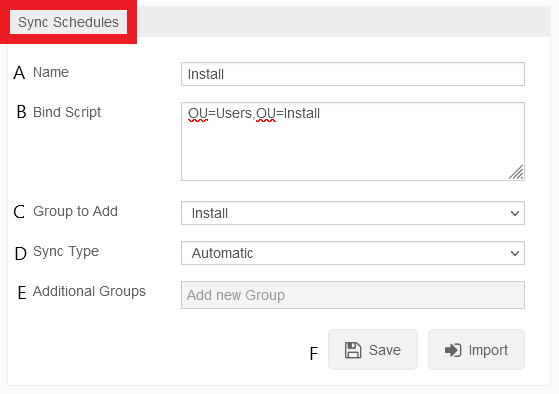
A: Enter in a name for the Security Group
Note: Try to keep these similar to the VALT groups you have createdB: Enter in the DN for the Security Group, omitting the DC components
Example: CN=Service Accounts,OU=Users,OU=InstallC: Select the VALT Group to have the users added to
Note: The VALT groups need to be created before you can link the Security Groups to themD: Choose either Manual or Automatic Sync Type
Note: Automatic syncs users every day at 7AM server time whereas Manual requires an Admin account to manually sync the usersE: Select any Additional Groups you would like the users added to F: Click Save - Test that the user import worked:
- A. Click on the Group
- B. Click Import
- If the import was successful, and there are users assigned to Security Groups, you will see this message:
- If the import was successful, and there are users assigned to Security Groups, you will see this message:
- If the import failed, and there are users assigned to Security Groups, you will see this message:
- If the import failed, and there are users assigned to Security Groups, you will see this message:
Note: If the import failed, and you have users assigned to a group, most likely either your Bind Script in the Sync Schedule block or the Base DN/LDAP Bind User in the Server block are entered incorrectlyImporting an Individual User
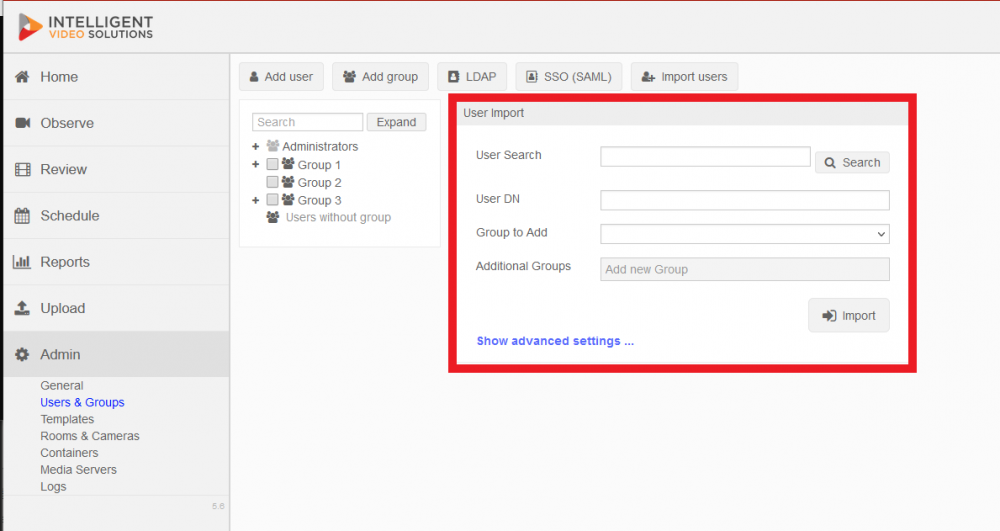
- Navigate to the User Import section:
- Enter in the information:
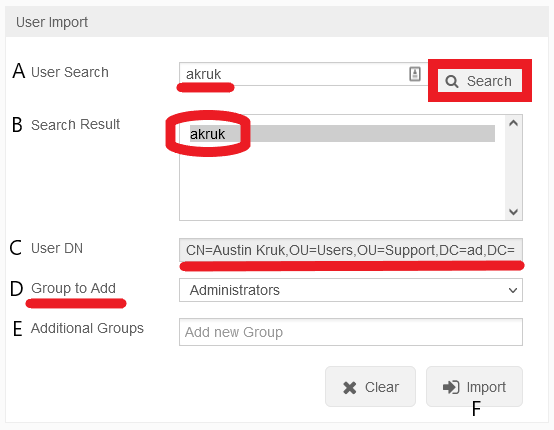
A: Enter in the name of a user and click Search B: A list of all users that populate with your search entry will appear C: The full DN of the user you select will appear here D: Select the Group you want to add the user to E: Select any Additional Groups you would like the user added to F: Click Import
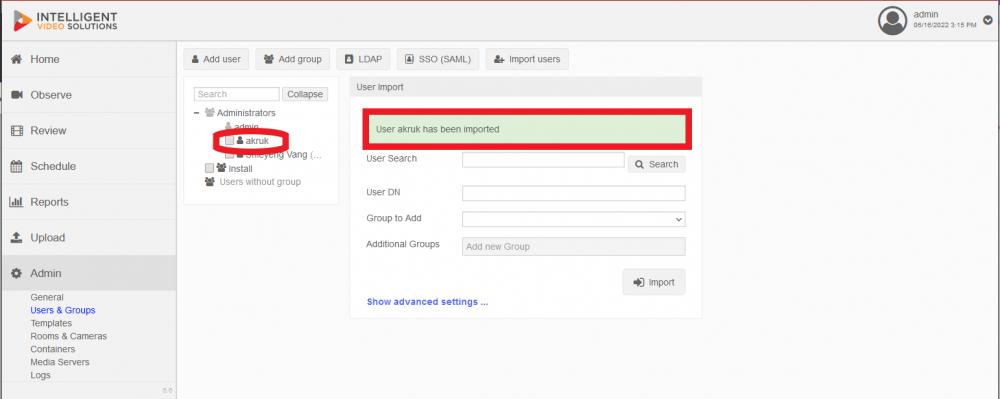
- You will see a confirmation message displayed that the user has been imported and you can verify the user got assigned to the group: