VALT Digital Display: Difference between revisions
Jump to navigation
Jump to search
IVSWikiBlue (talk | contribs) No edit summary |
IVSWikiBlue (talk | contribs) No edit summary |
||
| Line 7: | Line 7: | ||
The <b>VALT Digital Display</b> provides a live camera view and pan-tilt-zoom camera control via touchscreen. Use the digital display to [[VALT_Manual_Observe#Recording | start, stop]] and [[VALT_Manual_Observe#Pause_a_Recording | pause]] recording. And add time-stamped markers to an [[VALT_Manual_Observe#Recording | active video recording]], so you can jump to key moments in [[VALT_Manual_Review | video playback]]. | The <b>VALT Digital Display</b> provides a live camera view and pan-tilt-zoom camera control via touchscreen. Use the digital display to [[VALT_Manual_Observe#Recording | start, stop]] and [[VALT_Manual_Observe#Pause_a_Recording | pause]] recording. And add time-stamped markers to an [[VALT_Manual_Observe#Recording | active video recording]], so you can jump to key moments in [[VALT_Manual_Review | video playback]]. | ||
{{ | |right = | ||
{{img - button | file = VALT Digital Display-00.png | width=400px}} | |||
}} | |||
<strong>Benefits</strong> | <strong>Benefits</strong> | ||
| Line 13: | Line 15: | ||
*Manage recording at the room. | *Manage recording at the room. | ||
*Add markers with one press of a digital button. | *Add markers with one press of a digital button. | ||
</onlyinclude> | </onlyinclude> | ||
{{hr}} | {{hr}} | ||
Latest revision as of 16:48, 24 February 2026
VALT Digital Display
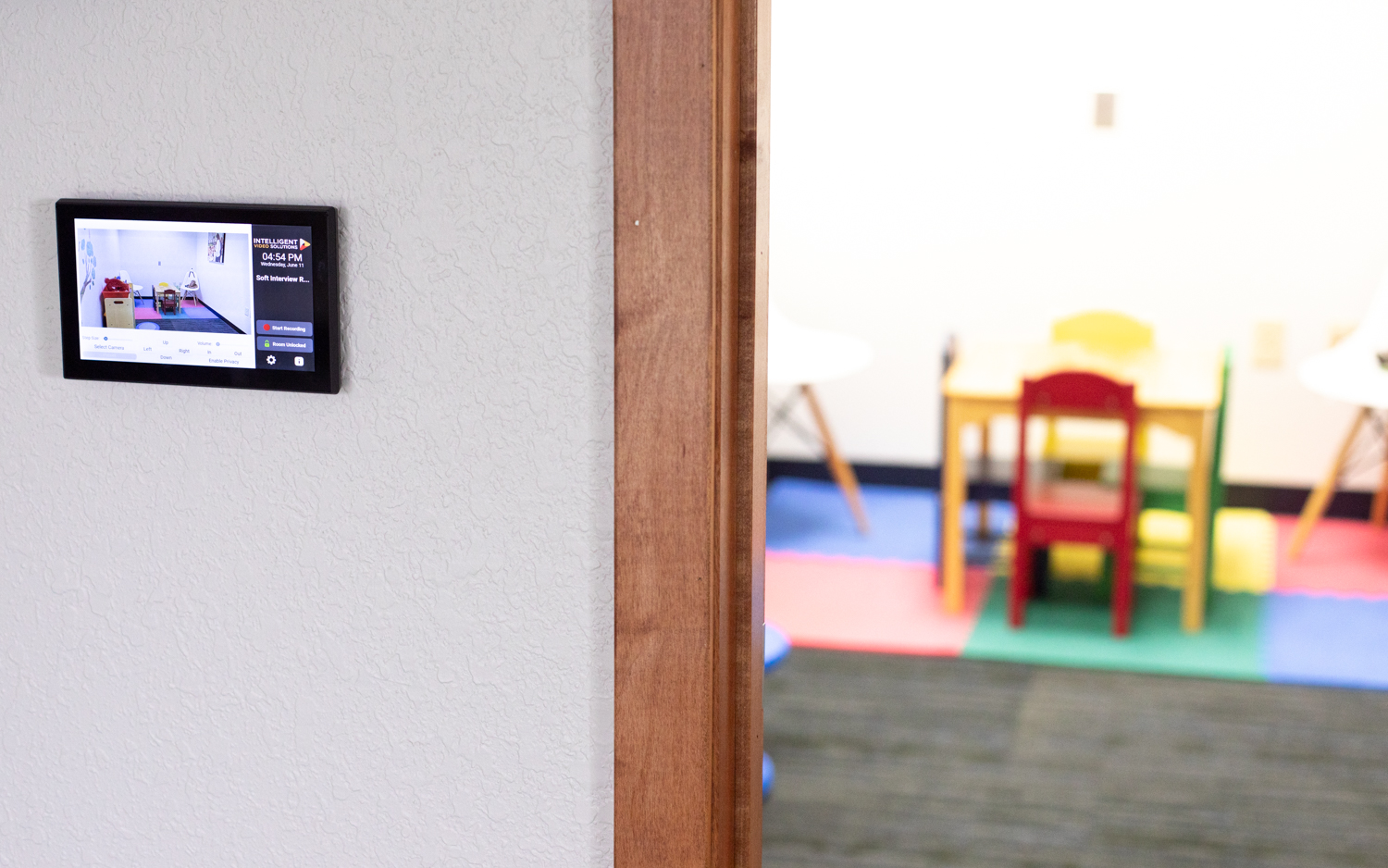
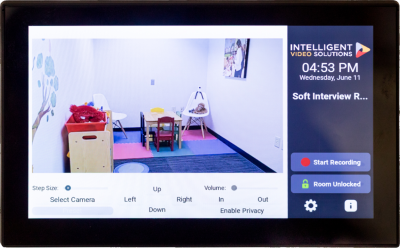
The VALT Digital Display provides a live camera view and pan-tilt-zoom camera control via touchscreen. Use the digital display to start, stop and pause recording. And add time-stamped markers to an active video recording, so you can jump to key moments in video playback.
Benefits
- User autonomy to start and stop recording.
- Manage recording at the room.
- Add markers with one press of a digital button.
Example Use Cases
- Position a camera using this room accessory before or during recording.
- Observe in-room activity via the digital display.
- Push and position a ROAM Cart and use the digital display mounted on the cart to position the cart’s PTZ camera and start, stop and pause recording.