SMB / CIFS Storage: Difference between revisions
Jump to navigation
Jump to search
IVSWikiBlue (talk | contribs) No edit summary |
IVSWikiBlue (talk | contribs) No edit summary |
||
| Line 13: | Line 13: | ||
# Delete the line that mounts the local hard drive in /usr/local/WowzaStreamingEngine/content. It will most likely be the last line in fstab | # Delete the line that mounts the local hard drive in /usr/local/WowzaStreamingEngine/content. It will most likely be the last line in fstab | ||
# Add a line for the CIFS (Windows) share. It should read similar to the following: | # Add a line for the CIFS (Windows) share. It should read similar to the following: | ||
#: //''servername/sharename'' /usr/local/WowzaStreamingEngine/content | #: //''servername/sharename'' /usr/local/WowzaStreamingEngine/content cifs username=''msusername'',password=''mspassword'',sec=ntlm 0 2 | ||
#: Replace the italicized text with the appropriate information for your environment. | #: Replace the italicized text with the appropriate information for your environment. | ||
#: EX: //ivsnas.ipivs.com/IVS/Videos /usr/local/WowzaStreamingEngine/content cifs username=ivs,password=badpassword,sec=ntlm 0 0 | #: EX: //ivsnas.ipivs.com/IVS/Videos /usr/local/WowzaStreamingEngine/content cifs username=ivs,password=badpassword,sec=ntlm 0 0 | ||
Revision as of 22:38, 9 February 2017
The following instructions will configure the Valt appliance to store videos on a CIFS share.
WARNING: This instructions will remove any previously recorded videos. This should only be performed with a new Valt installation.
If you need to perform this operation on an existing Valt server, you must copy the contents of /usr/local/WowzaStreamingEngine/content to your network share before proceeding.
- Connect to the server via SSH or log in to the teminal
- Type sudo apt-get install cifs-utils and press enter.
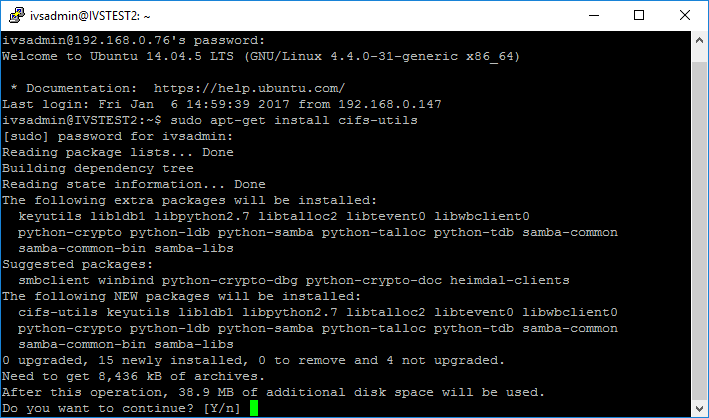
- When prompted, enter Y to confirm installation of the package.
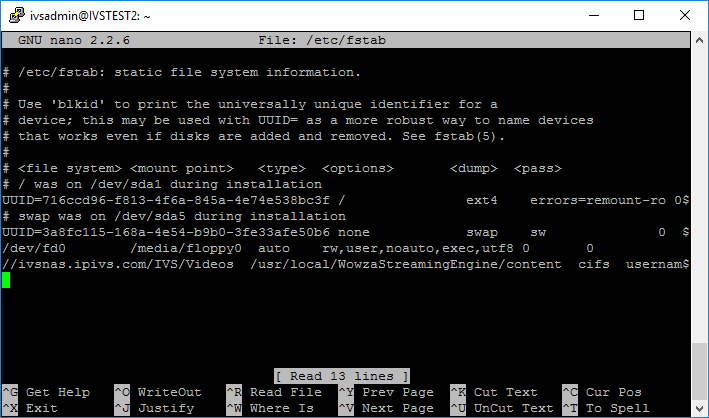
- Type sudo nano /etc/fstab and press enter.
- Delete the line that mounts the local hard drive in /usr/local/WowzaStreamingEngine/content. It will most likely be the last line in fstab
- Add a line for the CIFS (Windows) share. It should read similar to the following:
- //servername/sharename /usr/local/WowzaStreamingEngine/content cifs username=msusername,password=mspassword,sec=ntlm 0 2
- Replace the italicized text with the appropriate information for your environment.
- EX: //ivsnas.ipivs.com/IVS/Videos /usr/local/WowzaStreamingEngine/content cifs username=ivs,password=badpassword,sec=ntlm 0 0
- Press CTRL-X
- Enter Y to save.
- Do not change the file name and press enter
- Type sudo mount -a and press enter.
- Type sudo /usr/local/valt/bin/Storage and press enter
- In some installation the Storage script may be located at /home/ivsadmin/ValtInstall/Storage. If the script is not in either location, please contact IVS technical support for assistance.


The Valt appliance should now be configured to store all videos on a CIFS (Windows) share.