BEAM - Manual Upload: Difference between revisions
Jump to navigation
Jump to search
IVSWikiBlue (talk | contribs) m IVSWikiBlue moved page BEAM Upload to Template:BEAM Upload |
IVSWikiBlue (talk | contribs) No edit summary |
||
| Line 1: | Line 1: | ||
{{Article | content = | {{Article | content = | ||
If | If [[BEAM - Auto Sync | Autosync]] is turned <b>off</b>, you will need to manually sync your recorded videos. | ||
Continue reading, to learn how to manually sync a [[BEAM]] video to your application. | Continue reading, to learn how to manually sync a [[BEAM]] video to your application. | ||
| Line 6: | Line 6: | ||
{{hr}} | {{hr}} | ||
{{img with key - width | file = Beam storage and manual sync 6.png | width = 800px | list = | {{img with left key - width | file = Beam storage and manual sync 6.png | width = 800px | list = | ||
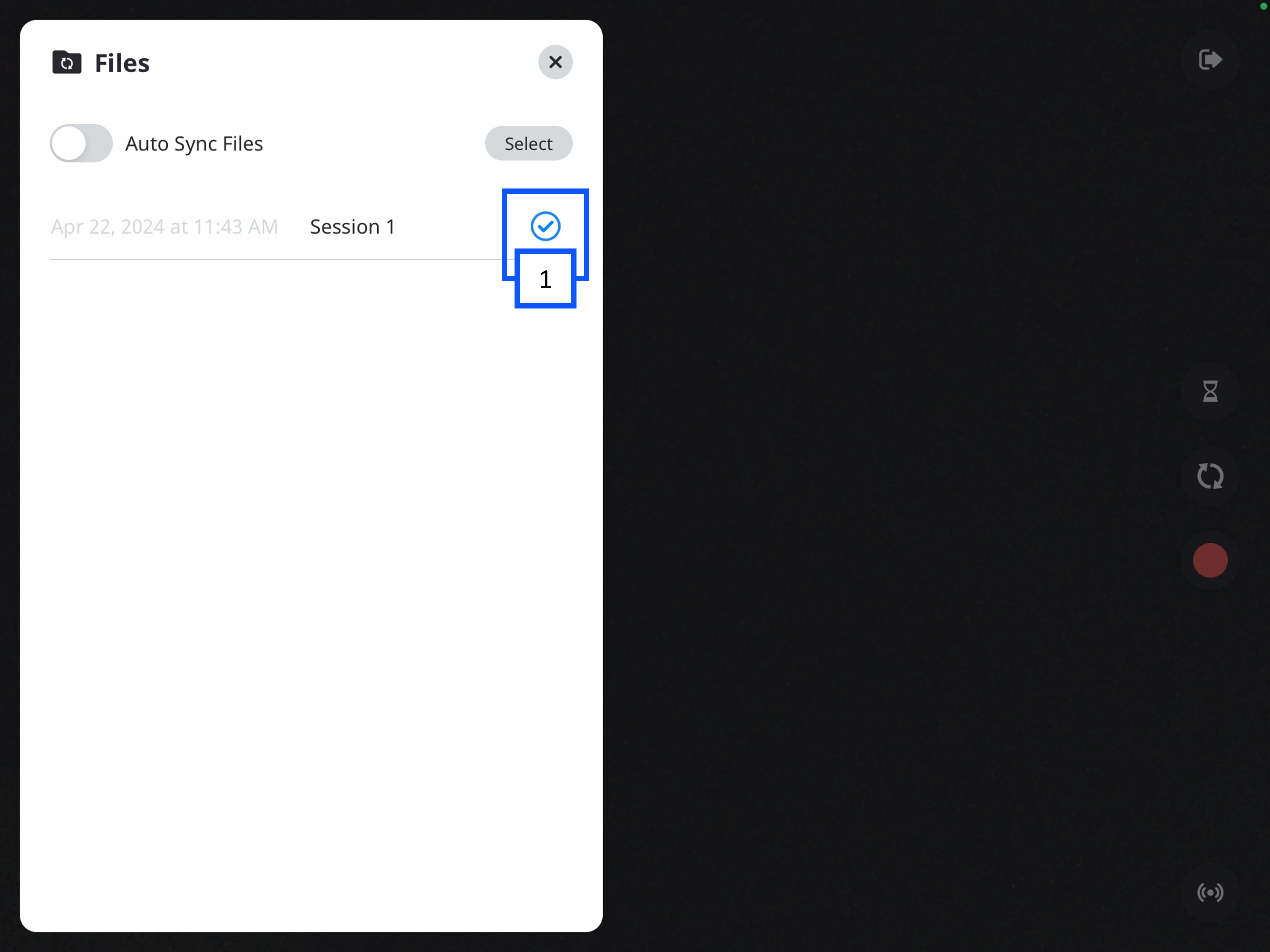
In the Files folder, you will see a list of your videos. | |||
{{hr}} | |||
<li>The <b>up arrow</b> indicates the video has not been synced to the VALT server.</li> | <li>The <b>up arrow</b> indicates the video has not been synced to the VALT server.</li> | ||
}} | }} | ||
| Line 12: | Line 14: | ||
{{hr}} | {{hr}} | ||
{{img with key - width | file = Beam storage and manual sync | {{img with left key - width | file = Beam storage and manual sync 7.png | width = 800px | list = | ||
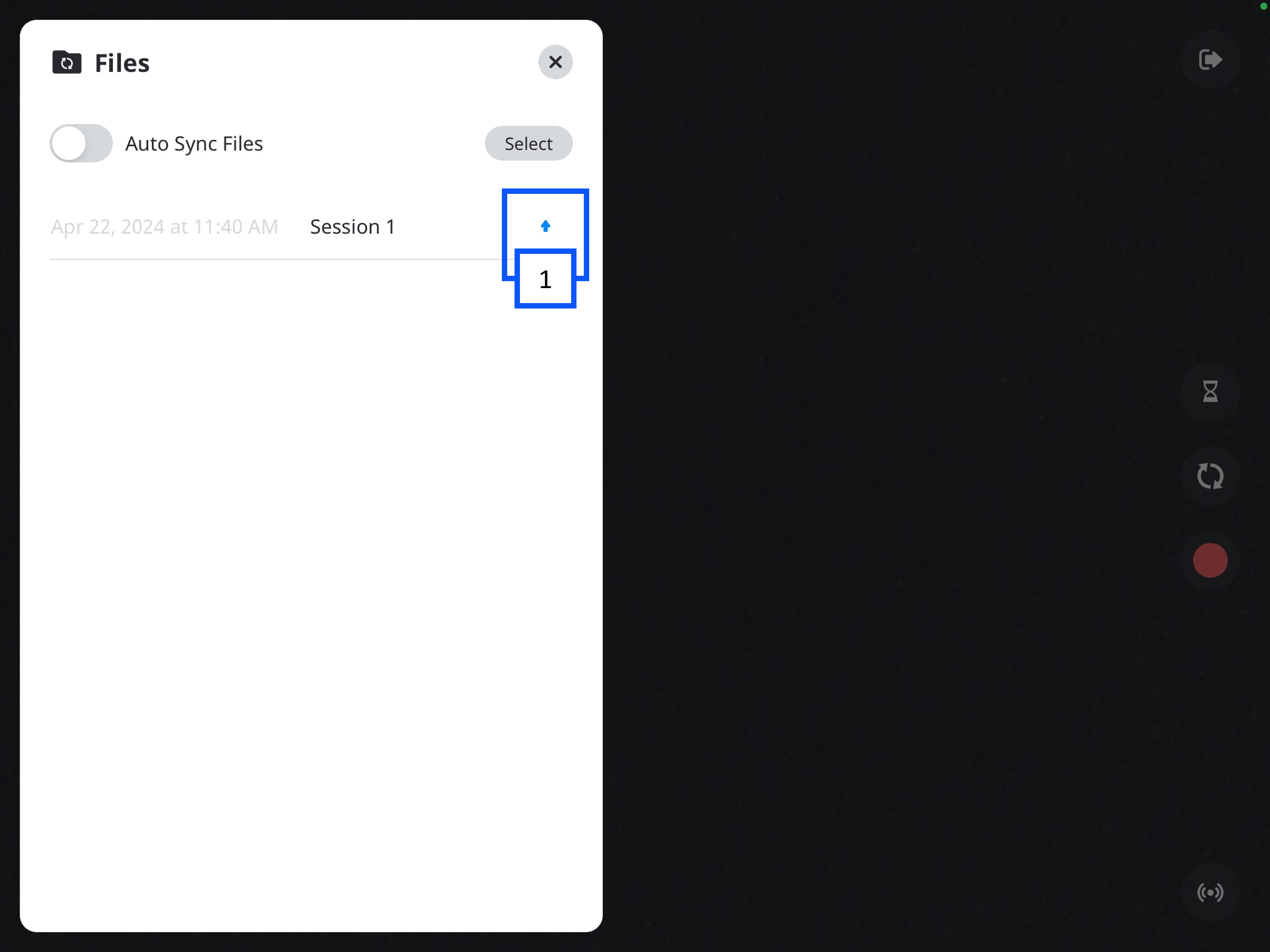
You can click the up arrow to initiate uploading the video. | |||
{{hr}} | {{hr}} | ||
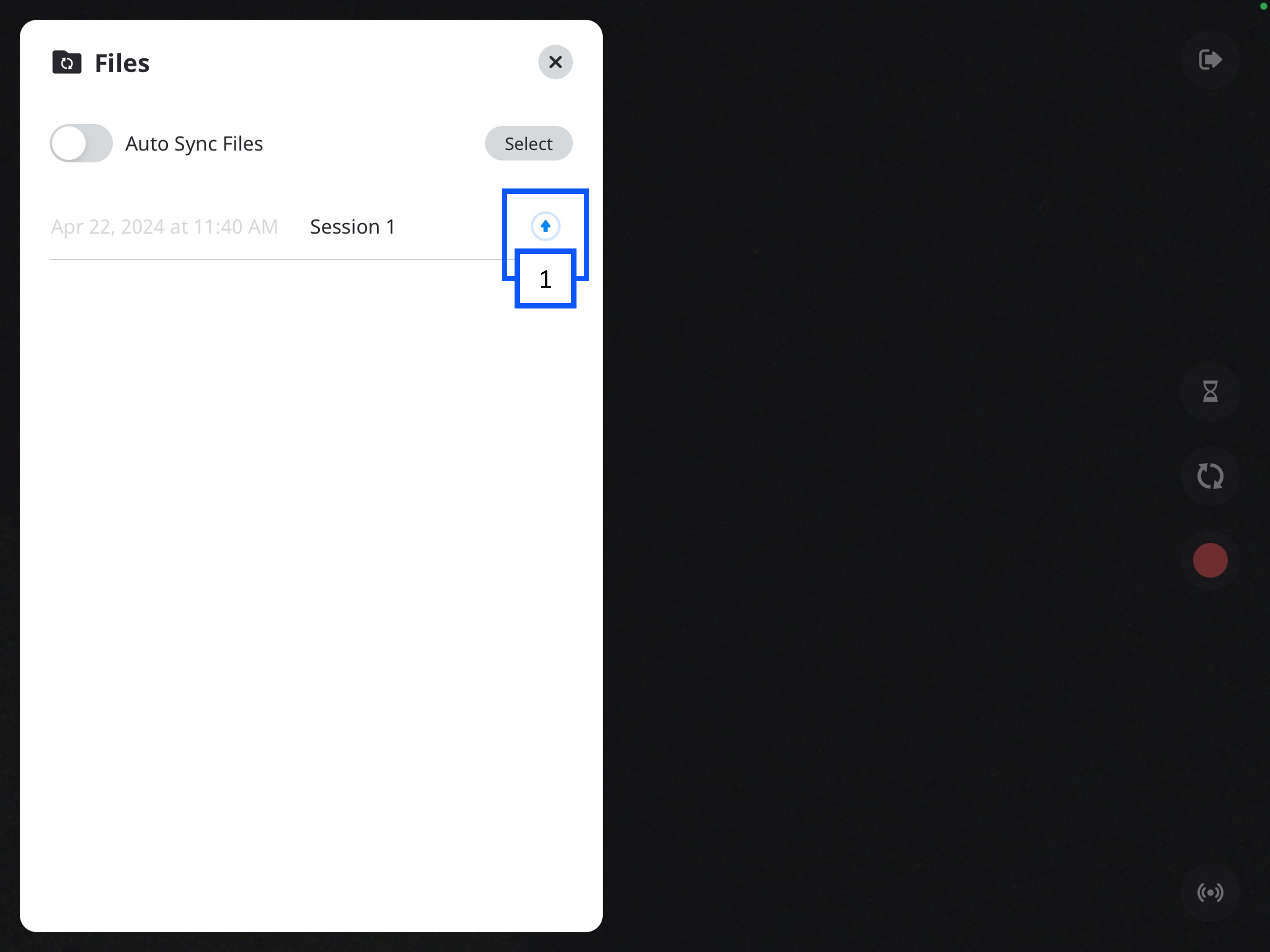
<li>An <b>progress circle</b> will appear after then arrow is pressed.</li> | |||
<li></li> | |||
}} | }} | ||
<center> | |||
{{img - resize | file = Beam storage and manual sync 8.png | width = 720px}} | |||
</center> | |||
{{img | |||
{{hr}} | {{hr}} | ||
{{img with key - width | file = Beam storage and manual sync 9.png | width = 800px | list = | {{img with left key - width | file = Beam storage and manual sync 9.png | width = 800px | list = | ||
<li></li> | <li>A <b>checkmark</b> will appear when the recording is done uploading to the server.</li> | ||
}} | }} | ||
}} | }} | ||
Revision as of 16:19, 25 April 2024
If Autosync is turned off, you will need to manually sync your recorded videos.
Continue reading, to learn how to manually sync a BEAM video to your application.
-
In the Files folder, you will see a list of your videos.
- The up arrow indicates the video has not been synced to the VALT server.
-
You can click the up arrow to initiate uploading the video.
- An progress circle will appear after then arrow is pressed.
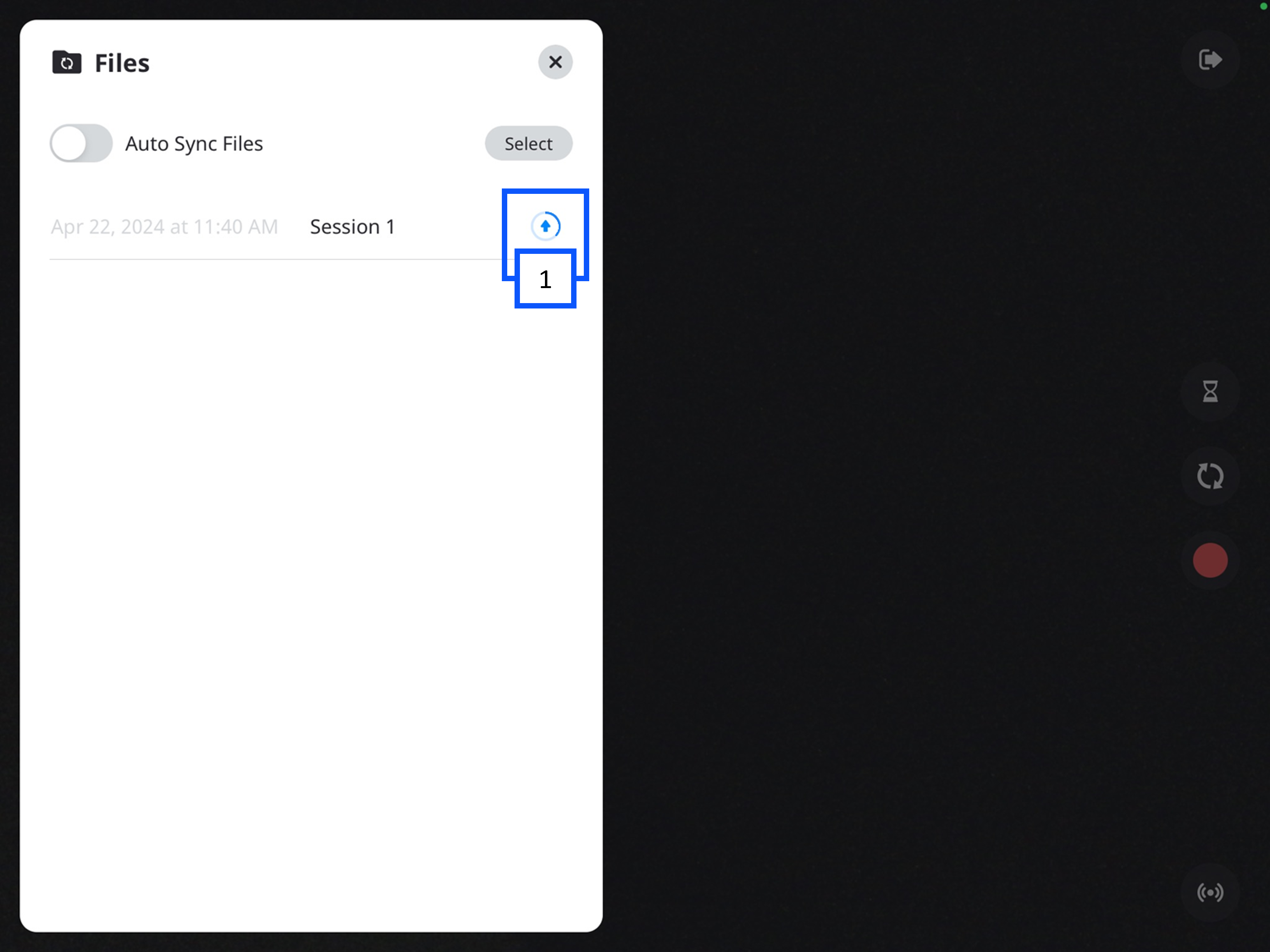
- A checkmark will appear when the recording is done uploading to the server.