Changing Settings on the IVS BEAM App: Difference between revisions
Jump to navigation
Jump to search
IVSWikiBlue (talk | contribs) No edit summary |
IVSWikiBlue (talk | contribs) No edit summary |
||
| Line 1: | Line 1: | ||
{{Section | content = | |||
1) Touch the Gear Icon in the upper left corner of the screen. | 1) Touch the Gear Icon in the upper left corner of the screen. | ||
| Line 6: | Line 6: | ||
2) The current configuration will be displayed. Update the Server Address, Device UID, username and password as necessary. | 2) The current configuration will be displayed. Update the Server Address, Device UID, username and password as necessary. | ||
<table class="simple_table"> | |||
<tr> | |||
<td style="width: 150px;">Server Address</td> | |||
<td>Enter the IP address or FQDN of the server. It must be entered as http://192.168.0.81 or https://192.168.0.81 if you are using SSL</td> | |||
</tr> | |||
<tr> | |||
<td>Device UID</td> | |||
<td>You can obtain this by pulling up the iPad device on the server.</td> | |||
</tr> | |||
<tr> | |||
<td>Username</td> | |||
<td><em>This should be an admin account. It is used just to sync VALT and the BEAM application.</em></td> | |||
</tr> | |||
<tr> | |||
<td>Password</td> | |||
<td></td> | |||
</tr> | |||
</table> | |||
: | {{Aside | content = <b>NOTE:</b> If you are utilizing SSL, you must have a cert signed by a trusted CA in order to connect an iOS device.}} | ||
3) Touch '''Sync User Data'''. | 3) Touch '''Sync User Data'''. | ||
| Line 32: | Line 36: | ||
6) Touch '''Login'''. | 6) Touch '''Login'''. | ||
}} | |||
Revision as of 13:04, 18 July 2023
1) Touch the Gear Icon in the upper left corner of the screen.
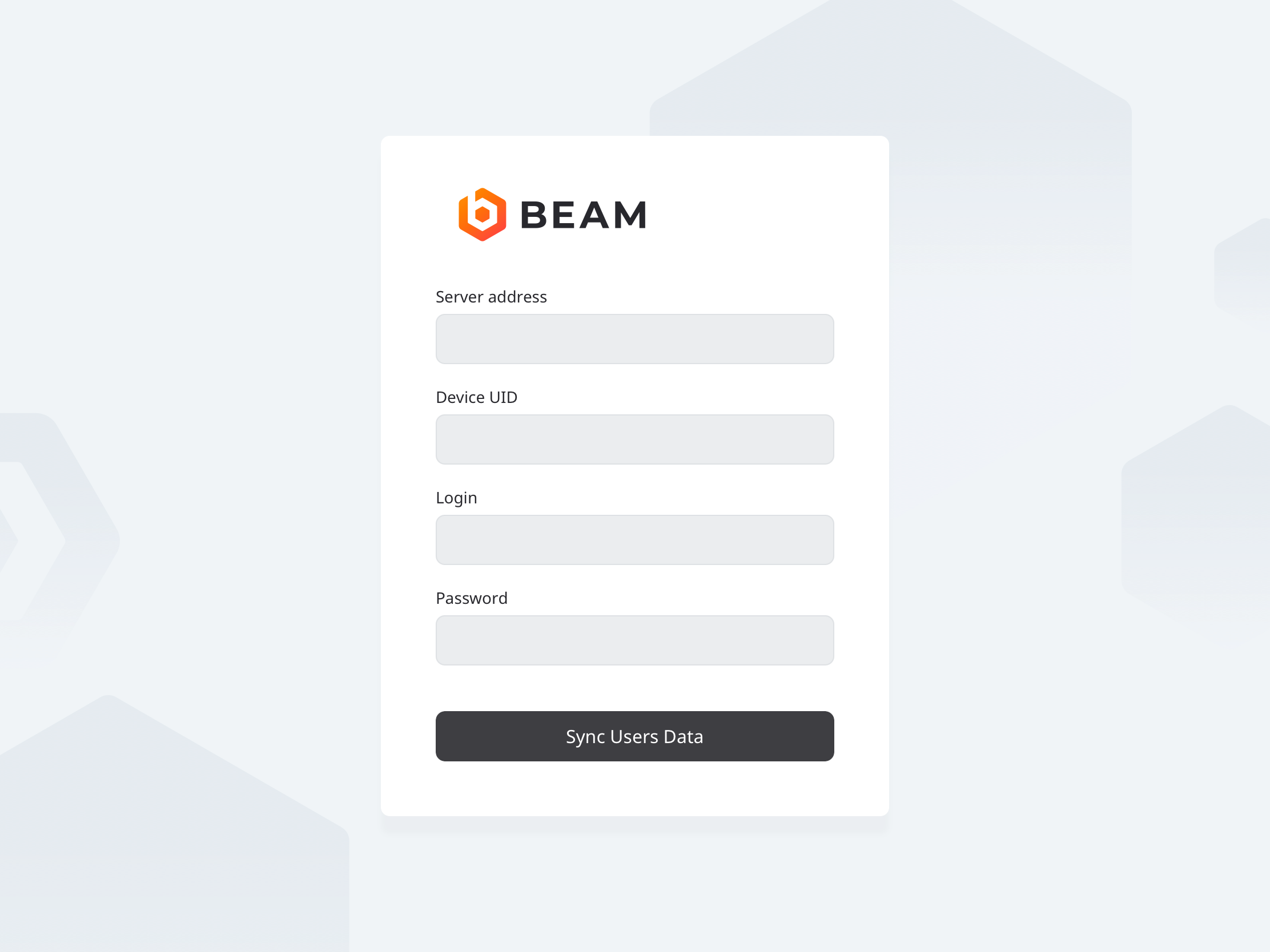
2) The current configuration will be displayed. Update the Server Address, Device UID, username and password as necessary.
| Server Address | Enter the IP address or FQDN of the server. It must be entered as http://192.168.0.81 or https://192.168.0.81 if you are using SSL |
| Device UID | You can obtain this by pulling up the iPad device on the server. |
| Username | This should be an admin account. It is used just to sync VALT and the BEAM application. |
| Password |
✎
NOTE: If you are utilizing SSL, you must have a cert signed by a trusted CA in order to connect an iOS device.
3) Touch Sync User Data.
4) You will now be prompted to enter your username. This should be the username of the individual that will be utilizing the device, as that is the user the videos will be stored under. The user can log out and another user can log in at any time.
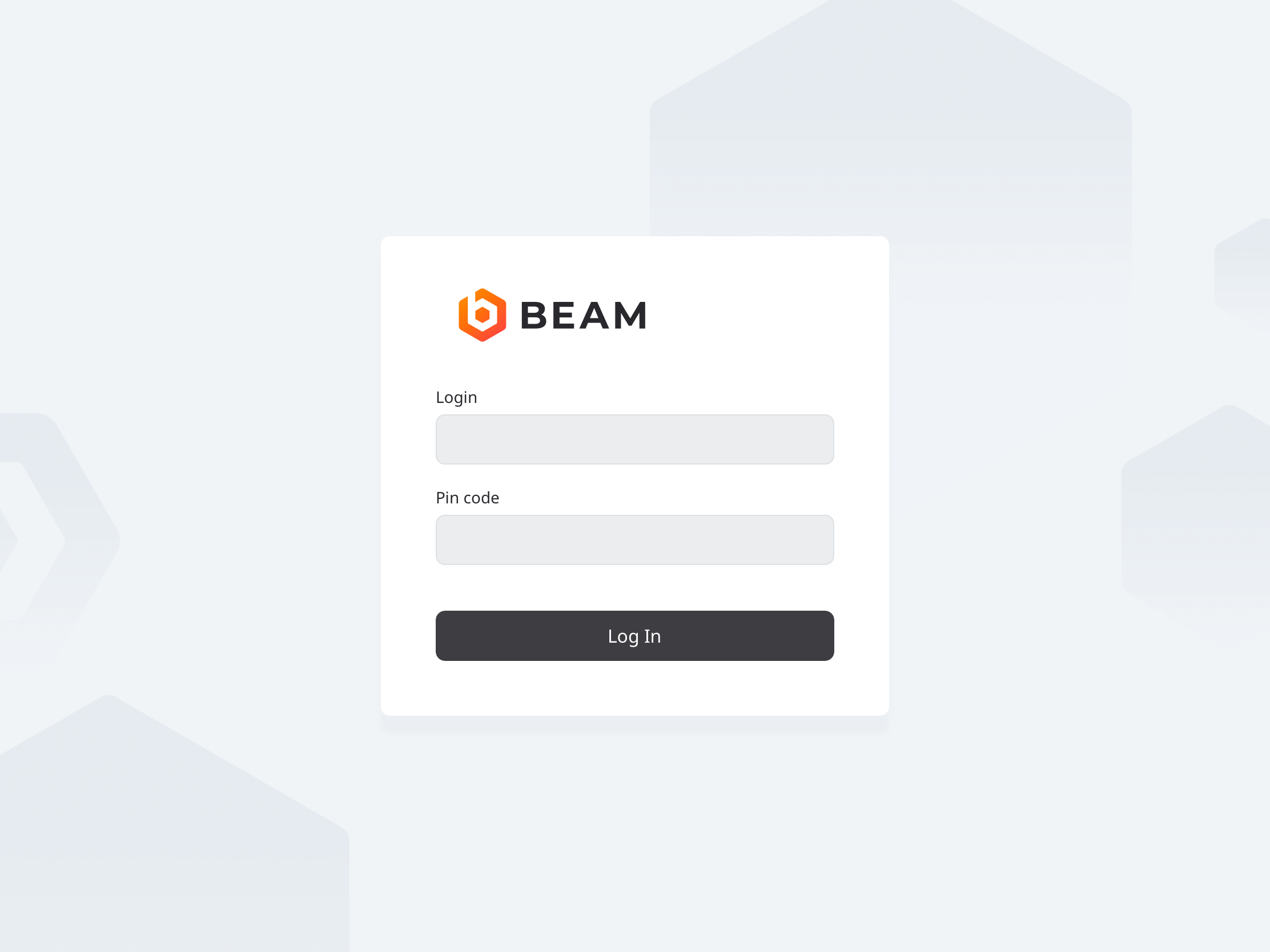
5) Enter the username.
6) Touch Login.