Single Sign-On (SSO): Difference between revisions
Jump to navigation
Jump to search
IVSWikiBlue (talk | contribs) |
IVSWikiBlue (talk | contribs) No edit summary |
||
| Line 1: | Line 1: | ||
<div class="floating_card">VALT is compatible with SAML 2.0</div> | <div class="floating_card">VALT is compatible with SAML 2.0</div> | ||
{{Section | content = | |||
*Browse to the the Fully qualified domain name and sign in with a local account | |||
*Click on admin | |||
*Click on Users & Groups | |||
*Along the top click on SSO and add SAML config | |||
<hr> | |||
< | |||
==To configure SSO VALT needs the following information:== | ==To configure SSO VALT needs the following information:== | ||
*Certificate in .cer format | *Certificate in .cer format | ||
*Identity Provider (IDP) | *Identity Provider (IDP) | ||
| Line 32: | Line 29: | ||
signResponses: true | signResponses: true | ||
encryptNameIDs: true | encryptNameIDs: true | ||
< | |||
<hr> | |||
==User Mapping== | ==User Mapping== | ||
<div class="floating_card">User mapping is used to map groups in the customer's system to groups within VALT</div> | <div class="floating_card">User mapping is used to map groups in the customer's system to groups within VALT</div> | ||
Required: | Required: | ||
*Attribute (The item that gets passed back to VALT) | *Attribute (The item that gets passed back to VALT) | ||
| Line 45: | Line 42: | ||
Items to Note: | Items to Note: | ||
*SSO in VALT is a one to one mapping for groups | *SSO in VALT is a one to one mapping for groups | ||
}} | |||
Revision as of 20:59, 22 August 2023
VALT is compatible with SAML 2.0
- Browse to the the Fully qualified domain name and sign in with a local account
- Click on admin
- Click on Users & Groups
- Along the top click on SSO and add SAML config
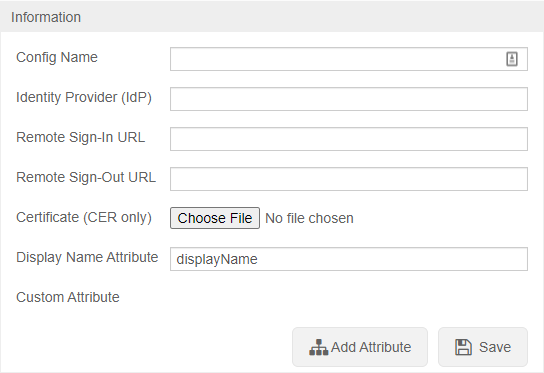
To configure SSO VALT needs the following information:
- Certificate in .cer format
- Identity Provider (IDP)
- Remote Sign-In URL
- Remote Sign-Out URL
- Display Name Attribute
- Any other custom attributes needed
After SSO is configured browse to https://<Server Address>/saml/metadata.xml to grab the VALT metadata to add to your system
Items to Note:
- If moving from LDAP to SSO you have to add a custom attribute to map to the username so the usernames will match correctly
- To migrate current users to SSO the SQL command needs to be run on the database with the correct group ID
UPDATE users set ldap_sync_id = NULL, saml_config_id = 1, userType = 'local' where deleted_at is null and group_id =
- Custom Attributes can be usernames if you want to map to something specific or other information that you want to pull into VALT
- Shibboleth IDP's need the following settings specified:
signAssertions: true
signResponses: true
encryptNameIDs: true
User Mapping
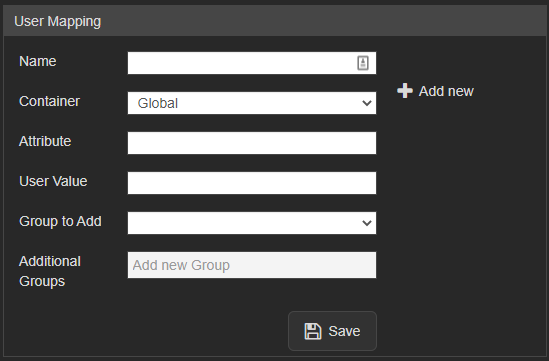
User mapping is used to map groups in the customer's system to groups within VALT
Required:
- Attribute (The item that gets passed back to VALT)
- User Value (The value of the item that gets passed back to VALT)
Items to Note:
- SSO in VALT is a one to one mapping for groups