Template:Accessing Your VALT POC System: Difference between revisions
Jump to navigation
Jump to search
IVSWikiBlue (talk | contribs) No edit summary |
IVSWikiBlue (talk | contribs) No edit summary |
||
| Line 5: | Line 5: | ||
''Note: The default IP address for the VALT POC appliance is <b>192.168.5.2</b>'' | ''Note: The default IP address for the VALT POC appliance is <b>192.168.5.2</b>'' | ||
}} | }} | ||
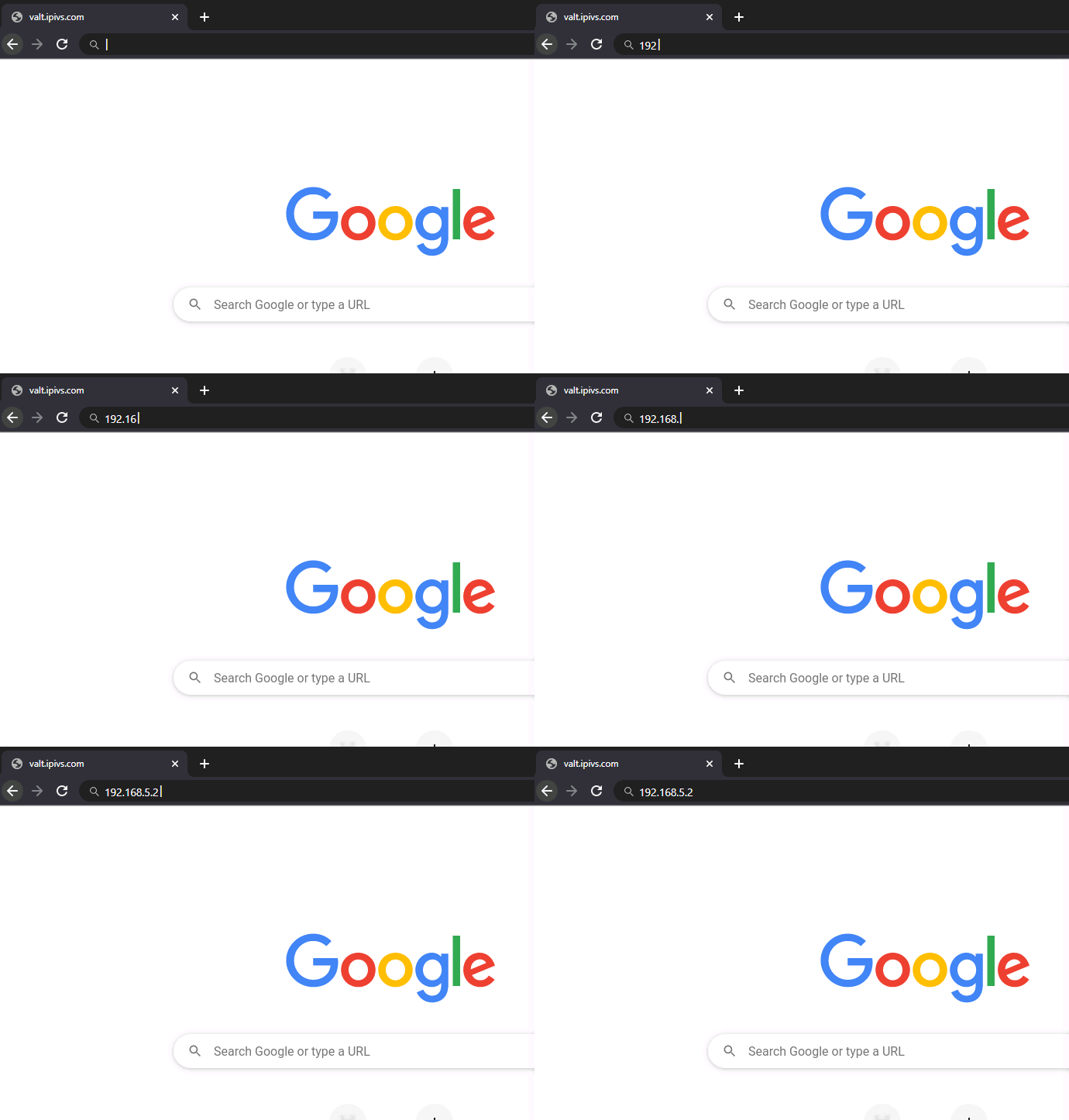
#:{{img | file = POC Address-export.gif | width = }} | #:{{img | file = POC Address-export.gif | width = }} | ||
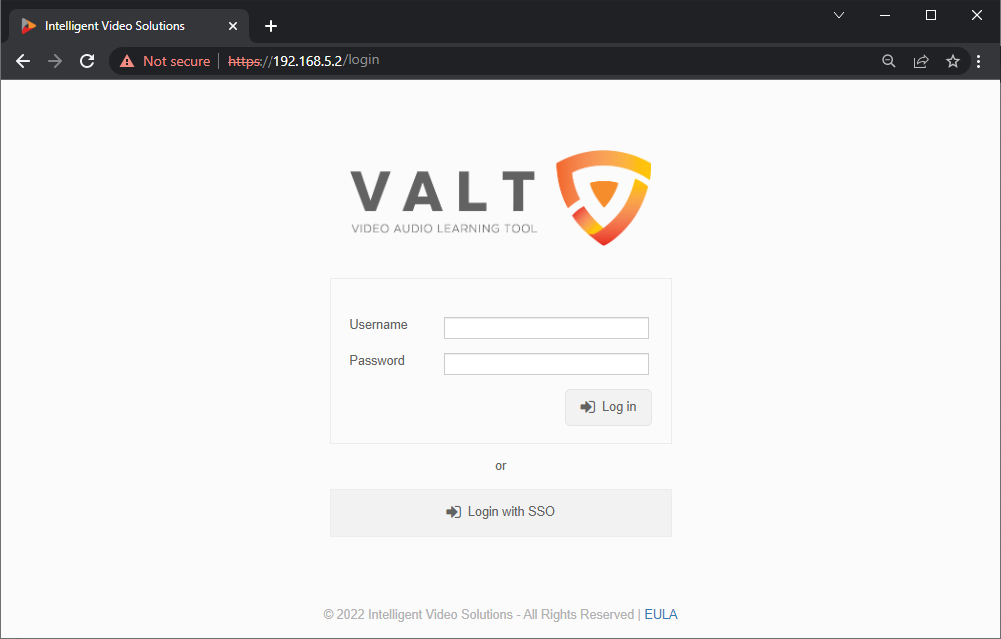
#:{{img | file = POC Login Screen.png | width = 800px}} | #:{{img | file = POC Login Screen.png | width = 800px}} | ||
Revision as of 18:14, 2 December 2022
How to Access the POC System
- Connect to the IVS_Demo Wifi as provided by the wireless access point in the VALT POC Camera Station.
- Open up a web browser (Chrome, Firefox, Internet Explorer, Safari) and point it to the IP address of the VALT server. Note: The default IP address for the VALT POC appliance is 192.168.5.2
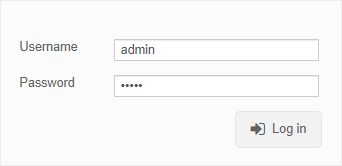
- Log into the system with the default username and password.
- Username: admin
- Password: admin

You can find more information on using the VALT application, including user guides and training videos on our wiki at https://www.ipivs.info/wiki/