Template:VALT Server Migration: Difference between revisions
Jump to navigation
Jump to search
IVSWikiBlue (talk | contribs) |
IVSWikiBlue (talk | contribs) No edit summary |
||
| Line 6: | Line 6: | ||
<div class="floating_card"><font color="orange">'''Note: ''It is beneficial to stop the apache service on the old server to prevent further recording of videos on it'''''</font> </div> | <div class="floating_card"><font color="orange">'''Note: ''It is beneficial to stop the apache service on the old server to prevent further recording of videos on it'''''</font> </div> | ||
<br> | <br> | ||
<div class="section"> | |||
# Disable the Apache web service on the server to prevent further recordings | # Disable the Apache web service on the server to prevent further recordings | ||
#: < | #: <code>sudo service apache2 stop</code> | ||
# Disable the restart Wowza cronjob: | # Disable the restart Wowza cronjob: | ||
#: - Type in the following command: | #: - Type in the following command: | ||
#: < | #: <code>crontab -e</code> | ||
#: - Press {{Keyboard | key = 1}} to continue< | #: - Press {{Keyboard | key = 1}} to continue | ||
</div> | |||
#:{{img | file = Edit_Cronjobs_Command.png}}<br> | #:{{img | file = Edit_Cronjobs_Command.png}}<br> | ||
#:<br> - Comment out the following job: <div class="floating_card"><pre>0 3 * * * /usr/local/valt/bin/restartwowza</pre></div><br> | #:<br> - Comment out the following job: <div class="floating_card"><pre>0 3 * * * /usr/local/valt/bin/restartwowza</pre></div><br> | ||
Revision as of 21:11, 2 August 2022
Note: Change IP's in the below commands to match the IP's of the new and old server
On the Old Server
Note: It is beneficial to stop the apache service on the old server to prevent further recording of videos on it
- Disable the Apache web service on the server to prevent further recordings
sudo service apache2 stop
- Disable the restart Wowza cronjob:
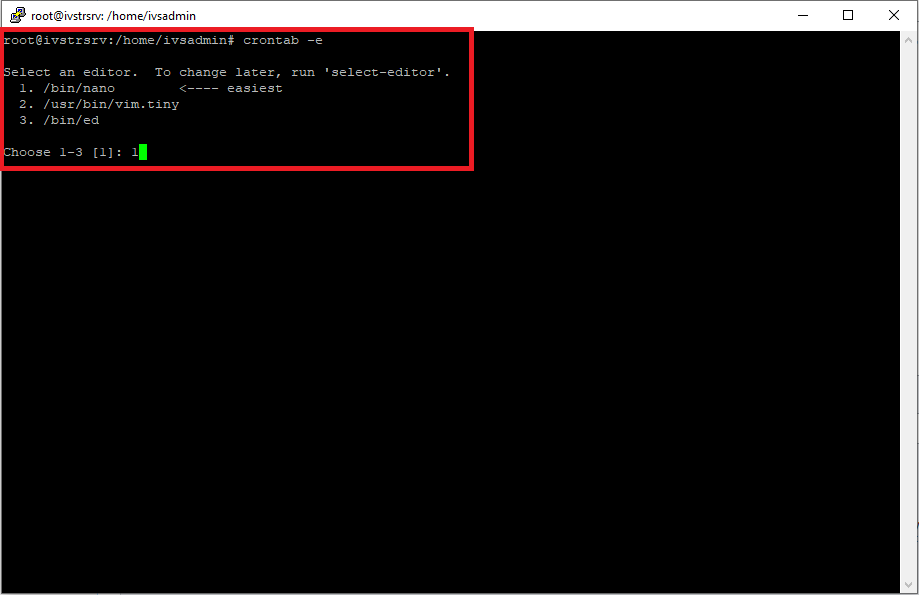
- - Type in the following command:
crontab -e- - Press 1 to continue
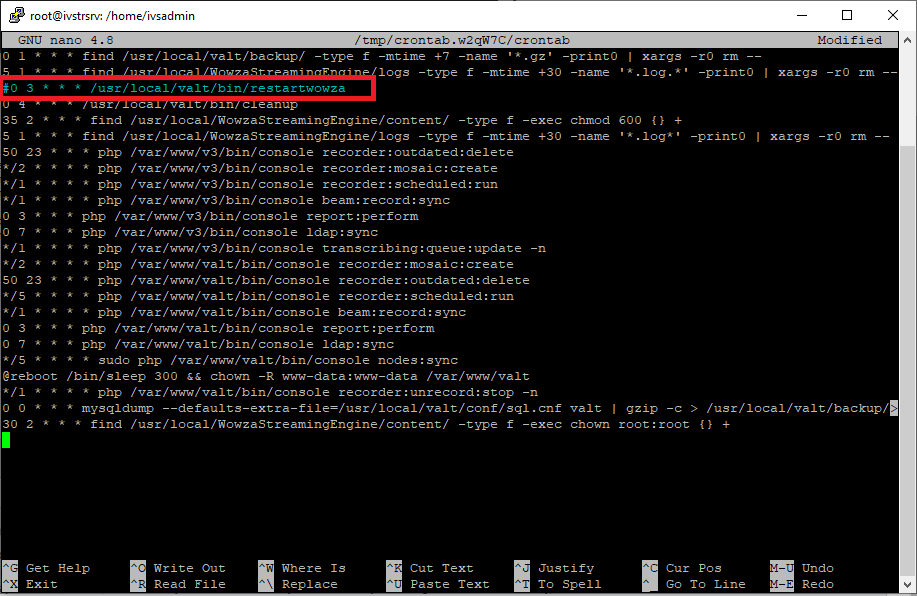
- Comment out the following job:0 3 * * * /usr/local/valt/bin/restartwowza
- Type in the following, then press Enter Enter:
sudo chmod 777 -R /usr/local/WowzaStreamingEngine/content/
- Type in the following, then press Enter Enter:
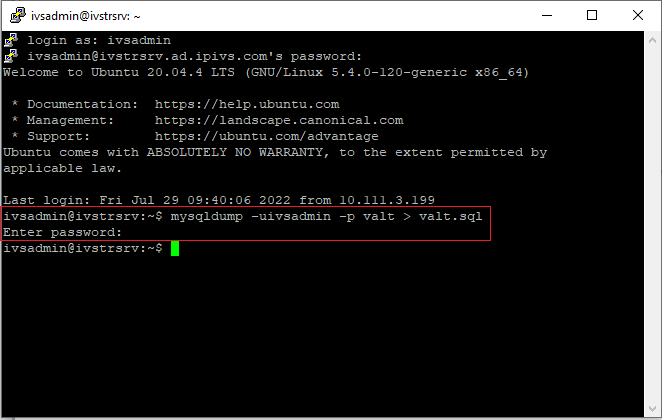
mysqldump -uivsadmin -p valt
- Enter in the mysql password
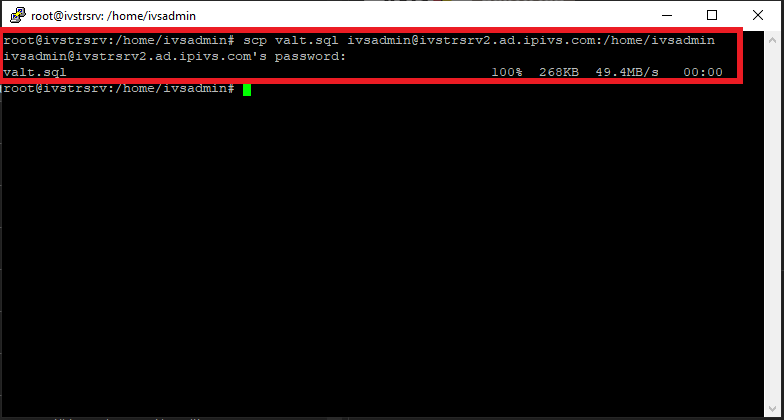
- Type in the following, then press Enter:
scp valt.sql ivsadmin@NewServerIP:/home/ivsadmin/
- Enter password for ivsadmin.


On the New Server
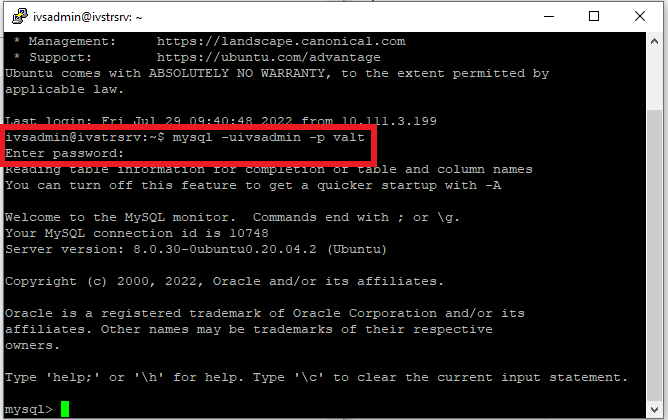
- Type in the following, then press Enter:
mysql -uivsadmin -p valt
- Type in the password to MySQL.
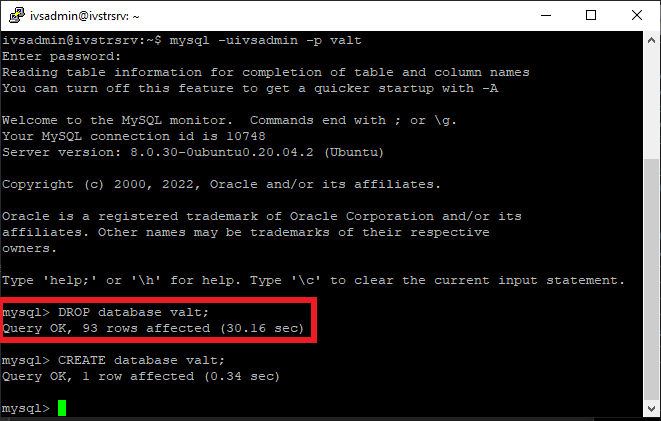
- Type:
DROP database valt;
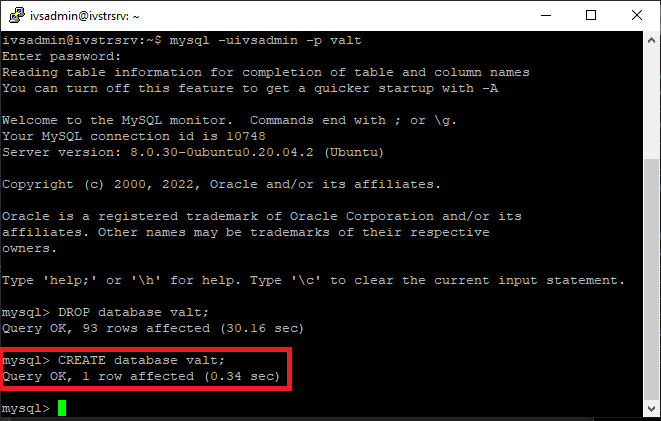
- Type:
CREATE database valt;
- Type in the following, then press Enter:
exit
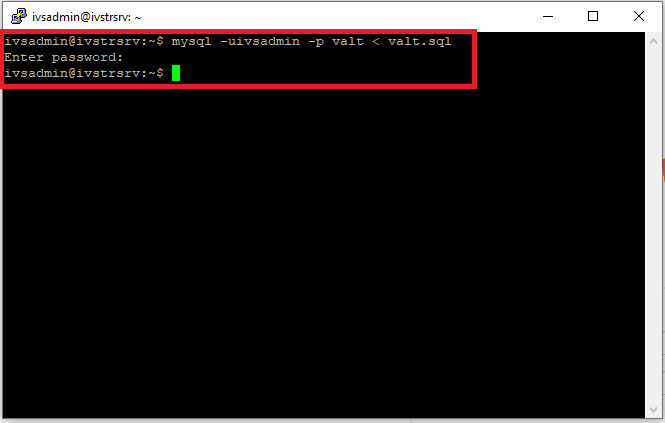
- Type in the following, then press Enter:
mysql -uivsadmin -p valt < valt.sql
- Enter the password for MySQL.
- Type in the following, then press Enter:
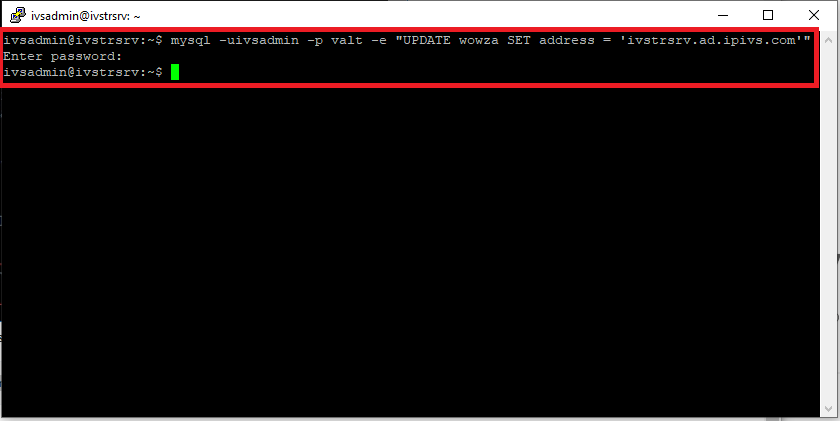
mysql -uivsadmin -p valt -e "UPDATE wowza SET address = 'NewServerIP'"
- Enter the password for MySQL.