How to Access VALT: Difference between revisions
Jump to navigation
Jump to search
IVSWikiBlue (talk | contribs) No edit summary |
IVSWikiBlue (talk | contribs) No edit summary |
||
| (22 intermediate revisions by the same user not shown) | |||
| Line 1: | Line 1: | ||
{{Article | content = | |||
1. Open a web browser | |||
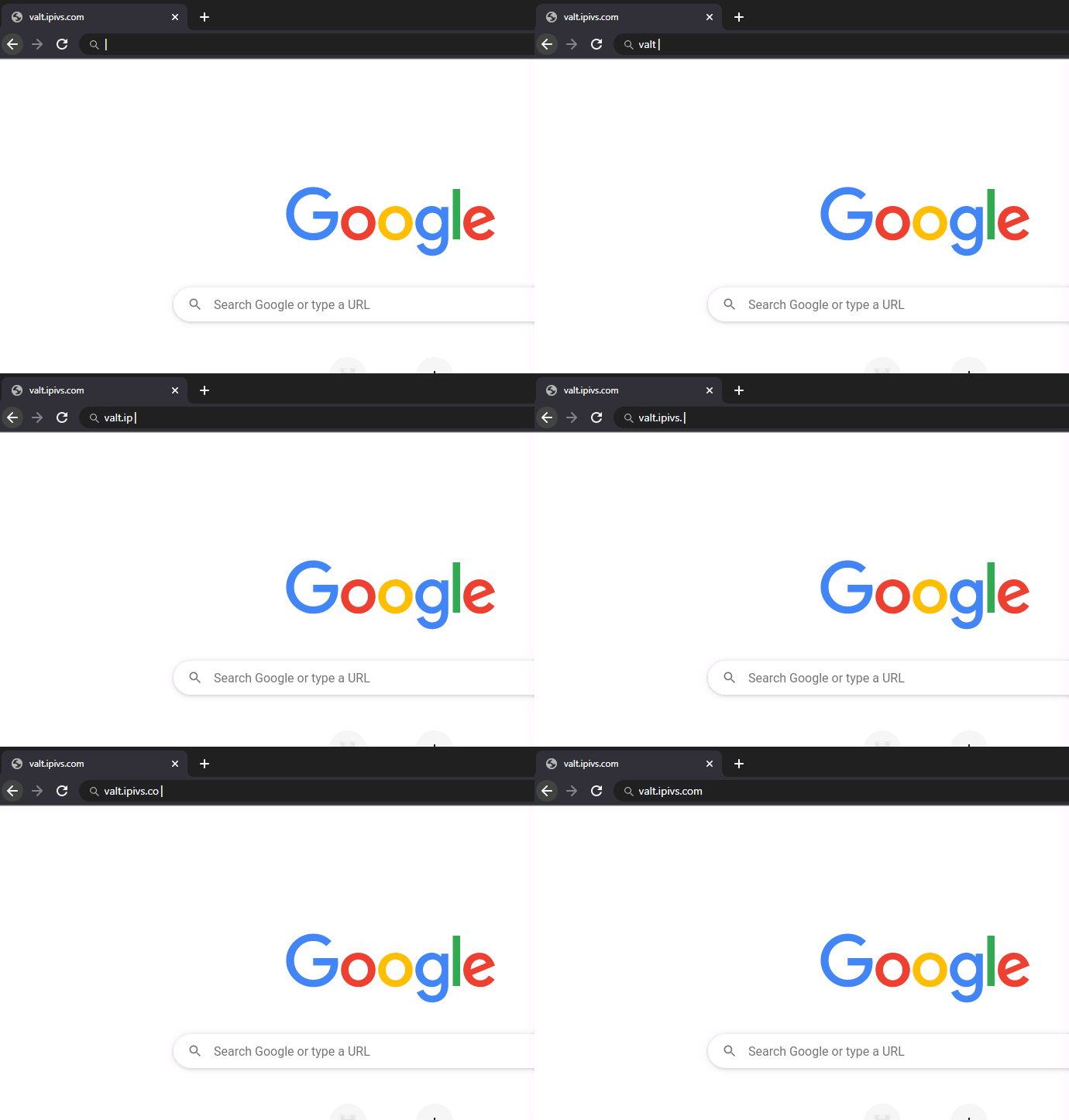
2. Type the IP address, or domain name of your VALT server into the URL bar | |||
{{Aside | content = If you do not know your IP address or domain name, ask your local VALT admin.}} | |||
<center> | |||
{{img - resize | file = Type VALT URL.gif | width = 600px}} | |||
</center> | |||
{{hr}} | |||
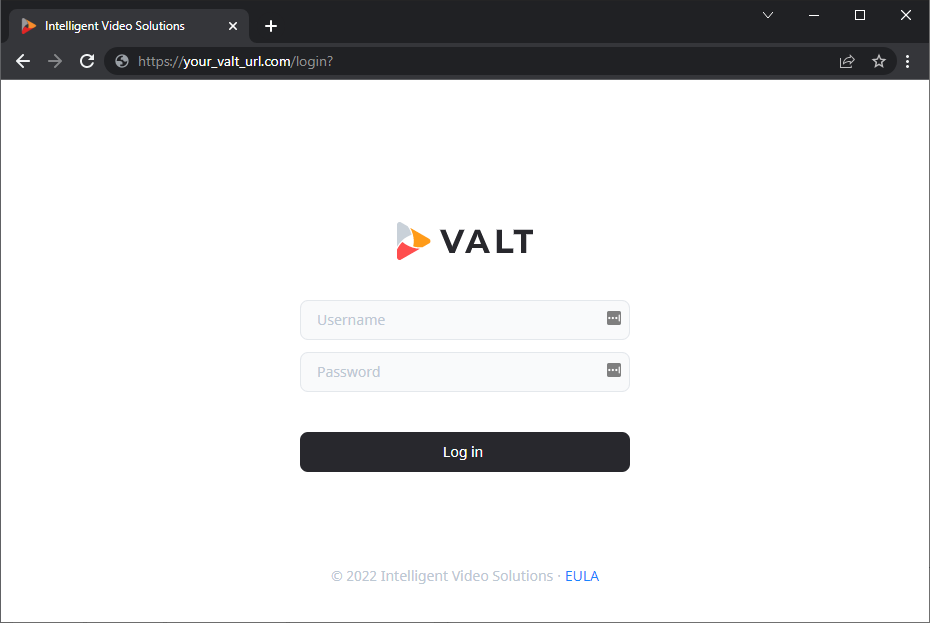
3. You should now be at your VALT login screen | |||
{{img - resize | file = VALT 6 Login Page.png}} | |||
}} | |||
Latest revision as of 20:28, 19 June 2024
1. Open a web browser
2. Type the IP address, or domain name of your VALT server into the URL bar
✎
If you do not know your IP address or domain name, ask your local VALT admin.
3. You should now be at your VALT login screen