BEAM Manual - User Interface: Difference between revisions
IVSWikiBlue (talk | contribs) No edit summary |
IVSWikiBlue (talk | contribs) No edit summary |
||
| (One intermediate revision by the same user not shown) | |||
| Line 21: | Line 21: | ||
}} | }} | ||
{{Manual lvl 2 | title = Main Screen | content = | {{Manual lvl 2 | title = Main Screen | content = | ||
Once logged into BEAM, you will be greated to a camera view with a variety of buttons to perform actions. | Once logged into BEAM, you will be greated to a camera view with a variety of buttons to perform actions. | ||
{{img - resize | file = BEAM Manual 2.0 Navigation 00.png}} | {{img - resize | file = BEAM Manual 2.0 Navigation 00.png}} | ||
| Line 36: | Line 32: | ||
{{hr}} | {{hr}} | ||
{{ | {{Float | content = | ||
{{Aside - Helpful | hue = 260 | content = <center>Interactive <b>BEAM Navigation</b>. | |||
{{Try it out | link = https://app.storylane.io/share/icfqzqy9tchh}}</center>}} }} | |||
<h1>Navigation</h1> | <h1>Navigation</h1> | ||
{{Manual lvl 2 | title = Connection Status | content = | {{Manual lvl 2 | title = Connection Status | content = | ||
The {{img - tooltip | file = BEAM Manual 2.0 Navigation 01.png | text = Connection Status | width = 800px}} displays the current status of communication with the VALT server.}} | The {{img - tooltip | file = BEAM Manual 2.0 Navigation 01.png | text = Connection Status | width = 800px}} displays the current status of communication with the VALT server.}} | ||
<table class="wikitable" style="margin:auto"> | <table class="wikitable" style="margin:auto"> | ||
<tr> | <tr> | ||
| Line 55: | Line 50: | ||
</tr> | </tr> | ||
</table> | </table> | ||
{{Manual lvl 2 | title = Logout | content = | {{Manual lvl 2 | title = Logout | content = | ||
| Line 64: | Line 56: | ||
{{Aside - Warning | content = Switching servers will <b>delete</b> all videos that are not yet uploaded to VALT.}} | {{Aside - Warning | content = Switching servers will <b>delete</b> all videos that are not yet uploaded to VALT.}} | ||
}} | }} | ||
{{Manual lvl 2 | title = Prepare Recording | content = | {{Manual lvl 2 | title = Prepare Recording | content = | ||
The {{img - icon | file = Beam icon(hour glass).png | width = 16px}} {{img - tooltip | file = BEAM Manual 2.0 Navigation 03.png | text = Prepare button | width = 800px}} is used to arm a room for an active recording. This option allows you to fill in all the [[VALT_Manual_-_Templates#Information_Field_Types|Information Fields]] ahead of the recording. | The {{img - icon | file = Beam icon(hour glass).png | width = 16px}} {{img - tooltip | file = BEAM Manual 2.0 Navigation 03.png | text = Prepare button | width = 800px}} is used to arm a room for an active recording. This option allows you to fill in all the [[VALT_Manual_-_Templates#Information_Field_Types|Information Fields]] ahead of the recording. | ||
}} | }} | ||
{{Manual lvl 2 | title = Flip Camera | content = | {{Manual lvl 2 | title = Flip Camera | content = | ||
The {{img - icon | file = Beam icon(flip cam).png | width = 16px}} {{img - tooltip | file = BEAM Manual 2.0 Navigation 04.png | text = Flip Camera button | width = 800px}} allows users to toggle between the front and rear cameras of your device. | The {{img - icon | file = Beam icon(flip cam).png | width = 16px}} {{img - tooltip | file = BEAM Manual 2.0 Navigation 04.png | text = Flip Camera button | width = 800px}} allows users to toggle between the front and rear cameras of your device. | ||
}} | }} | ||
{{Manual lvl 2 | title = Record | content = | {{Manual lvl 2 | title = Record | content = | ||
| Line 90: | Line 70: | ||
{{img - resize | file = BEAM Manual 2.0 Template 01.png}} | {{img - resize | file = BEAM Manual 2.0 Template 01.png}} | ||
}} | }} | ||
{{Manual lvl 2 | title = Stream | content = | {{Manual lvl 2 | title = Stream | content = | ||
The {{img - icon | file = Beam icon(wifi-signal).png | width = 18px}} {{img - tooltip | file = BEAM Manual 2.0 Navigation 06.png | text = Stream button | width = 800px}} will allow the user to Stream or Stream and Record. Both options will allow the BEAM video stream to be viewable in VALT. The video will show up as a [[VALT_Manual_Observe#Filter|Stream]] in the VALT application. | The {{img - icon | file = Beam icon(wifi-signal).png | width = 18px}} {{img - tooltip | file = BEAM Manual 2.0 Navigation 06.png | text = Stream button | width = 800px}} will allow the user to Stream or Stream and Record. Both options will allow the BEAM video stream to be viewable in VALT. The video will show up as a [[VALT_Manual_Observe#Filter|Stream]] in the VALT application. | ||
}} | }} | ||
{{Manual lvl 2 | title = Files | content = | {{Manual lvl 2 | title = Files | content = | ||
| Line 147: | Line 119: | ||
{{img - resize | file = BEAM Manual 2.0 Files 01.png}} | {{img - resize | file = BEAM Manual 2.0 Files 01.png}} | ||
}} | }} | ||
{{Manual lvl 3 | title = Auto Sync | content = | {{Manual lvl 3 | title = Auto Sync | content = | ||
| Line 157: | Line 127: | ||
}} | }} | ||
{{hr}} | {{hr - 2}} | ||
{{Flexbox | left = | {{Flexbox | left = | ||
Latest revision as of 16:48, 26 June 2026
Getting Started
Logging In
Before using the BEAM application, users must first sign in.
- Enter your username
- BEAM usernames are the same as the username used to log into VALT.
- Enter your pincode.
- Not all user accounts have a pincode. If you are unsure of your pincode, please reach out to your local VALT administrator.

Main Screen
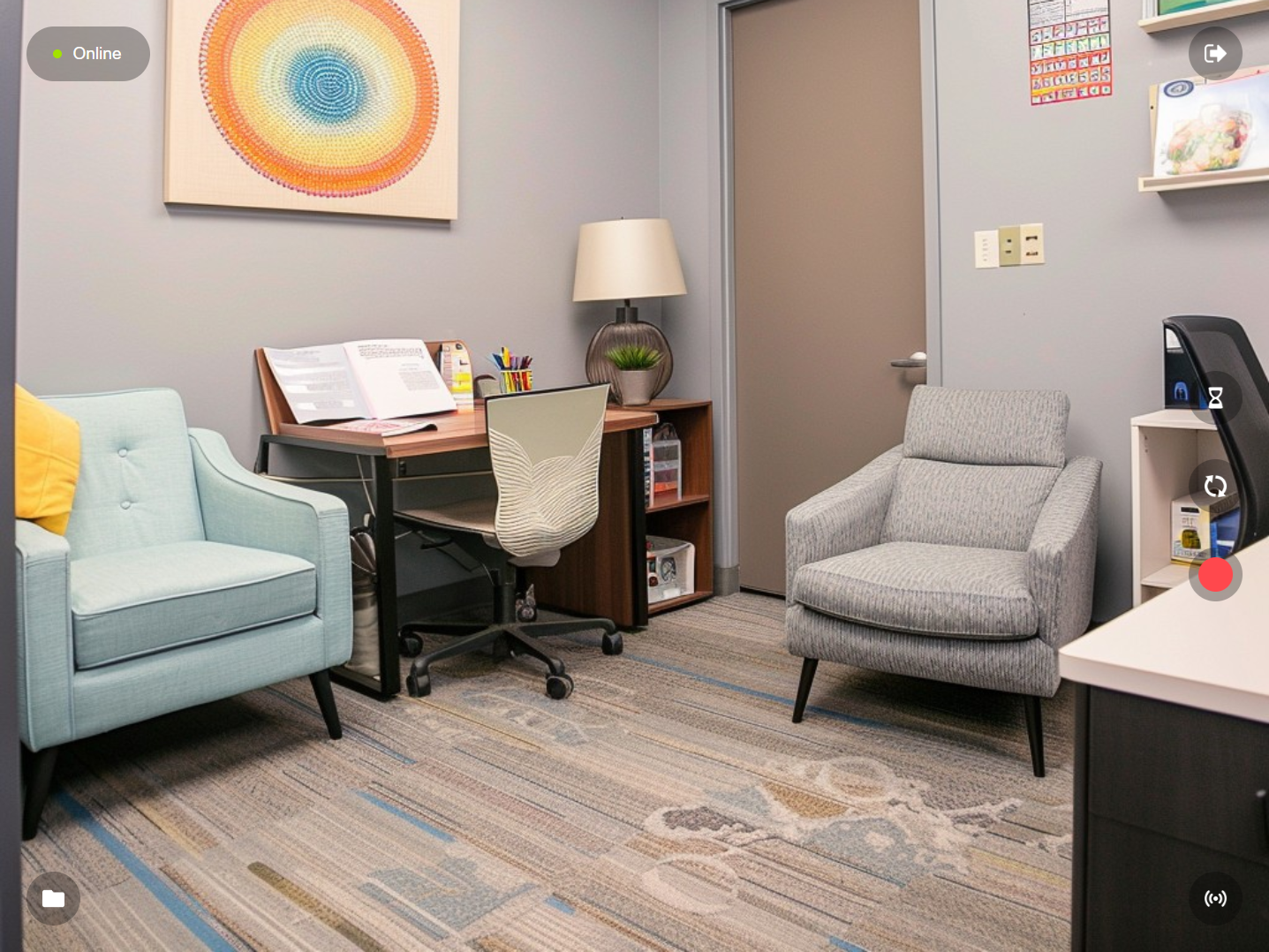
Once logged into BEAM, you will be greated to a camera view with a variety of buttons to perform actions.
Try it out!
Connection Status
The Connection Status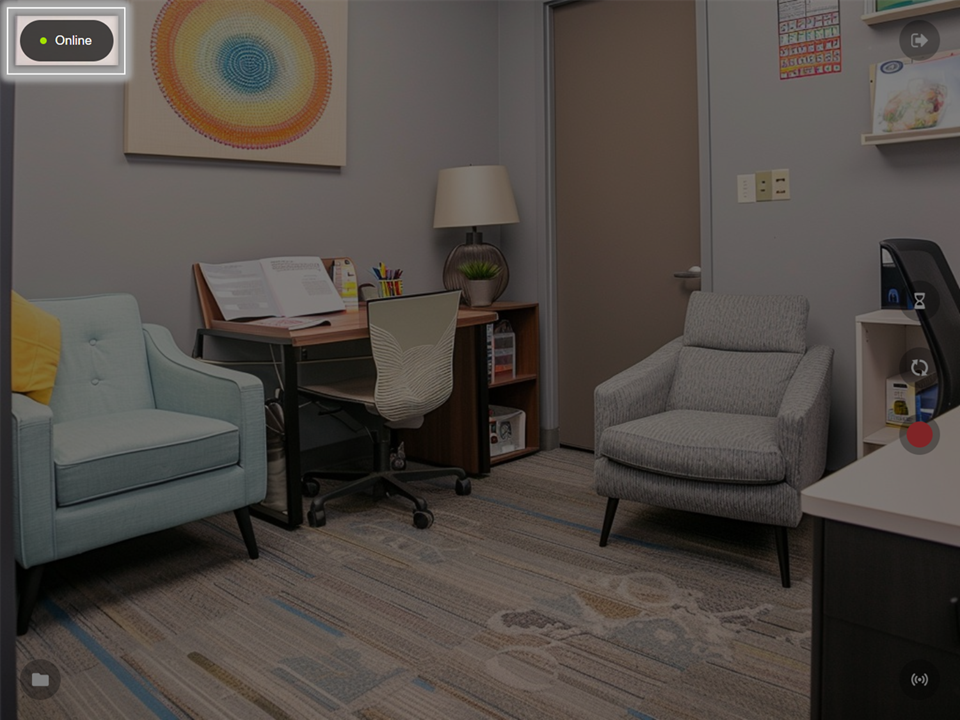 🖼️ displays the current status of communication with the VALT server.
| BEAM can connect to VALT |  |
|---|---|
| BEAM cannot connect to VALT |  |
Logout
The  Logout button
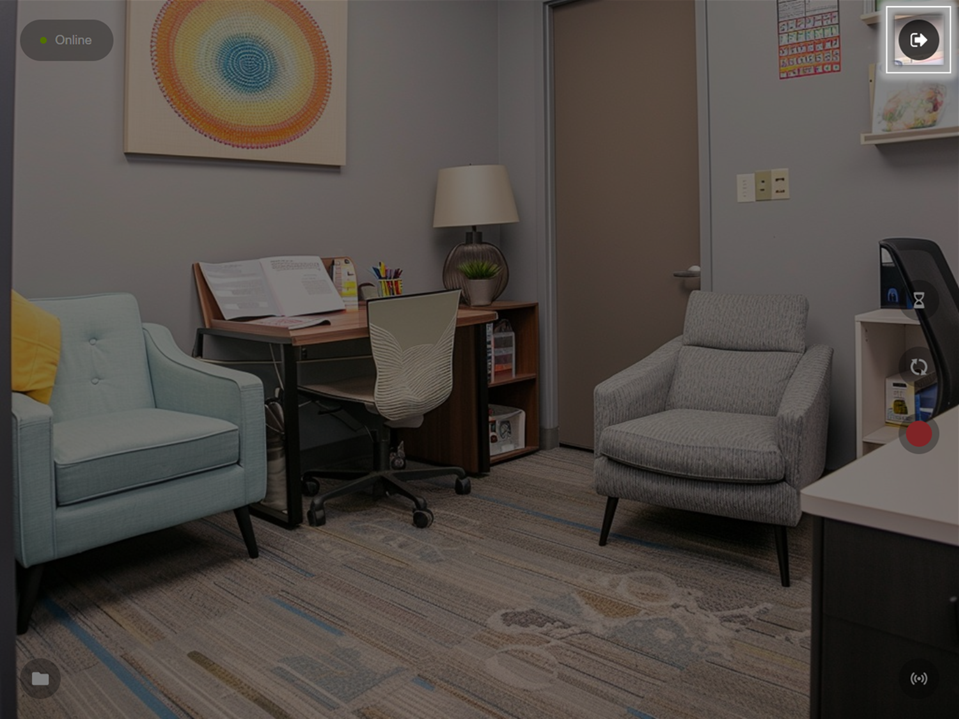 🖼️ will allow you to logout or disconnect BEAM from your VALT server.
Prepare Recording
The  Prepare button
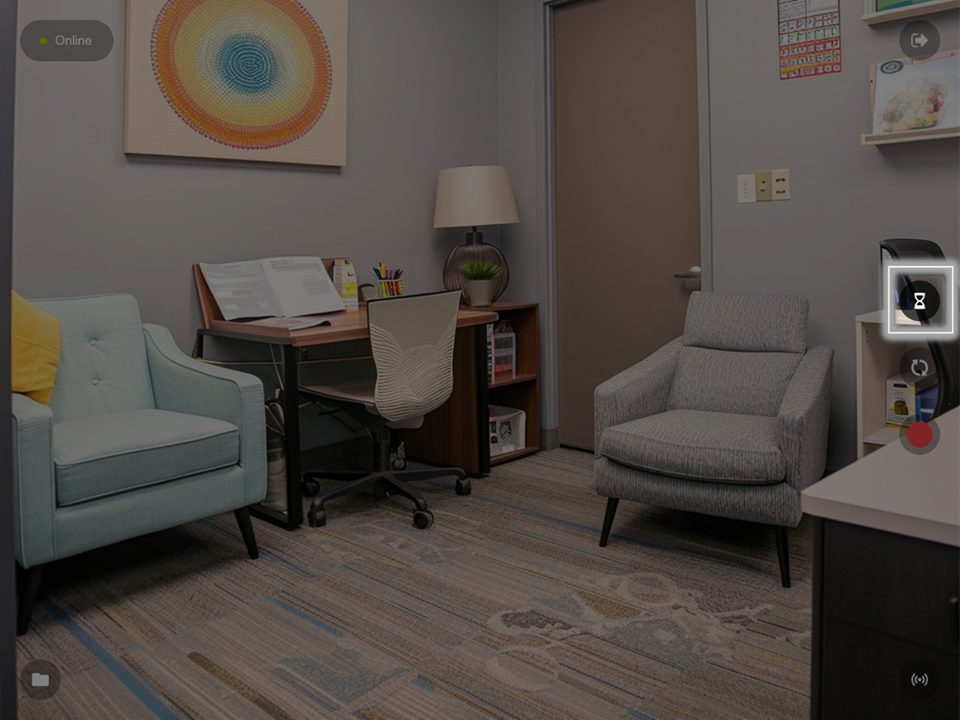 🖼️ is used to arm a room for an active recording. This option allows you to fill in all the Information Fields ahead of the recording.
Flip Camera
The  Flip Camera button
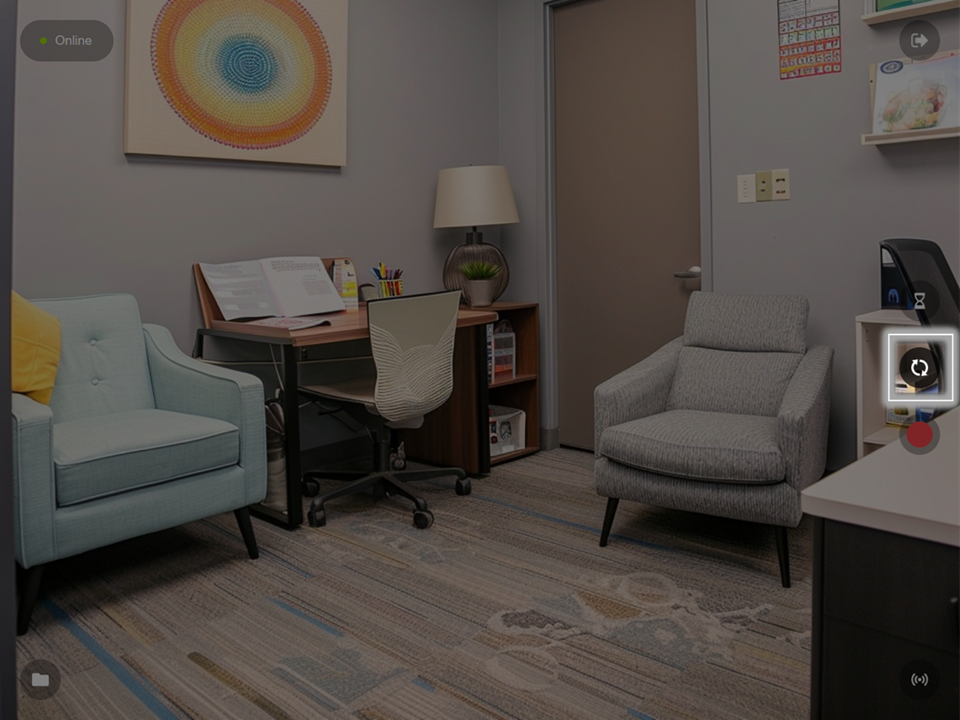 🖼️ allows users to toggle between the front and rear cameras of your device.
Record
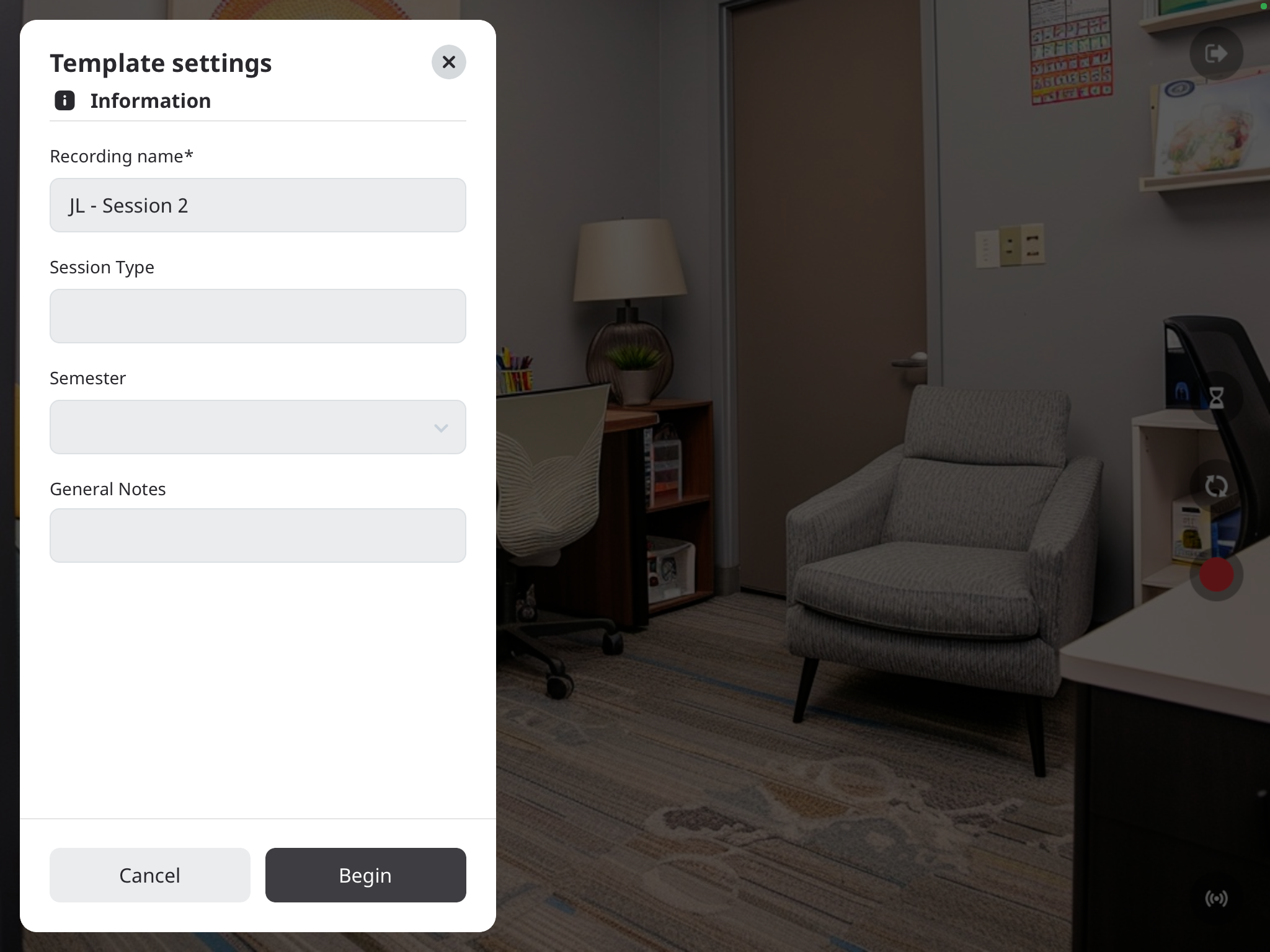
The  Recording button
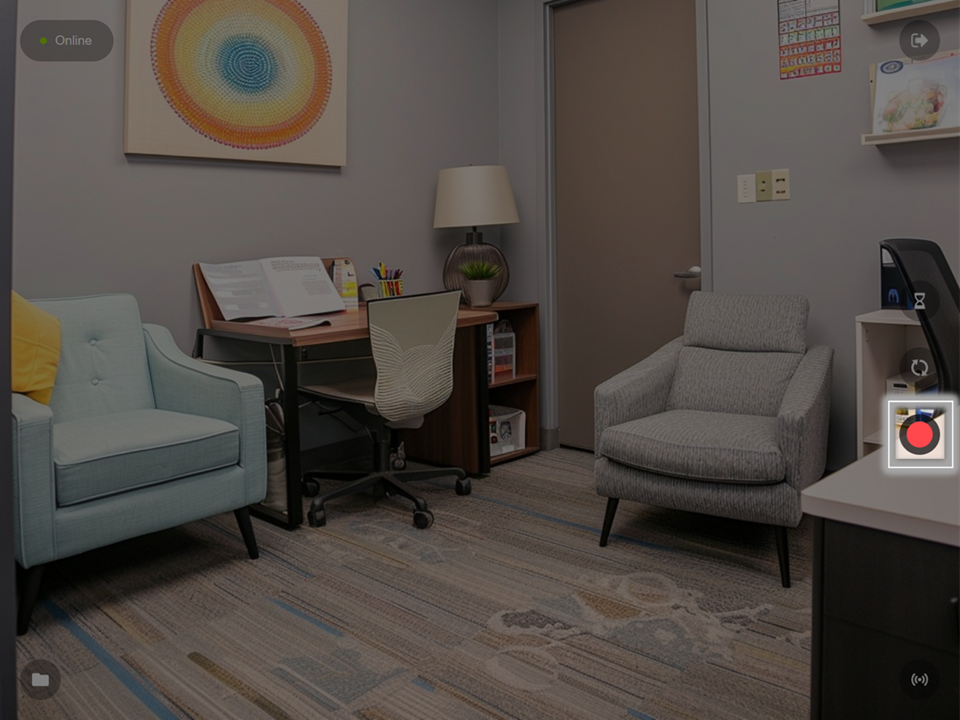 🖼️ will prompt the user to fill out an Information Template before beginning the reocrding.
Stream
The  Stream button
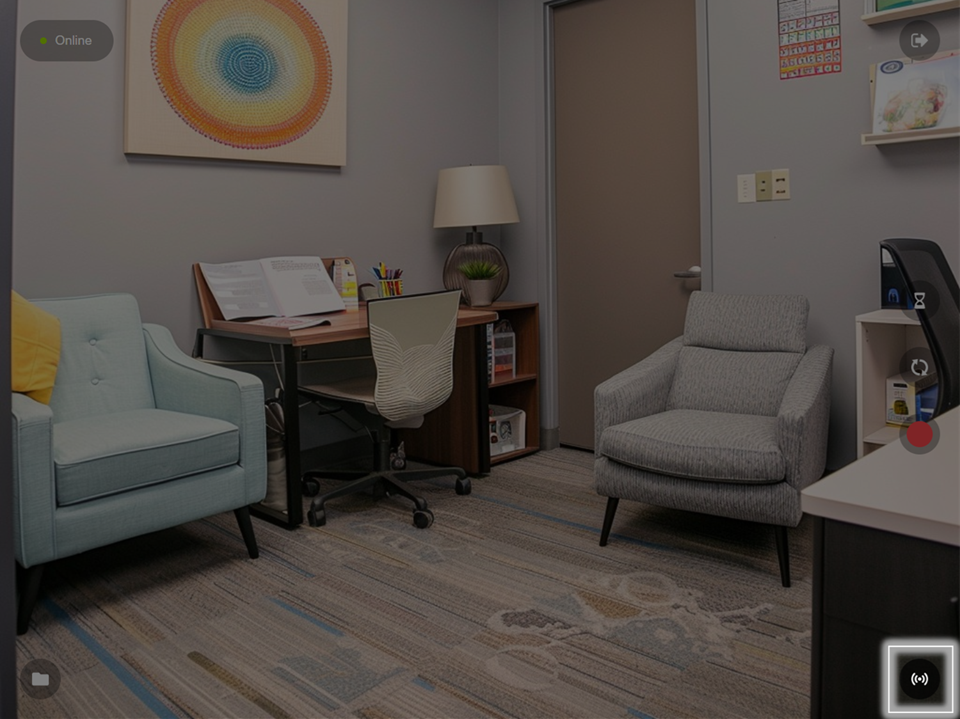 🖼️ will allow the user to Stream or Stream and Record. Both options will allow the BEAM video stream to be viewable in VALT. The video will show up as a Stream in the VALT application.
Files
The  Folder button
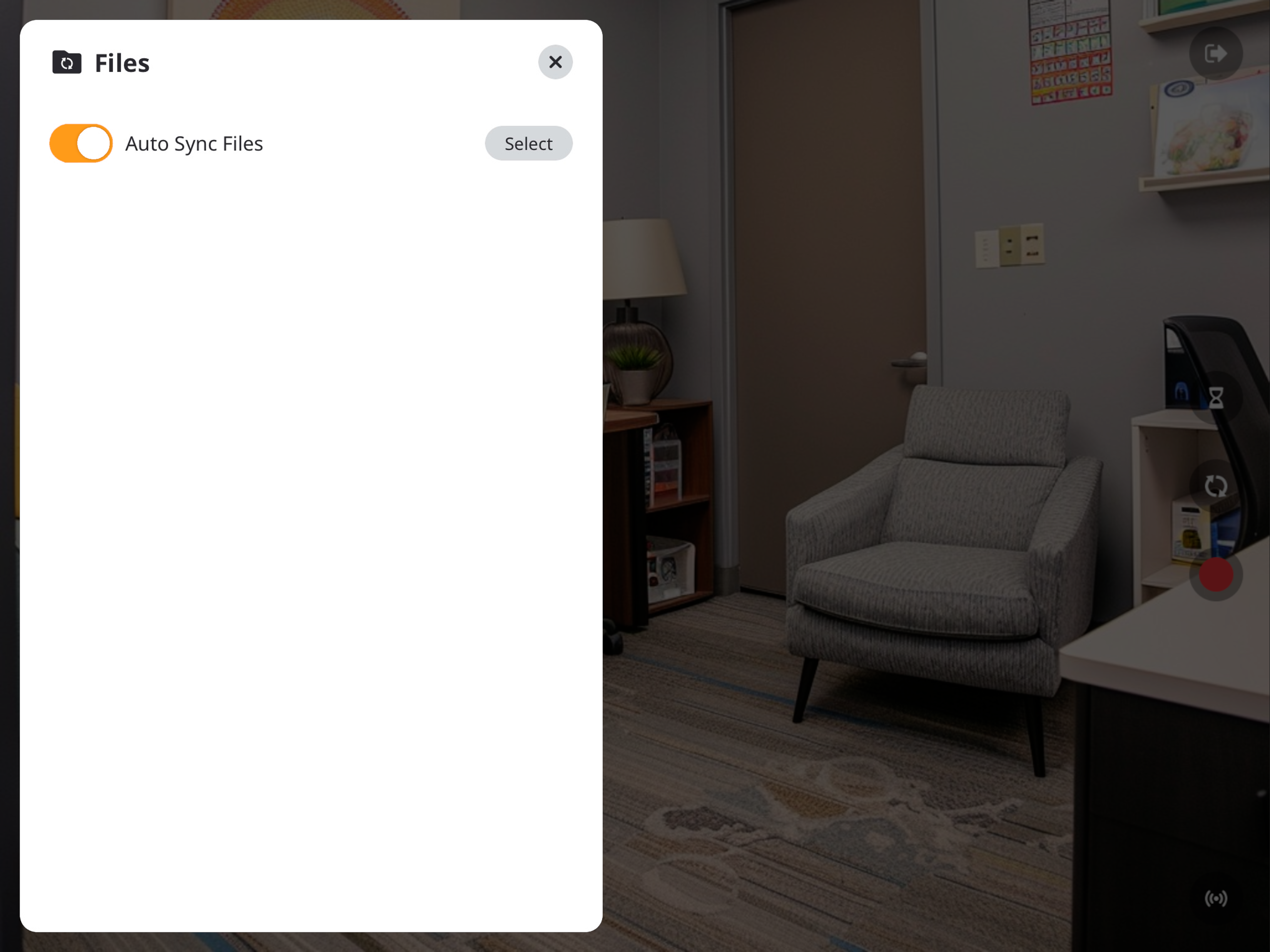
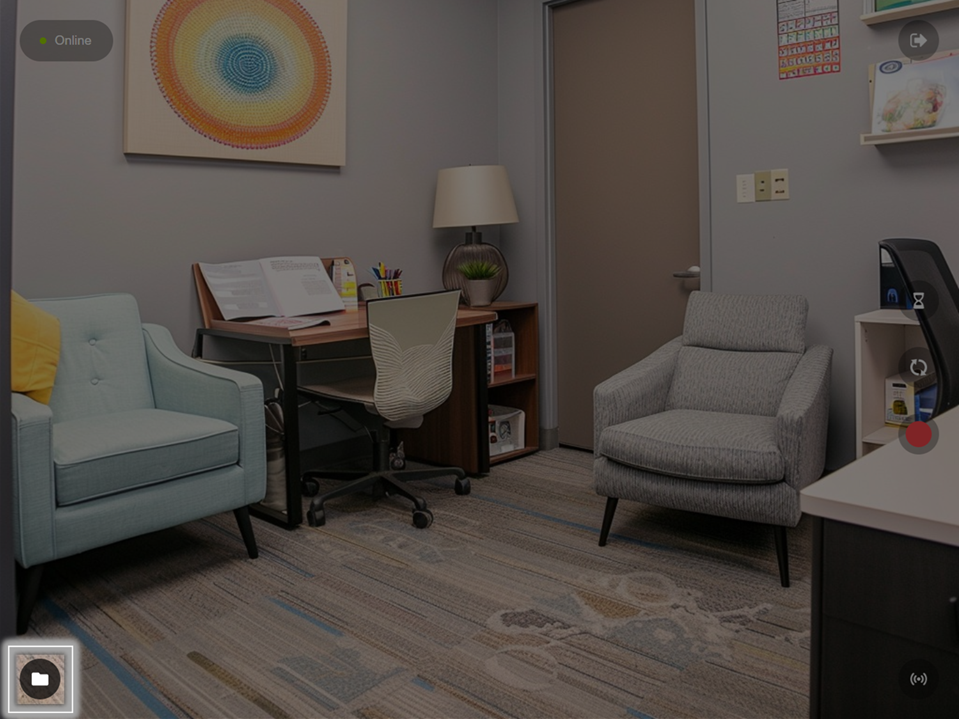 🖼️ will show you recordings stored on this device and allow users to change their individual sync settings.
Users will have access to two methods of syncing their files to VALT.
- Manual Upload (Default)
- Auto Sync
Manual Upload
If Auto Sync is disabled, users will need to manually sync their recorded videos.
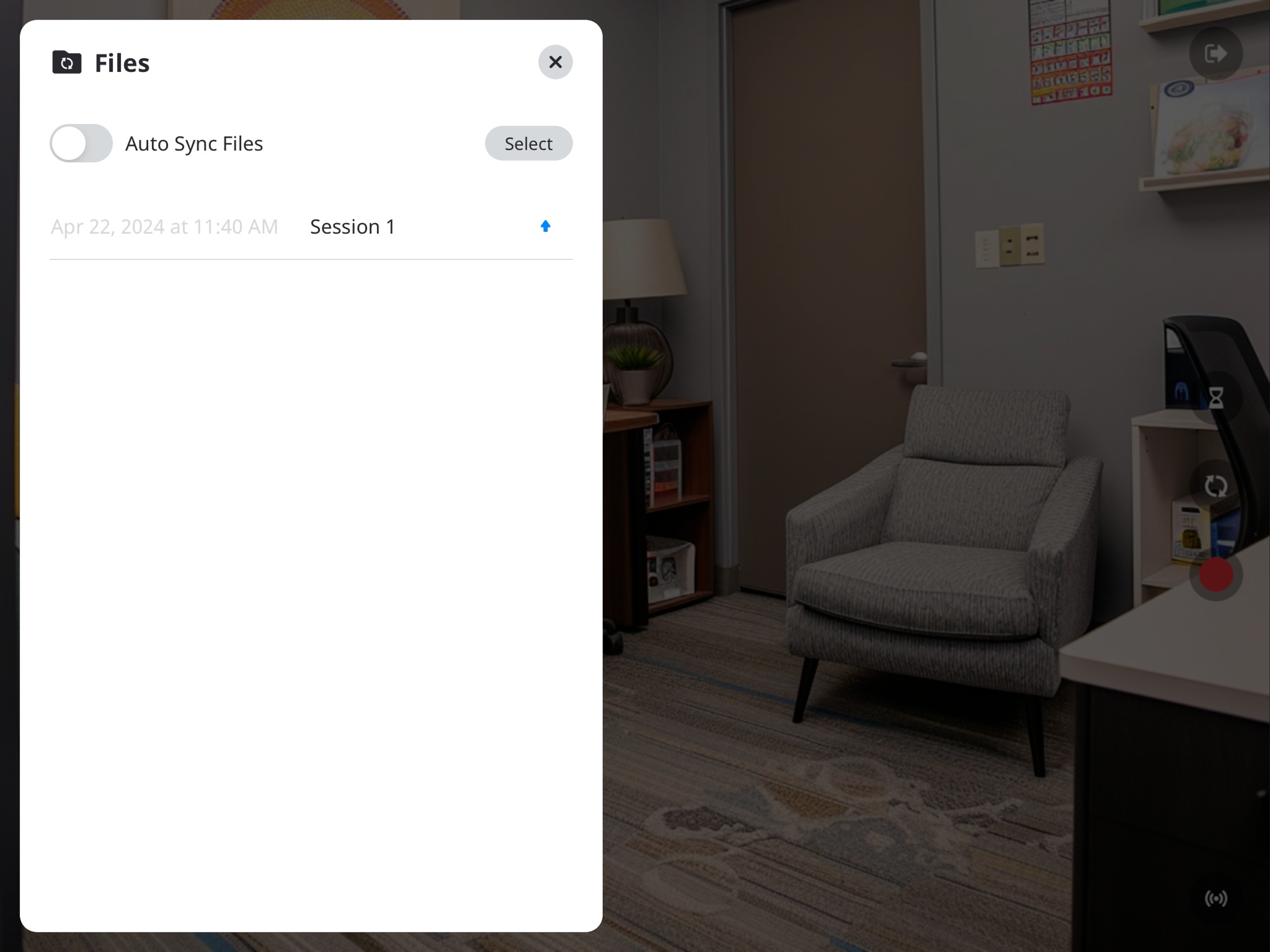
In the Files folder, you will see a list of your videos.
- The up arrow indicates the video has not been synced to the VALT server.
- You can click the up arrow to initiate uploading the video.
- A progress circle will appear after the arrow is pressed.
- A checkmark will appear when the recording is done uploading to the server.
| Ready to upload |  |
|---|---|
| Preparing to upload |  |
| Upload in progress |  |
| Upload complete |  |
Auto Sync
Auto Sync is a feature in BEAM that allows a user to automatically upload a video from the BEAM application to the VALT server. This screen will list any recordings that have been made, but not uploaded to the server.
Auto Sync is disbaled by deafult. Users can enable this by toggling Auto Sync Files.
| Auto Sync Disabled |  |
|---|---|
| Auto Sync Enabled |  |