IVS Wiki:BEAM Manual - Configuration: Difference between revisions
Jump to navigation
Jump to search
IVSWikiBlue (talk | contribs) Created page with "{{Article | content = <ol> <li>Open the App Store by touching the '''App Store''' icon on your iPad or iPhone.</li> <li>Touch the search field in the upper right corner and..." |
IVSWikiBlue (talk | contribs) No edit summary |
||
| (13 intermediate revisions by the same user not shown) | |||
| Line 1: | Line 1: | ||
{{Article | content = | {{Article - Manual | toc = NOTOC | content = | ||
{{Aside - Helpful | content = If you have any questions or encounter any issues, please reach out to the [https://www.ivs.help/ IVS Suport Team].}} | |||
<h1>Installation</h1> | |||
<ol> | <ol> | ||
<li>Open the App Store by touching the '''App Store''' icon on your iPad or iPhone.</li> | <li>Open the App Store by touching the '''App Store''' icon on your iPad or iPhone.</li> | ||
| Line 8: | Line 12: | ||
<li>Touch the '''Get/Install/Cloud''' icon to download the app.</li> | <li>Touch the '''Get/Install/Cloud''' icon to download the app.</li> | ||
</ol> | |||
{{hr}} | |||
<li> | <h1>Configuration</h1> | ||
<ol> | |||
<li>Open the <b>IVS BEAM</b> application.</li> | |||
{{hr}} | {{hr}} | ||
<li>You will be prompted to enter the <b>Server Address</b>, <b>Device UID</b>, <b>username</ | <li>You will be {{img - tooltip | file = IPad5.PNG | text = prompted | width = 800px}} to enter the <b>Server Address</b>, <b>Device UID</b>, <b>Login</b><em> (username)</em> and <b>Password</b>.</li> | ||
<table class="wikitable"> | <table class="wikitable" style="width:80%;margin:auto;margin-top:20px;margin-bottom:20px"> | ||
<tr> | <tr> | ||
<th style="width: 150px;text-align:right">Server Address</th> | <th style="width: 150px;text-align:right">Server Address</th> | ||
<td>Enter the IP address or FQDN of the server. It must be entered as http://< | <td>Enter the IP address or FQDN of the server. <br>It must be entered as... | ||
{{hr}} | |||
<pre style="background-color:none;border:none;padding:0;margin:10px"> | |||
http://<IPADDRESS> if SSL is DISABLED | |||
or | |||
https://<SERVER_FQDN> if SSL is ENABLED | |||
</pre> | |||
</td> | |||
</tr> | </tr> | ||
<tr> | <tr> | ||
| Line 33: | Line 49: | ||
</table> | </table> | ||
{{Aside | content = | {{Aside - Warning | hue = 50 | content = If you are utilizing SSL, you must have a cert signed by a trusted CA in order to connect an iOS device.}} | ||
{{hr}} | {{hr}} | ||
<li>Touch '''Sync User Data'''.</li> | <li>Touch '''Sync User Data'''.</li> | ||
</ol> | |||
{{hr - 2}} | |||
You should now be greated by a Login Screen. | |||
{{img - resize | file = IPad7.PNG | text = <b>IVS BEAM</b>}} | |||
{{Aside | hue = 260 | icon = 🎉 | content = The app is now configured. Please continue to the [[BEAM_Manual_-_User_Interface|BEAM Manual]] for siging in and using the app!}} | |||
{{Top of Page}} | |||
{{hr}} | |||
< | <h1>Help</h1> | ||
*[[Install SSL Certificate for BEAM iPad]] | |||
*[https://www.ivs.help/ Contact IVS Suport] | |||
{{Top of Page}} | |||
}} | }} | ||
[[Category:BEAM]] | [[Category:BEAM]] | ||
Latest revision as of 16:59, 2 May 2025
🕮
If you have any questions or encounter any issues, please reach out to the IVS Suport Team.
Installation
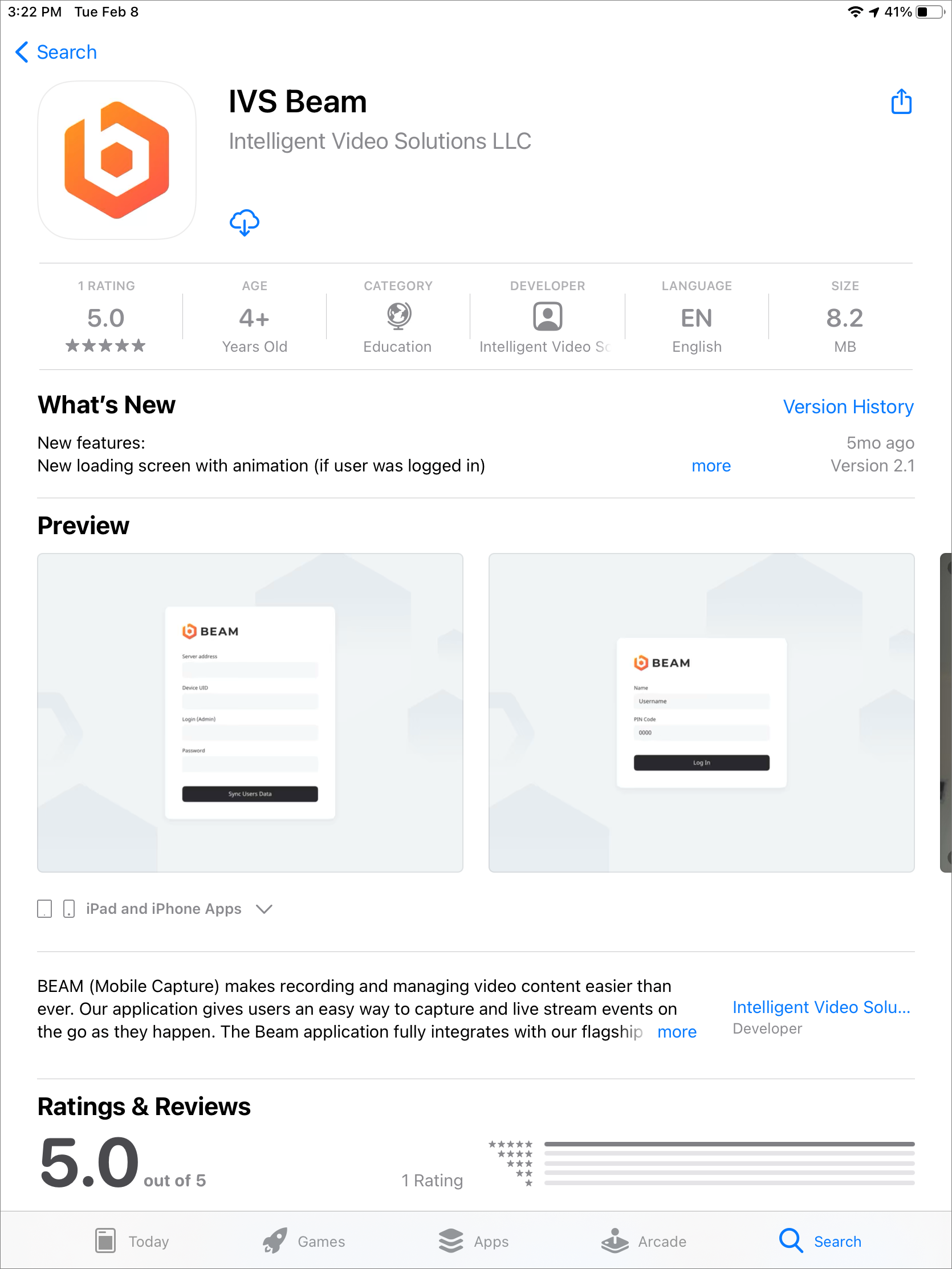
- Open the App Store by touching the App Store icon on your iPad or iPhone.
- Touch the search field in the upper right corner and type in IVS BEAM
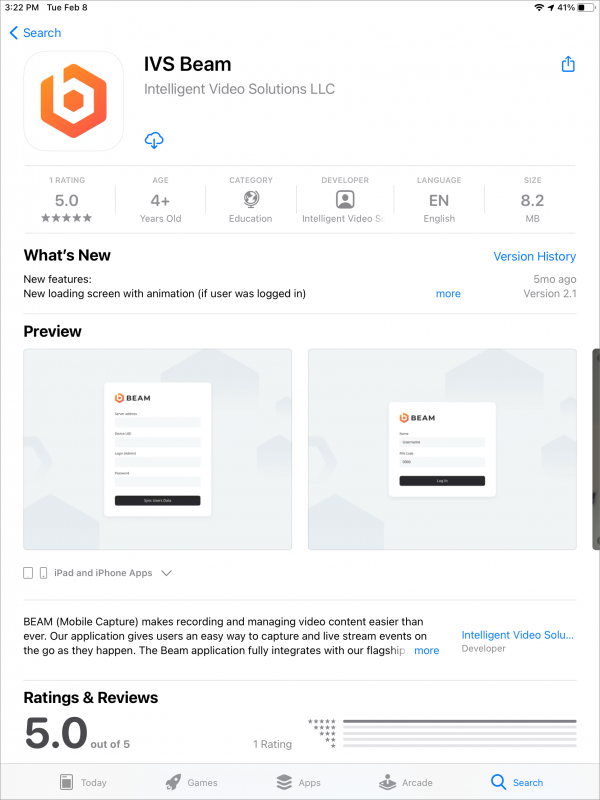 🖼️.
🖼️. - Touch Search.
- Touch the Get/Install/Cloud icon to download the app.
Configuration
- Open the IVS BEAM application.
- You will be prompted
 🖼️ to enter the Server Address, Device UID, Login (username) and Password.
 - Touch Sync User Data.

| Server Address | Enter the IP address or FQDN of the server. It must be entered as... http://<IPADDRESS> if SSL is DISABLED
or
https://<SERVER_FQDN> if SSL is ENABLED
|
|---|---|
| Device UID | You can obtain this by pulling up the iPad device on the server. |
| Username | The account used here much have administrator rights. |
| Password |
⚠
If you are utilizing SSL, you must have a cert signed by a trusted CA in order to connect an iOS device.
You should now be greated by a Login Screen.

🎉
The app is now configured. Please continue to the BEAM Manual for siging in and using the app!
Help