Change the ivsadmin password: Difference between revisions
Jump to navigation
Jump to search
IVSWikiBlue (talk | contribs) No edit summary |
IVSWikiBlue (talk | contribs) No edit summary |
||
| Line 1: | Line 1: | ||
{{Article - Manual | toc = NOTOC| content = | |||
{{Aside | hue = 200 | icon = {{book_icon}} | content = Trying to update the admin password for the web interface? [[Admin Password Reset | Click Here]]}} | {{Aside | hue = 200 | icon = {{book_icon}} | content = Trying to update the admin password for the web interface? [[Admin Password Reset | Click Here]]}} | ||
{{ | |||
{{hr}} | |||
<h1>Change the ivsadmin password</h1> | |||
# Connect to the Valt server via SSH using the ivsadmin account. | # Connect to the Valt server via SSH using the ivsadmin account. | ||
# Type the following command the press enter: <pre>passwd</pre> | # Type the following command the press enter: <pre>passwd</pre> | ||
Latest revision as of 13:22, 7 October 2026
🕮
Trying to update the admin password for the web interface? Click Here
Change the ivsadmin password
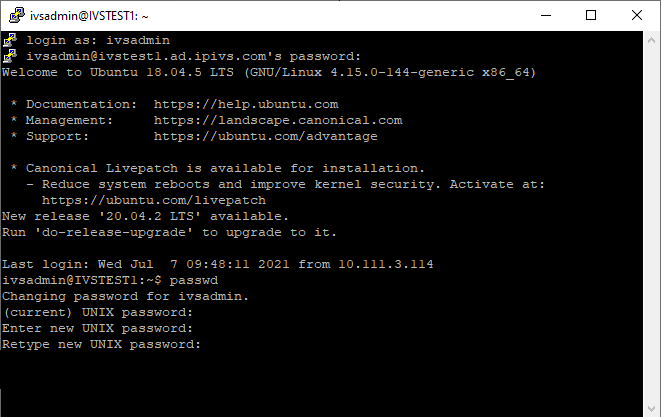
- Connect to the Valt server via SSH using the ivsadmin account.
- Type the following command the press enter:
passwd
- Enter the current password when prompted.
- Enter the new password when prompted.
- Enter the new password again when prompted.
- The password is now changed.