Set Timezone: Difference between revisions
Jump to navigation
Jump to search
IVSWikiBlue (talk | contribs) Created page with "# Connect to the VALT appliance via SSH or from the terminal menu, exit to the shell. # From command line type in the following, and press Enter: <pre>sudo dpkg-reconfigure tz..." |
IVSWikiBlue (talk | contribs) No edit summary |
||
| Line 1: | Line 1: | ||
# Connect to the VALT appliance via SSH or from the terminal menu, exit to the shell. | # Connect to the VALT appliance via SSH or from the terminal menu, exit to the shell. | ||
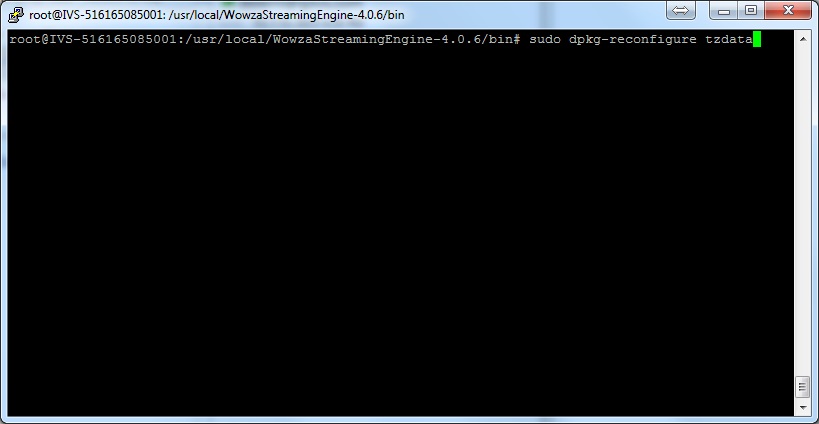
# From command line type in the following, and press Enter: <pre>sudo dpkg-reconfigure tzdata</pre> | # From command line type in the following, and press Enter: <pre>sudo dpkg-reconfigure tzdata</pre> | ||
#: | #: {{img | file = 49.jpg}} | ||
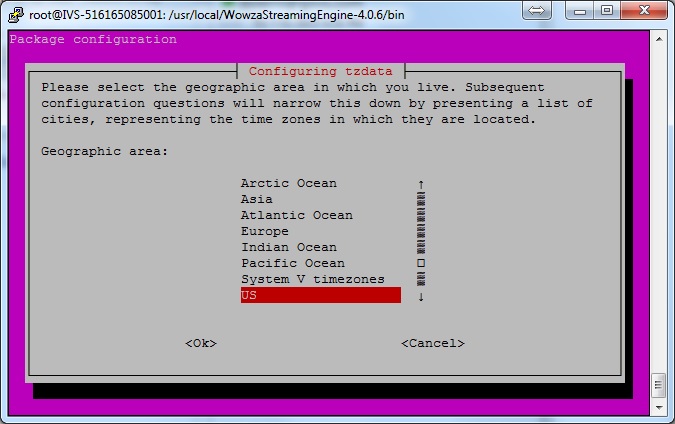
# Select your Country. | # Select your Country. | ||
#: | #: {{img | file = 45.jpg}} | ||
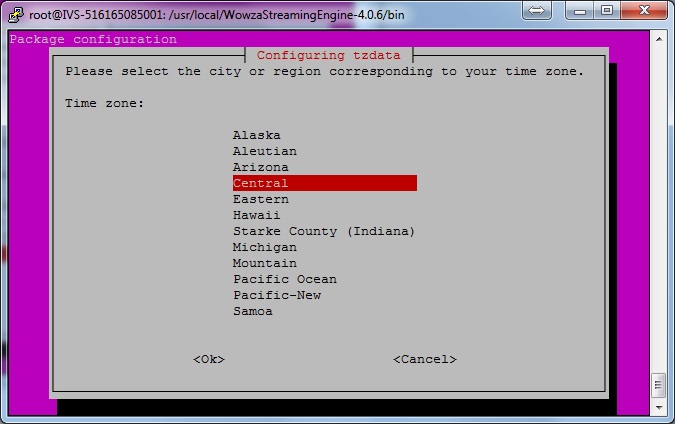
# Select your Time Zone. | # Select your Time Zone. | ||
#: | #: {{img | file = 46.jpg}} | ||
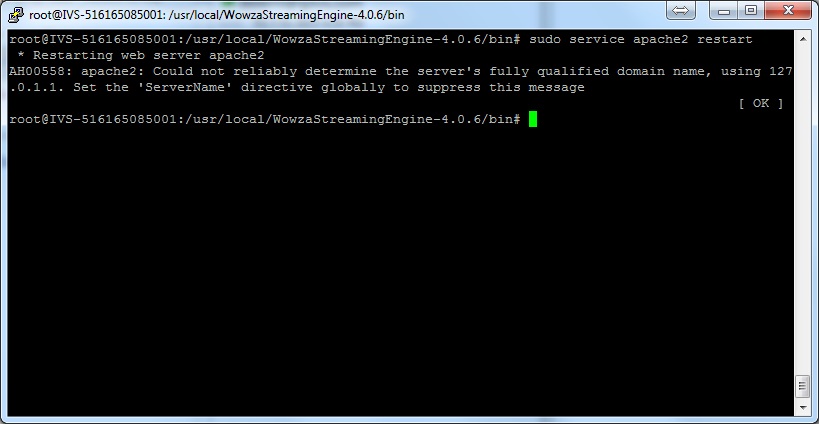
# From command line type in the following, and press Enter: <pre>sudo service apache2 restart</pre> | # From command line type in the following, and press Enter: <pre>sudo service apache2 restart</pre> | ||
# From command line type in the following, and press Enter: <pre>sudo service WowzaStreamingEngine restart</pre> | # From command line type in the following, and press Enter: <pre>sudo service WowzaStreamingEngine restart</pre> | ||
#: | #: {{img | file = 48.jpg}} | ||
Latest revision as of 14:15, 11 May 2022
- Connect to the VALT appliance via SSH or from the terminal menu, exit to the shell.
- From command line type in the following, and press Enter:
sudo dpkg-reconfigure tzdata
- Select your Country.
- Select your Time Zone.
- From command line type in the following, and press Enter:
sudo service apache2 restart
- From command line type in the following, and press Enter:
sudo service WowzaStreamingEngine restart