IVS BEAM File Synchronization: Difference between revisions
Jump to navigation
Jump to search
IVSWikiBlue (talk | contribs) No edit summary |
IVSWikiBlue (talk | contribs) No edit summary |
||
| (11 intermediate revisions by the same user not shown) | |||
| Line 1: | Line 1: | ||
{{ | {{Article - Manual | content = | ||
{{ | <h1>File Synchronization</h1> | ||
==Manual Upload== | |||
{{:BEAM - Manual Upload}} | |||
{{hr}} | |||
==Auto Sync== | |||
{{:BEAM - Auto Sync}} | |||
}} | |||
[[IVS BEAM Software User Guide | ⤺ Back to IVS BEAM Software User Guide]] | |||
: | [[Category:BEAM]] | ||
[[Category:User Training]] | |||
Latest revision as of 16:42, 9 April 2025
File Synchronization
Manual Upload
If Autosync is turned off, you will need to manually sync your recorded videos.
Continue reading, to learn how to manually sync a BEAM video to your application.
-
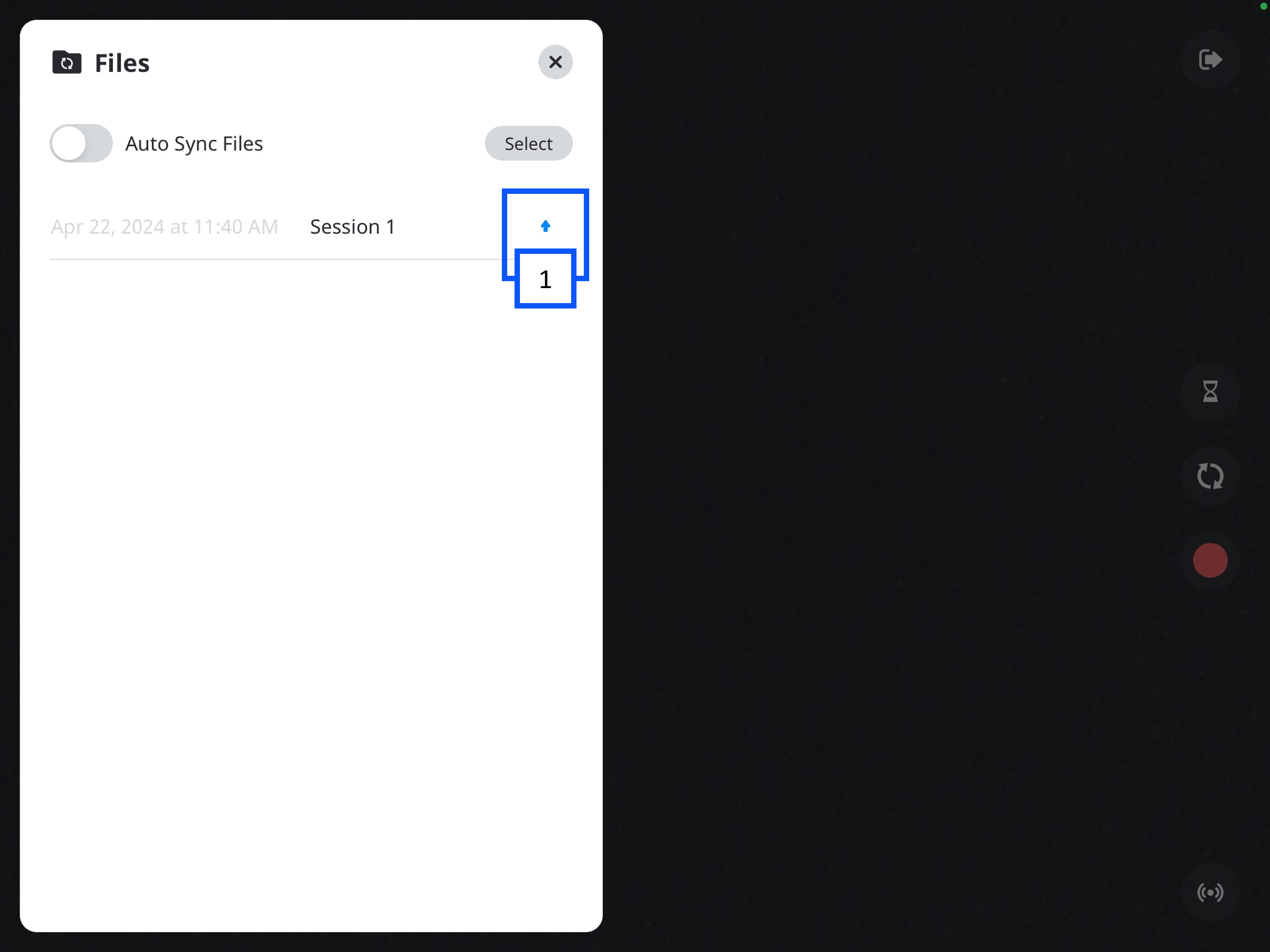
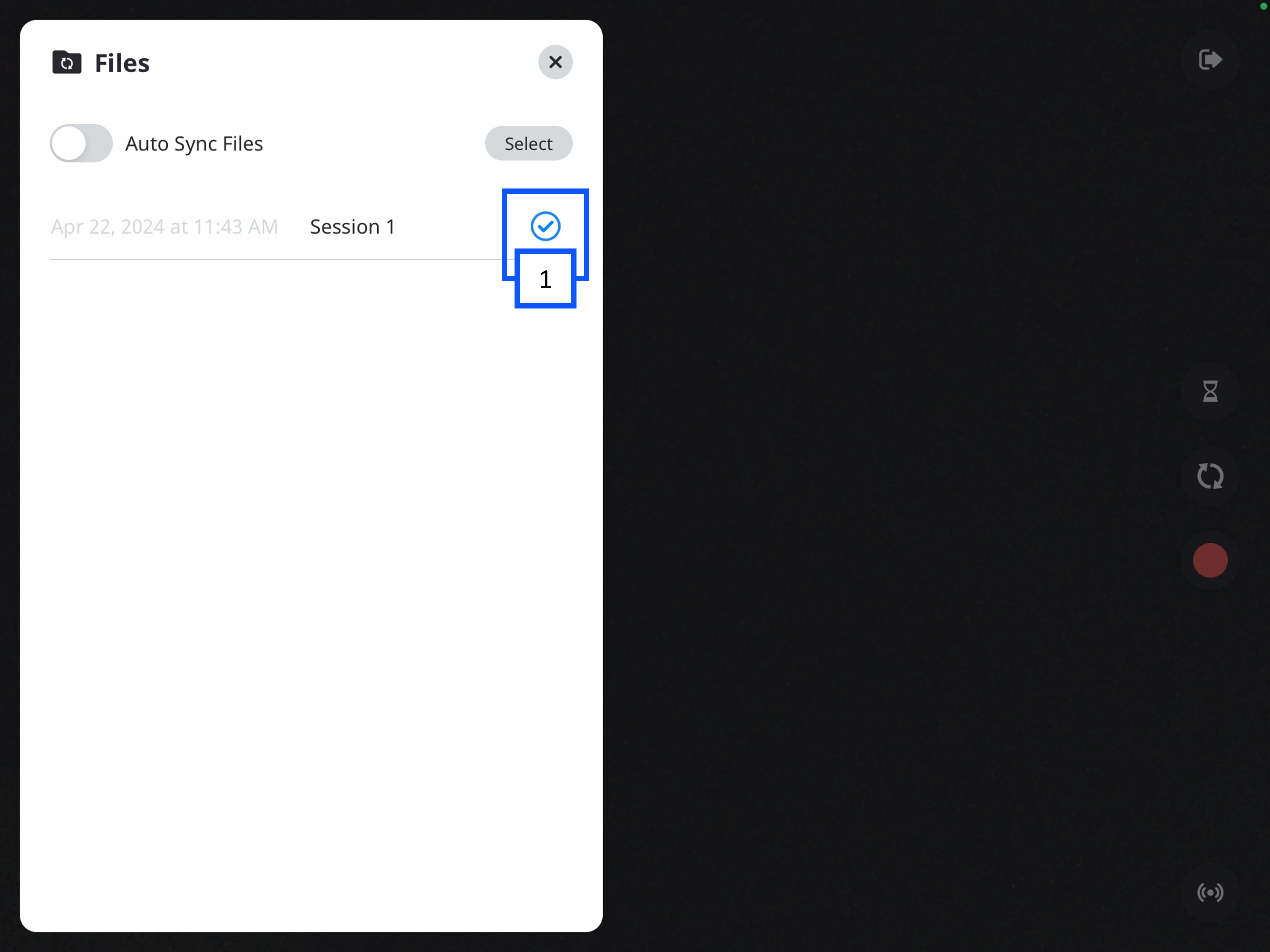
In the Files folder, you will see a list of your videos.
- The up arrow indicates the video has not been synced to the VALT server.
-
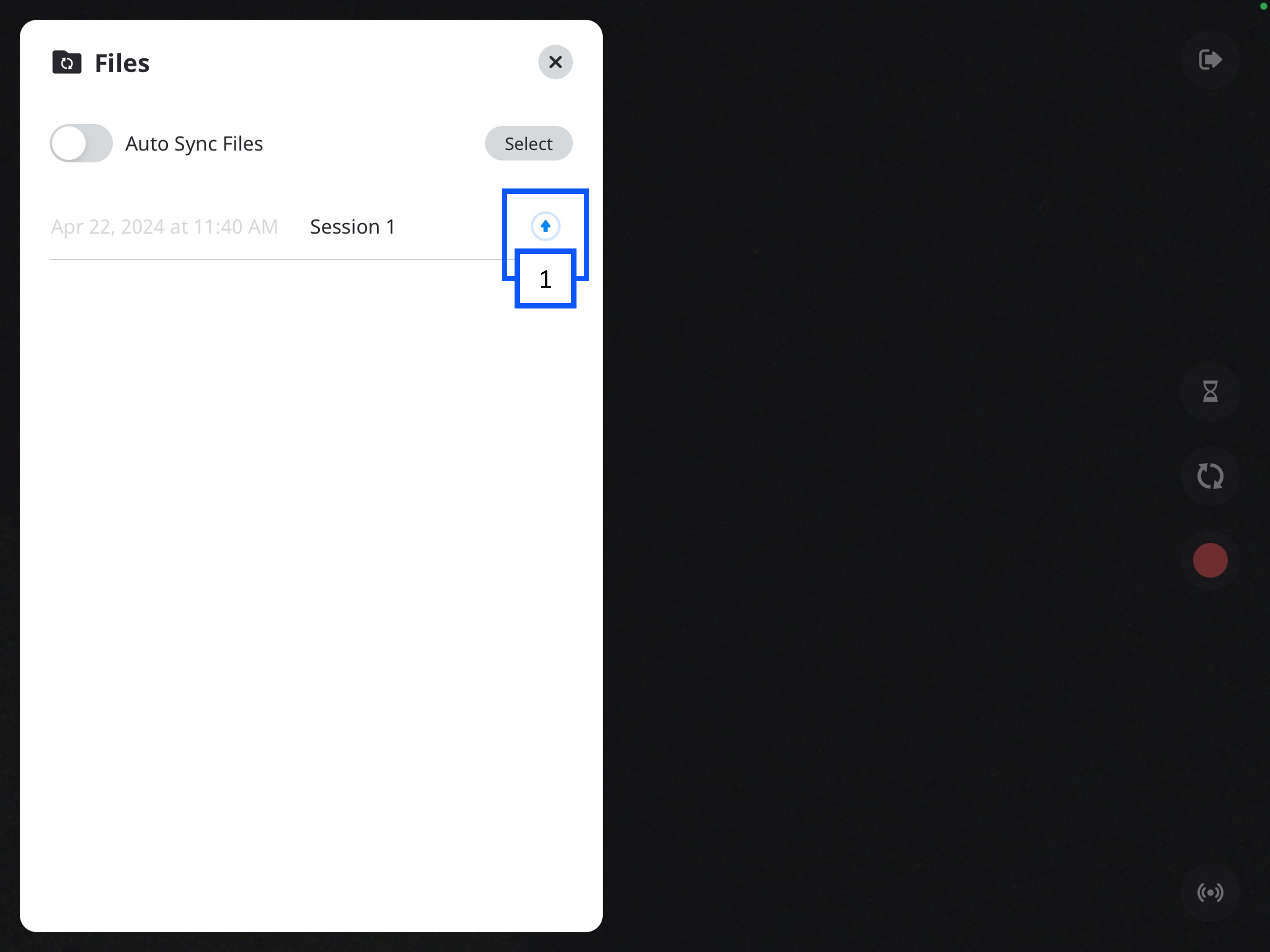
You can click the up arrow to initiate uploading the video.
- A progress circle will appear after the arrow is pressed.
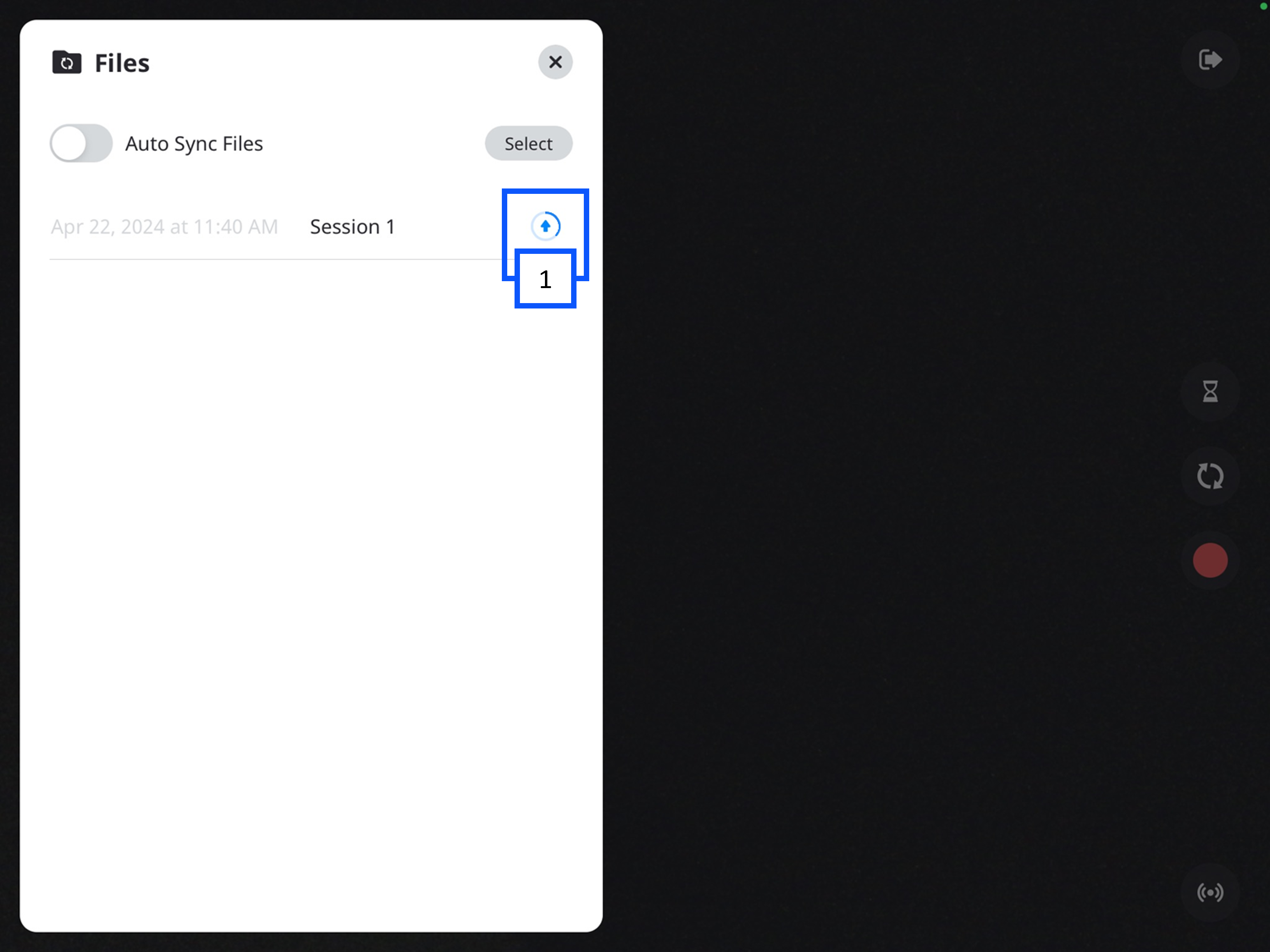
- A checkmark will appear when the recording is done uploading to the server.
Auto Sync
Auto Sync is a feature in BEAM that allows a user to automatically upload a video from the BEAM application to the VALT server. This screen will list any recordings that have been made, but not uploaded to the server.
🕮
In BEAM—Auto Sync if off, by default.
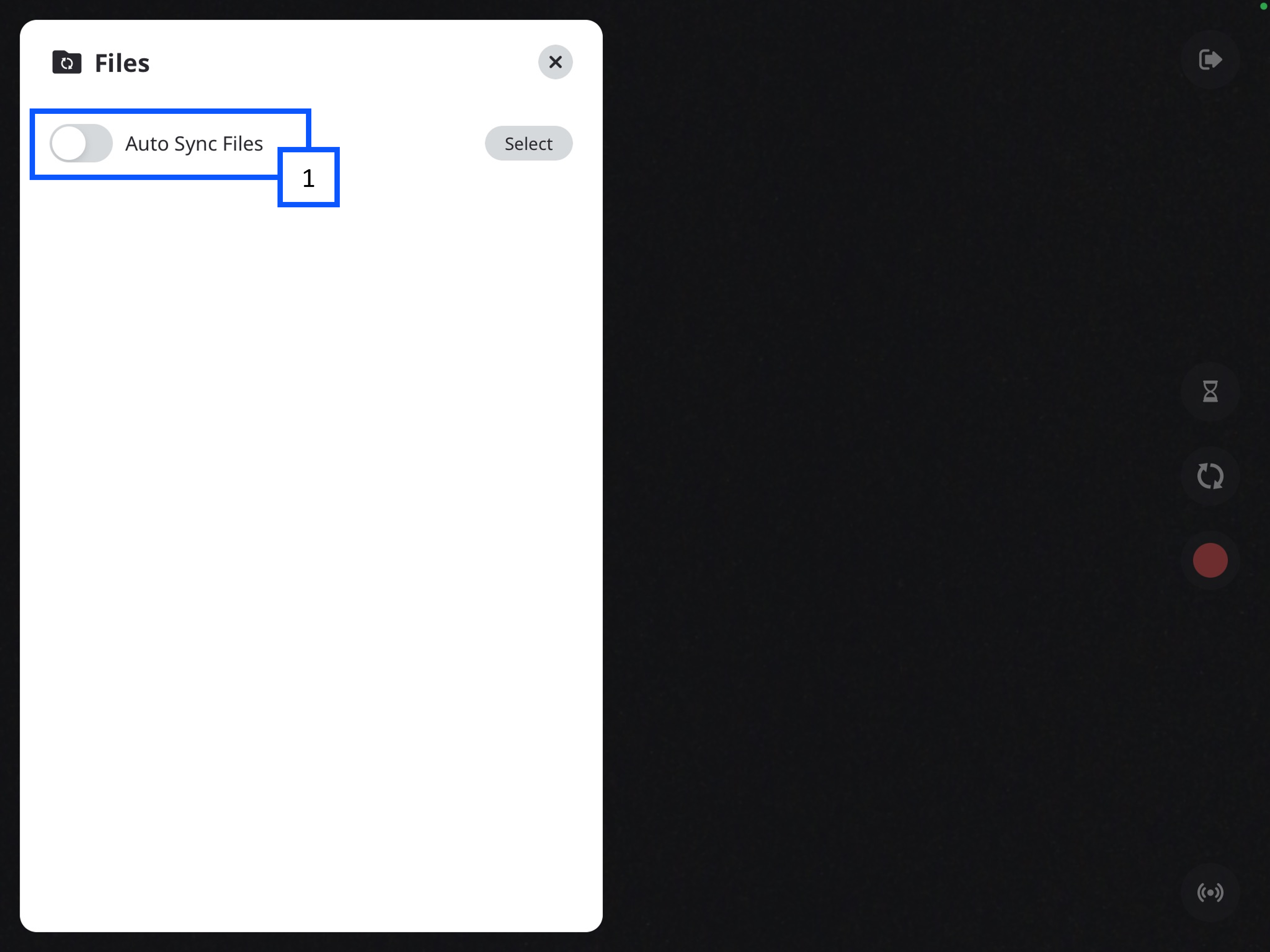
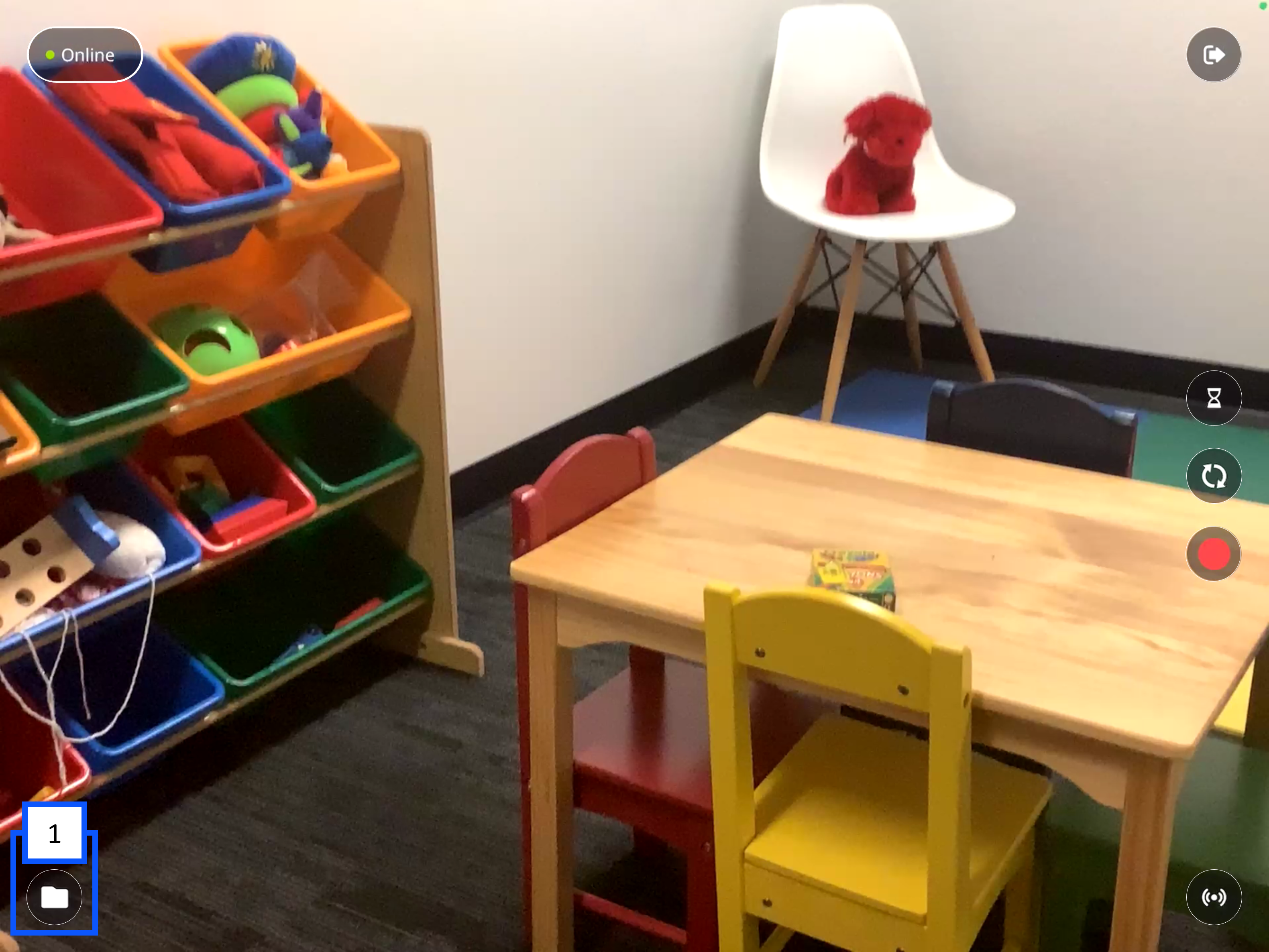
- To access the videos and Auto Sync settings, you will need to click on the Files icon in the bottom left of the app.
⚠
The iPad must be able to communicate with VALT to be able to upload the video to VALT. Click here to learn about the BEAM network requirements.
- Toggle switch to turn Auto Sync on and off.