LDAP Configuration: Difference between revisions
Jump to navigation
Jump to search
IVSWikiBlue (talk | contribs) No edit summary |
IVSWikiBlue (talk | contribs) No edit summary |
||
| (64 intermediate revisions by the same user not shown) | |||
| Line 1: | Line 1: | ||
{{Dashboard Layout | content = | |||
{{Dashboard Row | content = | |||
{{Dashboard Widget with Title | title = Info | background-color = #008aab | text-color = white | content = | |||
{{Aside - Helpful | content = Select your version of VALT by <b>clicking the image</b> that matches your user interface!}} | |||
* [[VALT 6 - LDAP Configuration | VALT 6]] | |||
[[ | * [[VALT 6 - LDAPS Configuration | VALT 6 LDAPS]] | ||
* [[VALT 5 - LDAP Configuration | VALT 5]] | |||
}} }} | |||
{{Dashboard Row | content = | |||
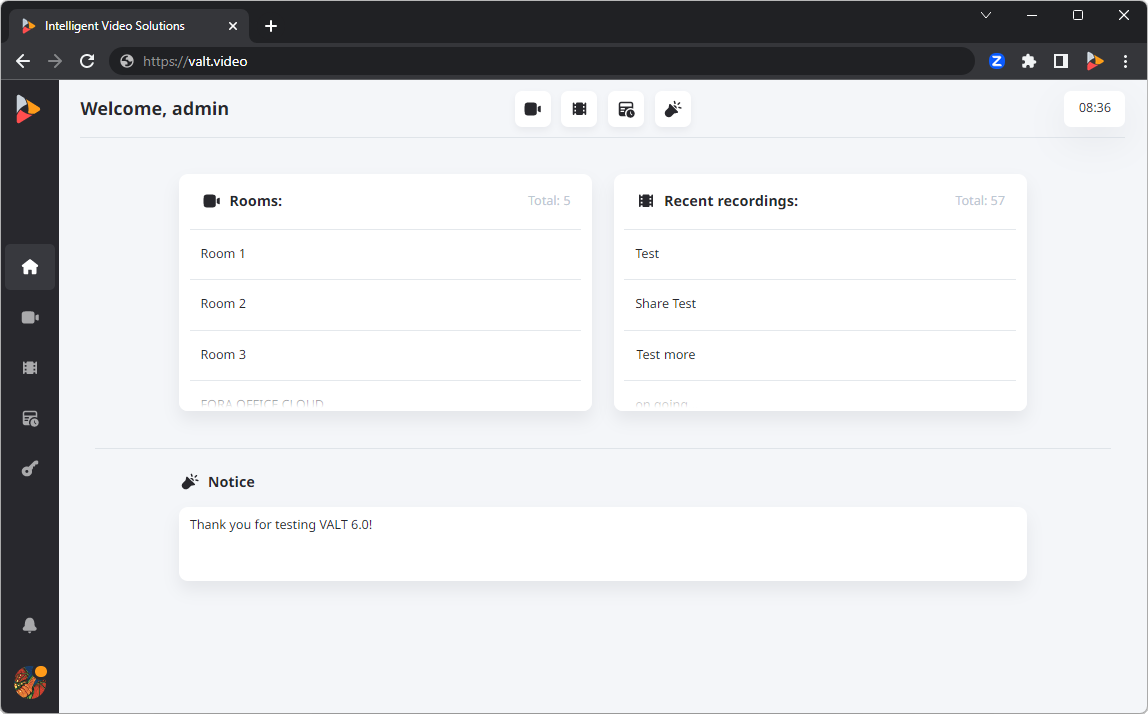
{{Dashboard Widget with Title | title = VALT 6 | background-color = #ff661b | text-color = white | content = | |||
{{img - resize| file = VALT 6.0 Home Page.png | link = {{fullurl:VALT 6 - LDAP Configuration}} | width = 900px}} | |||
}} | |||
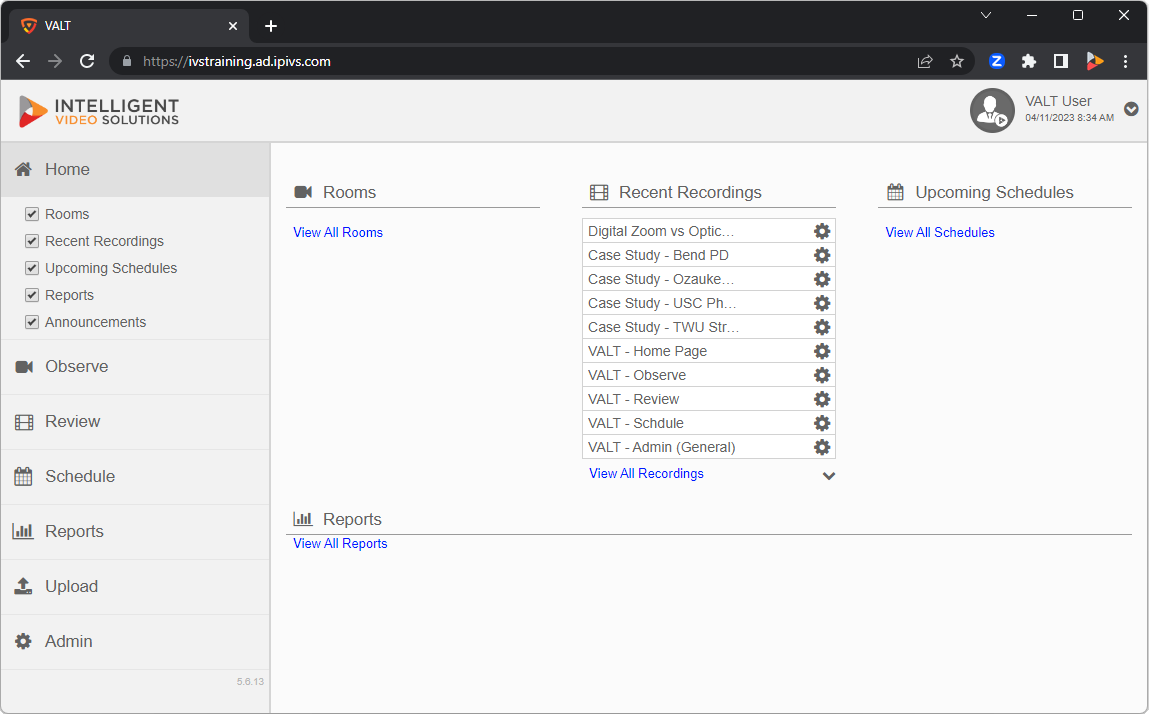
{{Dashboard Widget with Title | title = VALT 5 | background-color = #FF8200 | text-color = white | content = | |||
{{img - resize | file = VALT 5 6 13 Home Page.png | link = {{fullurl:VALT 5 - LDAP Configuration}} | width = 900px}} | |||
}} }} }} | |||
5 | |||
Latest revision as of 20:08, 8 April 2025
» VALT 6
» VALT 5