BEAM Sync Users Data: Difference between revisions
Jump to navigation
Jump to search
IVSWikiBlue (talk | contribs) No edit summary |
IVSWikiBlue (talk | contribs) No edit summary |
||
| (3 intermediate revisions by the same user not shown) | |||
| Line 1: | Line 1: | ||
{{img with key | file = BEAM Server Information.png | list = | {{img with key | file = BEAM Server Information.png | list = | ||
<li><b>Server address:</b> Enter the IP address or FQDN of the server. It must be entered as http://192.168.0.81 or https:// | <li><b>Server address:</b> Enter the IP address or FQDN of the server. It must be entered as http://192.168.0.81 or https://valt.ivs.com if you are using SSL.</li> | ||
<li><b>Device UID:</b> You can obtain this by pulling up the iPad device on the server.</li> | <li><b>Device UID:</b> You can obtain this by pulling up the iPad device on the server.</li> | ||
<li><b>Login:</b> Enter and admin account user here. This password should not change. It is good practice to create an account in VALT just for this purpose. <i>i.e: beamSyncUser</i></li> | <li><b>Login:</b> Enter and admin account user here. This password should not change. It is good practice to create an account in VALT just for this purpose. <i>i.e: beamSyncUser</i></li> | ||
<li><b>Password:</b> Enter the password for the sync account here</li> | <li><b>Password:</b> Enter the password for the sync account here</li> | ||
[[BEAM Main Page| ⤺ Back to Main Page]] | |||
}} | }} | ||
[[Category:BEAM]] | |||
[[Category:Admin Training]] | |||
Latest revision as of 19:42, 19 March 2025
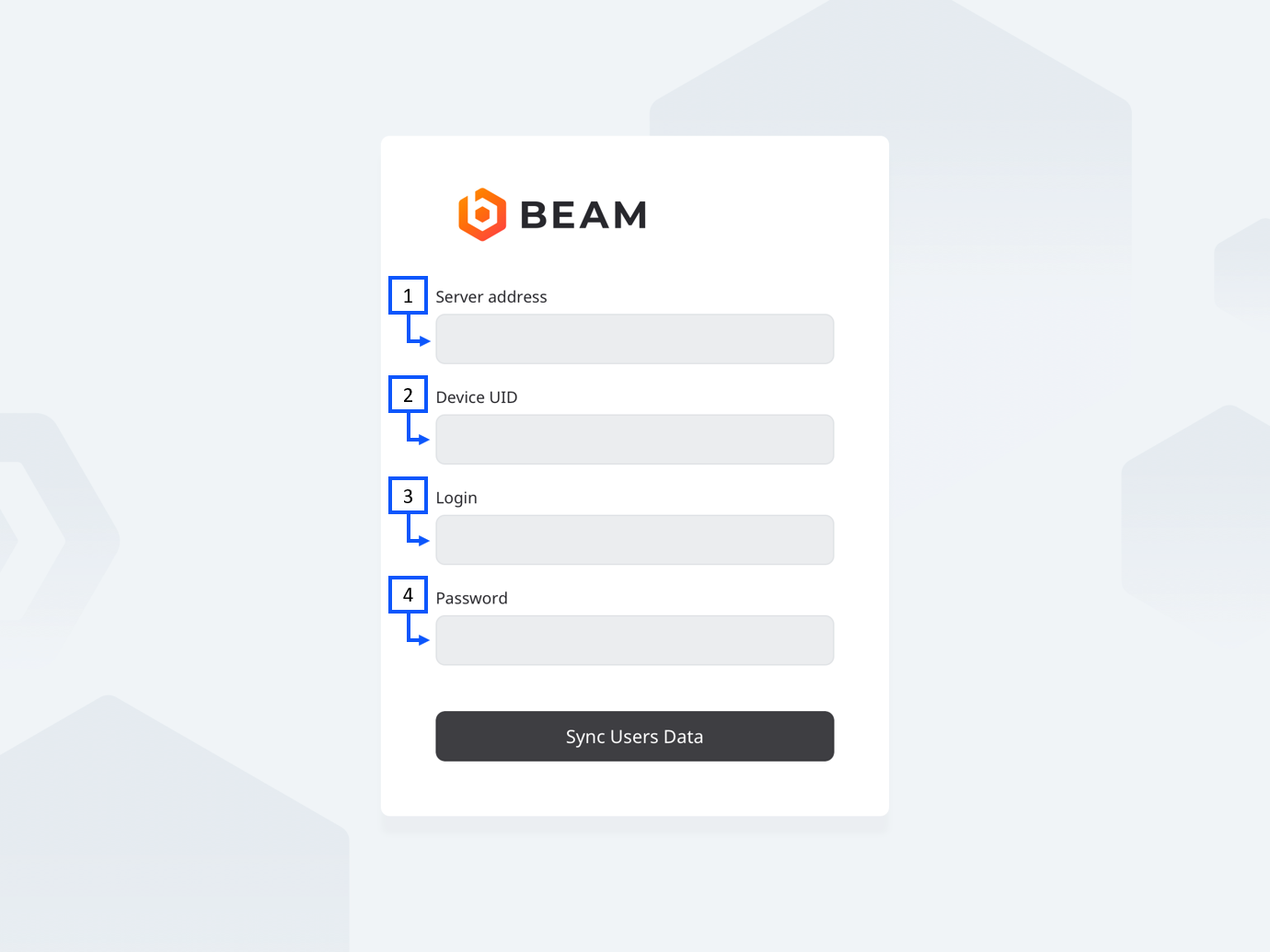
- Server address: Enter the IP address or FQDN of the server. It must be entered as http://192.168.0.81 or https://valt.ivs.com if you are using SSL.
- Device UID: You can obtain this by pulling up the iPad device on the server.
- Login: Enter and admin account user here. This password should not change. It is good practice to create an account in VALT just for this purpose. i.e: beamSyncUser
- Password: Enter the password for the sync account here ⤺ Back to Main Page