IVS Wiki:Privacy Switch - Add Recipients: Difference between revisions
Jump to navigation
Jump to search
IVSWikiBlue (talk | contribs) Created page with "==Add Recipient(s)== Some of the rules point to a recipient at a specific IP address, so the camera must have a recipient set up, even for itself. In the case of a room with m..." |
IVSWikiBlue (talk | contribs) No edit summary |
||
| (11 intermediate revisions by the same user not shown) | |||
| Line 1: | Line 1: | ||
= | {{Article - Manual | content = | ||
Some of the rules point to a recipient at a specific IP address, so the camera must have a recipient set up, even for itself | <h1>Introduction</h1> | ||
Some of the rules point to a recipient at a specific IP address, so the camera must have a recipient set up, even for itself. | |||
=== | |||
{{Aside | content = In the case of a room with multiple cameras, the master camera will need a recipient set up for all other cameras in the room as well.}} | |||
{{Manual lvl 2 | title = Adding Self | content = | |||
{{Flexbox | left = | |||
#Navigate to <b>Setup</b> {{Arrow}} <b>Events</b> {{Arrow}} <b>Recipients</b>. | |||
# Click on <b>Add</b>. | |||
# Add <b>Self</b> in the name field. | |||
# In <b>Recipient</b>, type | |||
#:<pre>http://IPADDRESS/axis-cgi/param.cgi</pre> | |||
# Type in the login credentials for the camera. | |||
# Click <b>Test</b>. | |||
# Click <b>Close</b>. | |||
| right = {{img | file = Privacy10.png}} }} | |||
}} | |||
{{hr}} | |||
{{Manual lvl 2 | title = Adding Remote Cameras | content = }} | |||
{{Manual lvl 3 | title = Fixed Cameras | content = | |||
{{Flexbox | left = | |||
# Click on <b>Setup</b>. | |||
# Click on <b>Events</b>. | |||
# Click on <b>Recipients</b>. | |||
# Click on <b>Add</b>. | |||
# Add <b>Remote</b> in the name field. | |||
#: <em>For rooms with multiple remote cameras, be sure to give them unique names.</em> | |||
# In <b>Recipient</b>, type | |||
#:<pre>http://IPADDRESS/axis-cgi/param.cgi</pre> | |||
# Type in the login credentials for the camera. | |||
# Click <b>Test</b>. | |||
# Click <b>Close</b>. | |||
| right = {{img | file = Privacy10.png}} }} | |||
}} | |||
{{hr - 2}} | |||
{{Manual lvl 3 | title = PTZ Cameras | content = | |||
When a PTZ camera is being used as a secondary camera, one must add a separate recipient, just for the PTZ rules, using the following information. | When a PTZ camera is being used as a secondary camera, one must add a separate recipient, just for the PTZ rules, using the following information. | ||
{{img | {{Flexbox | left = | ||
| file = Ptz as recipient.png | # Click on <b>Setup</b>. | ||
# Click on <b>Events</b>. | |||
# Click on <b>Recipients</b>. | |||
# Click on <b>Add</b>. | |||
# Add <b>Remote PTZ</b> in the name field. | |||
# In <b>Recipient</b>, type | |||
#:<pre>http://IPADDRESS/axis-cgi/com/ptz.cgi</pre> | |||
# Type in the login credentials for the camera. | |||
# Click <b>Test</b>. | |||
# Click <b>Close</b>. | |||
| right = {{img | file = Privacy10.png}} }} | |||
{{Section - Expand | title = Image Example | color = #f6c62a | content = {{img - resize | file = Ptz as recipient.png}} }} | |||
}} | }} | ||
{{Manual lvl 4 | title = Remote PTZ rules | content = | |||
To create the Remote PTZ rules, add the following parameters: | To create the Remote PTZ rules, add the following parameters: | ||
< | <table class="wikitable" style="width:100%"> | ||
<caption>Custom Parameters</caption> | |||
<tr> | |||
<th>Name</th> | |||
<th>Value</th> | |||
</tr> | |||
<tr> | |||
<td>action</td> | |||
<td>update</td> | |||
</tr> | |||
<tr> | |||
<td>gotoserverpresetname</td> | |||
<td>presetname <em>(typically named <b>Privacy</b> or <b>Home</b>)</em></td> | |||
</tr> | |||
</table> | |||
Make a copy of the newly generated Action rule, and modify the second parameter to reflect either Privacy or Home; whichever one was not chosen before. | |||
}} | |||
{{Top of Page}} | |||
}} | |||
Latest revision as of 19:01, 17 March 2025
Introduction
Some of the rules point to a recipient at a specific IP address, so the camera must have a recipient set up, even for itself.
✎
In the case of a room with multiple cameras, the master camera will need a recipient set up for all other cameras in the room as well.
Adding Self
- Navigate to Setup → Events → Recipients.
- Click on Add.
- Add Self in the name field.
- In Recipient, type
http://IPADDRESS/axis-cgi/param.cgi
- Type in the login credentials for the camera.
- Click Test.
- Click Close.
Adding Remote Cameras
Fixed Cameras
- Click on Setup.
- Click on Events.
- Click on Recipients.
- Click on Add.
- Add Remote in the name field.
- For rooms with multiple remote cameras, be sure to give them unique names.
- In Recipient, type
http://IPADDRESS/axis-cgi/param.cgi
- Type in the login credentials for the camera.
- Click Test.
- Click Close.
PTZ Cameras
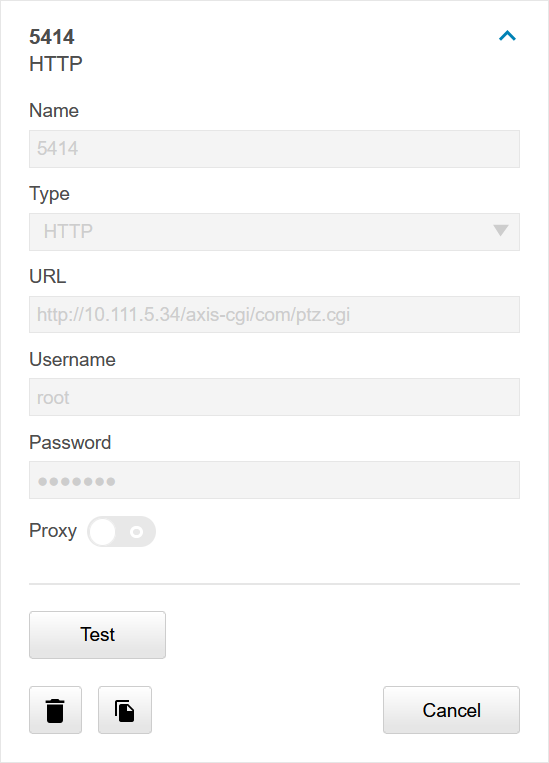
When a PTZ camera is being used as a secondary camera, one must add a separate recipient, just for the PTZ rules, using the following information.
- Click on Setup.
- Click on Events.
- Click on Recipients.
- Click on Add.
- Add Remote PTZ in the name field.
- In Recipient, type
http://IPADDRESS/axis-cgi/com/ptz.cgi
- Type in the login credentials for the camera.
- Click Test.
- Click Close.
Image Example
Remote PTZ rules
To create the Remote PTZ rules, add the following parameters:
| Name | Value |
|---|---|
| action | update |
| gotoserverpresetname | presetname (typically named Privacy or Home) |
Make a copy of the newly generated Action rule, and modify the second parameter to reflect either Privacy or Home; whichever one was not chosen before.