Install BEAM: Difference between revisions
Jump to navigation
Jump to search
IVSWikiBlue (talk | contribs) Created page with "=Installing BEAM= 1) Open the App Store by touching the icon on your iPad or iPhone 300x400px | link = 2) Touch the search field in the upper right corn..." |
IVSWikiBlue (talk | contribs) No edit summary |
||
| (13 intermediate revisions by the same user not shown) | |||
| Line 1: | Line 1: | ||
= | {{Article | content = | ||
{{Aside | content = BEAM requires iPadOS <mark>13.0 or later</mark>}} | |||
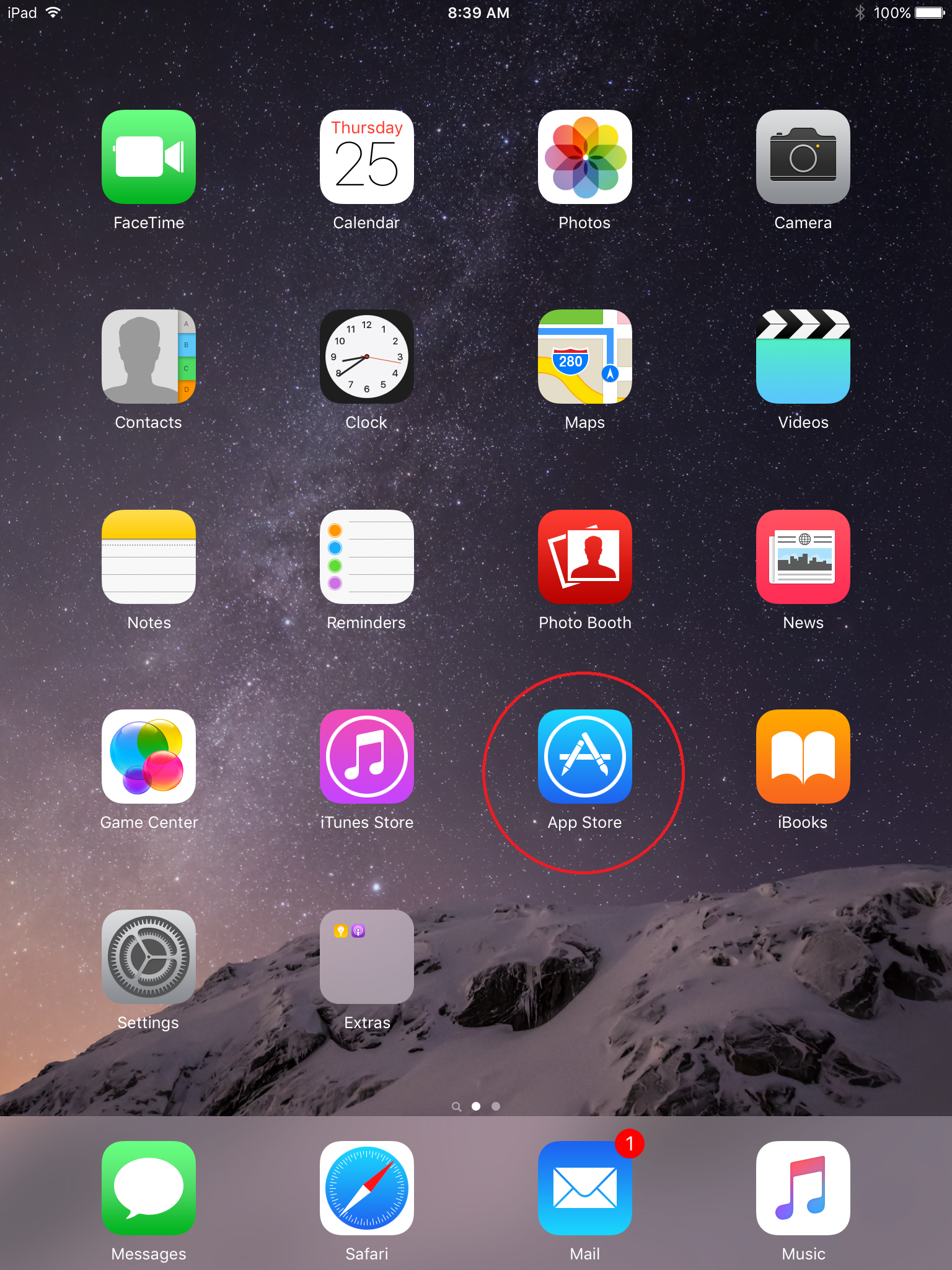
1 | 1. Open the App Store by touching the icon on your iPad or iPhone | ||
{{img | file = IPad1.PNG | width = 500px }} | |||
{{hr}} | |||
2. Touch the search field in the upper right corner and type in <b>IVS Beam</b> | |||
{{img | file = IPad2.PNG | width = 500px }} | |||
{{hr}} | |||
3. Touch <b>Search</b> | |||
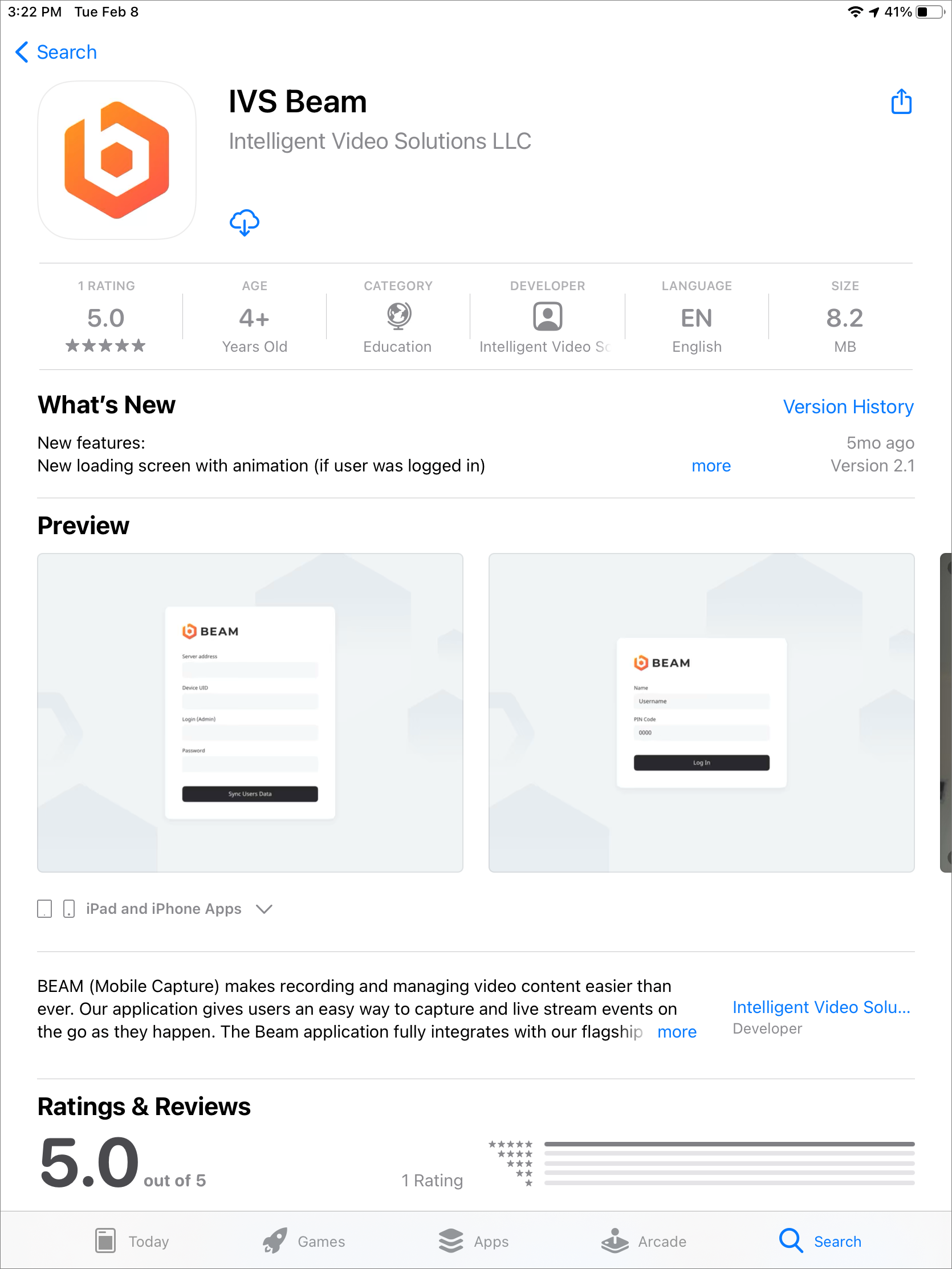
4. Touch the cloud icon to download the app | |||
{{img | file = IPad3.PNG | width = 500px }} | |||
{{hr}} | |||
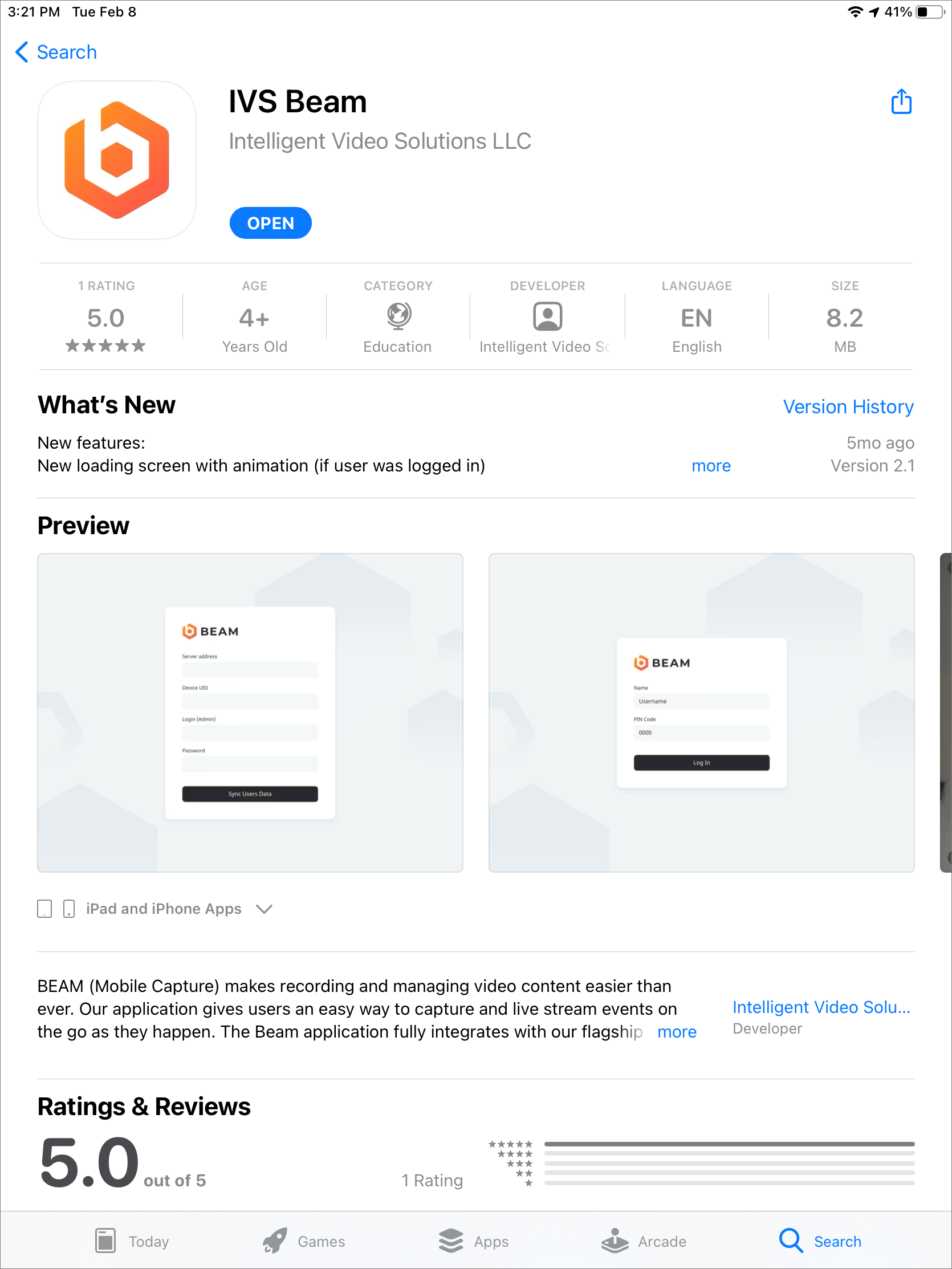
5. After the installation is complete, touch <b>OPEN</b> to open the app | |||
{{img | file = IPad4.PNG | width = 500px }} | |||
}} | |||
[[IVS BEAM Software User Guide | ⤺ Back to IVS BEAM Software User Guide]] | |||
[[ | |||

Latest revision as of 16:38, 26 April 2024
✎
BEAM requires iPadOS 13.0 or later
1. Open the App Store by touching the icon on your iPad or iPhone
2. Touch the search field in the upper right corner and type in IVS Beam
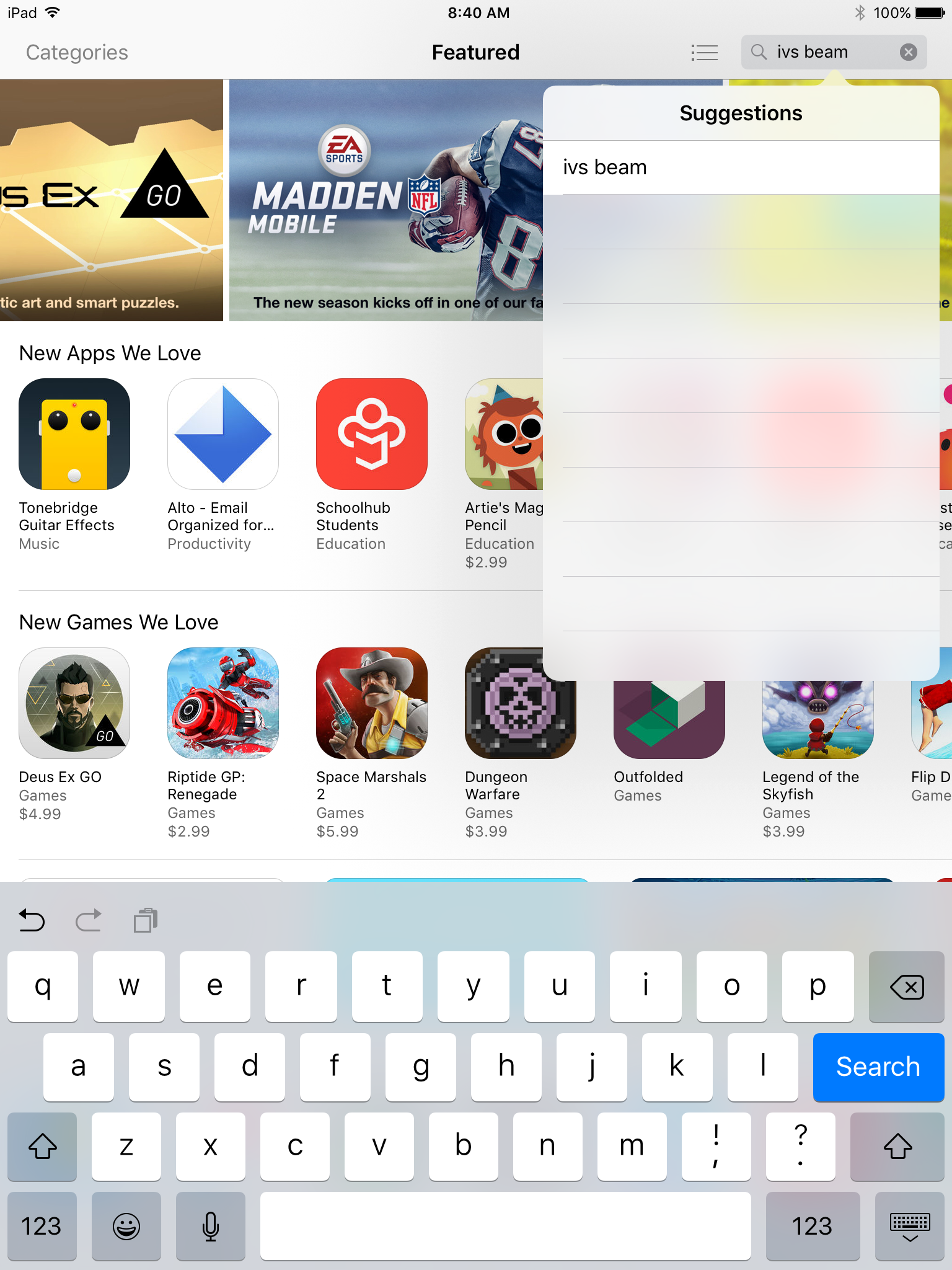
3. Touch Search
4. Touch the cloud icon to download the app
5. After the installation is complete, touch OPEN to open the app