Resize Partition: Difference between revisions
Jump to navigation
Jump to search
IVSWikiBlue (talk | contribs) No edit summary |
IVSWikiBlue (talk | contribs) No edit summary |
||
| (One intermediate revision by the same user not shown) | |||
| Line 1: | Line 1: | ||
{{Article | content = | |||
Typically this process will only need to be performed on a Valt virtual appliance after allocating additional space to the virtual disk. | Typically this process will only need to be performed on a Valt virtual appliance after allocating additional space to the virtual disk. | ||
| Line 14: | Line 15: | ||
#: {{img | file = Resize5.png}} | #: {{img | file = Resize5.png}} | ||
# Start the Wowza Streaming Engine: <pre>sudo service WowzaStreamingEngine start</pre> | # Start the Wowza Streaming Engine: <pre>sudo service WowzaStreamingEngine start</pre> | ||
}} | |||
Latest revision as of 16:08, 22 February 2024
Typically this process will only need to be performed on a Valt virtual appliance after allocating additional space to the virtual disk.
- Stop the Wowza Streaming Engine:
sudo service WowzaStreamingEngine stop
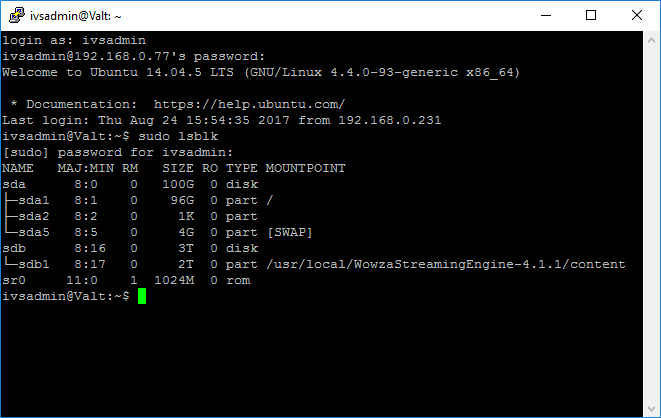
- Identify the VALT Data Storage device:
sudo lsblk
- Unmount the VALT Data Storage Drive:
sudo umount /usr/local/WowzaStreamingEngine-4.7.1/content
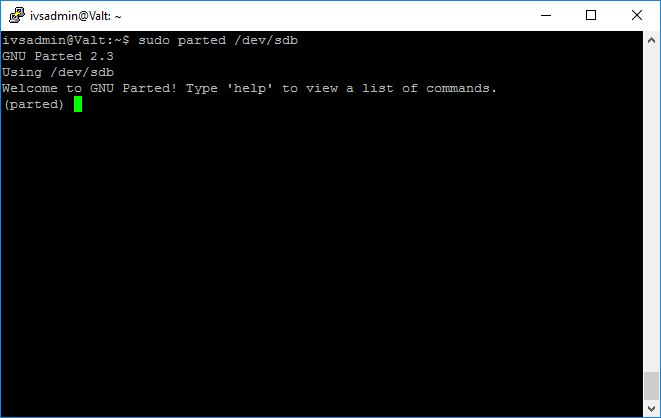
- Run parted:
sudo parted /dev/sdb
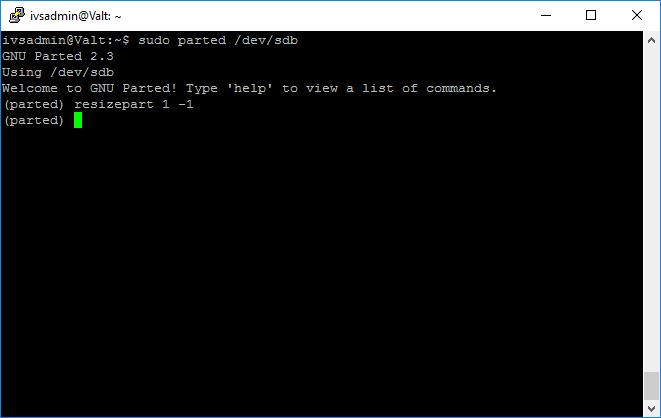
- Resize the partition:
resizepart 1 -1
- Quit parted:
quit
- Resize the File System:
sudo resize2fs -p /dev/sbd1
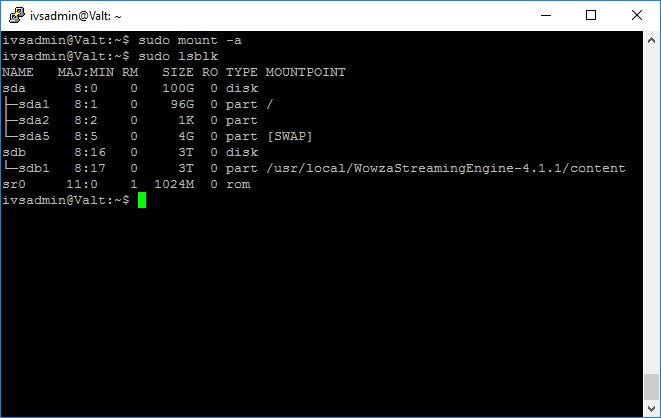
- Mount the VALT Data Storage Drive:
sudo mount -a
- Start the Wowza Streaming Engine:
sudo service WowzaStreamingEngine start