Change the MYSQL password: Difference between revisions
Jump to navigation
Jump to search
IVSWikiBlue (talk | contribs) Created page with "==VALT 5.4 and Below== ====Update parameters.yml==== # Connect to the server via SSH. # Enter the following command and press enter. <code>nano /var/www/v3/app/config/paramete..." |
IVSWikiBlue (talk | contribs) No edit summary |
||
| (One intermediate revision by the same user not shown) | |||
| Line 1: | Line 1: | ||
==VALT 5. | __TOC__ | ||
====Update | {{Article | content = | ||
==VALT 5.5 and Above== | |||
====Update .env.local==== | |||
# Connect to the server via SSH. | # Connect to the server via SSH. | ||
# Enter the following command and press enter. <code>nano /var/www/v3/ | # Enter the following command and press enter. <code>nano /var/www/v3/.env.local</code> | ||
# Locate the line for | # Locate the line for DATABASE_PASSWORD: | ||
#: | #: {{img | file = password5.png}} | ||
# Change the password to the new password. | # Change the password to the new password. | ||
====Update MYSQL User==== | ====Update MYSQL User==== | ||
# Connect to the server via SSH. | # Connect to the server via SSH. | ||
# Enter the following command and press enter. <code>mysql -u ivsadmin -p</code> | # Enter the following command and press enter. <code>mysql -u ivsadmin -p</code> | ||
#: | #: {{img | file = password3.png}} | ||
# Enter the current password for the ivsadmin account. | # Enter the current password for the ivsadmin account. | ||
#: | #: {{img | file = password4.png}} | ||
# At the mysql prompt enter the following command and press enter. <code>ALTER USER 'ivsadmin'@'localhost' IDENTIFIED BY 'enteryournewpasswordhere';</code> | # At the mysql prompt enter the following command and press enter. <code>ALTER USER 'ivsadmin'@'localhost' IDENTIFIED BY 'enteryournewpasswordhere';</code> | ||
====Run assets.sh==== | ====Run assets.sh==== | ||
| Line 17: | Line 19: | ||
# Enter the following command and press enter. <code>sudo /var/www/v3/assets.sh</code> | # Enter the following command and press enter. <code>sudo /var/www/v3/assets.sh</code> | ||
# If prompted, enter the password for the ivsadmin account. | # If prompted, enter the password for the ivsadmin account. | ||
==VALT 5. | |||
====Update . | <hr> | ||
==VALT 5.4 and Below== | |||
====Update parameters.yml==== | |||
# Connect to the server via SSH. | # Connect to the server via SSH. | ||
# Enter the following command and press enter. <code>nano /var/www/v3/. | # Enter the following command and press enter. <code>nano /var/www/v3/app/config/parameters.yml</code> | ||
# Locate the line for | # Locate the line for database_password: | ||
#: | #: {{img | file = password2.png}} | ||
# Change the password to the new password. | # Change the password to the new password. | ||
====Update MYSQL User==== | ====Update MYSQL User==== | ||
# Connect to the server via SSH. | # Connect to the server via SSH. | ||
# Enter the following command and press enter. <code>mysql -u ivsadmin -p</code> | # Enter the following command and press enter. <code>mysql -u ivsadmin -p</code> | ||
#: | #: {{img | file = password3.png}} | ||
# Enter the current password for the ivsadmin account. | # Enter the current password for the ivsadmin account. | ||
#: | #: {{img | file = password4.png}} | ||
# At the mysql prompt enter the following command and press enter. <code>ALTER USER 'ivsadmin'@'localhost' IDENTIFIED BY 'enteryournewpasswordhere';</code> | # At the mysql prompt enter the following command and press enter. <code>ALTER USER 'ivsadmin'@'localhost' IDENTIFIED BY 'enteryournewpasswordhere';</code> | ||
====Run assets.sh==== | ====Run assets.sh==== | ||
| Line 35: | Line 40: | ||
# Enter the following command and press enter. <code>sudo /var/www/v3/assets.sh</code> | # Enter the following command and press enter. <code>sudo /var/www/v3/assets.sh</code> | ||
# If prompted, enter the password for the ivsadmin account. | # If prompted, enter the password for the ivsadmin account. | ||
}} | |||
Latest revision as of 16:53, 10 October 2023
VALT 5.5 and Above
Update .env.local
- Connect to the server via SSH.
- Enter the following command and press enter.
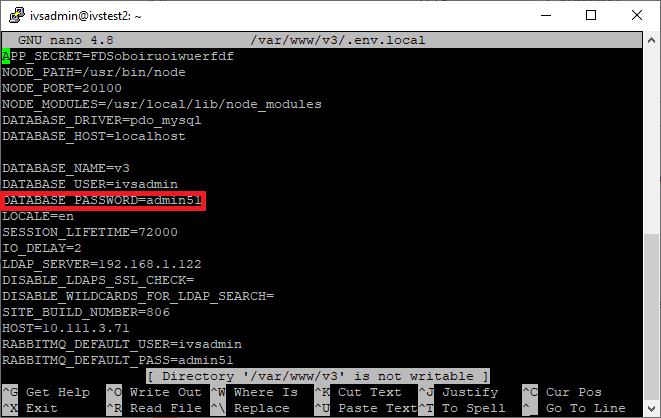
nano /var/www/v3/.env.local - Locate the line for DATABASE_PASSWORD:
- Change the password to the new password.
Update MYSQL User
- Connect to the server via SSH.
- Enter the following command and press enter.
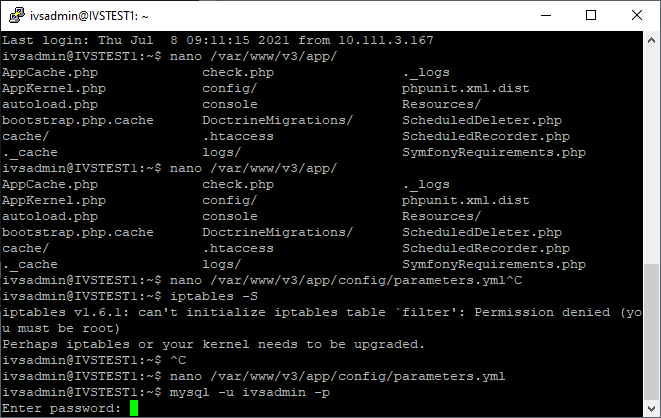
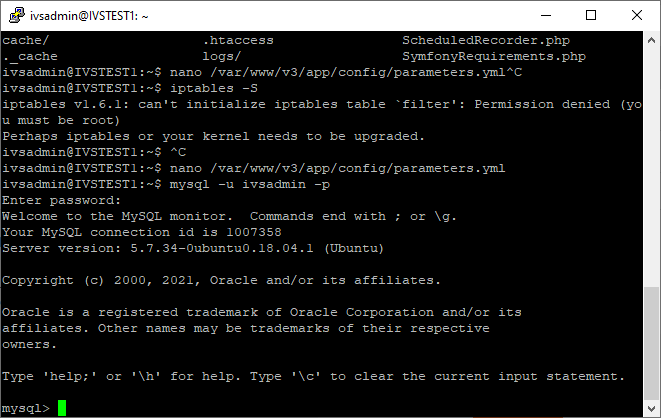
mysql -u ivsadmin -p - Enter the current password for the ivsadmin account.
- At the mysql prompt enter the following command and press enter.
ALTER USER 'ivsadmin'@'localhost' IDENTIFIED BY 'enteryournewpasswordhere';
Run assets.sh
- Connect to the server via SSH.
- Enter the following command and press enter.
sudo /var/www/v3/assets.sh - If prompted, enter the password for the ivsadmin account.
VALT 5.4 and Below
Update parameters.yml
- Connect to the server via SSH.
- Enter the following command and press enter.
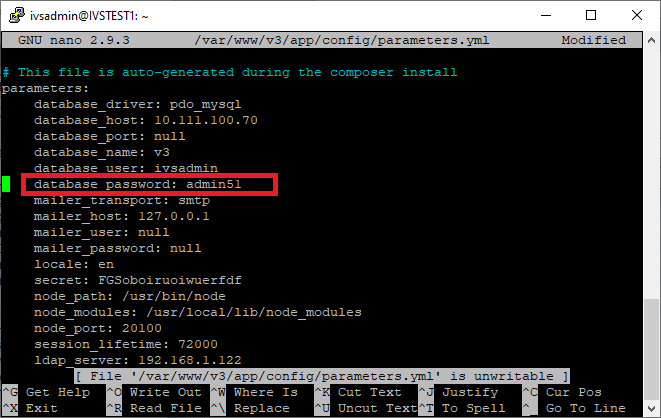
nano /var/www/v3/app/config/parameters.yml - Locate the line for database_password:
- Change the password to the new password.
Update MYSQL User
- Connect to the server via SSH.
- Enter the following command and press enter.
mysql -u ivsadmin -p - Enter the current password for the ivsadmin account.
- At the mysql prompt enter the following command and press enter.
ALTER USER 'ivsadmin'@'localhost' IDENTIFIED BY 'enteryournewpasswordhere';
Run assets.sh
- Connect to the server via SSH.
- Enter the following command and press enter.
sudo /var/www/v3/assets.sh - If prompted, enter the password for the ivsadmin account.