Chrome: Difference between revisions
Jump to navigation
Jump to search
IVSWikiBlue (talk | contribs) No edit summary |
IVSWikiBlue (talk | contribs) No edit summary |
||
| (6 intermediate revisions by the same user not shown) | |||
| Line 1: | Line 1: | ||
=Delete | =Delete Browser Cache With a Shortcut= | ||
You can clear your Chrome browser cache utilizing a shortcut: | |||
#Press the | <div class="section"> | ||
#Press {{Keyboard | key = CTRL}} + {{Keyboard | key = ALT}} + {{Keyboard | key = DEL}} | |||
#You will see a new tab open | |||
#Change the Time Range to <b>All time</b> | |||
#Make sure that <b>Cached images and files</b> is checked | |||
#Click on <b>Clear data</b>: | |||
</div><br> | |||
: {{img | file = Chrome_Clear_Data_Confirmation.png | width = 1250px}} | |||
<br> | |||
<div class="floating_card"><b>Note:</b> After clearing your browser cache, be sure to reload your site</div> | |||
=Clear | =Clear Browser Cache Manually= | ||
If you don't want to use the keyboard shortcut, you can access it manually: | |||
Click on the | <div class="section"> | ||
#Click on the three dots in the upper right corner of Chrome | |||
#Select <b>More tools</b> | |||
#Select <b>Clear browsing data...</b> | |||
</div><br> | |||
: {{img | file = Chrome_Clearing_Browsing_Data.png | width = 1250px}} | |||
<br> | |||
<div class="section"> | |||
<ol start="4"> | |||
<li>You will see a new tab open</li> | |||
<li>Change the Time Range to <b>All time</b></li> | |||
<li>Make sure that <b>Cached images and files</b> is checked</li> | |||
<li>Click on <b>Clear data</b>:</li> | |||
</ol> | |||
</div><br> | |||
: {{img | file = Chrome_Clear_Data_Confirmation.png | width = 1250px}} | |||
<br> | |||
<div class="floating_card"><b>Note:</b> After clearing your browser cache, be sure to reload your site</div> | |||
Latest revision as of 18:59, 4 August 2022
Delete Browser Cache With a Shortcut
You can clear your Chrome browser cache utilizing a shortcut:
- Press CTRL + ALT + DEL
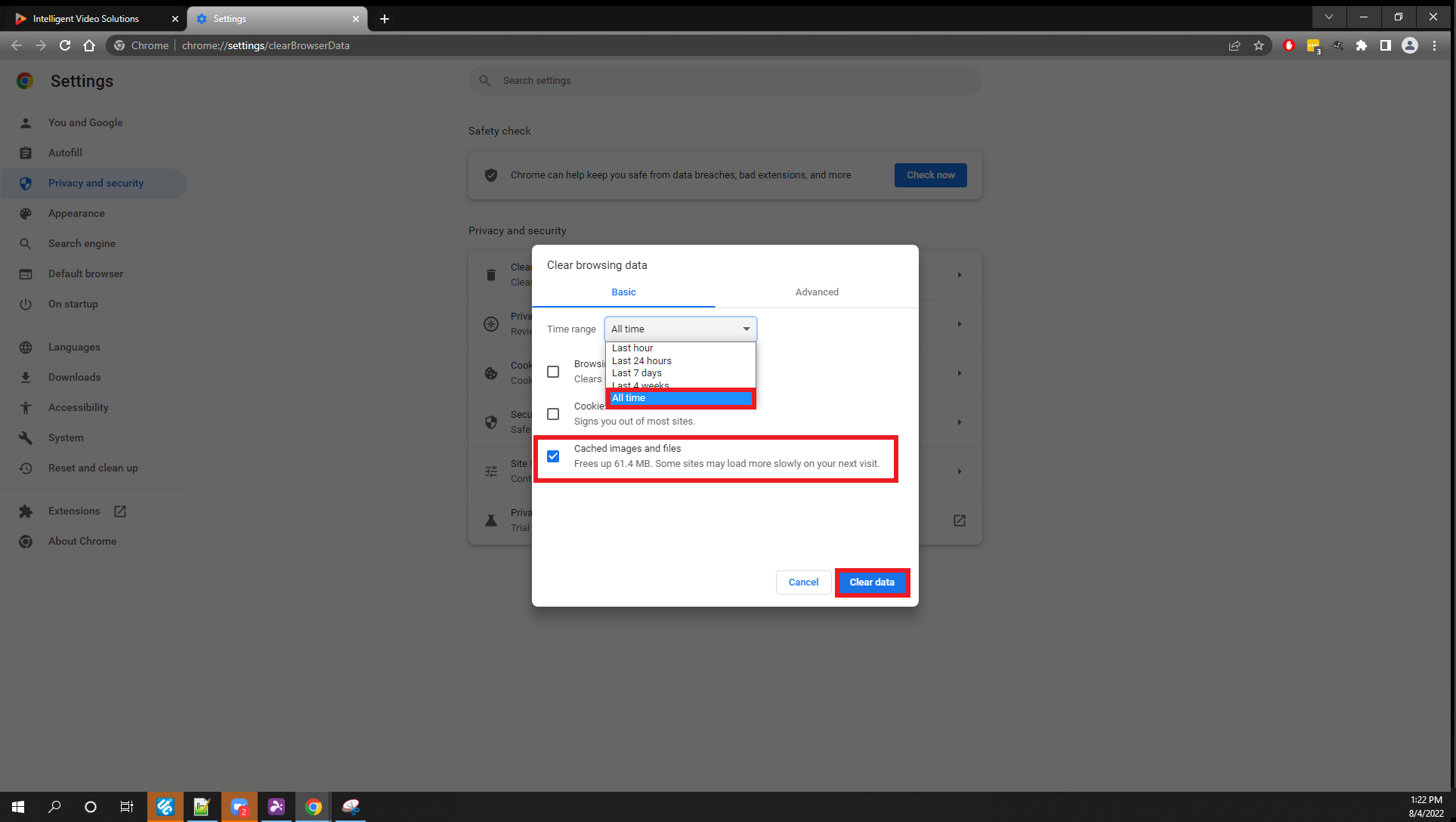
- You will see a new tab open
- Change the Time Range to All time
- Make sure that Cached images and files is checked
- Click on Clear data:
Note: After clearing your browser cache, be sure to reload your site
Clear Browser Cache Manually
If you don't want to use the keyboard shortcut, you can access it manually:
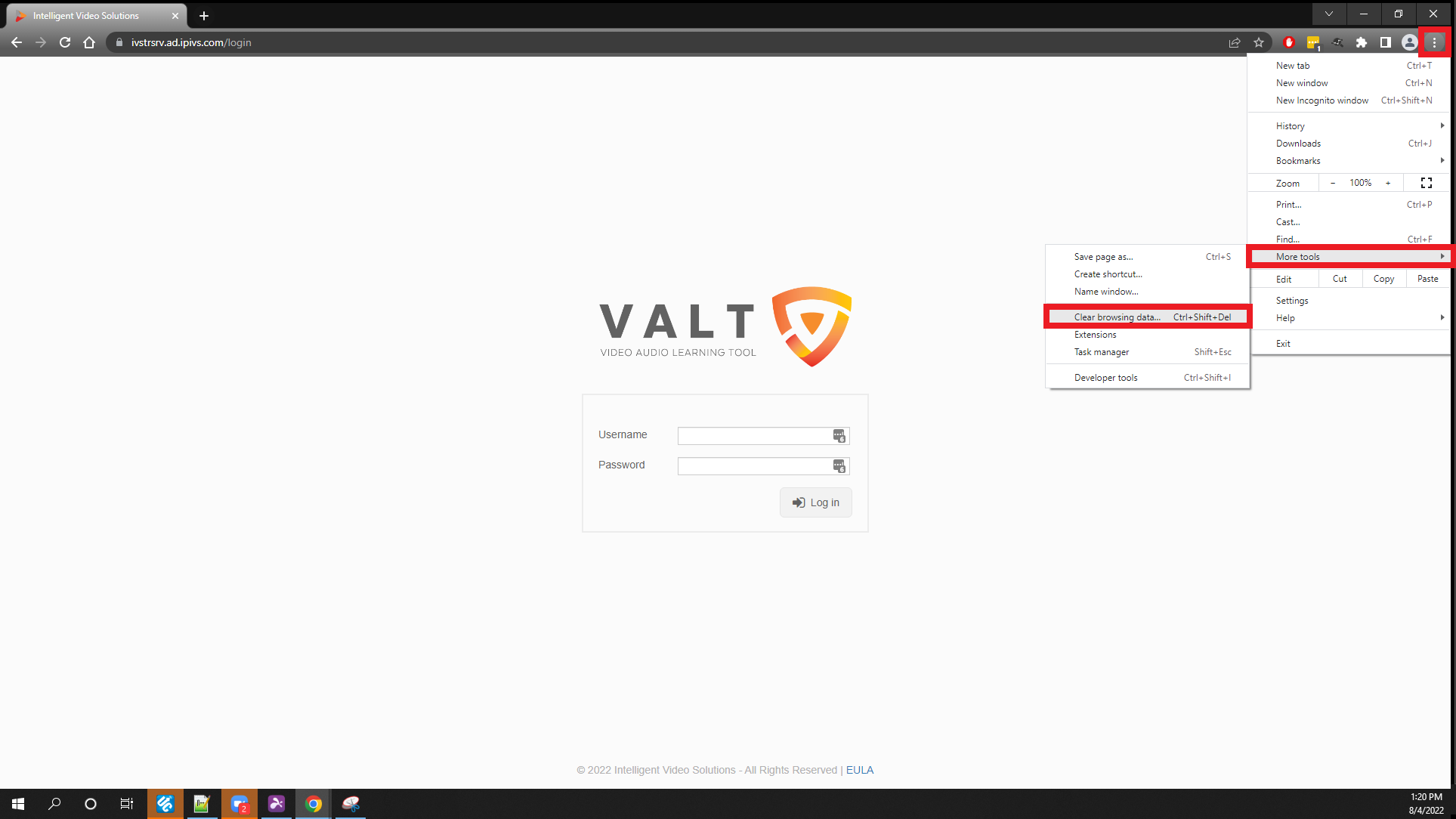
- Click on the three dots in the upper right corner of Chrome
- Select More tools
- Select Clear browsing data...
- You will see a new tab open
- Change the Time Range to All time
- Make sure that Cached images and files is checked
- Click on Clear data:
Note: After clearing your browser cache, be sure to reload your site